

This article highlights three technologies that you can combine to create a super-app: Flutter, Firebase, and Codemagic. Our task is to configure Firebase for all platforms supported by the Flutter framework, utilize Firebase Remote Config to alter the appearance of our app without making these changes manually and then set up CI/CD using Codemagic to distribute our app via Firebase App Distribution. We’ll be creating a live demo of the app to demonstrate the power of these technologies.
Before we dive into setting up Firebase with the FlutterFire CLI, let’s discuss the technologies we’ll be using.
This article is written by Jahswill Essien
What is the Flutter framework?
If you’re reading this article, you likely already have some kind of idea of what Flutter is. But in case you don’t, Flutter is a UI toolkit developed by Google. It’s used to develop cross-platform applications for Android, iOS, Linux, macOS, and Windows with a single codebase.
What is Firebase?
Firebase is a Backend-as-a-Service (BaaS) that offers several tools and services to help ease the process of building a product, tracking the growth of the product, and scaling it up. Some of the tools offered by Firebase are:
You can skip this part if you already know about the tools provided by Firebase.
- Realtime Database: A NoSQL database provided by Firebase to store and sync data between your users in real time. It is also optimized for offline use.
- Cloud Firestore: An upgrade of the Realtime Database. It provides a new and more intuitive data model that introduces the concepts of
collectionsanddocument. It also features richer, faster queries and scales more than the Realtime Database, both in performance and pricing. - Authentication: Firebase also provides an easier way to perform authentication with different services or platforms, including but not limited to email password, phone number, Google, Facebook, Twitter, and GitHub authentication.
- Cloud Storage: A storage service provided by Firebase. It is cost-effective, powerful, and easy to adopt.
- Remote Config: A cloud service that offers you flexibility in changing your app’s behavior or appearance without requiring users to download an update.
- Dynamic Links: A service that allows you to create a URL that users can click to access different parts of the app depending on how it is configured.
- App Distribution: Helps you get your app build to testers quickly without any hassle.
To find out more about the services provided by Firebase, visit the Firebase docs.
What is Codemagic?
Codemagic is a continuous integration/delivery tool that is easy to set up and works very well with Flutter. It provides services such as building your app, running tests, and other prerequisite tasks.
But its usefulness doesn’t stop there. Depending on your configuration, Codemagic allows you to automatically publish your app to various services, like Google Play Store, App Store, and Firebase App Distribution. All of this is done automatically so that you can relax and sip your coffee without the anguish of waiting for a long build time to manually publish your app.
What is the FlutterFire CLI?
Have you ever had to set up Firebase manually on Flutter? You’ve probably noticed there is a lot of hassle involved. You have to follow different setup configurations to enable Firebase on the different platforms supported by Flutter. Furthermore, frustrating errors can come up during this process if something goes wrong during the setup.
The FlutterFire CLI (command-line interface) is a useful tool that provides commands to help ease the Firebase installation process across all Flutter-supported platforms.
Here’s a little side story about my experience with the command line: When I was starting out, I used to be scared of using the command line and preferred to use a graphical user interface (GUI) for configurations. I had the opinion that the command line was for geeks. But over time, I realized just how easy and convenient it is to use it. And NO, you don’t have to memorize every command — you can always Google them or keep a command-line cheat sheet handy. If you feel the same way about the command line that I used to, rest assured — I get you.
Why use the FlutterFire CLI?
Using the FlutterFire CLI is faster and more efficient. It saves you time and energy since you don’t have to try and figure out how to resolve a persistent error when configuring Firebase manually.
What to expect from this article
This article will be broken into five sections.
- Section one: The first section, which we’ve just concluded, enlightened us on the different technologies we’ll be using.
- Section two: The second section will walk us through the installation of the FlutterFire CLI.
- Section three: This section will guide us through configuring Firebase for all platforms supported by Flutter using the FlutterFire CLI.
- Section four: In this section, we’ll start implementing Firebase Remote Config to alter the appearance of our app remotely.
- Section five: Finally, we’ll set up Codemagic to build our application and upload it to Firebase App Distribution.
Setup
To follow along, download the starter code by running the command below. This is a very simple application with a single screen that shows a list of rentals.
git clone -b starters-code git@github.com:jasperessien2/rental_app.git
You can see the folder structure below.
lib/
|- domain
|  |_ repository.dart
|
|- data
|  |- model
|  |  |_ property.dart
|  |_ repository_impl.dart
|
|- presentation
|  |- widgets
|  |  |_ item_property.dart
|  |
|  |_ data_controller.dart
|  |_ home_screen.dart
|  |_ repository_provider.dart
|
|_ main.dart
The domain layer houses the repository contract, and the data layer contains our model class and the implementation of the repository. The presentation layer holds the widget classes, data_controller, and repository_provider, which is responsible for injecting the repository down the widget tree. The next section will cover how to set up the FlutterFire CLI.
Installing FlutterFire CLI
You need to install the Firebase CLI because the FlutterFire CLI depends on it. Run the command below in the command line to install the Firebase CLI tool on your computer.
npm install -g firebase-tools
To run this command, you need to have
Node.jsinstalled on your computer. If you don’t have it installed, visit theNode.jsdownload page, and download aNode.jsinstaller for your OS.
Install the FlutterFire CLI tool by running the command below.
dart pub global activate flutterfire_cli
If your terminal does not recognize this command, make sure that the Dart SDK has been added to PATH.
You should see the messages below if the command above was successful.
Building package executables... (3.6s)
Built flutterfire_cli:flutterfire.
Installed executable flutterfire.
Activated flutterfire_cli 0.1.3.
Configuring Firebase
As a prerequisite for this section, create a Firebase account here if you don’t already have one. Also, make sure that the firebase_core dependency has been added to the project by running flutter pub add firebase_core.
Next, run the command below to begin configuring FlutterFire.
flutterfire configure
Make sure you run this command at the root of the Flutter project.
After running the command above, you’ll see a list of existing Firebase projects and a create a new project option. In our case, we will create a new project since we haven’t created one specific to our app. Use your arrow keys to make your selection.
Type in the name you want to give the Firebase project. If you run into an error that says the name has already been taken, try a different project name.
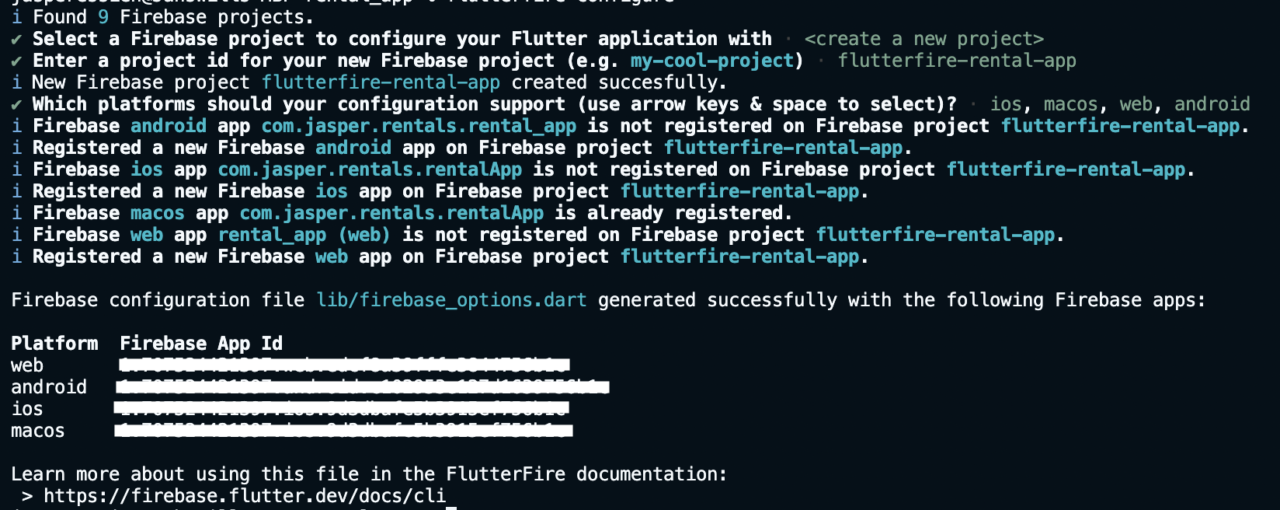
The next step is to select the platforms FlutterFire should configure for. (Use the arrow keys to make your selections and the space key to select or deselect platforms.) After the configuration is completed successfully, a firebase_options.dart file is generated along with some .json files. The output should look similar to the image below.
You can also check your Firebase console to confirm that the project was created and configurations were done for all the platforms you specified.
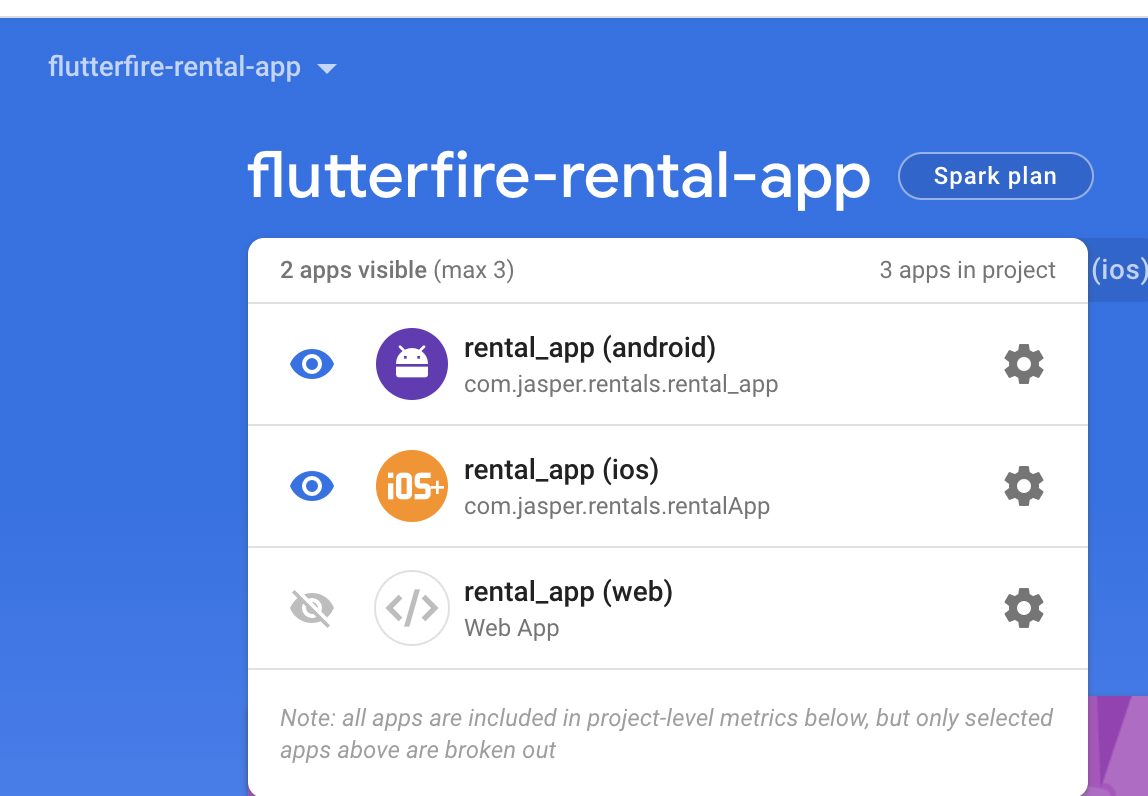
If you’ve ever configured Firebase for different platforms, you’ll appreciate the introduction of the FlutterFire CLI, as it makes this process seamless and easy. In the next section, we’ll make use of Firebase services.
Implementing Firebase Remote Config
The goal of this section is to use Remote Config to change the look of our app remotely, specifically the colors. Run flutter pub add firebase_remote_config to add the Firebase plugin for Remote Config.
Normally, before using Firebase in a Flutter app, you need to initialize Firebase by calling Firebase.initialiseApp(). So let’s do that, but this time, we will pass in our generated Firebase option as the option argument.
Go to the main.dart file and update the main() method with the code below.
 void main() async {
   WidgetsFlutterBinding.ensureInitialized();

     /// Here, we initialize Firebase and pass in our generated
     /// Firebase option [DefaultFirebaseOptions.currentPlatform]
    await Firebase.initializeApp(
        options: DefaultFirebaseOptions.currentPlatform,
    );

    runApp(const MyApp());
}
We pass
DefaultFirebaseOptions.currentPlatformso that Flutter will use configurations automatically for the platform that’s currently running.
Don’t forget to import the generated firebase_options.dart file by adding the code below at the topmost level of the main.dart file.
import 'firebase_options.dart';
Remote Config provides options to save and restore simple String, Int, Boolean, and Double values.
In our case, though, we want the flexibility to change certain colors of our app, so we need a way to convert a Color object to a String and vice versa. The code snippet below does just that. Create a file named color_ext.dart and include the code below.
import 'package:flutter/material.dart';

extension ColorHex on Color {
  /// String is in the format "aabbcc" or "ffaabbcc" with an optional leading "#".
  static Color fromHex(String hexString) {
    final buffer = StringBuffer();
    if (hexString.length == 6 || hexString.length == 7) buffer.write('ff');
    buffer.write(hexString.replaceFirst('#', ''));
    return Color(int.parse(buffer.toString(), radix: 16));
  }

  /// Prefixes a hash sign if [leadingHashSign] is set to `true` (default is `true`).
  String toHex({bool leadingHashSign = true}) => '${leadingHashSign ? '#' : ''}'
      '${alpha.toRadixString(16).padLeft(2, '0')}'
      '${red.toRadixString(16).padLeft(2, '0')}'
      '${green.toRadixString(16).padLeft(2, '0')}'
      '${blue.toRadixString(16).padLeft(2, '0')}';
}
This code was retrieved from an answer on Stack Overflow.
In the main.dart file under the main() method, add a method named _setUpRemoteConfig() that will be responsible for initializing FirebaseRemoteConfig.
Future<FirebaseRemoteConfig> _setUpRemoteConfig() async {
    /// Gets an instance of [FirebaseRemoteConfig]
    final remoteConfig = FirebaseRemoteConfig.instance;

    /// This gives the config some settings
    await remoteConfig.setConfigSettings(
        RemoteConfigSettings(
            /// By giving a timeout of 10 seconds, we tell Firebase to try fetching
            /// configurations and wait for a maximum of 10 seconds
            fetchTimeout: const Duration(seconds: 10),

            /// Since Remote Config caches configuration, setting this param
            /// let Firebase know when to consider cached configuration data as obsolete
             minimumFetchInterval: Duration.zero,
        ),
    );

    /// For our configurations, we are giving it default values to fall to
    /// in cases where fetching config fails or isn't found
    await remoteConfig.setDefaults(
        {
        'scaffold_color': Colors.white.toHex(),
        'app_bar_title_color': const Color(0xff333333).toHex(),
        'text_field_color': Colors.grey[100]!.toHex(),
        'shadow_color': Colors.grey[300]!.toHex(),
        },
    );

    return remoteConfig;
}
Call the method above in our main() method.
await _setUpRemoteConfig();
Considering that the state of our MyApp widget would change, migrate MyApp from a StatelessWidget to a StatefulWidget.
You can find this widget in the
lib/main.dartfile.
Initialize a global variable of type FirebaseRemoteConfig.
final remoteConfig = FirebaseRemoteConfig.instance;
Override initState() and listen to config changes.
 @override
  void initState() {
    /// Listen to changes and rebuild the app when there's a change in config
    remoteConfig.addListener(() {
      setState(() {});
    });

    super.initState();
  }
Replace the build() with the code snippet below.
 @override
  Widget build(BuildContext context) {

    /// Gets the color values saved in Remote Config
    final scaffoldColor = remoteConfig.getString('scaffold_color');
    final titleColor = remoteConfig.getString('app_bar_title_color');
    final textFieldColor = remoteConfig.getString('text_field_color');

    return RepositoryProvider(
      repository: DummyRepositoryImpl(),
      child: MaterialApp(
        title: 'Rental App',
        theme: ThemeData(
            /// Convert them to Color object and use them
          scaffoldBackgroundColor: ColorHex.fromHex(scaffoldColor),
          backgroundColor: ColorHex.fromHex(scaffoldColor),
          inputDecorationTheme: InputDecorationTheme(
            fillColor: ColorHex.fromHex(textFieldColor),
            filled: true,
            border: OutlineInputBorder(
              borderSide: BorderSide.none,
              borderRadius: BorderRadius.circular(16),
            ),
          ),
          appBarTheme: AppBarTheme(
            backgroundColor: ColorHex.fromHex(scaffoldColor),
            elevation: 0,
            centerTitle: false,
            toolbarTextStyle: _titleTextStyle.copyWith(
              color: ColorHex.fromHex(titleColor),
            ),
            titleTextStyle: _titleTextStyle.copyWith(
              color: ColorHex.fromHex(titleColor),
            ),
          ),
        ),
        home: const MyHomePage(),
      ),
    );
  }
Notice that in the code above, rather than hard-coding our color values, we fetch them from FirebaseRemoteConfig and then use them in our ThemeData.
The floating action button in the HomeScreen widget will be responsible for triggering the fetching of configurations from the remote server. In the onPressed callback parameter, pass in the code below.
FirebaseRemoteConfig.instance.fetchAndActivate()
You can find this file in
lib/presentation/home_screen.dart.
In lib/presentation/widgets/item_property.dart, update the ItemProperty widget to use the shadow color from Remote Config.
final remoteConfig = FirebaseRemoteConfig.instance;
final shadowColor =
    ColorHex.fromHex(remoteConfig.getString('shadow_color'));
We are done with our demo app, and it’s time for us to share it with the rest of the team for testing. We will do that by uploading our app to the Firebase App Distribution service.
But wait — it’s time for a coffee break. The thought of waiting for the app to be built and then uploading it to Firebase manually is infuriating. Luckily, Codemagic comes to the rescue. In the next section, we will follow an easy process to set up Codemagic to handle building and uploading our application.
Setting up Firebase on Codemagic
Head over to https://codemagic.io/ to log in, or create an account if you don’t have one already.
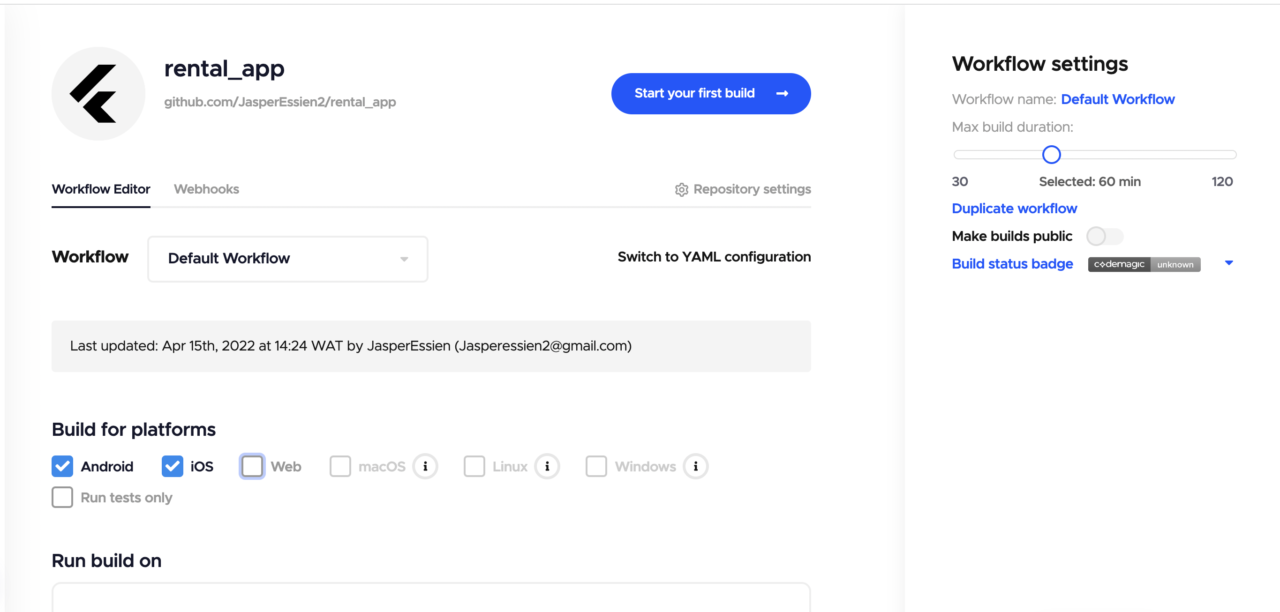
On the Codemagic dashboard, click on the Add application button. Then select the Git provider you want to use for your project.
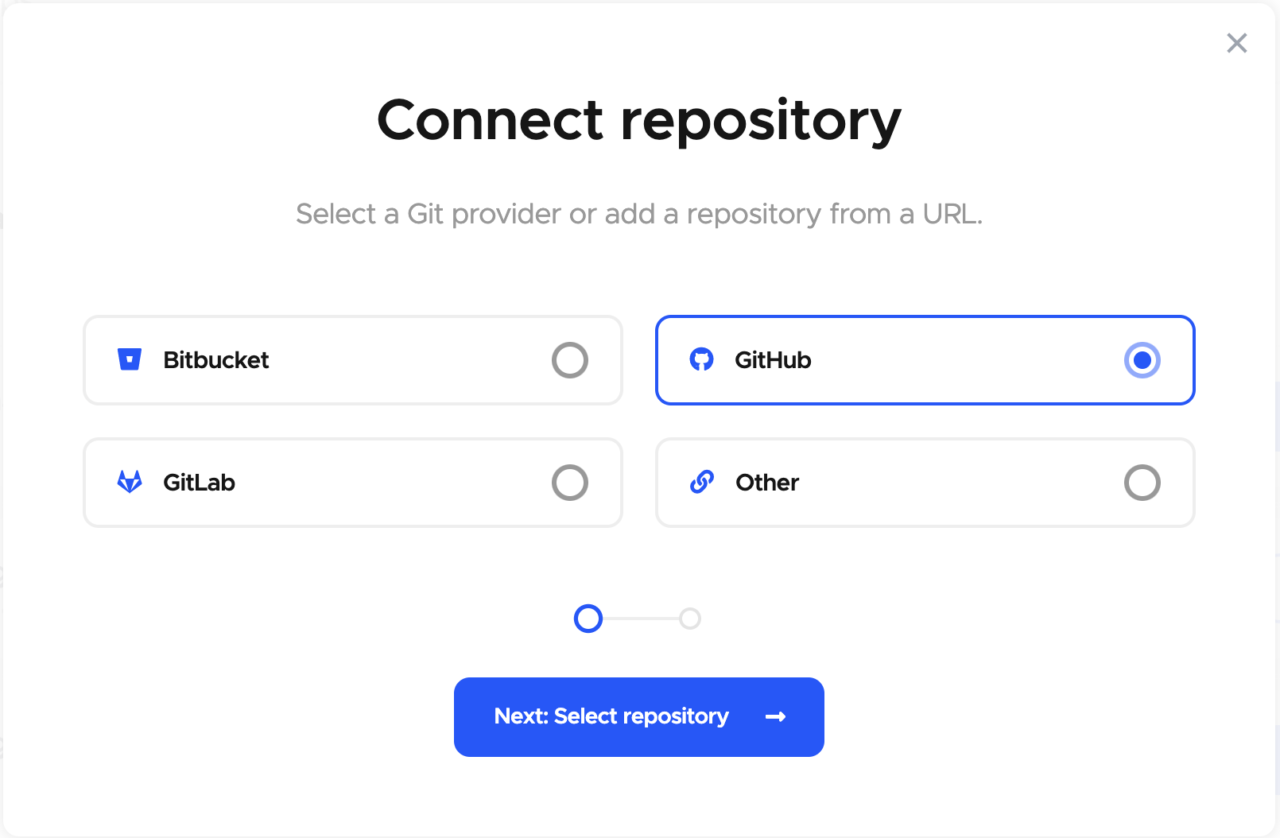
Click on Next: Select repository button, then select rental_app as the repository and Flutter App as the project type.
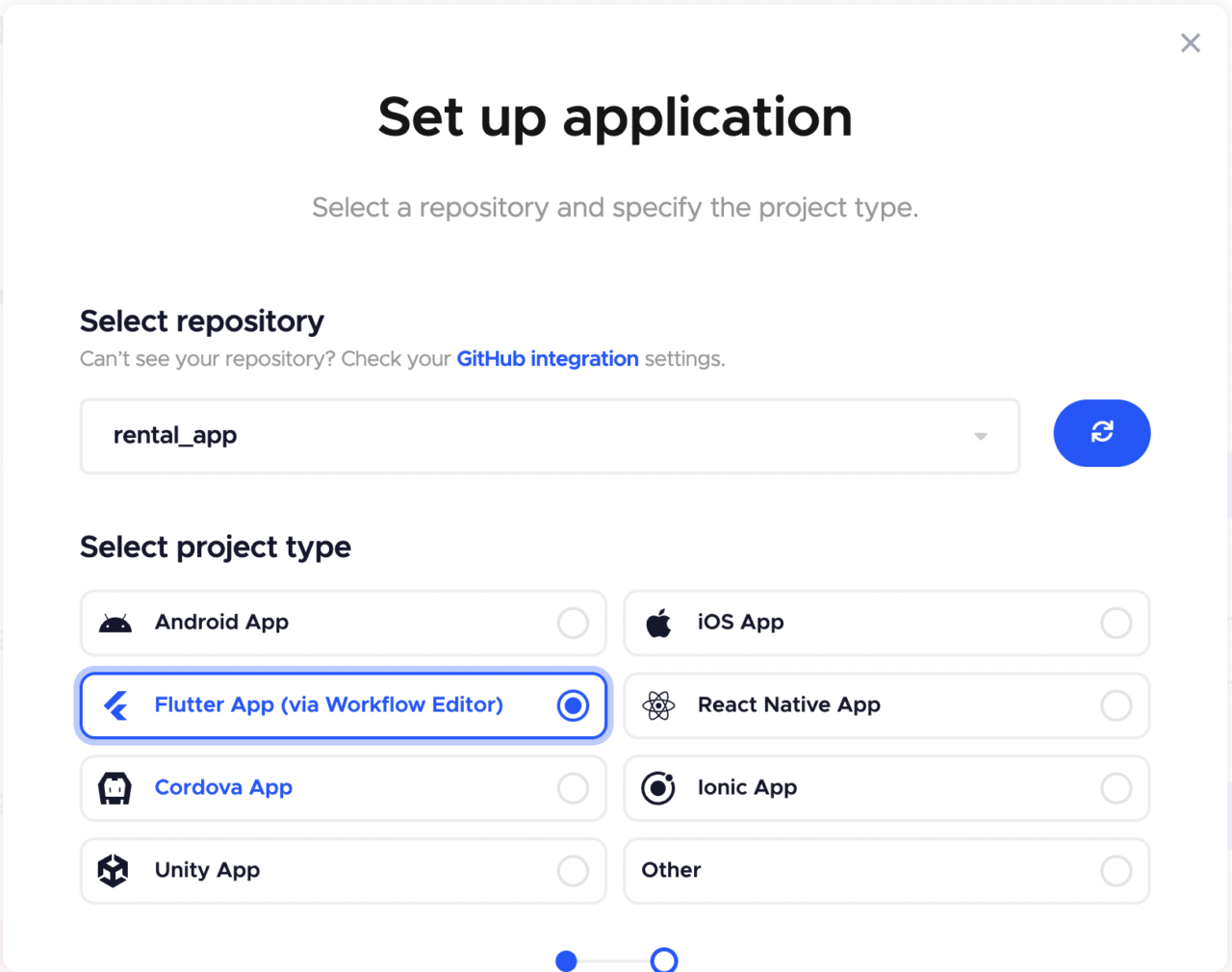
Completing the process above will lead you to the screen below. Select Android and iOS in the Build for platforms section.
Setting up build triggers
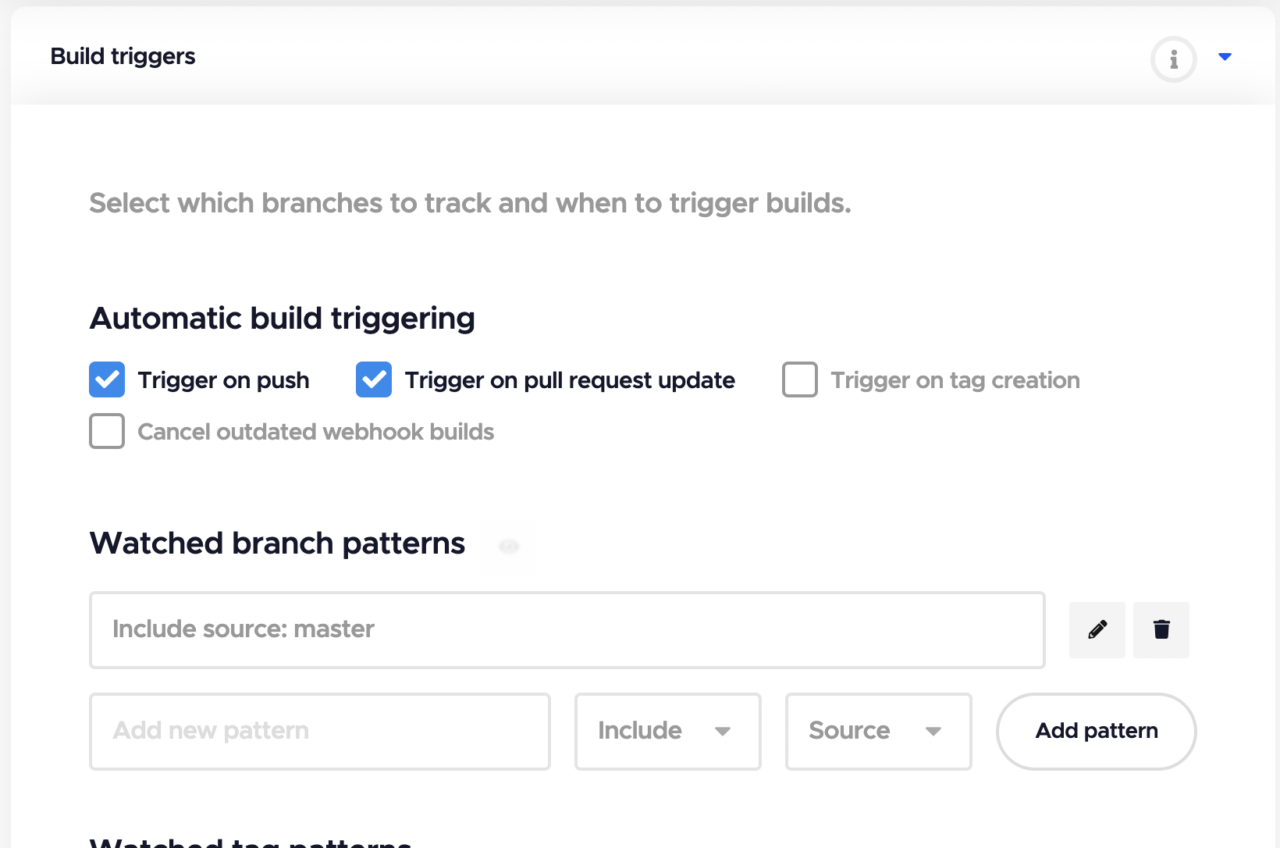
This section deals with setting up Git actions that will trigger Codemagic to start building your application. You can trigger a build when code is pushed, when there is a pull request update, or when a tag is created. You can attach these triggers to a specific branch target.
In this case, we want a build to occur when a push or pull request happens on the master branch.
Build section setup
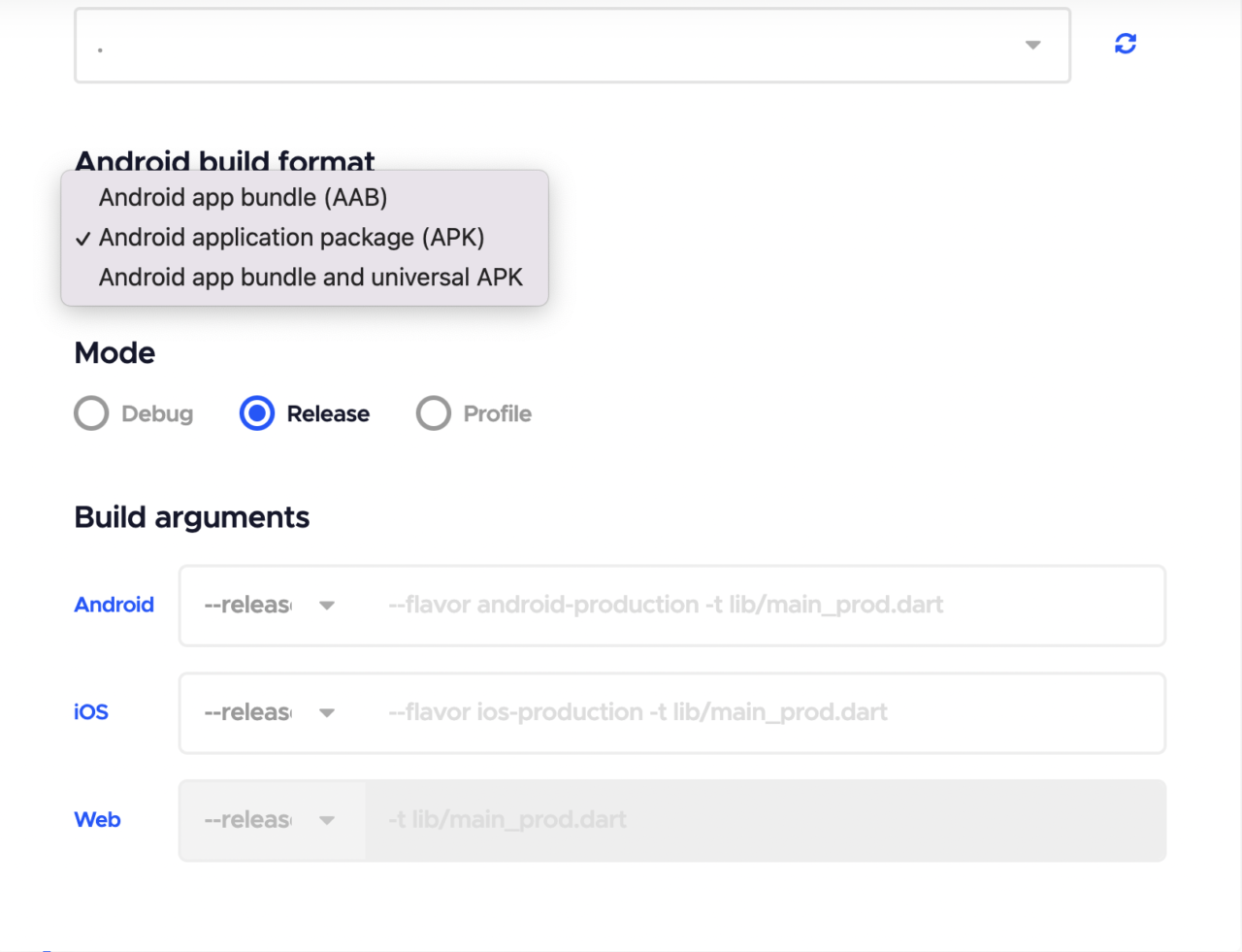
In this section, select APK as the Android build format. Select Release as the build mode.
Firebase App Distribution setup
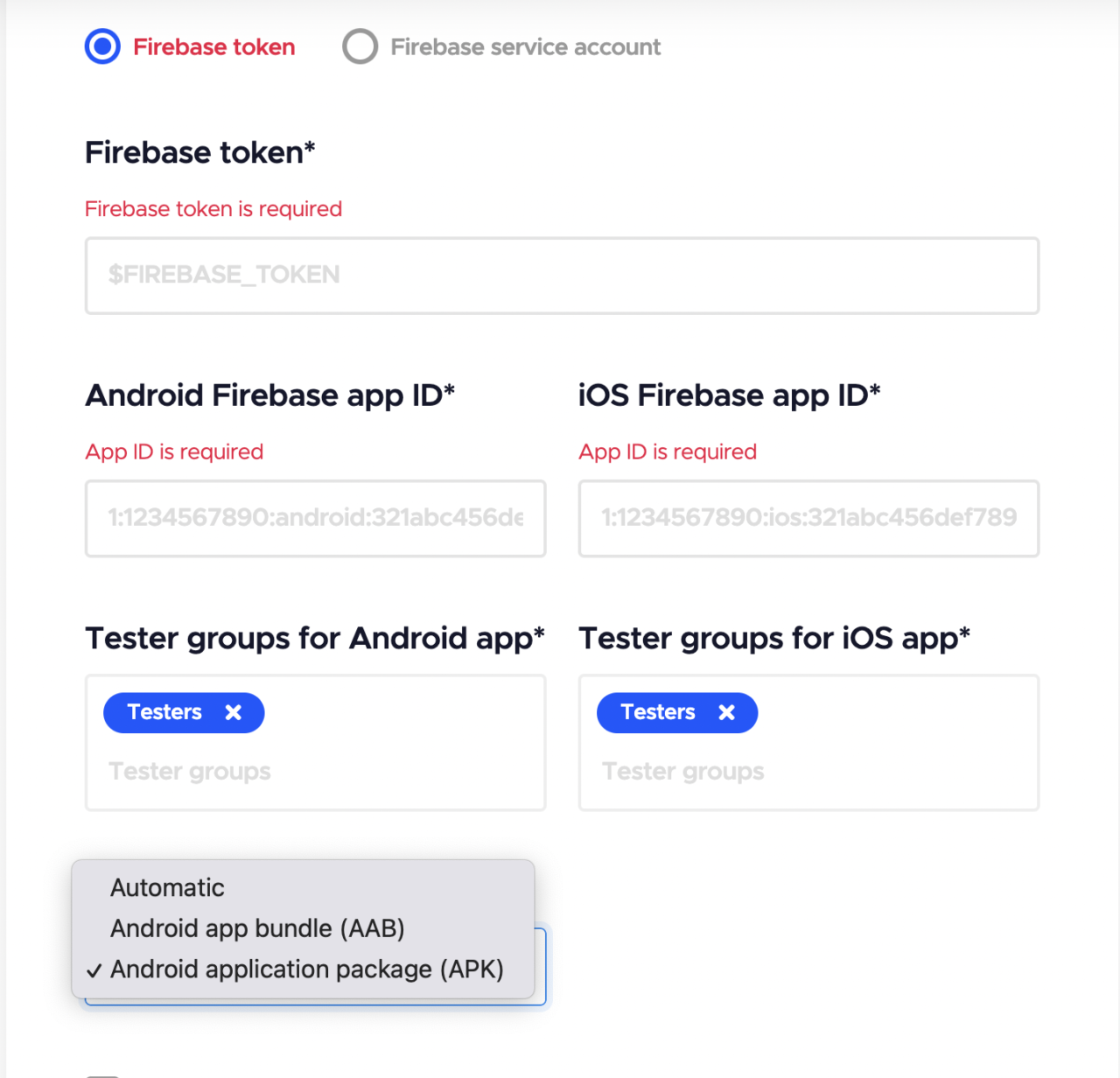
Next, head over to the Distribution section under Firebase App Distribution:
-
Make sure Firebase token is selected.
-
Generate a Firebase token by running
firebase login: ciin your terminal. You’ll be directed to your browser to log in to the Firebase console. After successfully logging in, go back to your terminal, copy the token, and paste it into the field labeled Firebase token. -
Head over to the generated
firebase_options.dartfile, which is in thelib/folder by default.- Copy the
appIdfor Android configurations, and input it in the field labeled Android Firebase App ID in the Codemagic setup. - Copy the
appIdfor iOS configurations, and input it in the field labeled iOS Firebase App ID in the Codemagic setup.
- Copy the
-
Add a tester group name for both Android and iOS. Then head to Firebase console to add testers’ emails. These testers will receive an invitation to download the app for testing.
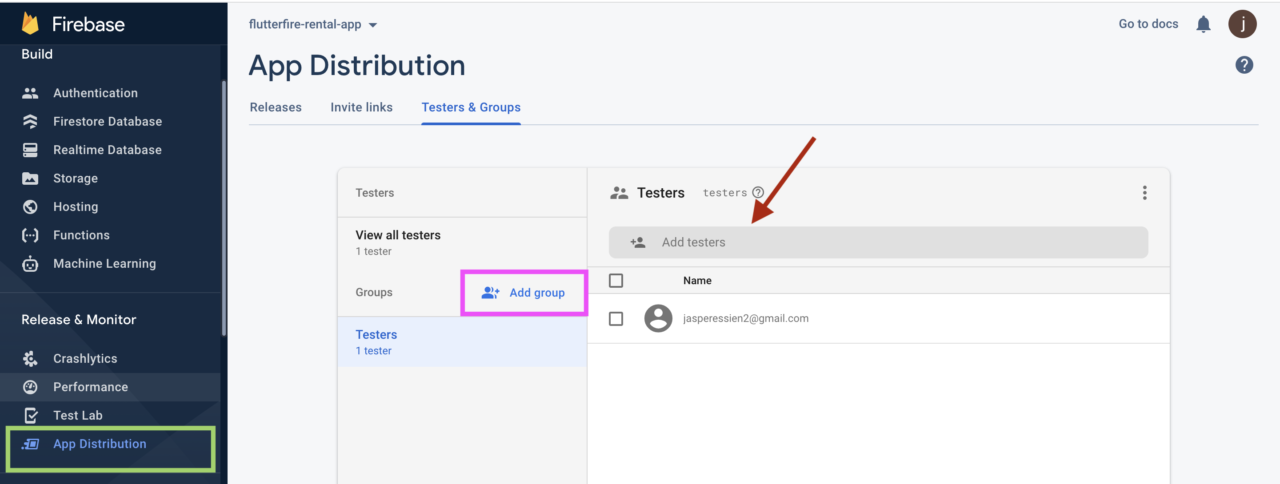
App Distribution -> Add Group -> Add Testers
-
Select APK as the Android artifact type.
-
Click on the Save Button to save the changes.
After following the setup above and saving, click on the Start new build button. This will take a few minutes, and then boom — your testers will get an invitation link sent to their email.
Conclusion
We covered a lot in this article, including a description of FlutterFire CLI, why you should use it, and a simple demonstration of how to set it up. We also learned how to utilize Remote Config, one of the services offered by Firebase.
Finally, we delved into how to set up Codemagic, which has proven to be a seamless, cost-effective, and efficient continuous integration/delivery tool. We’ve seen that it is very easy to set up and works tremendously well with Flutter. We were able to set up Codemagic to perform a successful build, upload the application build to Firebase App Distribution, and invite testers to test the app on our behalf.
Jahswill Essien is a mobile developer, ardent on building awesome stuff with Flutter, he has been using Flutter for the past 2 years.
Jahswill is a visual learner as such he strives to write articles that contain pictorial illustrations and/or analogies to drive home a concept explained. His favourite quote is: “We are constrained by our mind, what we feel is our limit isn’t our limit. It’s amazing how much we can learn in a short amount of time by perseverance alone”.
Check out some things Jahswill built with flutter by visiting his Github profile.


Discussion about this post