








What the Tap to Send default Smart Reply setting does
When you tap on a Smart Reply, an action known as “Tap to Send” takes over and sends the Smart Reply you selected as a new message. The problem is that the Smart Reply could be sent with a typo or without giving you a chance to add to the response.
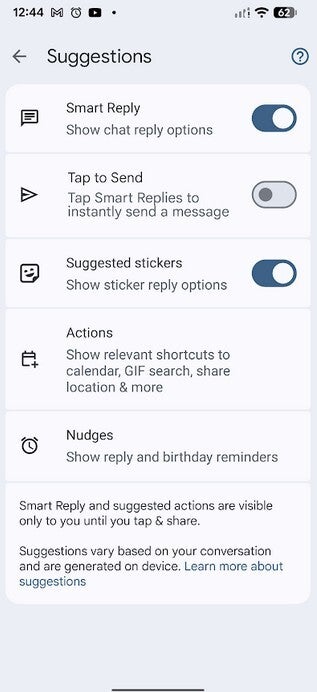
The default set up, Tap to Send takes a Smart Reply you picked and sends it as a message instantly. | Image by PhoneArena
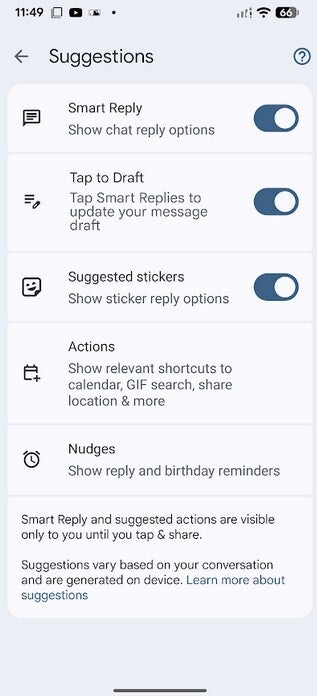
Toggle on the setting to enable Tap to Draft, which sends a Smart Reply to your text fiekd where you can edit it. | Image by PhoneArena
How to enable Tap to Draft
To change how you have Google Messages set up, open the app and tap the profile icon in the right corner of the app. Tap on Messages setting > Suggestions. The second entry, the one under Smart Reply, will say Tap to Send by default. The toggle switch will be off. If you prefer to have Smart Reply messages you select go to the text field where you can edit it, toggle on the Tap to Send setting, and it will change to Tap to Draft. Whichever one you choose to go with will stay selected when you exit out of the app.
Google is always working on ways to improve certain apps and clearly, Google Messages is one of them.








Discussion about this post