









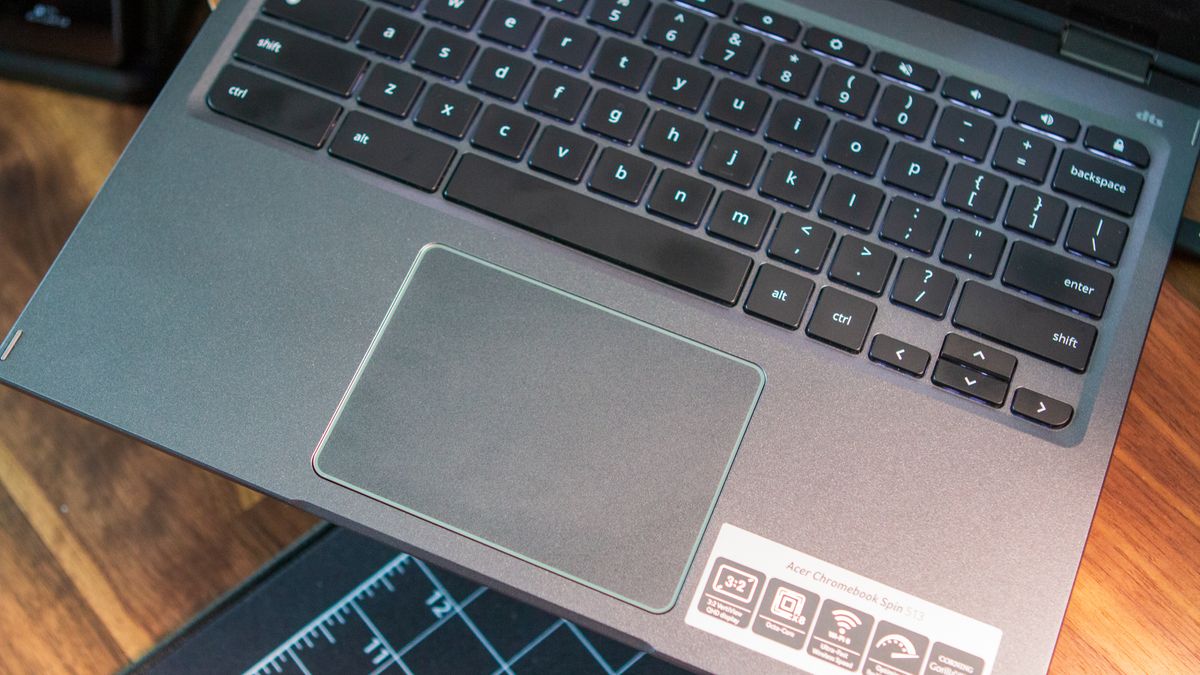
Some keyboard shortcuts are universal — Crtl + C for copy, Ctrl + V for paste — but just as often, shortcuts change between systems, websites, and programs. The best Chromebooks have some fairly standard shortcuts — and a handy shortcut Ctrl + Alt + / to show you the more basic ones — but looking at the full list of shortcuts will make your eyes glaze over faster than the old 400-page novel you had to read over summer vacation.
Well, after years of Chromebook use and abuse, I’ve hit on some shortcuts that every student should know, in order to get what they need to be done quicker and better. Start with the 10 essential Chromebook keyboard shortcuts you need to know, then scope out the masterclass below. After all, if there’s anything I learned from school, it’s that you’ve got to work smarter, not harder.
General Chromebook keyboard shortcuts
These system-wide shortcuts are good to know because they can be used no matter what website or web app you’re in. They can help you lay things out more productively on your screen, find what you’re looking for more quickly, or quickly hide a game window before the teacher’s aid walks past.
- Tab shortcuts: Ctrl + T opens a new tab, Ctrl + Shift + T reopens the last closed tab, and Ctrl + W closes the currently selected tab.
- Options menu: Alt + E opens the options menu, the three-dot menu in Google Chrome and Google Files. This shortcut does not work in Android apps.
- Cursor selection and movement: Shift + arrow keys selects text in the direction you move the cursor, and Ctrl + arrow keys moves the cursor one word to the left or right or to the beginning of the line above or below. Using Shift + Ctrl + arrow keys allows you to select larger portions of text quickly.
- Screenshot: Ctrl + Overview (the button that looks like a stack of windows) takes a screenshot of your current full Chromebook screen. Whether you need this for capturing the result you got on a web quiz, how a homework module is misbehaving, or something funny that someone said in a group chat, it’s an essential shortcut to know.

- Screen zoom: Ctrl + + zooms in and magnifies the current tab of Chrome, while Ctrl + – zooms out and shrinks the current tab of Chrome. If you want to return quickly to 100% default zoom, you can do so with Ctrl + 0.
- Hide your game/tab: Alt + – will minimize the current window. If you have multiple windows open, then hitting Alt + – again will minimize the next open window. If you only have one window open on your Chromebook, hitting Alt + – again will restore that minimized window once your teacher, little brother, or parent has left and the coast is clear.
- Split-screening windows: Alt + [ pins the current window to the left side of the screen and Alt + ] pins the current window on the right side of the screen, making it far, far easier to reference your notes while you write your history report or write helpful technology articles. Alt + = will make a window full-width again without making it fullscreen, which hides the address bar, tabs, and toolbars.
Google Drive/Docs shortcuts
Google Drive and Google Docs have some pretty expansive keyboard shortcuts available to users on their websites. While these aren’t all Chromebook exclusive, they are certainly shortcuts worth knowing.
Google Drive shortcuts
- Display all the keyboard shortcuts with: Ctrl + /
- Document creation: Shift + T creates a new Doc, Shift + S creates a new Sheet, and Shift + F creates a new Folder. If you’re going to be using Google Drive for all your notes, homework, and random daydreaming stories throughout the year, create folders early and often to keep things organized.
- Rename items: Tapping N pops up the window to rename the currently selected item. Naming screenshots and other randomly named images and downloaded attachments will help keep things better organized and easy to find in your Google Drive.
- Scroll up, down, left, and right with the j k h l keys if you don’t want your fingers leaving the keyboard.

Google Docs shortcuts
- Clear formatting: Ctrl + \ will clear any weird formatting off of a website or app. On that note, remember that Ctrl+ Shift + V is the shortcut for pasting text without formatting.
- Formatting lists: Ctrl + Shift + 7 will toggle on a numbered list or format highlighted text into a numbered list. Ctrl + Shift + 8 will do the same with a bulleted list.
- Word count: Ctrl + Shift + C will bring up the word count screen, showing how many pages, words, and characters are in a highlighted section and the full document, so you know how close you are to that absolutely insane 10,000-word count your English teacher assigned.
- Voice typing: Ctrl + Shift + S will start voice typing, allowing you to dictate text to your document without having to type it all out.
- Jump to top or bottom: Ctrl + Search + left arrow will take you to the beginning of your document while Ctrl + Search + right arrow will go to the end.
- Insert links: Ctrl + K will open the insert link window in Google Docs, allowing you to create a new hyperlink for new text or add a hyperlink to the text you had currently highlighted.
Files app shortcuts
The Files app on a Chromebook is a bit of a hidden gem. It ties into Google Drive seamlessly, and it can also be used with Chrome Web Store add-ons to remote into other cloud storage systems like Dropbox and OneDrive.
I find that if I need to do a lot of Google Drive cleanup like folder creation, file renaming, and moving large numbers of files from one folder to subfolders, the Files app is going to be far quicker than the Google Drive website, or even the Windows Explorer app on a computer to which I’ve synced Google Drive.

- Folder creation: Ctrl + E creates a new folder.
- Rename items: Ctrl + Enter to rename the selected item. I find this goes quicker in Files than on the Google Drive site because you don’t have to deal with pop-up windows or the window reloading after renaming a file. Ctrl + Enter, type in the new name, tap Enter, then arrow key over to the next item and repeat.
- Delete items: Alt + Backspace to delete an item from a folder. Items deleted from a Google Drive folder in the Files app still go to the Google Drive trash folder, so you can recover them within a number of days if you find you deleted something on accident.
Remapping Chromebook keys
Chromebook keyboards vary from traditional keyboards in a few ways. Perhaps the most important change for many — especially for younger users with hands too small to reach every letter while holding down the Shift key one-handed — is the “Launcher” key being a Search or App Launcher key instead of Caps Lock.
Thankfully, Google knows that this is a key that lots of people use, so Google allows Chromebook users to remap the Launcher key, as well as the other function-related keys — Alt, Ctrl, Escape, and Backspace — so that they can be what we use rather than the default function. Here’s how to get your Caps Lock back.
1. Tap the Time in the bottom-right corner of the screen to open the Chromebook menu.

2. Tap the Settings gear to open Settings.

3. Scroll down and under Device, tap Keyboard.

4. Tap the Drop-down menu to the right of the key you want to change.

5. Tap Caps Lock.

You can remap the other function keys if you want, but Caps Lock is the only major deviation most users will want to correct.
All the shortcuts
Finally, remember you can see all the Chromebook keyboard shortcuts at any time. Just press the Ctrl + Alt + / keys to see a list of what you can do with the keys right on your screen.

A bonus tip
The current implementation of Chromebook keyboard shortcuts is pretty robust, but there’s an alternative in the works. With the release of ChromeOS 111, Google introduced a way to customize keyboard shortcuts, but it’s still not available out of the box. Instead, you’ll need to enable a few flags first, provided that you want to customize Chromebook keyboard shortcuts to your liking.
1. Open a new browser tab in Chrome.
2. In the URL field, type chrome://flags and hit Enter.

3. At the top of the window, type shortcuts and hit Enter.
4. Enable the following flags:
- Enable New Shortcut Mapping
- Enable improved keyboard shortcuts
- Enable shortcut customization app
- Enable customization in new shortcuts app

5. Click the Restart button in the bottom right corner.
After your Chromebook is finished restarting, you’ll have access to the new standalone Keyboard Shortcuts app. And you don’t even need to navigate through the Settings app to use it.
1. Press the Everything key on your keyboard.
2. Search for shortcuts
3. Select Keyboard Shortcuts.

From here, you’ll be greeted with the all-new and separate Keyboard Shortcuts app. In the left sidebar, you’ll see an array of different shortcut categories, including General, Device, Browser, Text, Windows and Desks, and Accessibility. Not only will this give you a better idea of what shortcuts are available, but you can actually customize the majority of these to your liking.
1. With the Keyboard Shortcuts app open, locate a shortcut you want to customize.
2. Hover your cursor over the shortcut.
3. Click the Pencil icon.

4a. If you want to change the shortcut entirely, click the Pencil icon to the right of the shortcut.

4b. If you want to create an additional shortcut without changing the default option, click the Add shortcut button.

5. Enter the keyboard combination that you want to use for the shortcut.
6. Click the Done button.
You can go ahead and repeat these steps for any Chromebook keyboard shortcuts that you want to customize. The only “catch” is that if you see a shortcut with a “lock” to the right, you won’t be able to change or customize that specific one.
Lastly, if you happen to mess up on creating a keyboard shortcut, or just want to reset them all back to the defaults, you can do so.
1. Open the Keyboard Shortcuts app on your Chromebook.
2. Locate the shortcut that you want to reset.
3. Hover your cursor to the right and click the Pencil button.
4. Click the Restore defaults button in the window that appears.

5. If you need to restore more than just one shortcut, click the Reset all shortcuts button in the sidebar on the left.

We aren’t sure when Google will be rolling this out and enabling it by default to the Stable channel. However, considering how polished the app seems at this point, we wouldn’t be surprised if it comes sooner rather than later.

Acer Chromebook Spin 714 (2023)
Acer continues to impress by introducing new Chromebooks with plenty of power and even more versatility. The 2023 Chromebook Spin 714 packs a wallop, and features a convertible design.









Discussion about this post