








This week, we’re pawing our way through the giddily good Google Pixel 7 and exploring some of the phone’s more easily overlooked options.
The Pixel 7 and its plus-sized Pixel 7 Pro sibling are practically overflowing with awesome stuff, y’see, but some of their best experience-enhancing possibilities require a wee bit of spelunking to surface and set up.
So following up on our first set of hidden Pixel 7 settings, today, we’re gonna dive into even more out-of-sight switches you’ll absolutely want to dig up and adjust on your glitzy new Googley phone.
Consider this your roadmap to some of the Pixel 7’s best and brightest secrets. Follow its steps — and when you’re finished, follow it over to my free Pixel Academy e-course to uncover even more exceptional Pixel treasures.
Google Pixel 7 setting No. 1: A smarter Assistant
Good golly, Google Assistant’s gotten good over the years. And on a Pixel in particular, that jolly virtual helper’s got some extra-wicked smahts (to borrow a term from my Boston-based colleagues) just waiting to be embraced.
But let’s be honest: All that “Hey, Google” uttering can get utterly irksome after a while.
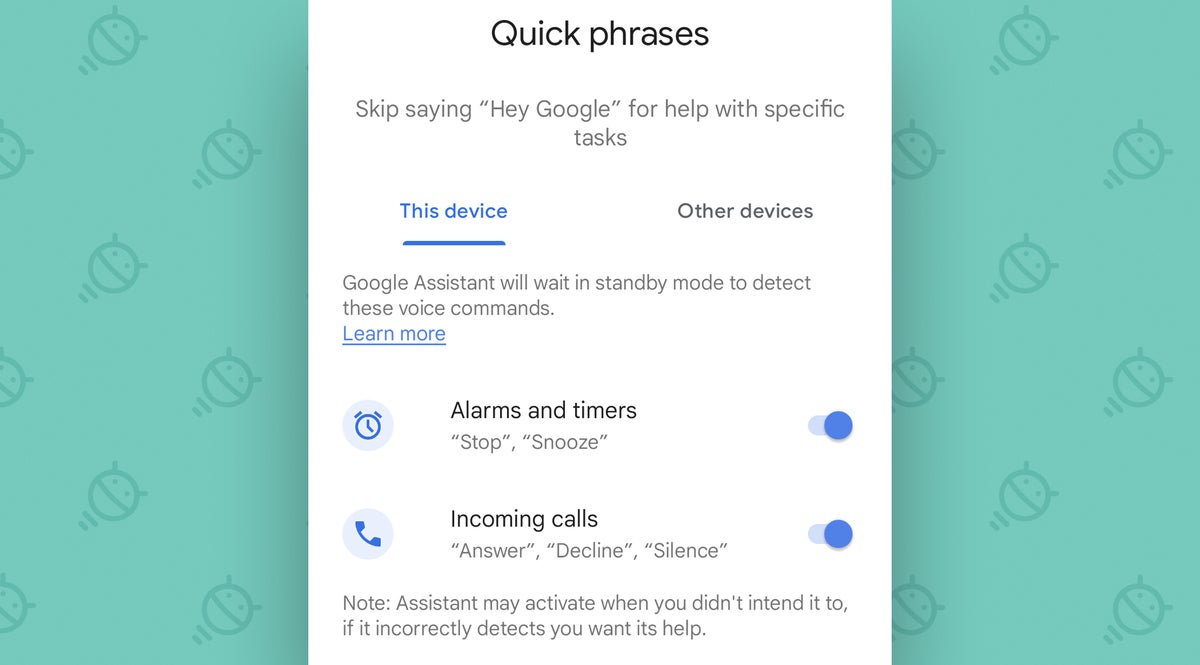
That’s where the Pixel’s Quick Phrases feature comes into play: Quick Phrases lets you activate your Assistant and grab its attention without having to say that insanity-inducing phrase over and over. The catch, though, is that it won’t work until you find the option deep within your device’s settings and flip its switch.
So let’s do that, shall we?
- Fire up Assistant on your Pixel — by saying “Hey, Google” or tapping the microphone icon in the search box on your home screen — and then say “Assistant settings.”
- Tap the line labeled “Quick Phrases” on the screen that comes up. If you don’t see it, tap “See all Assistant settings” and then find it in the broader list that follows.
- Now, peruse the (admittedly still somewhat limited) list of available commands that your Pixel 7 Assistant can support without any particular launch phrase and think about which ones would be helpful for you to have.
 JR
JRAs of now, your Pixel’s Assistant can recognize commands for stopping or snoozing an alarm or timer and answering, declining, or silencing an incoming call simply by having a single word spoken.
Decide which of those might be useful for you, and tap, tap, tap away to get ’em up and running.
Google Pixel 7 setting No. 2: An excellent Assistant enhancement
While we’re thinking about ways to make Assistant more useful and less annoying on your purty new Pixel, allow me to direct you to another intriguing option that can save you from saying “Hey, Google” even more.
It’s called Continued Conversation, and it lets you activate Assistant just once — using that familiar launch phrase or any available on-screen shortcut — and then keep talking to it, with multiple questions or commands and without having to reactivate it each and every time.
Much more sensible, wouldn’t ya say?
To get that system ready:
- Get your Assistant’s attention again, and once more say “Assistant settings.”
- This time, look for the “Continued Conversation” toggle on the screen that comes up (and again, if you for any reason don’t see it, tap “See all Assistant settings” and then search through that full list of options until you find it).
- Flip the toggle next to that beaut into the on position.
And that’s it: The next time you start talking to Assistant, it’ll keep listening for several seconds after it finishes answering your initial inquiry. And you can just keep on flappin’ your yap in a much more natural and efficient way.*
* As natural and efficient as talking to a robot-voice on your phone can be, anyway
Google Pixel 7 setting No. 3: A smarter sound setup
Speaking of your phone’s metaphorical ears, that Pixel 7 of yours is packin’ a high-tech system that can actually identify the acoustics of your environment and then adjust its speaker output accordingly.
Wild, right? But oh, it be true: The system’s called Adaptive Sound, and it allows your Pixel 7 to sense what sort of room you’re in via its microphone and then optimize its equalizer settings. Translated out of technical terms, that means your music is gonna sound real, real good.
(And if you’re worried about the privacy angle here, by the way, Google says all audio is processed locally, never transmitted off your own device, and always deleted shortly after it’s used for these purposes.)
So, ready to give your Pixel 7 an audio intelligence upgrade?
- Just head into your Pixel’s system settings (by swiping down twice from the top of the screen and then tapping the gear-shaped icon at the bottom of the panel that comes up).
- Tap “Sound & Vibration,” then “Adaptive Sound.”
- Slap your silly fingie down on the switch to turn the feature on.
All that’s left is to blare your favorite Chumbawamba song at full volume through your phone’s speaker and smirk knowingly at all the non-Pixel-owners around you (who, full disclosure, will likely just glare at you and think you’re a nit).
Google Pixel 7 setting No. 4: A sound sleep
Here’s an unexpected one: If you’re finding yourself groggy and not entirely ready to tackle the day when you wake from your beauty rest each morn, your Pixel 7 can actually analyze what’s happening in the overnight hours and confirm if coughing or snoring might be keeping you up.
(Fair warning: It could also function as a “told ya so” reinforcement for your significant other. Proceed at your own risk.)
If you want to embrace your Pixel’s slumber sound sensing system, do this before drinking your tumbler o’ warm milk and reading yourself a bedtime story:
- Skip back into the Pixel 7 system settings.
- Tap “Digital Wellbeing & Parental Controls,” then tap “Bedtime Mode.”
- In the “Weekly average summary” box, tap the option to set up a bedtime schedule.
- Decide what hours you want your phone’s Bedtime Mode to activate. That’ll automatically silence your Pixel, dim its wallpaper, and put the screen in grayscale to help you prepare for slumber — and it’ll tell that snore-sensor system to start sensing.
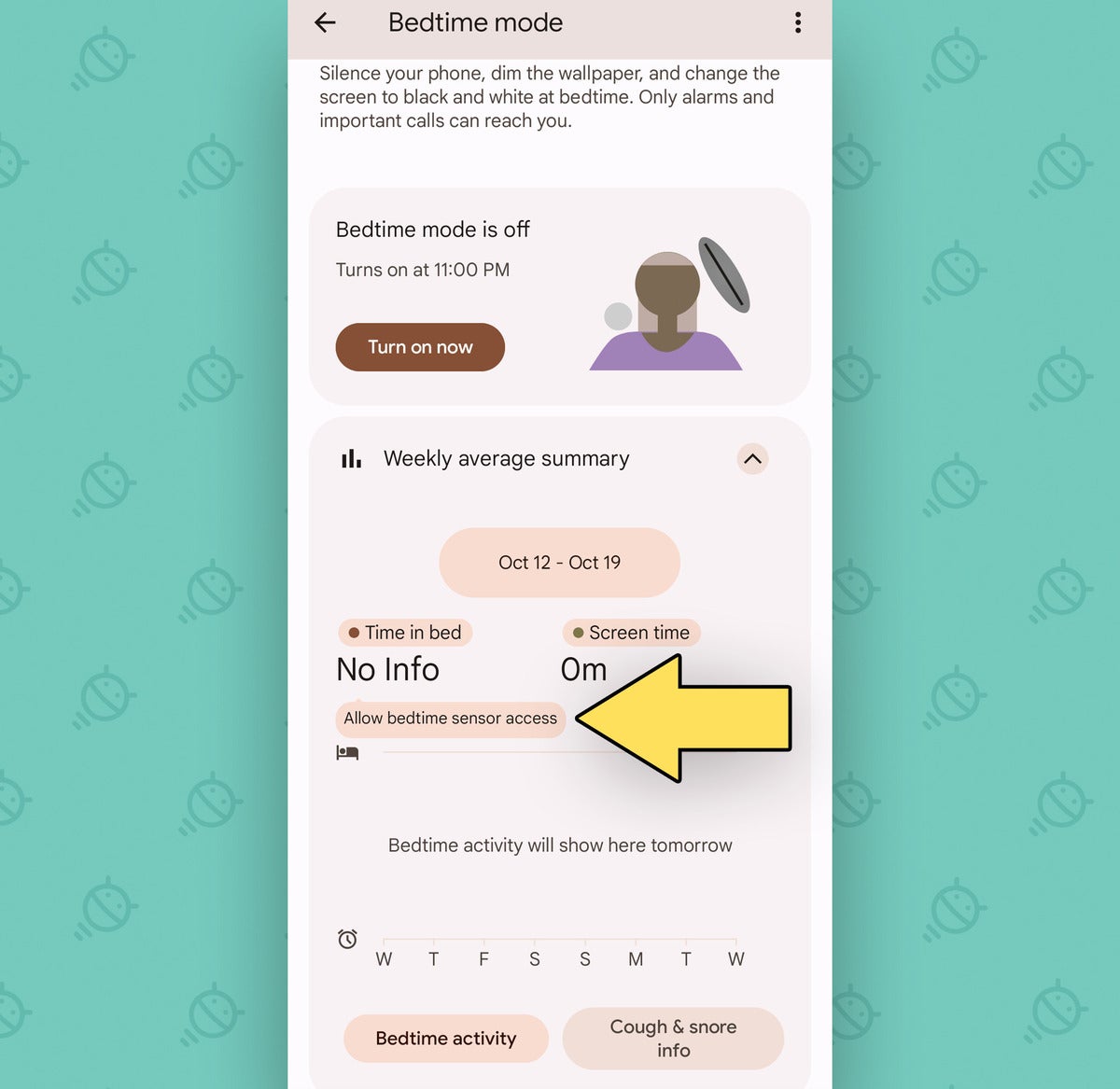
Got it? Good. Now, one more thing: Back on that main Bedtime Mode screen, you should see a new prompt within the “Weekly average summary” area to “allow bedtime sensor access.”
 JR
JRTap that, then tap “Allow” on the screen that comes up next.
Now just leave your Pixel powered up and nearby whilst you snooze — and then, when wakey time arrives, rise up ready to see what really happened while you were zonked out.
Google Pixel 7 setting No. 5: An extra safety layer
This next Pixel 7 setting isn’t exactly a fun one to think about, but it could absolutely be important: Since 2019, Google’s Pixel phones have had the ability to detect when you’re in a car crash and then contact 911 on your behalf if you don’t respond right away.
It’s kind of like the car crash detection feature Apple magically invented for iPhone owners this year, only with approximately 97% less roller coaster reporting.
With any luck, you’ll never need it. But 60 seconds of setup now will make sure it’s ready and available to assist just in case such a situation ever does arise.
Here’s all you’ve gotta do:
- Find the Safety app in your Pixel 7’s app drawer (which you can get to by swiping up on the screen from your home screen). Open it!
- Follow the steps to confirm your Google account and then confirm your emergency contact and medical info — all of which would be available to anyone in the event of an emergency.
- Once you’re on the Safety app’s main screen, tap the gear-shaped icon in the upper-left corner.
- Select “Car crash detection.”
- Look for a prompt to update permissions and tap it if you see it.
- Make sure the toggle next to “Car crash detection” is in the on position.
Now, for Goog’s sake, stop staring at your phone and start watchin’ the road already, would ya?
Google Pixel 7 settings No. 6, 7, and 8: Quicker camera controls
No matter how laser-focused you are on productivity and using your Pixel for Very Important Business™, odds are, you’re gonna snap a photo or two with its exceptional camera at least once in a while.
We could spend hours going over all the Pixel camera capabilities (and we will, over in my Pixel Academy course) — but for our purposes here and now, I want to zoom in and focus on a trio of handy new settings specific to the Pixel 7 and Pixel 7 Pro.
First, after a curious few-year absence, the Pixel 7 brings back the ability to double-tap anywhere on the camera viewfinder screen to quickly zoom into the 2x level. You can then double-tap again to zoom back out to the standard 1x setting. And that’s in addition to being able to swipe your finger along the zoom level bar beneath the viewfinder for even more intricate control.
But the Pixel 7 didn’t just get that double-tap to zoom shortcut back. It also got an option to let you control that gesture and change exactly what it does.
So do this:
- Open up the camera on your Pixel 7 or Pixel 7 Pro and head into the settings (by swiping down on the viewfinder area and then tapping the “More settings” button on the panel that pops up).
- Tap “Gestures,” then tap “Double-tap action.”
- And there, you’ll see a series of new options for telling that tappity-tap command to zoom your camera, to switch between the front and rear view, or to do absolutely nothing.
 JR
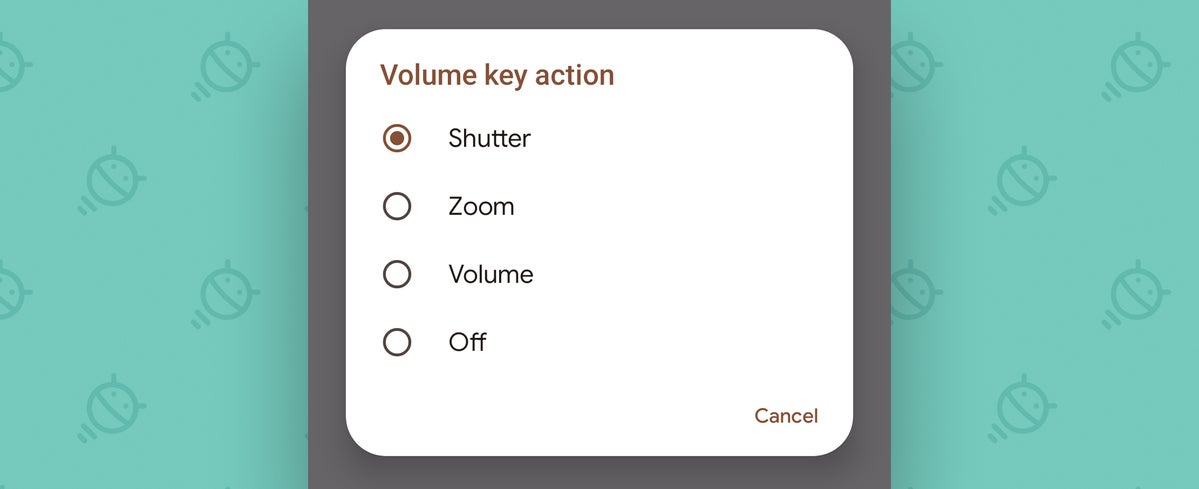
JRNext, in that same area of the Pixel Camera app’s settings, tap “Volume key action” — and there, you can access a freshly expanded series of options for what pressing your Pixel’s physical volume keys will do while the camera is active.
 JR
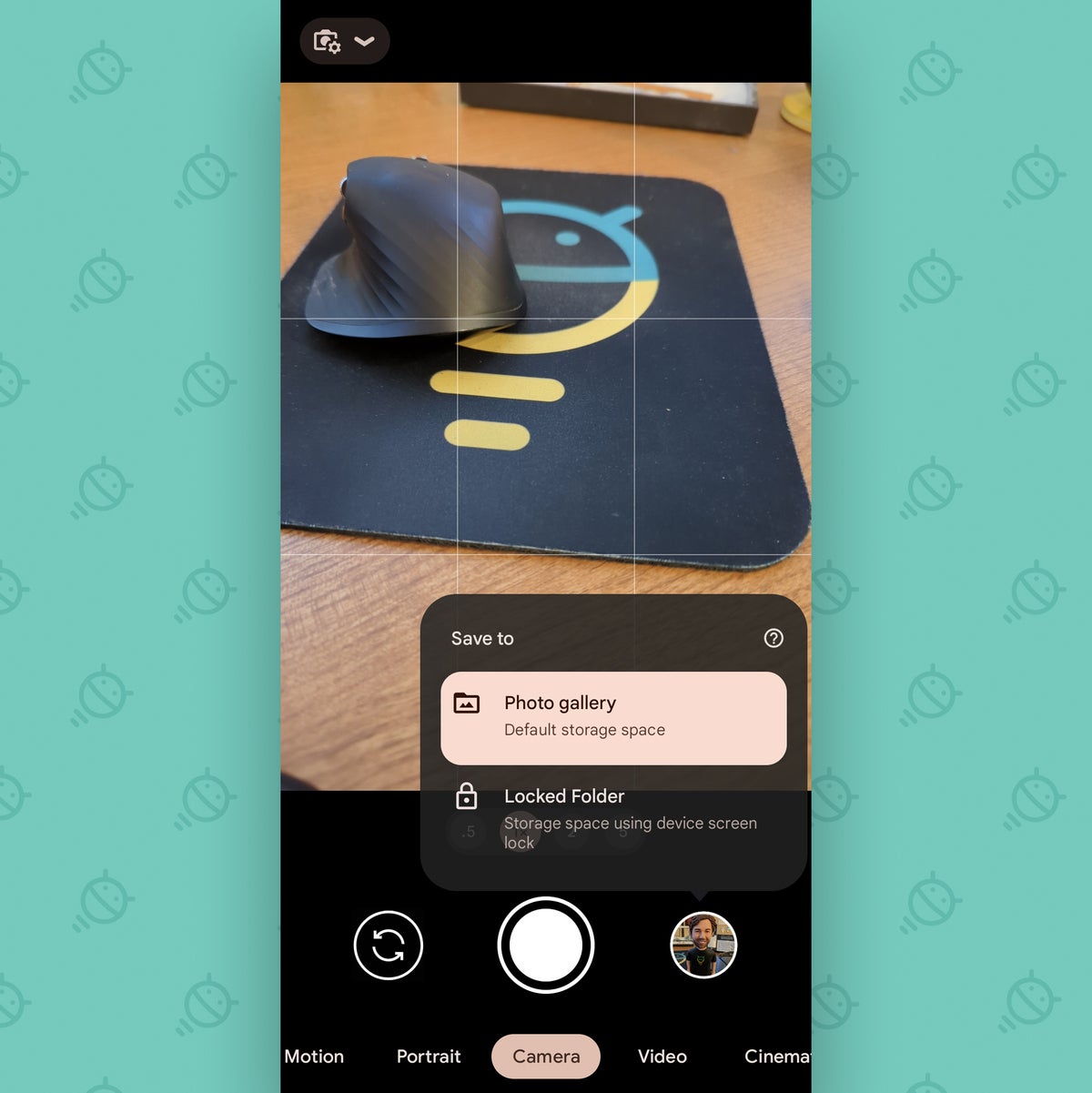
JRLast but not least, back in your main viewfinder area, look for the little circle in the lower-right corner of the screen. That circle shows you a tiny preview of the last picture you took.
With the Pixel 7, though, it has another hidden function: You can press and hold it to pull up a secret menu that’ll let you save your next photo in the Google Photos Locked Folder instead instead of the standard gallery. That means the image will never get backed up to the cloud and will be accessible only after fingerprint or password authentication.
 JR
JRIt’s the perfect way to securely snap an image of something sensitive — like, say, a confidential business document (which is absolutely the only situation you’d ever use a function like this, of course) — and know that it’ll be stored safely away, available only for your eyes, and never synced or stored anywhere other than on your individual device.
That same menu’s present on older Pixels, too, by the way, but it’s in a separate button in the upper-right corner of the Camera app screen.
And speaking of stuff being saved on your Pixel’s storage…
Google Pixel 7 setting No. 9: Your storage step-saver
Our final Pixel 7 setting for the day is all about your phone’s local storage and making the most of whatever space you’ve got.
Can you guess what tends to eat up the most space on our precious phones and lead to those dreaded low-storage warnings most often? If you said photos and videos, congrats: You got it right! Go get yourself a jam-slathered cracker as a reward.
Camera-captured media takes up tons of room and is almost always the reason people run out of storage and end up thinking they need more. As an exceptionally smart and attractive Pixel owner, though, your stellar judgment in phone selection makes that line of antiquated thinking amusingly quaint for you.
Here’s why: As long as you’re using Google Photos to automatically back and sync all of your images — which you really oughta be — you can erase the redundant local copies of those same images and still be able to access ’em anytime in the Photos app as if they were on the device. There’s no discernible difference in the actual day-to-day experience. (You can also access ’em just as easily through the Photos app or website on any device where you sign in, for that matter.)
And thanks to your Pixel’s storage management smarts, you can let the Googley genie inside your phone juggle all of that for you and automatically clear out local copies of images once they’re no longer needed. That way, you never have to so much as think about your storage situation. Your phone will just maintain itself, and you’ll always have the space you need.
This one’s a little tricky to find, and no vaguely normal human would ever think to go down this path — but now you’ll know:
- Open up the Files app in your Pixel 7 app drawer.
- Tap the three-line menu icon in the app’s upper-left corner.
- Select “Settings,” then look for the line labeled “Smart Storage.”
- Tap the toggle alongside that line to turn it into the on position.
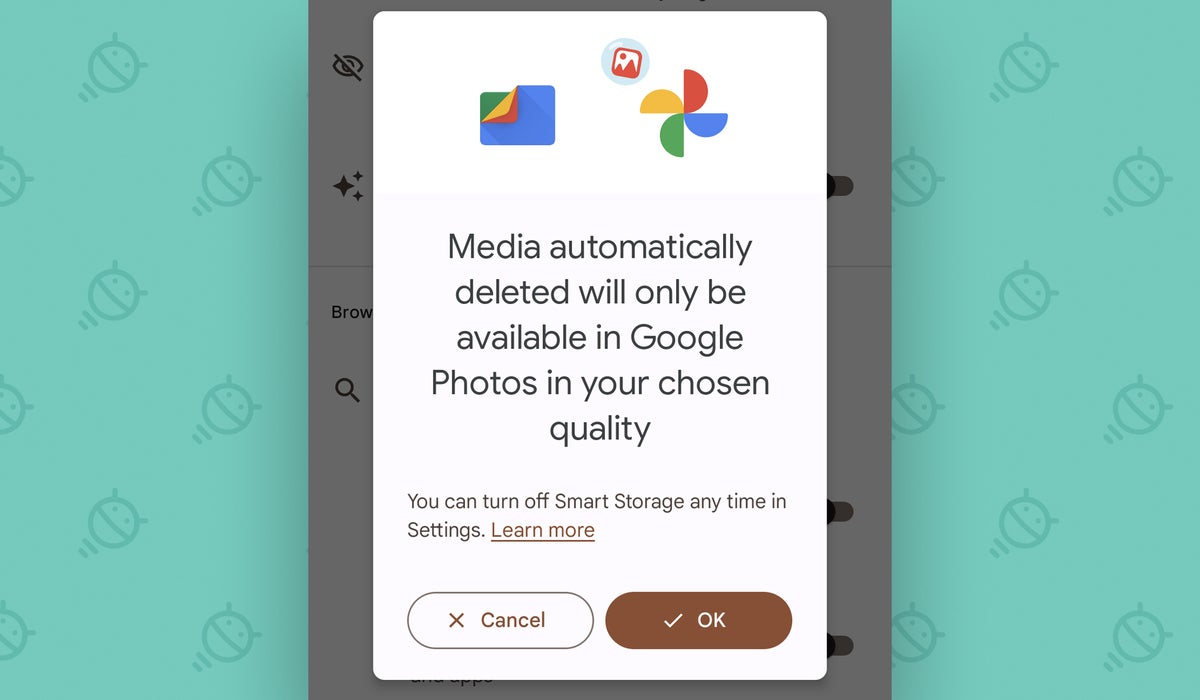
- Confirm that you want to activate the feature.
 JR
JRAnd hey, how ’bout that? You can now rest easy and clear those storage worries from your overly crowded brain. Your Pixel 7 will automatically delete any images or videos that are backed up to Google Photos once they’ve been on your device for 60 days or if your local storage ever drops below the 25% mark. You won’t notice any practical difference, and you won’t have to lift a single finger to make it happen.
Whew! We’ve covered a ton of great ground here, and there’s even more Pixel power to ponder yet. Check out the first part of this Pixel 7 setting series, if you haven’t already, and then make your way over to my free Pixel Academy e-course for seven full days of Pixel-enhancing enlightenment — starting with a slew of hidden camera tricks and advanced image magic and moving from there to next-level nuisance reducers and all sorts of other out-of-sight time-savers.
You’ve already got the best all-around experience Android has to offer. Now it’s up to you to make the most of its many powers and embrace all of the awesomeness it can add into your life.
Copyright © 2022 IDG Communications, Inc.







Discussion about this post