








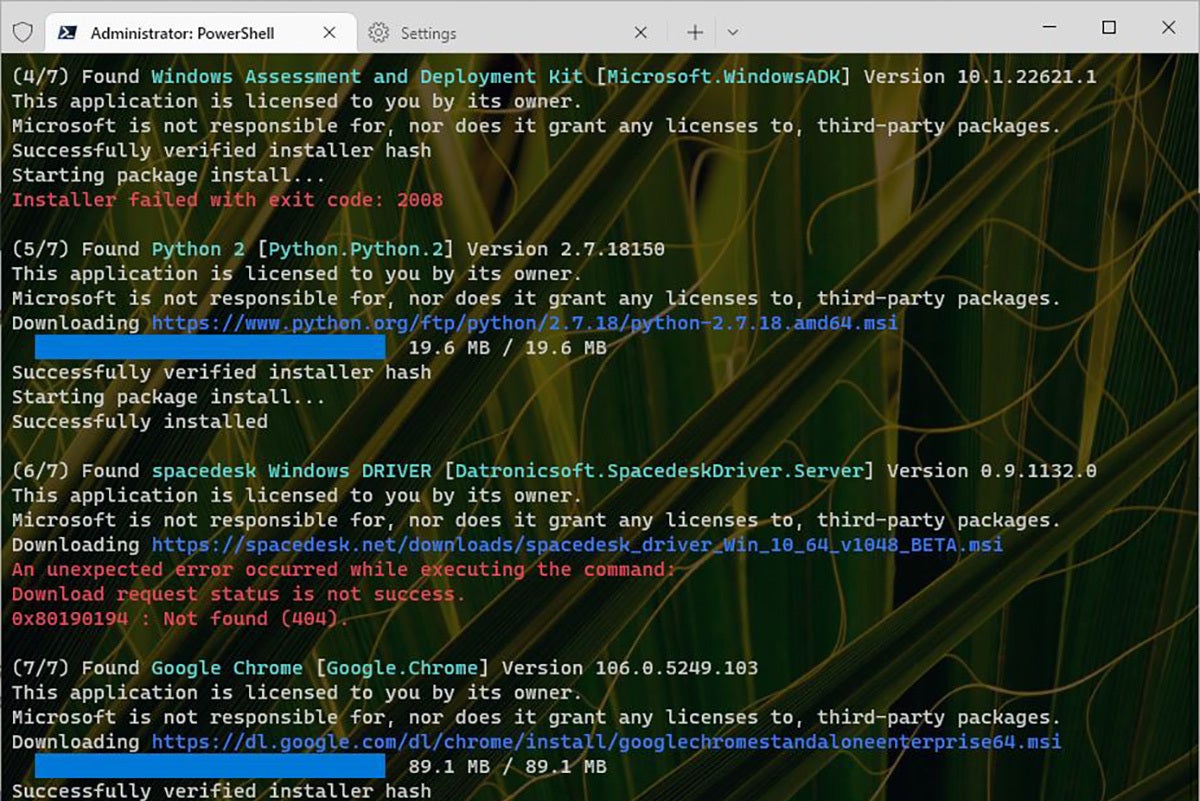
For both Windows 10 and 11, the Windows Terminal app offers powerful and interesting ways to run and interact with a variety of command line environments. Via a single interface, this tool offers access to multiple versions of PowerShell, the Command Prompt, Azure Cloud Shell, and a wide variety of Linux shells via the Windows Subsystem for Linux (bash, Z-shell, Korn Shell, and so forth).
Working with Windows Terminal can involve nothing more than launching the command line environment of your choosing. But that’s just the beginning of what this extraordinary environment can do. Warning! Once you understand some of what Windows Terminal enables, it can easily become a massive time-suck. That’s because there’s no limit to the tweaks and customizations it supports.
First things first, though. Let’s cover the Windows Terminal basics, then examine how you can see what version of Windows Terminal and PowerShell you’re running. That leads quite naturally into how to update them to make them current (if necessary). From that vantage point, a nearly limitless array of customizations is possible. I’ll cover some of the most popular and useful options and conclude with a set of pointers to further reading and exploration.
Launching Windows Terminal
Windows Terminal is built into Windows 11. Windows 10 users need to download it from the Microsoft Store and install it. Once it’s installed, you can use one of these methods to run Windows Terminal:
- Press Windows key + R to open the Run window, then type wt and click OK.
- In Windows Search, search for terminal and select Windows Terminal from the search results. To run the app with administrator permissions, right-click Windows Terminal in the search results and select Run as administrator.
By default, Windows Terminal opens in PowerShell. But you can change that, as I’ll cover later in the story.
Checking and updating Windows Terminal and PowerShell
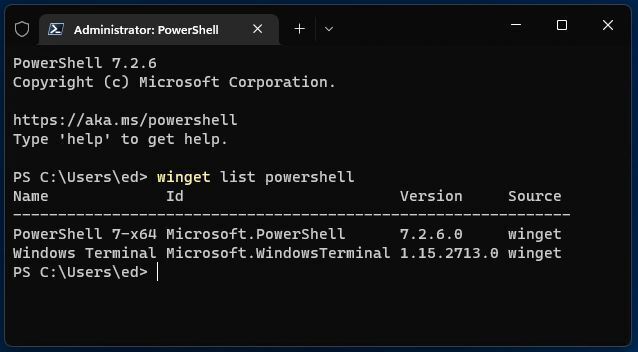
Interestingly enough, a single PowerShell command will show you the installed version(s) of PowerShell and Windows Terminal on your PC. That command is:
winget list powershell
It produces output like that shown in Figure 1. In PowerShell, the command
$PSVersionTable.PSVersion
also works. (For best results, run Windows Terminal or PowerShell as administrator to execute.)
 Ed Tittel / IDG
Figure 1: Winget shows installed versions of Windows Terminal and PowerShell.
Those just happen to be the latest versions, because I ran the command on a three-week old laptop. You can always find out which version of these programs is current by checking the Latest link on the Windows Terminal and PowerShell GitHub pages. If you’re not current (or one or the other isn’t installed) you can follow the Latest link on either page to download and install or update the corresponding tool.
Windows Terminal, once installed, will update itself through the Microsoft Store. You can update PowerShell many ways. I prefer the Powershell command
winget upgrade Microsoft.PowerShell
If that doesn’t work, try this alternate in an administrative PowerShell session instead:
iex "& { $(irm https://aka.ms/install-powershell.ps1) } -UseMSI"
That should do the trick!
Choosing a default shell in Windows Terminal
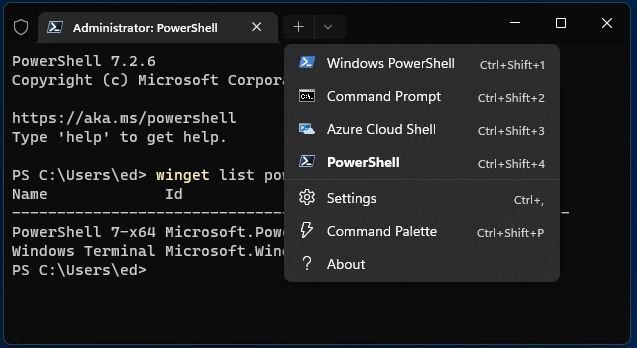
Insider Preview versions of Windows 11 offer a Settings link in the Windows Terminal toolbar. Production versions of Windows 10 and 11 provide access to Settings through the down-caret character shown in Figure 2 (look to the immediate right of the + symbol there).
 Ed Tittel / IDG
Figure 2: The down-caret lets you choose which command line you’d like to run and provides access to Settings.
By default, Windows 10 and 11 users have access to multiple shells. These include:
- an older Windows PowerShell version (in blue, at top; it tells me it’s version 5.1.22000.832)
- the Command Prompt (a.k.a. cmd.exe)
- the Azure Cloud Shell (available only to those with a valid Azure tenant, but otherwise just like local PowerShell, except aimed at Azure assets and systems)
- the latest version of PowerShell (currently that’s 7.2.6, as shown in the background of Figure 2)
If the Windows Subsystem for Linux (WSL) is installed, any shells associated with that environment will also appear.
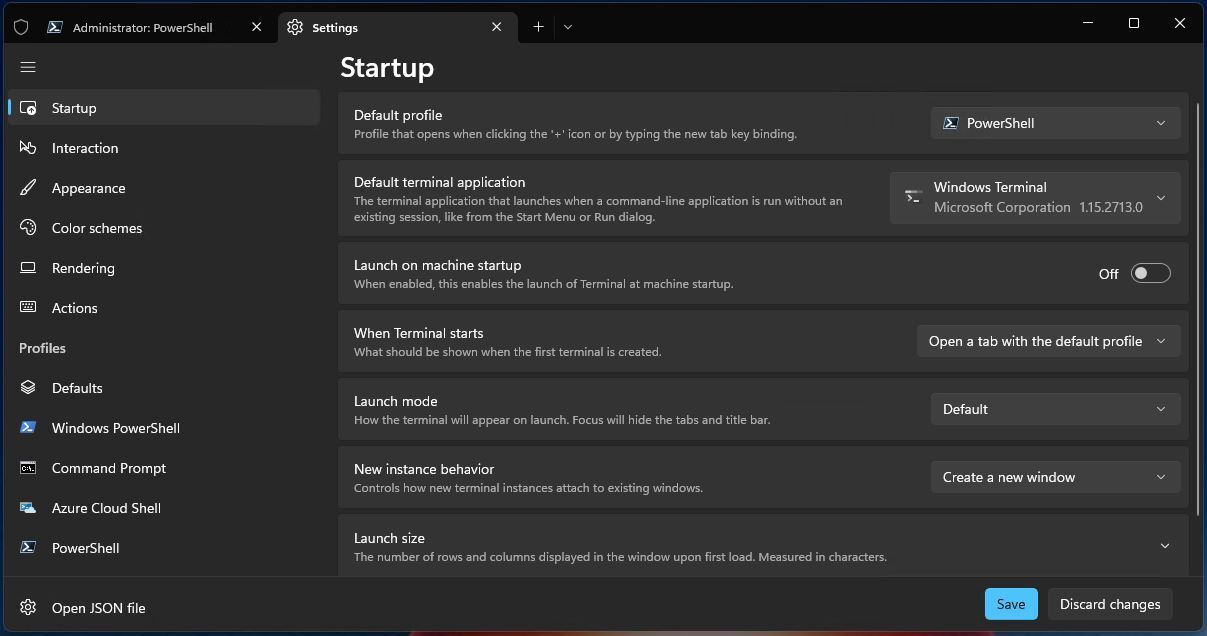
Click on Settings to open a world of possibilities. I always change the default profile from the top entry (Ctrl+Shift+1) to the fourth entry (Ctrl+Shift+4). That makes the current PowerShell version my default choice. I recommend you do likewise. Other general options for settings appear in Figure 3 (click the image to enlarge it).
 Ed Tittel / IDG
Figure 3: When you visit Windows Terminal Settings, a world of possibilities awaits. (Click image to enlarge it.)
Hitting some important Windows Terminal bases
While there are tons of settings and tweaks one can explore within Windows Terminal (not to mention its various shells), certain high points can add greatly to a personalized Windows Terminal experience. Basically, for each shell that Windows Terminal knows about — these include the default items mentioned in the previous section (PowerShell, Command Prompt, and so forth), plus each shell installed within the WSL — it defines an associated default profile. Even if you don’t tweak any such profile, a set of definitions for that profile is automatically created as part of Windows Terminal’s operation.
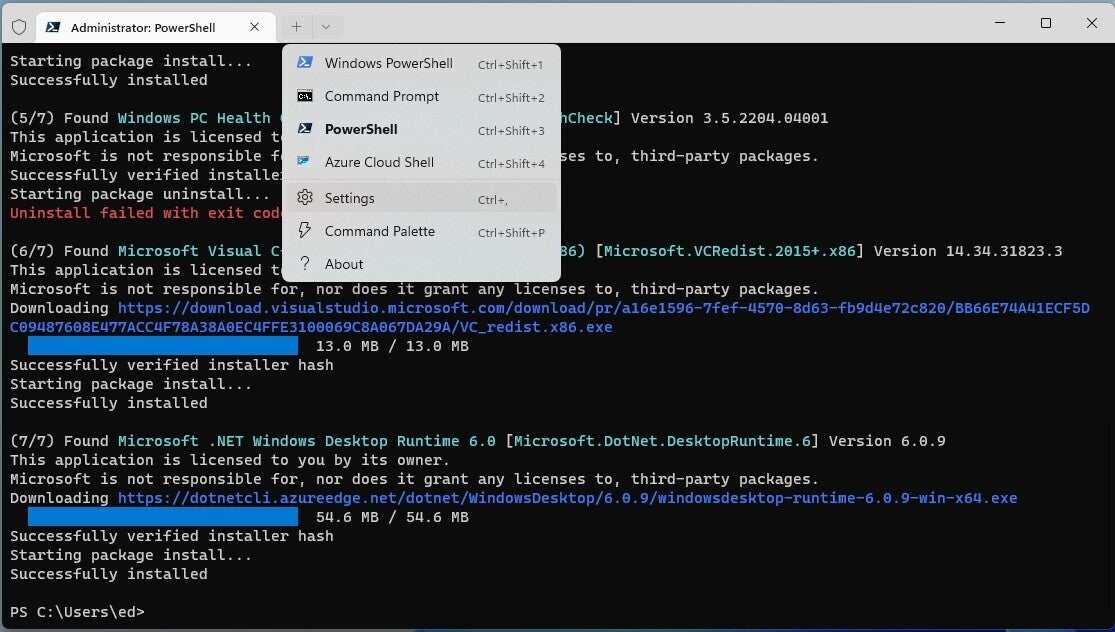
You can, for example, access all such settings in the form of a JSON file (a compact text notation that extends JavaScript and other runtime environments) for each shell. Thus, you can examine the settings.json file for PowerShell in Windows Terminal by holding the Shift key down and clicking the dropdown Settings item (as shown in Figure 4).
 Ed Tittel / IDG
Figure 4: If you hold down the Shift key while you click Settings, the associated JSON file will open in your default text editor (usually Notepad). (Click image to enlarge it.)
In this story, I won’t dig much into the settings.json file. I’ll only note that all changes made to the profile associated with those settings are recorded in that file. Thus, one can also change anything and everything about Windows Terminal operation by working directly on its settings.json file in a text editor. For those interested in learning more, Microsoft Learn offers a tutorial section called “Customize settings” as part of its overall Windows Terminal info that goes into most of the gory details.
Something else to note about Figure 4: various elements there appear in color. For example, green text denotes names of executables and associated package files. Red text denotes an error message. Blue text shows the name of download files, and blue bars show download progress as it happens. (Because the winget commands involved have completed, so have all those progress bars.) All these text and visual elements reflect the color scheme in use. This, too, is subject to user manipulation. It can occur element by element, or users can choose entire color schemes that assign sets of colors for the many kinds of text items that Windows Terminal recognizes while running.
By default, Windows Terminal runs a color scheme named “Campbell.” Numerous others come pre-defined inside Windows Terminal (see Figure 5 in the next section). However, there are many sources for Windows Terminal Themes online. Themes include background images or colors, (text) color schemes, and other elements that affect the look and feel for Windows Terminal windows, tabs, and panes. One excellent site worth exploring is named Windows Terminal Themes (as I write this, it offers visual examples for 283 named themes ready for download and use). Microsoft also offers its own Theme gallery (with a couple of useful examples that show relevant JSON settings data).
Against a dark background
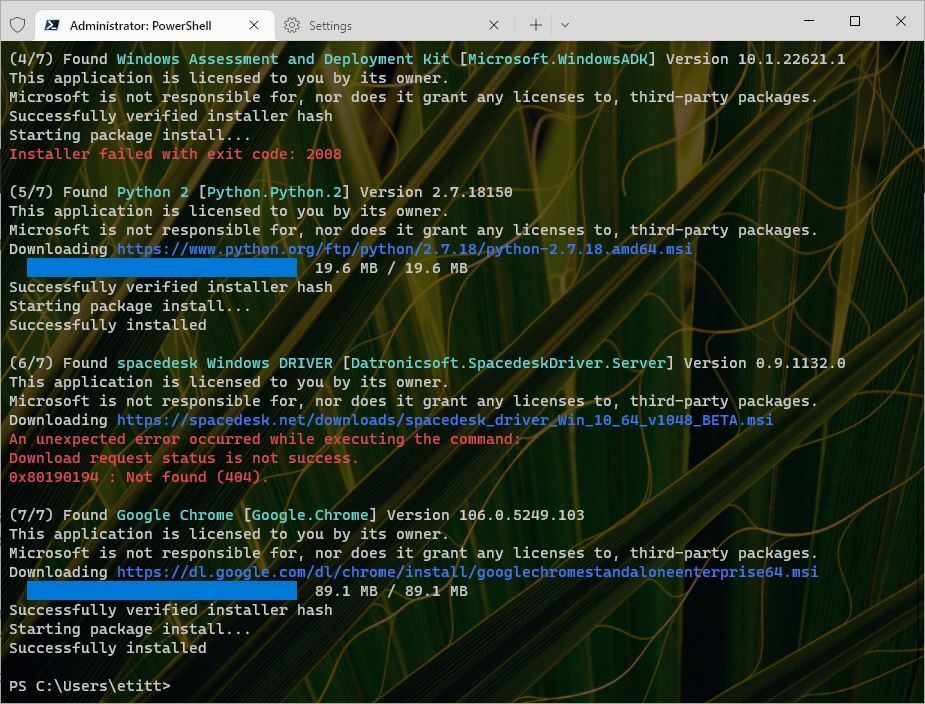
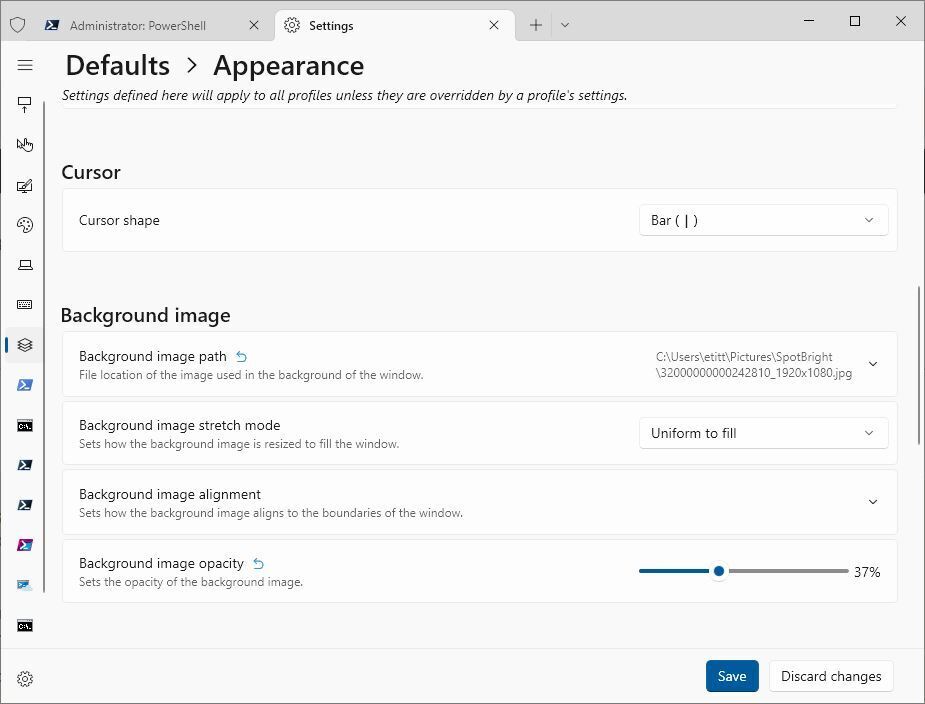
One of the really interesting settings (or rather, selections) that users can make for Windows Terminal is a background image. By way of illustration, Figure 5 shows one of the many stellar Microsoft Brightspot images (used for rotating desktop and lock screen images in Windows itself) as a background for Windows Terminal. Please note that the original image is fairly bright, so I reduced its opacity to 37% so it wouldn’t wash out the foreground text. The result is an interesting look with entirely readable text. And again, I use the winget command to show the color scheme upon that background.
 Ed Tittel / IDG
Figure 5: The winget command provides the foreground, a Windows Brightspot image the background. (Click image to enlarge it.)
Access this set of controls in Windows Terminal by opening the Settings window, then clicking Defaults > Appearance. Next, navigate (scroll down) to the Background image section, as shown in Figure 6.
 Ed Tittel / IDG
Figure 6: Note the image path (filled in by browsing File Explorer) and the image opacity settings. These are key to an effective and interesting background. (Click image to enlarge it.)
Working with Winfetch
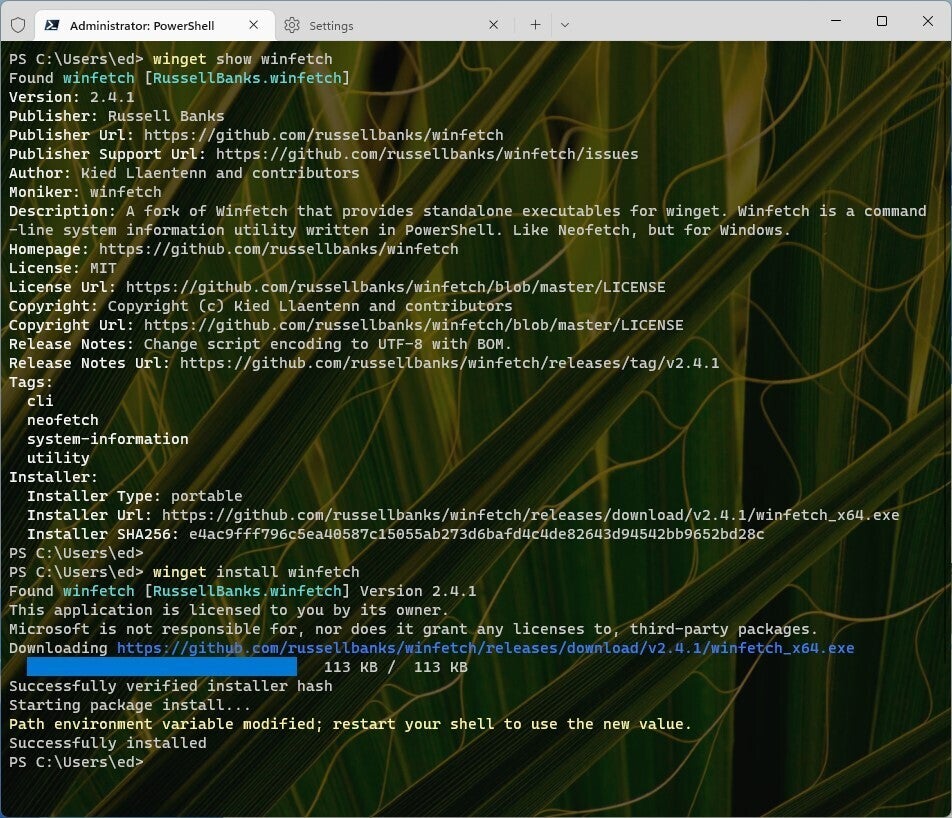
The easiest way to understand various Windows Terminal themes is to see them in use. By itself, Windows Terminal doesn’t make that terribly easy. That’s OK, though — there’s a PowerShell script for that. It’s called Winfetch and it’s available using the built-in winget command. Figure 7 literally tells you about the Winfetch package and shows the winget syntax to install it.
 Ed Tittel / IDG
Figure 7: Winfetch package info and installation, courtesy of the winget command. (Click image to enlarge it.)
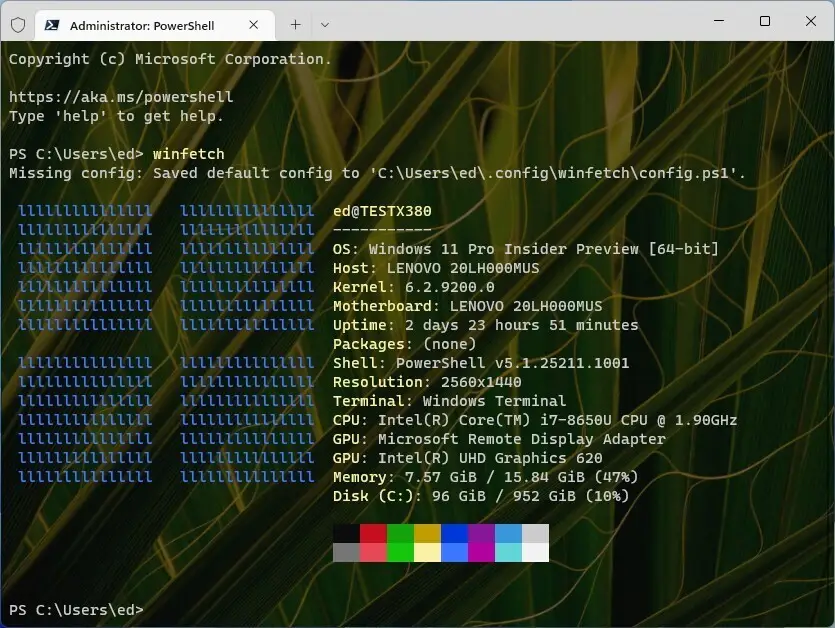
Once Winfetch is installed, you must restart Windows Terminal. Then you can use that command to show the theme information for whichever Windows Terminal theme you’re using. You can change related color scheme, background, and other settings, or change entire themes. Then, run Winfetch again, and it shows all settings currently in effect. (Note: the first time you run Winfetch, it will create a necessary configuration file for you: no worries.) Indeed, Winfetch is a must-have add-in to Windows Terminal, so you can see what you’re doing. It’s absolutely invaluable when messing with Windows Terminal.
Figure 8 shows my current settings via Winfetch inside a PowerShell tab. It also displays useful Terminal version and system information and such.
 Ed Tittel / IDG
Figure 8: Winfetch at work, with color palette at bottom center. (Click image to enlarge it.)
But wait, there’s more…
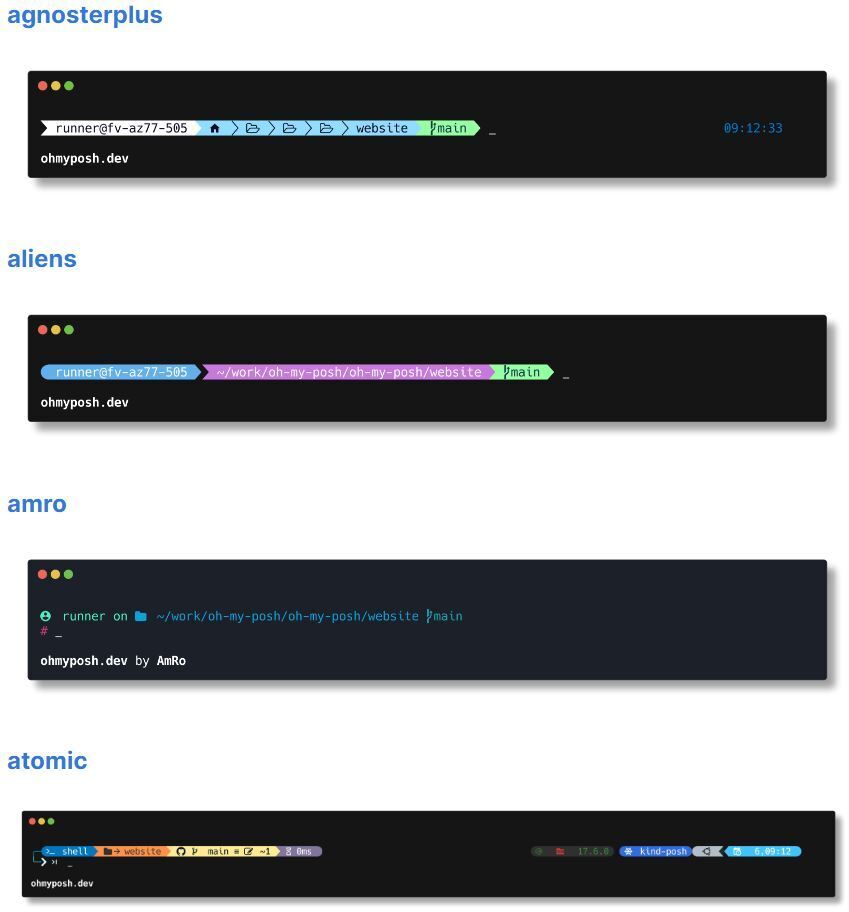
One of the most interesting Windows Terminal themes, with countless variations, is named Oh-My-Posh. It lets you introduce a screen font with various graphic symbols (called glyphs) that really jazz up Windows Terminal’s look and feel. The best place to learn more about Oh-My-Posh is in its developers’ docs pages. For a dizzying display of examples, see its themes page; there’s a complete collection at GitHub, too. The afore-linked Oh-My-Posh website includes installation and configuration instructions, too.
Please note: to use glyphs, it’s necessary to install a so-called “nerd font” (the site provides instructions for that as well). Figure 9 shows a brief snippet from the themes page, to whet your interest.
 Ed Tittel / IDG
Figure 9: A mere four of the hundreds of Oh-My-Posh themes for Windows Terminal. (Click image to enlarge it.)
The sky’s the limit
You’ll remember I warned you that Windows Terminal tweaking and customization can be formidable and endless. While this is undeniably true, it’s also true that you’ll get a great ROI on your investment in time, effort, and learning as you turn Windows Terminal into just what you want it to be. I’ve provided a raft of pointers and information to help you on that journey, and wish you Godspeed.
Copyright © 2022 IDG Communications, Inc.








Discussion about this post