








• Home
  • Insight
  • Blog
  • Business
  • Entertainment
  • Health
  • Politics
  • Shop
    • Gift Shop
    • Value Shop
    • Store
    • Bargain Shop
    • Discount
  • Sports
  • Tech
  • Travel
  • USA
  • Video
  • World
    • Asia
    • Africa
    • South America
    • North America
    • Europe
    • Oceania
Thursday, November 19, 2026
No Result
View All Result
Subscribe Now
  • Home
  • Insight
  • Blog
  • Business
  • Entertainment
  • Health
  • Politics
  • Shop
    • Gift Shop
    • Value Shop
    • Store
    • Bargain Shop
    • Discount
  • Sports
  • Tech
  • Travel
  • USA
    Trump’s Deal Turns Sour as Voters Withdraw Support

    Trump’s Deal Turns Sour as Voters Withdraw Support

    FAA Administrator Takes Responsibility as Mullin Faces Tough Questions Over Nationwide Ground Stop

    FAA Administrator Takes Responsibility as Mullin Faces Tough Questions Over Nationwide Ground Stop

    Mary Peltola Emerges Victorious in Alaska Senate Race, Making History for Democrats

    Mary Peltola Emerges Victorious in Alaska Senate Race, Making History for Democrats

    Stranded in Conflict: Palestinians Navigate the Tenuous Balance of War and Peace Amid Ceasefire Efforts

    Stranded in Conflict: Palestinians Navigate the Tenuous Balance of War and Peace Amid Ceasefire Efforts

    Trump Administration Revokes Pay Increase for Head Start Educators

    Trump Administration Revokes Pay Increase for Head Start Educators

    Unexpected Triumph: Gay Candidates Achieve Unforeseen Victories in Challenging Races

    Unexpected Triumph: Gay Candidates Achieve Unforeseen Victories in Challenging Races

    Microsoft Outlook Experiences Prolonged Outage Affecting Users Nationwide

    Microsoft Outlook Experiences Prolonged Outage Affecting Users Nationwide

    Gunfire Erupts in D.C.: Authorities Search for Suspect Amid Rising Concerns Over Public Safety

    Gunfire Erupts in D.C.: Authorities Search for Suspect Amid Rising Concerns Over Public Safety

    LAUSD Takes Strong Action Against Hate Speech Following Racial Slur Incidents

    LAUSD Takes Strong Action Against Hate Speech Following Racial Slur Incidents

  • Video
  • World
    • Asia
    • Africa
    • South America
    • North America
    • Europe
    • Oceania
The Insight Post
  • Home
  • Insight
  • Blog
  • Business
  • Entertainment
  • Health
  • Politics
  • Shop
    • Gift Shop
    • Value Shop
    • Store
    • Bargain Shop
    • Discount
  • Sports
  • Tech
  • Travel
  • USA
    Trump’s Deal Turns Sour as Voters Withdraw Support

    Trump’s Deal Turns Sour as Voters Withdraw Support

    FAA Administrator Takes Responsibility as Mullin Faces Tough Questions Over Nationwide Ground Stop

    FAA Administrator Takes Responsibility as Mullin Faces Tough Questions Over Nationwide Ground Stop

    Mary Peltola Emerges Victorious in Alaska Senate Race, Making History for Democrats

    Mary Peltola Emerges Victorious in Alaska Senate Race, Making History for Democrats

    Stranded in Conflict: Palestinians Navigate the Tenuous Balance of War and Peace Amid Ceasefire Efforts

    Stranded in Conflict: Palestinians Navigate the Tenuous Balance of War and Peace Amid Ceasefire Efforts

    Trump Administration Revokes Pay Increase for Head Start Educators

    Trump Administration Revokes Pay Increase for Head Start Educators

    Unexpected Triumph: Gay Candidates Achieve Unforeseen Victories in Challenging Races

    Unexpected Triumph: Gay Candidates Achieve Unforeseen Victories in Challenging Races

    Microsoft Outlook Experiences Prolonged Outage Affecting Users Nationwide

    Microsoft Outlook Experiences Prolonged Outage Affecting Users Nationwide

    Gunfire Erupts in D.C.: Authorities Search for Suspect Amid Rising Concerns Over Public Safety

    Gunfire Erupts in D.C.: Authorities Search for Suspect Amid Rising Concerns Over Public Safety

    LAUSD Takes Strong Action Against Hate Speech Following Racial Slur Incidents

    LAUSD Takes Strong Action Against Hate Speech Following Racial Slur Incidents

  • Video
  • World
    • Asia
    • Africa
    • South America
    • North America
    • Europe
    • Oceania
No Result
View All Result
No Result
View All Result
Home Tech

Protect Files From Unwanted Access

by Theinsightpost
December 6, 2022
in Tech
0 0
0
Protect Files From Unwanted Access


Your Windows PC has password protection, as best as I can tell. With that,  your computer and all of its files will be protected from snooping eyes and unwanted access. However, why end there? The Microsoft Office suite allows you to freely create, edit, and share a variety of document formats. But what happens when you want to secure a particular document?

Different factors may prompt you to add a password to any document. Consider the following scenarios: You may have a confidential document that you don’t want anyone to see, one that you don’t want to be altered in any way, or one that is on a computer that is easily accessible to many people and you want to safeguard.

Whatever your reasons are, Microsoft Office offers the option to password-protect your office files. Hence, this article will explain how to protect your MS office files from unwanted access by adding passwords to the documents as well as how easy it is to remove the password.

How to set up a password to a file in Microsoft Office

Setting up passwords for your MS Office files is pretty straightforward and below are the steps for doing it:

Step 1 Launch the MS Office application (Microsoft Word, Excel, or PowerPoint) and proceed to open the specific document to which you would like to add password protection to.

Step 2. Go to the menu bar above and click on the File icon.

Words File

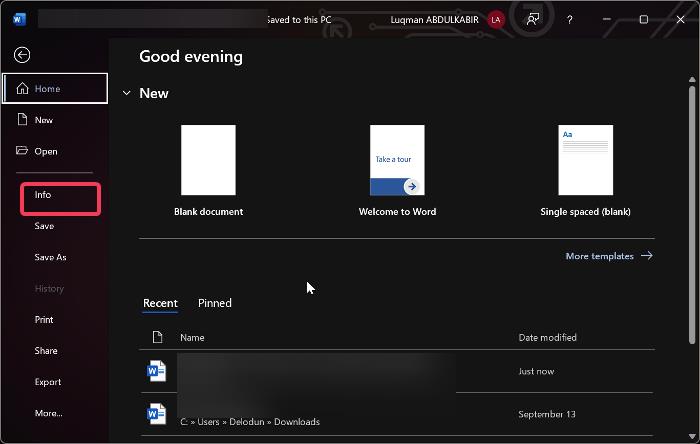
Step 3. Click on Info.

How to MS Office: Protect Files From Unwanted Access Protect files from unwanted access
Words document info

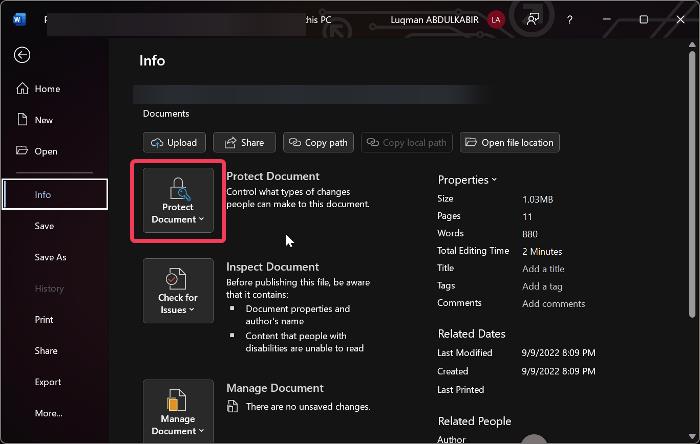
Step 4. After, click on the Protect Document icon. Something important you should note; on Microsoft Excel the option displayed is Protect Workbook and in Microsoft PowerPoint, it is Protect Presentation.
How to MS Office: Protect Files From Unwanted Access Protect files from unwanted access
Protect document

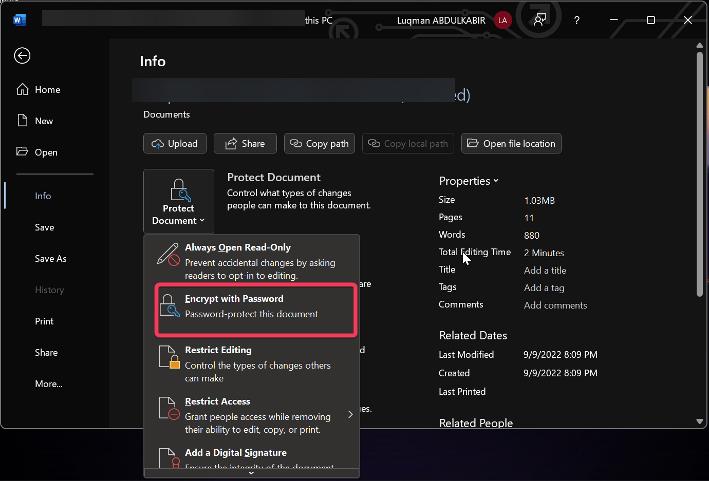
Step 5. After clicking on Protect Document, proceed to click on Encrypt with Password option. 
How to MS Office: Protect Files From Unwanted Access Protect files from unwanted access
Encrypt with password

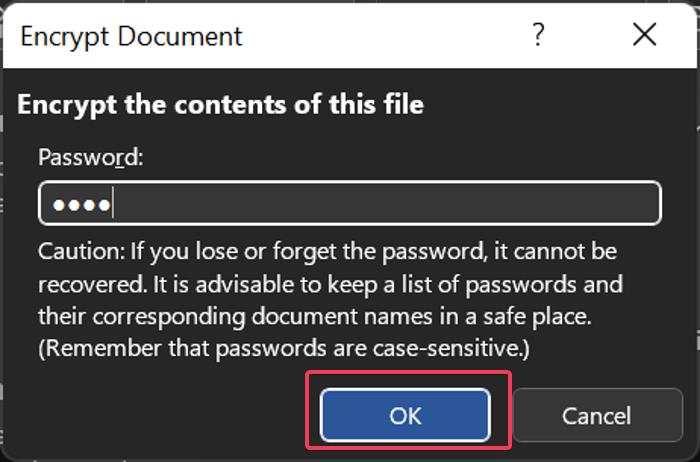
Step 6. A Password field will pop up instantly where you will need to input the word or phrase that would lock and also unlock the document.

Step 7. If you’ve chosen a password you’re perfectly fine with it, click OK to continue. 
How to MS Office: Protect Files From Unwanted Access Protect files from unwanted access
Encrypt document

Here’s the tricky part; should you forget the password you chose, there’s no  “forgot password” option or any means to restore the password. Hence, you lose complete access to the documents. The safe and ideal thing to do is to store your password in a safe place should the case arise where you can’t remember it.

Step 8. After clicking OK, a Confirm Password window will pop up and you’ll be required to Re-enter the previous password you set up for confirmation.

Step 9. Click OK again to save. The password would then be applied to that document.

If anyone wants to gain access to that document, they will have to enter the password you’ve set up already. This is to emphasize the need for you to keep the password safe.

ALSO READ: HOW TO CHANGE PASSWORD IN MICROSOFT OUTLOOK

How to remove the password from a file in Microsoft Office 

To remove  the password from an office Document (Word, Excel, or PowerPoint), you can make use of the following steps:

Step 1. Open the application (Word, Excel, or PowerPoint) and find your way to the document in question.

Step 2. Type in the current password to gain access to the file.

Step 3. After that, click the OK button.

Step 4. Move to the menu bar and click on File.

Step 5. Click on Info.

Step 6. Proceed to click on the Protect Document option that shows up afterward.
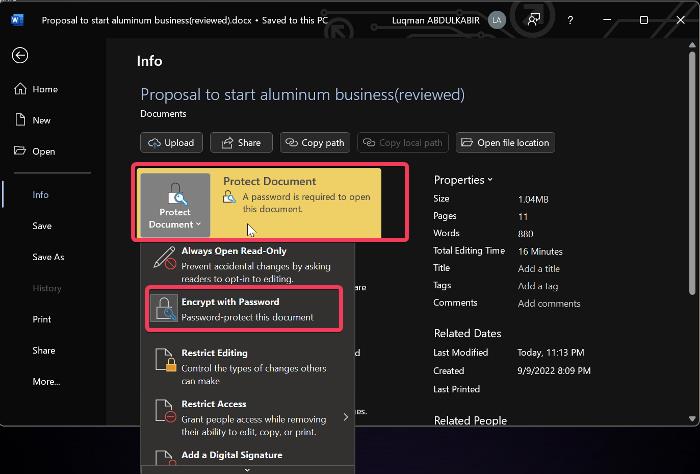
How to MS Office: Protect Files From Unwanted Access Protect files from unwanted access
Remove password

Step 7. Select the Encrypt with Password option.

Step 8. Clear the field by deleting current password

Step 9. Click on OK, to save the changes made by you.

This way, access is reverted to normal. Everyone and anyone will now be able to gain access to the document without having to enter any password.

Wrap Up

If an Office Document contains sensitive or confidential information that you don’t want people to have access to or altered, you might need to apply extra protection to it. Along with the benefits of creating documents efficiently, the Microsoft Office package also offers a layer of security to help keep your word documents, spreadsheets, presentations, and all safe.

It’s almost impossible for anyone to gain access to any document to which you’ve added a password. Also, it’s equally easy to set up and disable such passwords; so you shouldn’t have any problems. Microsoft Word might have been used as a case study in this article but it’s virtually the same process as Excel and PowerPoint; so there’s no difficulty in doing that at all.

READ: QUICK WAY TO COPY THE FULL FILE OR FOLDER PATHS ON WINDOWS 11

Frequently Asked Questions 

Can I password-protect my Microsoft Office files?

If you wish to protect against unauthorized access to your Microsoft Office files, you may use a password to safeguard them. The procedure for accomplishing this is rather simple, and we have covered it in this article.

What happens when you forget the password to your document?

You won’t have access to your document because the password you set up would be needed to gain access to the document every single time you open the document. In the same vein, there’s no option or fail-safe to recover your password should you forget it. So here is what you should do; try to make use of a strong password that you can easily remember. Follow this up by making sure that the password is stored somewhere safe. 

This just goes to show how difficult it is for anyone without the password to your office file to gain access because if you also make the mistake of not keeping the password and you forget it, it’s almost impossible to gain access to such a file. For emphasis’ sake, try to use a password you’re likely to remember and keep the password somewhere safe. The essence of adding a password is to keep your document safe from unauthorized access and not so that you can’t gain access to your document.

Can you set up a security question rather than adding a password?

Unfortunately, as of now, the answer to this is no. You can’t set up a security question that would require an answer instead of adding a password. Microsoft Office only comes with the option of adding a password. This shouldn’t be a turnoff or a reason why you should be concerned. Why? A password is safer and more reliable. Whatever password you add to an Office file is the only “key” that can open up such a file. So unless you give the password to someone else to access, such a document is safe and secure.






Source link

ShareTweetSend
Previous Post

Live Updates: Georgia Senate runoff election

Next Post

Goncalo Ramos in for Cristiano Ronaldo and scores hat-trick: Portugal team transformed by pressing and movement | Football News

Related News

Exploring Innovations: A Breakthrough in Living Liver Technology, a Lucrative Battery Partnership, and the Surge of AI Excitement
Tech

Exploring Innovations: A Breakthrough in Living Liver Technology, a Lucrative Battery Partnership, and the Surge of AI Excitement

November 19, 2026
Microsoft’s Satya Nadella Reveals Strategic Rationale Behind Layoff of 60,000 Employees
Tech

Microsoft’s Satya Nadella Reveals Strategic Rationale Behind Layoff of 60,000 Employees

November 19, 2026
Cybercriminals Embrace Innovative AI Tool for Streamlined Hacking Operations
Tech

Cybercriminals Embrace Innovative AI Tool for Streamlined Hacking Operations

November 18, 2026
Transform Your Laptop Setup with These 5 Affordable Accessories
Tech

Transform Your Laptop Setup with These 5 Affordable Accessories

November 15, 2026
Next Post
Goncalo Ramos in for Cristiano Ronaldo and scores hat-trick: Portugal team transformed by pressing and movement | Football News

Goncalo Ramos in for Cristiano Ronaldo and scores hat-trick: Portugal team transformed by pressing and movement | Football News

Discussion about this post

Subscribe To Our Newsletters

    Customer Support


    1251 Wilcrest Drive
    Houston, Texas
    77042 USA
    Call-832.795.1420
    e-mail – news@theinsightpost.com

    Subscribe To Our Newsletters

      Categories

      • Africa
      • Africa-East
      • African Sports
      • American Sports
      • Arts
      • Asia
      • Australia
      • Business
      • Business Asia
      • Business- Africa
      • Canada
      • Defense
      • Education
      • Egypt
      • Energy
      • Entertainment
      • Europe
      • European Soccer
      • Finance
      • Germany
      • Ghana
      • Health
      • Insight
      • International
      • Investing
      • Japan
      • Latest Headlines
      • Life & Living
      • Markets
      • Mobile
      • Movies
      • New Zealand
      • Nigeria
      • Politics
      • Scholarships
      • Science
      • South Africa
      • South America
      • Sports
      • Tech
      • Travel
      • Travel-Africa
      • UK
      • USA
      • Weather
      • World
      No Result
      View All Result

      Recent News

      Putin Promises Consequences Following Ukraine’s Assault on Kerch Strait Bridge

      Putin Promises Consequences Following Ukraine’s Assault on Kerch Strait Bridge

      November 19, 2026
      Brian Blessed Shares Amusing Encounter with Female Gorillas at Zoo

      Brian Blessed Shares Amusing Encounter with Female Gorillas at Zoo

      November 19, 2026
      Unveiling the Real Narrative: ‘The Altruists’ and Their Connection to the FTX Controversy

      Unveiling the Real Narrative: ‘The Altruists’ and Their Connection to the FTX Controversy

      November 19, 2026
      Is Hakeem Jeffries Facing a Moment of Crisis?

      Is Hakeem Jeffries Facing a Moment of Crisis?

      November 19, 2026
      • Home
      • Advertise With Us
      • About Us
      • Corporate
      • Consumer Rewards
      • Forum
      • Privacy Policy
      • Social Trends

      Theinsightpost ©2026 | All Rights Reserved. Theinsightpost is an Elnegy LLC company, registered in Texas, USA

      Welcome Back!

      Login to your account below

      Forgotten Password?

      Retrieve your password

      Please enter your username or email address to reset your password.

      Log In

      Add New Playlist

      We are using cookies to give you the best experience on our website.

      You can find out more about which cookies we are using or switch them off in .

      No Result
      View All Result
      • Home
      • Insight
      • Blog
      • Business
      • Entertainment
      • Health
      • Politics
      • Shop
        • Gift Shop
        • Value Shop
        • Store
        • Bargain Shop
        • Discount
      • Sports
      • Tech
      • Travel
      • USA
      • Video
      • World
        • Asia
        • Africa
        • South America
        • North America
        • Europe
        • Oceania

      Theinsightpost ©2026 | All Rights Reserved. Theinsightpost is an Elnegy LLC company, registered in Texas, USA

      The Insight Post
      Powered by  GDPR Cookie Compliance
      Privacy Overview

      This website uses cookies so that we can provide you with the best user experience possible. Cookie information is stored in your browser and performs functions such as recognising you when you return to our website and helping our team to understand which sections of the website you find most interesting and useful.

      Strictly Necessary Cookies

      Strictly Necessary Cookie should be enabled at all times so that we can save your preferences for cookie settings.

      Cookie Policy

      More information about our Cookie Policy