








• Home
  • Insight
  • Blog
  • Business
  • Entertainment
  • Health
  • Politics
  • Shop
    • Gift Shop
    • Value Shop
    • Store
    • Bargain Shop
    • Discount
  • Sports
  • Tech
  • Travel
  • USA
  • Video
  • World
    • Asia
    • Africa
    • South America
    • North America
    • Europe
    • Oceania
Thursday, November 19, 2026
No Result
View All Result
Subscribe Now
  • Home
  • Insight
  • Blog
  • Business
  • Entertainment
  • Health
  • Politics
  • Shop
    • Gift Shop
    • Value Shop
    • Store
    • Bargain Shop
    • Discount
  • Sports
  • Tech
  • Travel
  • USA
    Trump’s Deal Turns Sour as Voters Withdraw Support

    Trump’s Deal Turns Sour as Voters Withdraw Support

    FAA Administrator Takes Responsibility as Mullin Faces Tough Questions Over Nationwide Ground Stop

    FAA Administrator Takes Responsibility as Mullin Faces Tough Questions Over Nationwide Ground Stop

    Mary Peltola Emerges Victorious in Alaska Senate Race, Making History for Democrats

    Mary Peltola Emerges Victorious in Alaska Senate Race, Making History for Democrats

    Stranded in Conflict: Palestinians Navigate the Tenuous Balance of War and Peace Amid Ceasefire Efforts

    Stranded in Conflict: Palestinians Navigate the Tenuous Balance of War and Peace Amid Ceasefire Efforts

    Trump Administration Revokes Pay Increase for Head Start Educators

    Trump Administration Revokes Pay Increase for Head Start Educators

    Unexpected Triumph: Gay Candidates Achieve Unforeseen Victories in Challenging Races

    Unexpected Triumph: Gay Candidates Achieve Unforeseen Victories in Challenging Races

    Microsoft Outlook Experiences Prolonged Outage Affecting Users Nationwide

    Microsoft Outlook Experiences Prolonged Outage Affecting Users Nationwide

    Gunfire Erupts in D.C.: Authorities Search for Suspect Amid Rising Concerns Over Public Safety

    Gunfire Erupts in D.C.: Authorities Search for Suspect Amid Rising Concerns Over Public Safety

    LAUSD Takes Strong Action Against Hate Speech Following Racial Slur Incidents

    LAUSD Takes Strong Action Against Hate Speech Following Racial Slur Incidents

  • Video
  • World
    • Asia
    • Africa
    • South America
    • North America
    • Europe
    • Oceania
The Insight Post
  • Home
  • Insight
  • Blog
  • Business
  • Entertainment
  • Health
  • Politics
  • Shop
    • Gift Shop
    • Value Shop
    • Store
    • Bargain Shop
    • Discount
  • Sports
  • Tech
  • Travel
  • USA
    Trump’s Deal Turns Sour as Voters Withdraw Support

    Trump’s Deal Turns Sour as Voters Withdraw Support

    FAA Administrator Takes Responsibility as Mullin Faces Tough Questions Over Nationwide Ground Stop

    FAA Administrator Takes Responsibility as Mullin Faces Tough Questions Over Nationwide Ground Stop

    Mary Peltola Emerges Victorious in Alaska Senate Race, Making History for Democrats

    Mary Peltola Emerges Victorious in Alaska Senate Race, Making History for Democrats

    Stranded in Conflict: Palestinians Navigate the Tenuous Balance of War and Peace Amid Ceasefire Efforts

    Stranded in Conflict: Palestinians Navigate the Tenuous Balance of War and Peace Amid Ceasefire Efforts

    Trump Administration Revokes Pay Increase for Head Start Educators

    Trump Administration Revokes Pay Increase for Head Start Educators

    Unexpected Triumph: Gay Candidates Achieve Unforeseen Victories in Challenging Races

    Unexpected Triumph: Gay Candidates Achieve Unforeseen Victories in Challenging Races

    Microsoft Outlook Experiences Prolonged Outage Affecting Users Nationwide

    Microsoft Outlook Experiences Prolonged Outage Affecting Users Nationwide

    Gunfire Erupts in D.C.: Authorities Search for Suspect Amid Rising Concerns Over Public Safety

    Gunfire Erupts in D.C.: Authorities Search for Suspect Amid Rising Concerns Over Public Safety

    LAUSD Takes Strong Action Against Hate Speech Following Racial Slur Incidents

    LAUSD Takes Strong Action Against Hate Speech Following Racial Slur Incidents

  • Video
  • World
    • Asia
    • Africa
    • South America
    • North America
    • Europe
    • Oceania
No Result
View All Result
No Result
View All Result
Home Tech

How to stop iPhone dropping Wi-Fi connection and disconnecting

by Theinsightpost
January 16, 2023
in Tech
0 0
0
How to stop iPhone dropping Wi-Fi connection and disconnecting


Being able to use a Wi-Fi network is pretty much an essential function of any smartphone these days, so if you’re having problems with your iPhone maintaining a Wi-Fi connection it can very quickly become frustrating – especially if you have limited data available on your contract and don’t want to switch to cellular (5G or 4G) in order to get a better signal.

Here’s a few things to try if you want to find out why your iPhone is dropping its Wi-Fi signal and stop it from happening.

Before moving onto more complex solutions, it’s best to make sure that simple things aren’t causing the problem. Here’s a few settings and process to check at the outset.

1.

Run Software Update

Foundry

It’s usually* a good idea to ensure that you’re using the latest version of iOS, as sometimes older versions can contain bugs that were subsequently fixed by updates.

To check you’re on the latest version of iOS, open Settings > General > Software Update and if you see a newer iteration is available.

If it is tap Download and Install.

*We say ‘usually’, however, sometimes it’s the software update that’s the problem! In the past iPhone users have complained when following an iOS update they have found their iPhones drop their Wi-Fi connection. In the past software updates have left iPhone users unable to maintain a Wi-Fi connection, so if you think you might be in that category take a look at Apple’s forums to see if others are sharing the same problem).

2.

Check your settings

Check WiFi Connection iPhone

Foundry

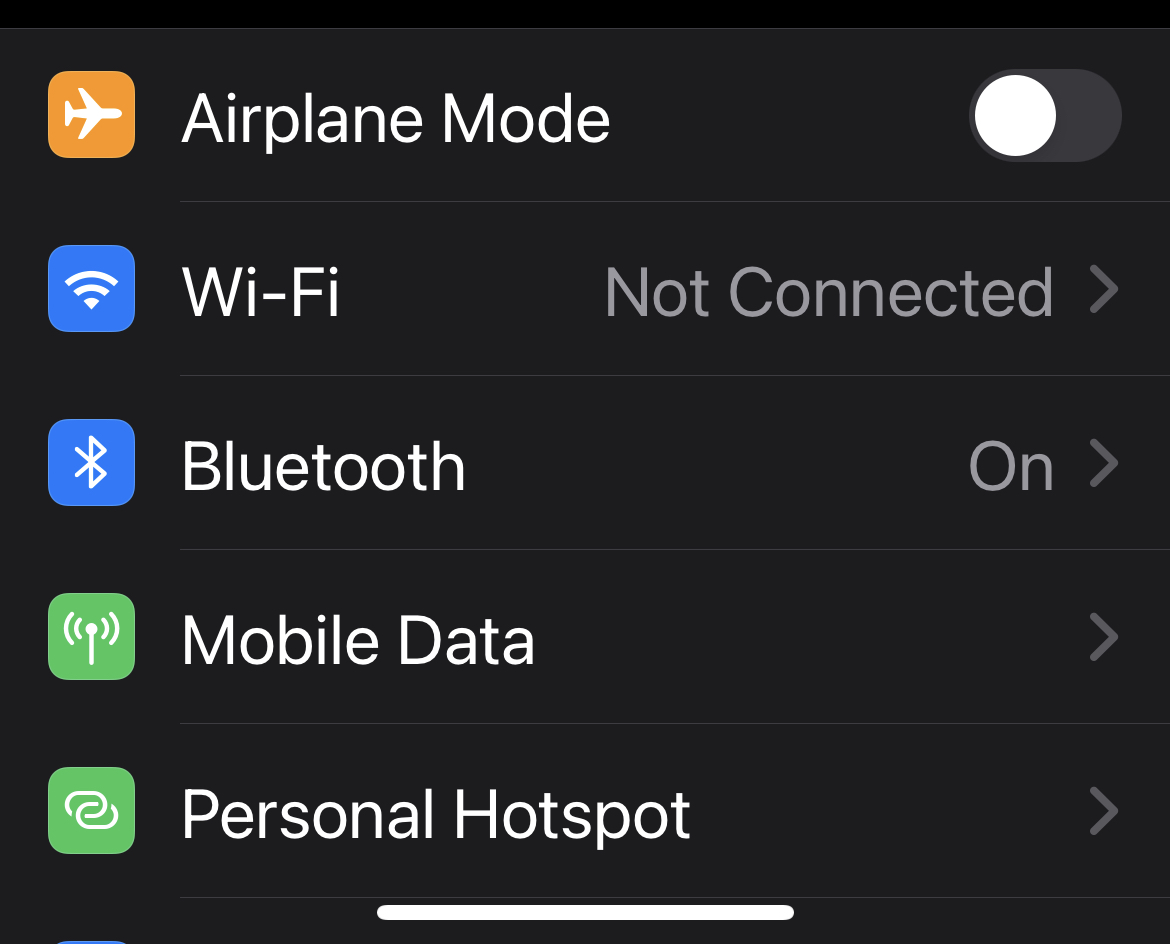
It might seem silly, but it’s also worth having a quick look at your settings to ensure that you haven’t accidentally turned off Wi-Fi or enabled Airplane Mode, as both will make it impossible to connect to a Wi-Fi network.

To quickly check your connection status open control centre (swipe down from the top right or swipe up from the bottom depending on whether your iPhone has a Home button).

In the top left the icon for Airplane Mode should be faded out and below that the Wi-Fi icon should be blue.

Alternatively, open the Settings app and you should see controls for both of the aforementioned features at the top of the page.

Airplane mode should have its toggle switch moved to the left, grey not green, while the Wi-Fi option should show a network name rather than the word Off.

3.

Check you are connected to the right Wi-Fi
Don't connect to printer wifi

Foundry

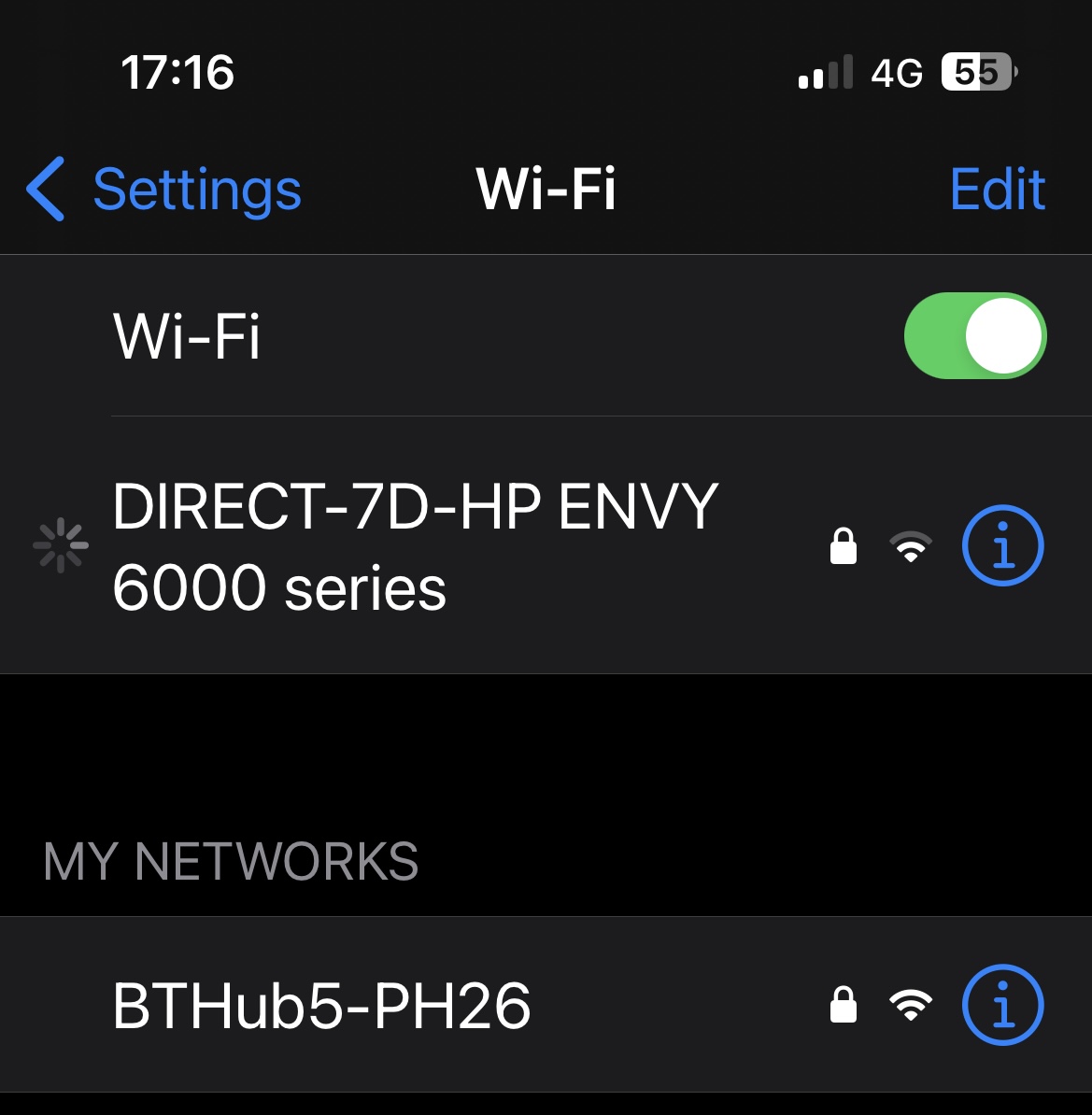
Speaking of which, check that the Wi-Fi network you are connected to is the right one. If there are multiple networks in your area you may have managed to connect to a different one that perhaps you have used in the past (we know someone whose iPhone used to connect to a printer network, as in the case illustrated above.) Switch to the one you mean to use and follow the instructions below to permanently disconnect from the unwanted network.

4.

Check your iPhone is set to automatically connect
Auto join WiFi network iPhone

Foundry

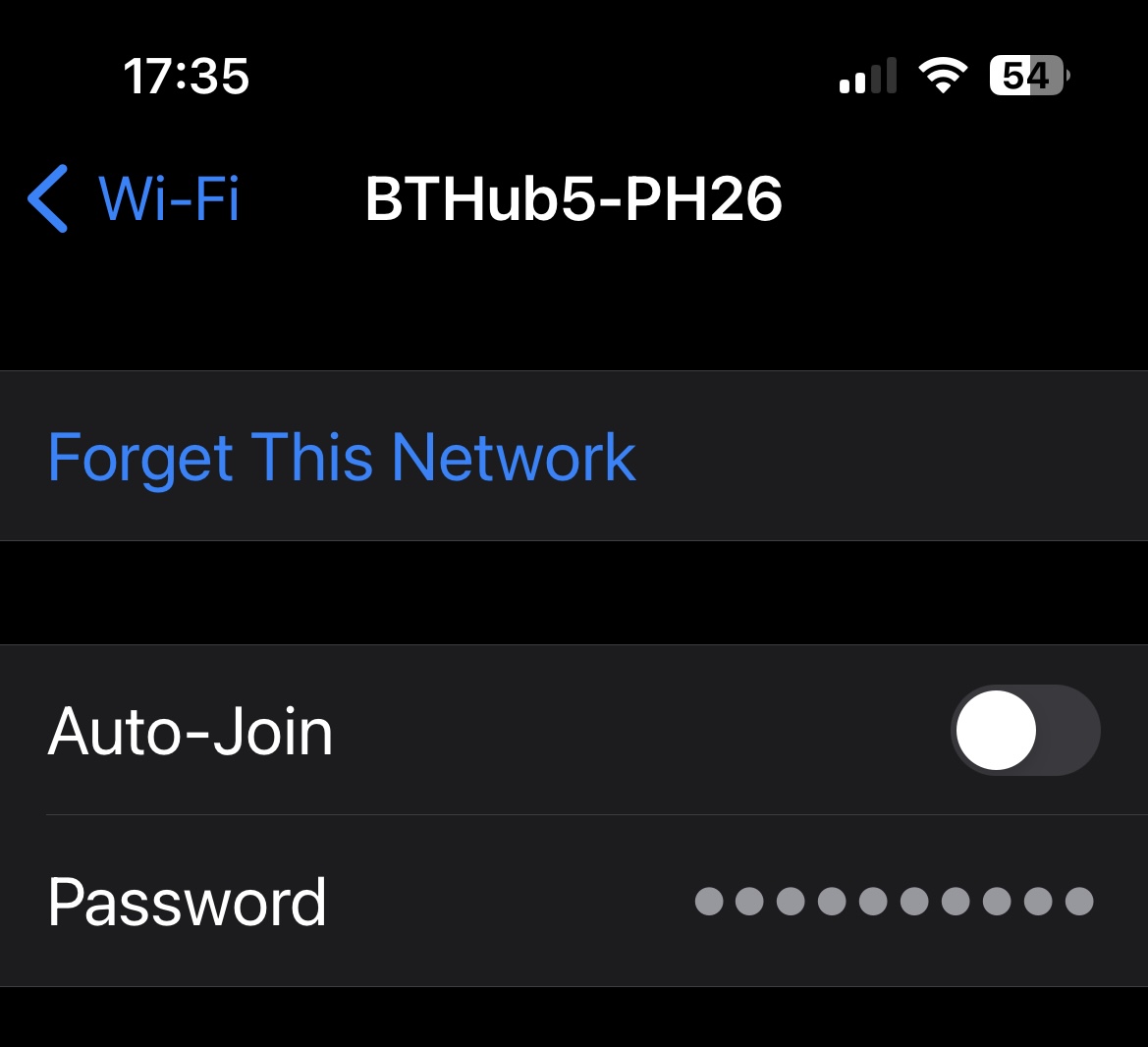
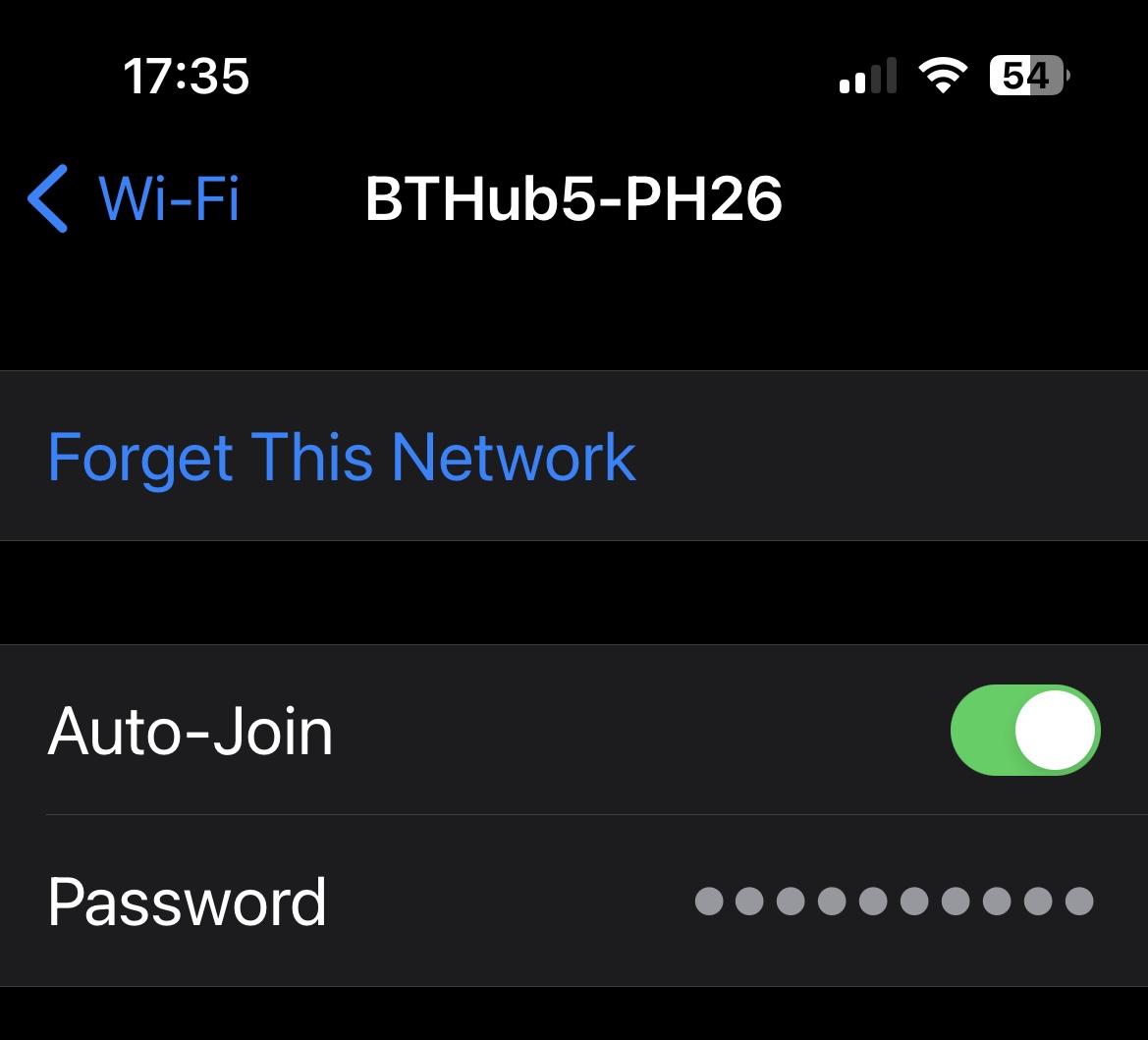
When our iPhone wasn’t maintaining a connection to our Wi-Fi network we found that it was no longer “auto joining”.

To rectify this:

  1. Go to Settings.
  2. Tap on the Wi-Fi network you want to connect to.
  3. Make sure that the slider beside Auto-Join is on.
5.

Stop your iPhone using Wi-Fi assist

Turn off WiFi Assist Apple iPhone

Foundry

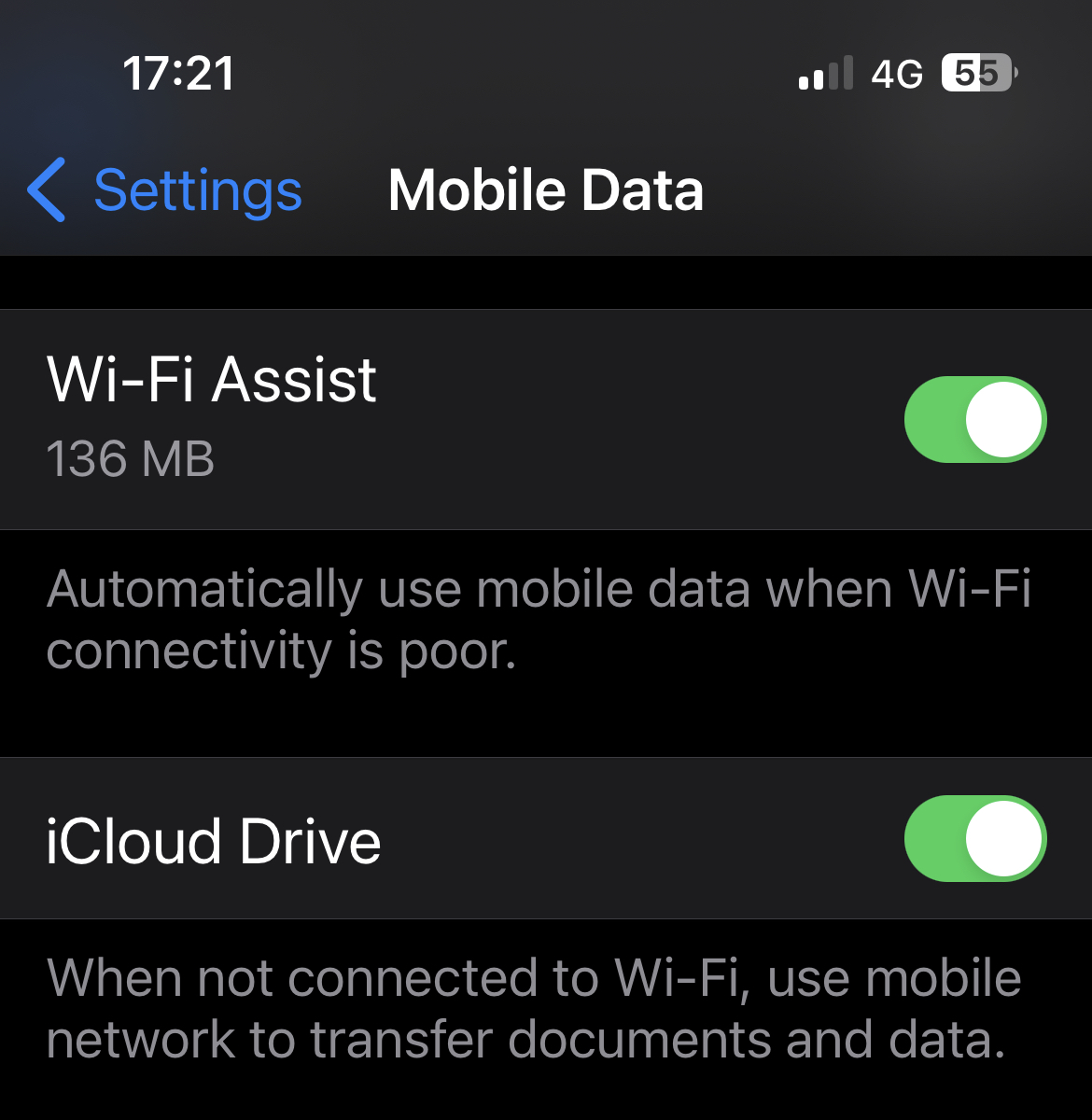
If your Wi-Fi is a bit temperamental you may want to stop your iPhone from connecting to cellular whenever the Wi-Fi is weak.

Wi-Fi Assist was one of those useful (or not useful) features Apple added years ago in iOS 9 that if it detects that the Wi-Fi network has a poor signal will ‘helpfully’ drop the signal in favour of your 4G or 3G signal.

To turn off this setting follow these steps:

  1. Open Settings.
  2. Go to Mobile Data.
  3. Scroll down to the bottom where you will find the Wi-Fi Assist option.
  4. Deselect it.

We had deselected this setting years ago, but it appears that a recent iOS update has reverted it back to the original setting.

6.

Reboot your iPhone

iOS update on iPhone

Foundry

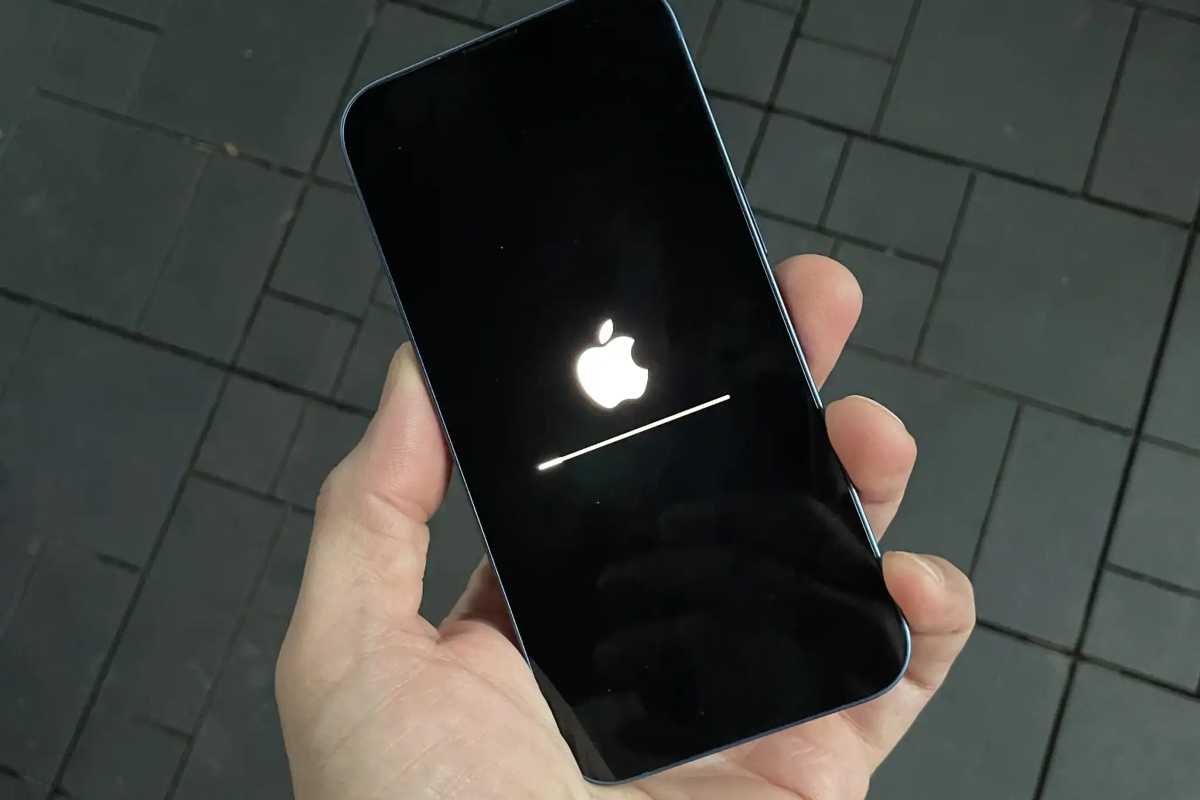
It’s a strange but immutable fact that many of life’s tech-related issues can be solved by simply restarting your device. There’s a reason the chaps in the TV show The IT Crowd started all tech-support queries with the mantra, “have you tried turning it off and on again?” That’s because it’s often the easiest and most effective ways of overcoming problems.

If you aren’t sure how to do that here’s how to reboot your iPhone, but, on recent iPhone handsets, it should be a simple case of pressing the up and down volume buttons and then pressing and holding the off switch (if you don’t press the volume controls first you just start Siri).

7.

Reboot your router

Synology RT6600ax Gigabit-Router

Synology

If it’s your router then it might be a good idea to turn that off and on again too.

When you turn off your router you should wait 20-30 seconds before turning it on again. Or even better, unplug your router, wait a few minutes and then then plug it back in again. Now wait while your router reconnects.

8.

Check it’s not your broadband provider’s fault
Check if broadband provider is down

Foundry

It’s possible that there are issues with your line that aren’t fixed by restarting or resetting.

You could check whether there is a local outage for your provider on a site like Downdetector.

We often find out Wi-Fi is at its worse when it’s raining – which could be a sign that there is a problem with your cables. It’s worth flagging with your provider.

If having tried all these steps you are still having problems with your iPhone dropping the Wi-Fi connection we have some slightly more complex steps to follow below.

9.

Check signal strength

Check signal strength

Foundry

If you’ve checked all the above and are still having problems, then the issue must be elsewhere. A good place to start your investigation is signal strength. Houses and other locations can have dead spots where the Wi-Fi network becomes unstable. Big, old houses are notorious for this problem.

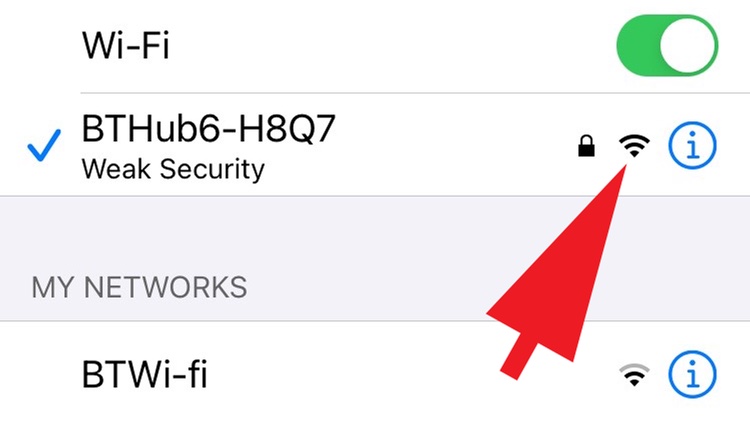
Start by opening the Settings app and tap on the Wi-Fi option.

To the right of the network name you want to use, check to see how many of the three lines in the Wi-Fi symbol are black. If all three are filled in then the signal should be strong enough to maintain the connection, meaning the problem lies in another area, but if only one of the lines is black then it shows that the signal strength is low, which could cause the iPhone to drop connection.

If it’s the latter, you can try moving to another part of the room, building or general area to see if the strength improves. Take a look at our guide on how to improve Wi-Fi signal for more ideas on overcoming this issue.

10.

Check the password

Check WiFi Password iPhone

Foundry

Another common problem is either the wrong password being used or the existing one somehow becoming corrupted. For the first issue, check that the password you’re entering is using the correct upper and lower cases, as Wi-Fi passwords are sensitive to this.

11.

Forget the network

Forget WiFi network iPhone

Foundry

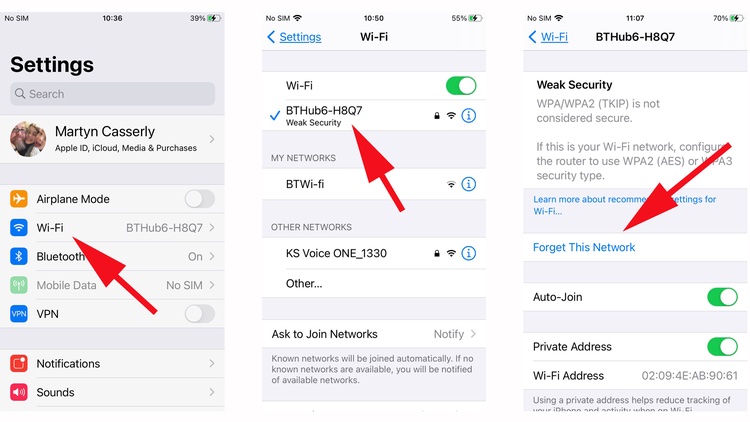
Should the above not make a difference, you can try ‘forgetting’ the network details and starting over.

  1. To do this, go to Settings > Wi-Fi.
  2. Tap on the network name you want to use.
  3. You’ll see the option Forget This Network. Tap this.
  4. Next go back to the Wi-Fi section and tap on the network name once more.
  5. You’ll need to enter the details again.

We find that forgetting the network and then setting it up again often fixes problems with connecting to specific networks.

12.

Reset the network settings

Reset Network Settings

Foundry

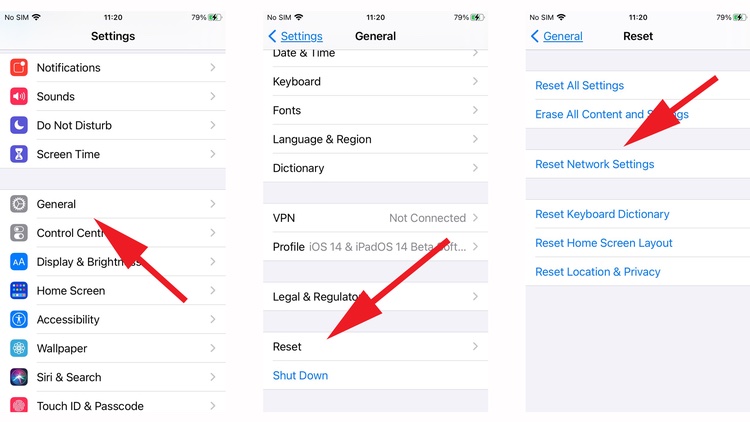
If you’re still having issues, then a stronger approach might be needed.

  1. Go to Settings > Reset.
  2. Select the Reset Network Settings option.
  3. You’ll need to enter your iPhone passcode to confirm the decision, then the device will reboot.

When it’s ready, go to the Wi-Fi section, select the network, then enter the password again. Hopefully this time it will all work.

13.

Reset all network connections

Reset iPhone network settings

Foundry

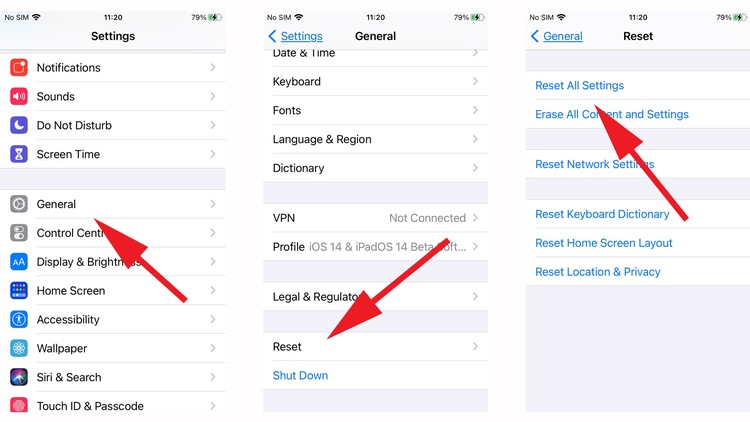
Should all else fail, you can take a more unilateral approach and reset all of your network connections. This will require you to enter the details of all of them afterwards, but it has been know to fix lingering connection issues. This is a destructive method though, so it might be worth backing up your iPhone before attempting it.

Go to Settings > General > Reset then select the Reset All Settings option.

Again, you’ll need to enter your passcode to confirm the decision after which your iPhone will reboot.

14.

Visit an Apple Genius

Apple Store

Apple

If you’ve done all of these things and still find your iPhone can’t hold a connection, then there may be a technical fault with the device itself. So, it might be worth booking an appointment at the Genius bar to have one of Apple’s technicians take a look.


Sometimes your Wi-Fi network is just poor, but there may be steps you can take to improve it. Read our guide to improving your Wi-Fi signal and speed up internet.

We also have a tutorial about Fixing Wi-Fi problems on your Mac and this tutorial about fixing problems with the cellular connection on your iPhone.




Source link

ShareTweetSend
Previous Post

Mini Movie Reviews, 3 – New Right Network

Next Post

The 10 best of wins of Chris Eubank Jnr and Liam Smith

Related News

Exploring Innovations: A Breakthrough in Living Liver Technology, a Lucrative Battery Partnership, and the Surge of AI Excitement
Tech

Exploring Innovations: A Breakthrough in Living Liver Technology, a Lucrative Battery Partnership, and the Surge of AI Excitement

November 19, 2026
Microsoft’s Satya Nadella Reveals Strategic Rationale Behind Layoff of 60,000 Employees
Tech

Microsoft’s Satya Nadella Reveals Strategic Rationale Behind Layoff of 60,000 Employees

November 19, 2026
Cybercriminals Embrace Innovative AI Tool for Streamlined Hacking Operations
Tech

Cybercriminals Embrace Innovative AI Tool for Streamlined Hacking Operations

November 18, 2026
Transform Your Laptop Setup with These 5 Affordable Accessories
Tech

Transform Your Laptop Setup with These 5 Affordable Accessories

November 15, 2026
Next Post
The 10 best of wins of Chris Eubank Jnr and Liam Smith

The 10 best of wins of Chris Eubank Jnr and Liam Smith

Discussion about this post

Subscribe To Our Newsletters

    Customer Support


    1251 Wilcrest Drive
    Houston, Texas
    77042 USA
    Call-832.795.1420
    e-mail – news@theinsightpost.com

    Subscribe To Our Newsletters

      Categories

      • Africa
      • Africa-East
      • African Sports
      • American Sports
      • Arts
      • Asia
      • Australia
      • Business
      • Business Asia
      • Business- Africa
      • Canada
      • Defense
      • Education
      • Egypt
      • Energy
      • Entertainment
      • Europe
      • European Soccer
      • Finance
      • Germany
      • Ghana
      • Health
      • Insight
      • International
      • Investing
      • Japan
      • Latest Headlines
      • Life & Living
      • Markets
      • Mobile
      • Movies
      • New Zealand
      • Nigeria
      • Politics
      • Scholarships
      • Science
      • South Africa
      • South America
      • Sports
      • Tech
      • Travel
      • Travel-Africa
      • UK
      • USA
      • Weather
      • World
      No Result
      View All Result

      Recent News

      Putin Promises Consequences Following Ukraine’s Assault on Kerch Strait Bridge

      Putin Promises Consequences Following Ukraine’s Assault on Kerch Strait Bridge

      November 19, 2026
      Brian Blessed Shares Amusing Encounter with Female Gorillas at Zoo

      Brian Blessed Shares Amusing Encounter with Female Gorillas at Zoo

      November 19, 2026
      Unveiling the Real Narrative: ‘The Altruists’ and Their Connection to the FTX Controversy

      Unveiling the Real Narrative: ‘The Altruists’ and Their Connection to the FTX Controversy

      November 19, 2026
      Is Hakeem Jeffries Facing a Moment of Crisis?

      Is Hakeem Jeffries Facing a Moment of Crisis?

      November 19, 2026
      • Home
      • Advertise With Us
      • About Us
      • Corporate
      • Consumer Rewards
      • Forum
      • Privacy Policy
      • Social Trends

      Theinsightpost ©2026 | All Rights Reserved. Theinsightpost is an Elnegy LLC company, registered in Texas, USA

      Welcome Back!

      Login to your account below

      Forgotten Password?

      Retrieve your password

      Please enter your username or email address to reset your password.

      Log In

      Add New Playlist

      We are using cookies to give you the best experience on our website.

      You can find out more about which cookies we are using or switch them off in .

      No Result
      View All Result
      • Home
      • Insight
      • Blog
      • Business
      • Entertainment
      • Health
      • Politics
      • Shop
        • Gift Shop
        • Value Shop
        • Store
        • Bargain Shop
        • Discount
      • Sports
      • Tech
      • Travel
      • USA
      • Video
      • World
        • Asia
        • Africa
        • South America
        • North America
        • Europe
        • Oceania

      Theinsightpost ©2026 | All Rights Reserved. Theinsightpost is an Elnegy LLC company, registered in Texas, USA

      The Insight Post
      Powered by  GDPR Cookie Compliance
      Privacy Overview

      This website uses cookies so that we can provide you with the best user experience possible. Cookie information is stored in your browser and performs functions such as recognising you when you return to our website and helping our team to understand which sections of the website you find most interesting and useful.

      Strictly Necessary Cookies

      Strictly Necessary Cookie should be enabled at all times so that we can save your preferences for cookie settings.

      Cookie Policy

      More information about our Cookie Policy