










Maybe your Mac isn’t running as well as it used to. Maybe one or more of your apps are behaving strangely. Perhaps you are concerned about your privacy online or what companies and app developers know above you. All these are good reasons to clear your cache. But before we run through how to do that we’ll explain what cache is, why you might benefit from deleting it, how you can delete your cache, and why you should be careful about what you do delete.
What is cache?
Cache is data that your Mac stores to help speed up various processes.
You have probably heard of the cache associated with web browsers, this is the data that gets downloaded to your Mac and is saved so that the next time you visit the same website some of the data is already downloaded so it won’t take so long to load up the page.
Among other things browser cache means you can browse the web faster, which sounds like a good thing, but there are quite a few disadvantages too. One disadvantage is the fact that you could find yourself browsing an old cached version of a webpage and another is that your browser cache–which includes cookies and trackers–can give websites and advertisers information about you as you browse the web. The latter may be a concern for privacy reasons.
There are two other kinds of cache: system cache and application cache. Application cache, sometimes referred to as user cache, is the data associated with your apps that is saved so that it doesn’t have to be loaded up every time you use the application, this means your applications can work faster. Again, this sounds beneficial, but there are disadvantages. For example, if you work with high-resolution images, or large video files, your computer could be storing a lot of data related to the edits you make.
Similarly if you play games on your Mac you could find you are losing space to game saves. App data can take a lot of space up and if you are no longer using the app you are unlikely to require the cached data that could still be lurking on your Mac.
System cache, as you’d probably expect, is data created by macOS that helps your Mac run smoothly. Because it’s connected to the operating system we would recommend against deleting any system cache, unless you are using a specific tool to do so.
Deleting cache is a risky business if you don’t know what you are doing, but even more so when it comes to system cache as you could accidentally erase files that ensure your Mac runs smoothly.
There is another kind of cache data that is the result of sandboxing between apps, but this data is removed when you restart your Mac (which you should do regularly: see Should I shut down my Mac every night?).
Why delete cache?
There are a few reasons why you might want to delete cache. Most commonly Mac users want to delete cache because they are running out of space on their Mac and assume that deleting their cache could recover a few gigabytes.
Perhaps you’ve been looking at what’s taking up the space on your Mac in About This Mac > Storage (that’s System Settings > General > Storage > Storage Settings in Ventura) and wondering what Other and System Data are and why so much of your space is given over to these categories of data.
One thing to note in this case is that deleting cache won’t necessarily free up space as your Mac will recreate many of these cached files.
Another reason to delete cache is for troubleshooting purposes. Perhaps your Mac, or just a particular app, is running poorly and you want to see it deleting cache fixes the issue. This is probably the last case scenario after restarting the troublesome app, restarting your Mac, and possibly deleting and reinstalling the app.
You may also be concerned about your personal data and how an app or website might be using it, which is a good reason to clear browser cache from time to time.
Another reason to clear browser cache is if you are finding that a website you use isn’t up to date. If you don’t clear the cache you may find you are loading up the version of a webpage as it was the last time you visited.
What can you delete?
Under no circumstances should you delete all your cache – if you are thinking of doing something that drastic you would probably be better off wiping your Mac and doing a clean install of macOS.
The reason not to delete all your cache is that some of these files are needed by your Mac in order to run normally. If you delete cache files willy-nilly you might break something.
Deleting cache that’s related to an application can also be asking for trouble. Some apps keep important user information in cache folders and may not work without it. It can also be pretty inconvenient for you if you were in the middle of a big project in say Photoshop or Premiere Pro and you delete your cache associated with that.

These are both good reasons to back up before you delete your cache, at least then you can recover your Mac to the state it was in before you started meddling, or at the least copy the cache files back to the folder you deleted them from.
That’s what you shouldn’t delete – or at least you should be cautious about what you delete. How about what you can safely delete?
We’d suggest that you can delete cache files that relate to apps you no longer use. In particular, if there is cache relating to an app that you have removed from your Mac you should be able to confidently remove the associated cache. In fact, a good app uninstaller, such as MacPaw’s CleanMyMac X or MacCleaner Pro from Nektony, will remove the associated cache. For more of our Mac Cleaner recommendations see our round up of the best Mac cleaner apps.
Browser cache is a type of cache you can be pretty confident about removing, but the disadvantages of keeping it may well be greater than any advantages of removing it. Deleting your browser cache can become an annoyance when afterwards you discover that you now have to re-enter your logins and other data that used to autofill.
How to clear cache
We’ll look at each kind of cache separately since the process is different. We’ll cover how to delete cache manually and we’ll also look at some of the third-party tools you can use if you are concerned about making a mistake.
Before we start, you may be wondering whether Apple provides you with the necessary tool to quickly delete cache files.
In macOS Monterey and older you can click on the Apple in the menu at the top of your screen and go to About This Mac > Storage.
If you are using macOS Ventura this process has changed. You can still access the information via About This Mac > More Info, but this takes you to System Settings where you go to General > Storage > Storage Settings.
Whichever way you get there you will see a breakdown of the kind of storage on your Mac that indicates where there are files that you might want to delete, or move to iCloud, in order to free up space. For example if you click on the i beside the section (in Ventura) then you can see all the files or applications you might want to delete.

Foundry
You might also see a large section called Other, or System, or System Data, depending on the version of macOS you are running. The kind of cache files you want to delete may well lurk in this section of your storage, so you may wonder if you can easily delete it from here. Unfortunately, you can’t easily delete files from any of those sections from this view. But there are lots of other ways to free up space from these sections and elsewhere on your Mac. We discuss how to use this here: How to free up space on Mac and address the question of How to delete Other on the Mac and How to delete System on the Mac separately, but read on for tips for deleting cache on your Mac.
How to delete browser cache
The method here depends on which browser you use, be it Safari, Chrome, Firefox or something else.
If you are a Safari user then the process is as follows:
In Ventura
- Open Safari.
- Click on Settings.
- Click on the Advanced tab.
- You need to turn on the Developer view, so click on Show Develop Menu.
- Now you will see a new Develop option in the menu at the top of your screen. Click on that.
- Click on Empty Caches. (You could also press on Option/Alt + Command + E.)
In Monterey or older
- Open Safari.
- Cick on Safari > Preferences in the menu.
- Click on Advanced.
- You need to turn on the Developer view, so click on Show Develop Menu.
- Now you will see a new Develop option in the menu. Click on that.
- Click on Empty Caches.
- You could also press on Option/Alt + Command + E.

That method will delete your Safari cache. You may also want to clear your browsing history. To do that follow these steps:
- Click on History in the Safari menu.
- Click on Clear History.
Finally, you can remove cookies by following these steps:
In Ventura
- Click on Safari > Settings.
- Click on the Privacy tab.
- Click on Manage Website Data.
- Click Remove All (or go through the different sites and choose whether or not to allow them).
- Select Block all cookies to stop cookies in the future.
In Monterey or older
- Click on Safari > Preferences.
- Click on Privacy.
- Click on Manage Website Data.
- Click Remove All (or go through the different sites and choose whether or not to allow them).
- Select Block all cookies to stop cookies in the future.
Just note that removing this data can mean you are logged out of websites that you used to be able to automatically log on to so make sure you know your passwords.
How to delete system cache
Next up we’ll run through how to clear system cache:
A word of warning before you start: Back up just in case something goes wrong! If you delete something that turns out to be important you can at least return to the way things were before. If the thought of making a mistake fills you with dread take a look at one of the options below that will do it for you – safely.
- Open the Finder.
- Click on Go > Go to Folder…
- Type in Library/Caches/
- Click on Go.
- Open each folder and choose what to delete. You could sort by
- Data Modified to see what hasn’t been added recently.
- Drag caches into the Trash/Bin.
- Don’t forget to delete your trash.

This is a long and boring process that also happens to be really risky – so if you would rather reclaim your afternoon and no run the risk of deleting something you shouldn’t, we recommend using one of the apps below.
How to delete application cache
Along with gaining back some space, clearing application cache is something you might want to do if an app isn’t working properly, or if you want to speed a particular app up, but note it could have the opposite effect if you remove cached files that are required. For that reason, we again recommend that you back up your system before you start to delete.
- Open the Finder.
- Click on Go > Go to Folder…
- Type in ~/Library/Caches/ (note that you need a ~ this time, it’s next to the Z).
- Click on Go.
- Open each folder and choose what to delete.
- Drag caches into the Trash/Bin.
- Delete your trash.
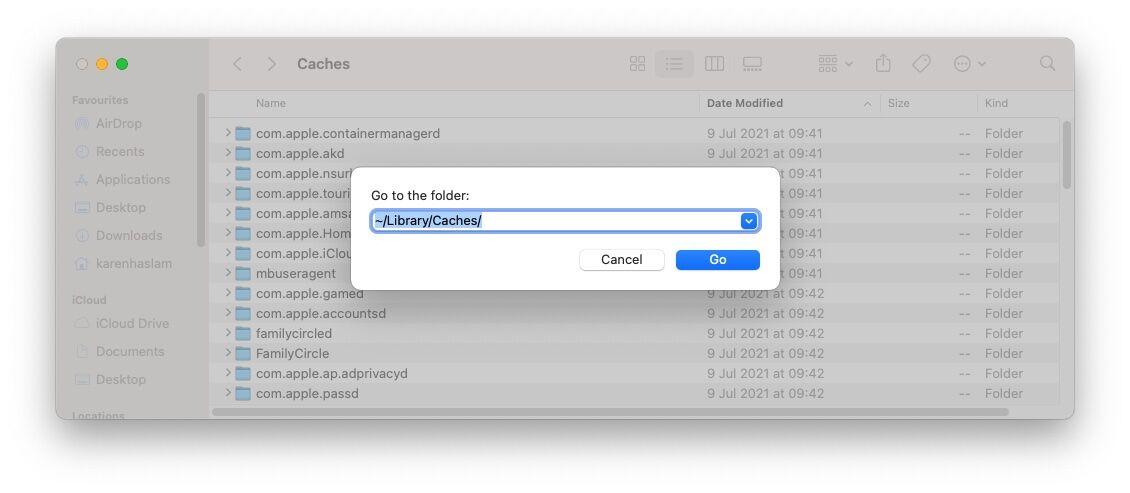
Again, if you aren’t 100 percent sure you know what you are doing, we recommend that you use a dedicated app to remove you application cache.
Best Apps for removing cache
We have a round-up of the
best Mac cleaner apps where we run through some of our favourite options for deleting files and memory hogs. Among them, you will find some excellent solutions for removing cache files from your Mac.
Below are three options that we recommend.
How to use CleanMyMac X to remove cache

CleanMyMac X from MacPaw claims to clear your cache safely, it refers to a Safety Database to do so.
CleanMy Mac can be downloaded from
MacPaw’s website. It costs £34.95/$34.95 for a one-year subscription, although from time to time the company offers discounts. Alternatively, you can buy the software for £93.95/$89.95 if you don’t fancy forking out every year. You can download it for free, but if you want to delete anything you will need to pay up.
- Open CleanMyMac X and click on System Junk.
- Click on the Scan button. The app will start analysing your system.
- Once the scan is complete you will see a message indicating how much space can be freed up. This includes User Cache Files, System Log Files, Language Files, Document Versions, User Log Files and System Cache Files.
- Click on Review Details to see more information. Here you get more details of the various cache files the software is offering to delete. So you could deselect anything you would rather not delete. (For example, you might prefer not to delete Document Versions, or you might want to keep some languages and not others. Plus you might prefer not to delete the cache associated with a particular app).
- If you are happy to go ahead just click Clean.
You may need to enter your password and install a helper tool.
Now wait while CleanMyMac X cleans your system.
How to use MacCleaner Pro 2 to remove cache

MacCleaner Pro from Nektony is another option that is visually quite similar to CleanMyMac X. There is a free trial that is pretty much fully functional. To upgrade to the pro version costs £40.95/$44.95. Download it from
Nektony.
- Open MacCleaner Pro.
- Click on Clean up Mac.
- Here you will see various types of files you can delete, including Caches, Installation Files, Language Files and Downloads. You can deselect any you don’t wish to delete.
- Click on Clean Up.
- You will be asked to confirm that you are happy for the files to be deleted. Click on Review. You can click on the down arrows to see more information about each. Deselect any you don’t want to delete.
- Click on Clean Up. Enter your password.
The great thing about MacCleaner Pro is that it functions in trial mode, rather than just showing you what you can delete and then asking you to purchase the software. The trial is time-limited though.
How to use CCleaner to remove cache

There is also a free version of CCleaner which you can download from the
CCleaner website.
- Open CCleaner.
- Click on the Applications tab.
- You’ll see which apps have files you can remove.
- Click on Analyze and wait for the software to examine what you can delete.
- It will then show you the files that can be removed. If you are happy to go ahead click on Run Cleaner.
- You will see a warning that the process will permanently delete files form your system. Confirm that you wish to proceed.
- You may need to install a helper tool, in which case enter your password.
- Wait while the app removes the cache files.










Discussion about this post