










From the moment Microsoft released Windows 10 in 2015, the new OS came under fire for the amount of private information it gathered from users by default. Over the years, the vendor gradually introduced changes to Windows 10 that alleviated some of those privacy concerns, but some remain — and most of those apply to Windows 11 as well.
Whether you think Windows 11 crosses the privacy line or just want to safeguard as much of your personal life as possible, we’re here to help. Here’s how to protect your privacy in just a few minutes.
Note: This story covers Windows 11 version 22H2. If you have an earlier release of Windows 11, some things may be different. If you have Windows 10, see “How to protect your privacy in Windows 10.”
Turn off ad tracking
At the top of many people’s privacy concerns is what data is being gathered about them as they browse the web. That information creates a profile of a person’s interests that is used by a variety of companies to target ads.
Windows 11 does this with the use of an advertising ID. The ID doesn’t just gather information about you when you browse the web, but also when you use Windows 11 apps. Your advertising ID isn’t synced to other computers, and it operates independently of your Microsoft account, if you’re using one.
You can turn that advertising ID off if you want. Launch the Windows 11 Settings app (by searching for settings and then clicking the Settings icon, which looks like a gear) and go to Privacy & security. In the left pane that appears, click General and move the slider to Off in the top setting, “Let Apps show me personalized ads by using my advertising ID.” You’ll still get ads delivered to you, but they’ll be generic ones rather than targeted ones, and your interests won’t be tracked.
 IDG
You can turn off Windows 11’s advertising ID if you want. (Click image to enlarge it.)
To make absolutely sure you’re not tracked online when you use Windows 11, and to turn off any other ways Microsoft will use information about you to target ads, head to the Ad Settings section of Microsoft’s Privacy Dashboard. Sign into your Microsoft account at the top right of the page.
Then go to the “See ads that interest you” section at the top of the page and move the slider from On to Off.
Turn off location tracking
Wherever you go, Windows 11 knows you’re there. Some people don’t mind this, because it helps the operating system give you relevant information, such as your local weather, what restaurants are nearby, and so on. But if you don’t want Windows 11 to track your location, you can tell it to stop.
Launch the Settings app and go to Privacy & security > Location. In the right pane next to Location services, move the slider from On to Off. Doing that turns off all location tracking for every user on the PC.
 IDG
Moving the Location services slider to Off turns off location tracking for every user on the Windows 11 device. (Click image to enlarge it.)
This doesn’t have to be all-or-nothing affair — you can turn off location tracking on an app-by-app basis. If you want your location to be used only for some apps and not others, make sure location tracking is turned on, then scroll down to the “Let apps access your location” section. You’ll see a list of every Windows 11 app that can use your location. Move the slider to On for the apps you want to allow to use your location — for example, Weather or Maps — and to Off for the apps you don’t.
That doesn’t cover desktop apps, though. So after you turn on location tracking, go to “Let desktop apps access your location” and turn the slider to On. When you do that, a list of desktop apps that use location tracking appears. Move the slider to On for each of the apps you want to use your location and Off for each app you don’t.
When you turn off location tracking, Windows 11 will still keep a record of your past location history. To clear your location history, go to the Privacy Dashboard, click Review location data, and delete all or some of your location history.
There’s a lot more you can do to protect your privacy when you’re there. For details, see “Use Microsoft’s Privacy Dashboard” below.
Disable your activity history
In Windows 11, Microsoft eliminated the Windows 10 Timeline feature that let you review your activity on your PC. But oddly enough, Microsoft still tracks and stores that activity information, including the websites you visit and how you use apps and Microsoft services. If you want to put a halt to that, go to Settings > Privacy & security > Activity history and turn the slider next to “Store my activity history on this device” from On to Off.
 IDG
Stop Windows 11 from keeping a history of what you do on your PC. (Click image to enlarge it.)
Ditch a Microsoft account for a local account
When you use your Microsoft account to log into Windows 11, you’re able to sync your settings with all Windows devices. So, for example, when you make changes to your settings on a desktop PC, those changes will also be made on your laptop the next time you log in.
But maybe you don’t want Microsoft to store that information about you. And maybe you want to cut your ties as much as possible to anything Microsoft stores about you. If that’s the case, your best bet is to stop using your Microsoft account and instead use a local account.
Microsoft doesn’t want you to do this, so they’ve made it more difficult to do it in Windows 11 than it was in Windows 10. But you can still do it, in this way:
- Press the Windows key + R to open the Run dialog box.
- Type netplwiz and press enter.
- Click the Add
- On the screen that appears, type in your email address and click Sign in without a Microsoft account (not recommended) way down at the bottom of the screen. Click Next.
- On the next screen, you’ll see your email address. Click Finish.
 IDG
Setting up a local account on Windows 11. (Click image to enlarge it.)
Keep in mind that when you do this, you won’t be able to use Microsoft’s OneDrive storage or download and install for-pay apps from the Microsoft Store. You can, however, download and install free apps from the Microsoft Store.
Change your app permissions
Windows apps have the potential to invade your privacy — they can have access to your camera, microphone, location, pictures, and videos.
But you can decide, in a very granular way, what kind of access each app can have.
To do this, go to Settings > Apps > Installed apps. You’ll see a list of your installed apps. Click the three-dot icon to the right of the app whose permissions you want to control, then select Advanced options and set the app’s permissions by toggling them either on or off.
 IDG
Setting permissions for Microsoft’s 3D Viewer app. (Click image to enlarge it.)
Note, though, that not all apps have an “Advanced options” menu choice. And of those that do, not all let you customize your app permissions.
However, there’s another way to change app permissions. To do it, go to Settings > Privacy & Security and scroll down to the “App permissions” section. You’ll see a list of all of Windows’ hardware, capabilities, and features that apps can access if they’re given permission — location, camera, microphone, notifications, account info, contacts, and so on.
Click any of the listed items — for example, Microphone. At the top of the page that appears, you can turn off access to the microphone for all apps. Below that you’ll see a listing of all the apps with access to the microphone, where you can control access on an app-by-app basis. Any app with access has a slider that is set to On. To stop any app from having access, move the slider to Off.
Control and delete diagnostic data
As you use Windows 11, data is gathered about your hardware and what you do when you use Windows. Microsoft says that it collects this data as a way to continually improve Windows and to offer you customized advice on how to best use Windows.
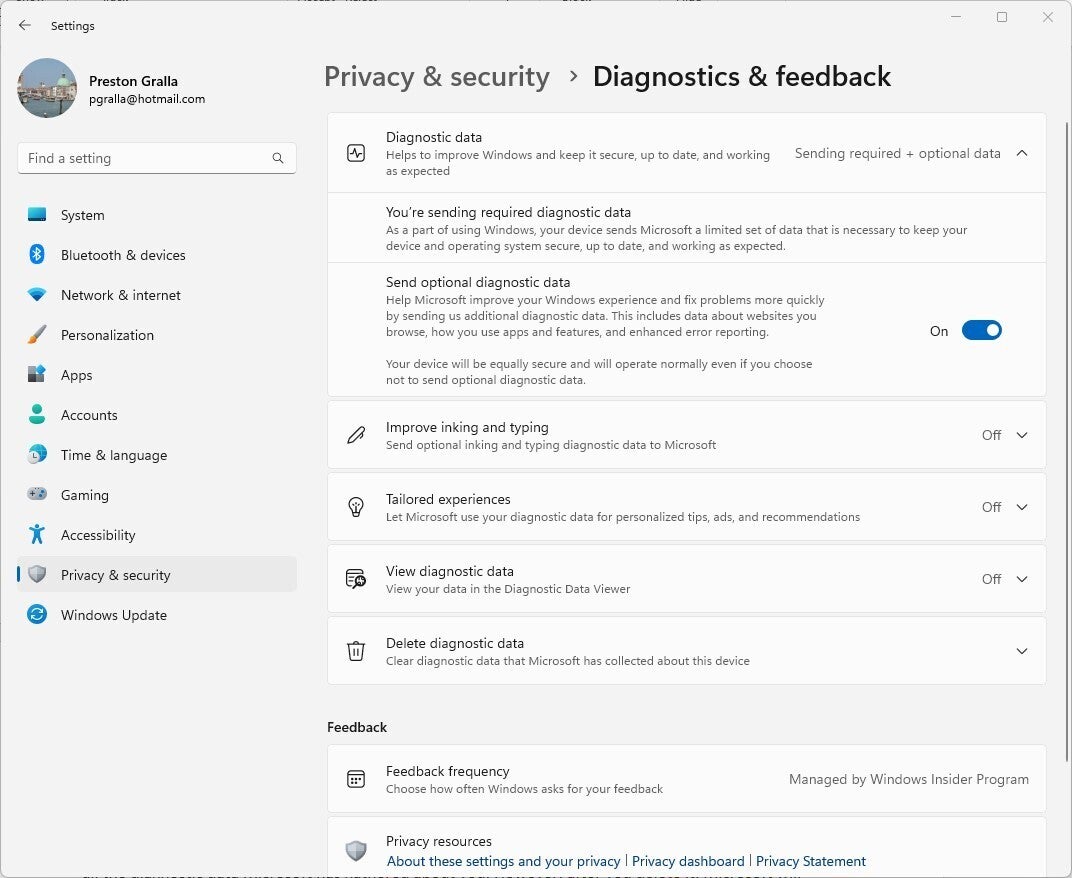
That makes plenty of people uncomfortable. If you’re one of them, you can to a certain extent control what kind of diagnostic data is gathered about you. To do it, head to Settings > Privacy & security > Diagnostics & Feedback. In the “Diagnostic data” section, you can customize to some extent the diagnostic data to be gathered. Note that there’s no way to stop Microsoft from gathering diagnostic data entirely.
When you use Windows 11, information is sent to Microsoft about your device, its settings and capabilities, and whether it is performing properly. That’s the information referred to at the top of the screen in the section “You’re sending required diagnostic data.” There’s nothing you can do about that.
Just below that is another setting, “Send optional diagnostic data.” If that’s turned on, you’re sending the whole nine yards to Microsoft: info about the websites you browse and how you use apps and features, plus additional info about device health, device usage, and enhanced error reporting. If you’re worried about your privacy, turn this slider to Off.
 IDG
Go here to control what diagnostic data Windows 11 gathers. (Click image to enlarge it.)
(Note that if you’re a Windows Insider and get preview builds, you are required to send this data. If you turn it off, you won’t be able to participate in the Insider program.)
Next, scroll down to the “Tailored experiences” section, click the down arrow and move the slider to Off. This won’t affect the data Microsoft gathers, but it will turn off targeted ads and tips that are based on that information. So while it won’t enhance your privacy, you’ll at least cut down on the annoyance factor.
Now scroll a bit further down and in the “Delete diagnostic data” section, click Delete. That will delete all the diagnostic data Microsoft has gathered about you. However, after you delete it, Microsoft will start gathering the data again.
Finally on this screen, consider scrolling up to the “Improve inking and typing” section and moving the slider to Off. That will stop Windows 11 from sending to Microsoft the words you input using the keyboard and inking.
One final note about diagnostic data: You may have heard about a tool Microsoft has been hyping, called the Diagnostic Data Viewer, which you can download from the Microsoft Store. Microsoft claims it lets you see exactly what kind of diagnostic data Microsoft gathers about you. Don’t believe it. It’s something only a programmer could love — or understand. You won’t be able to use it to clearly see the diagnostic data Microsoft collects. Instead, you’ll scroll or search through incomprehensible headings such as “TelClientSynthetic.PdcNetworkActivation_4” and “Microsoft.Windows.App.Browser.IEFrameProcessAttached” with no explanation of what it means. Click any heading, and you’ll find even more incomprehensible data.
Use Microsoft’s Privacy Dashboard
Microsoft has built an excellent, little-known web tool called the Privacy Dashboard that lets you track and delete a lot of information Microsoft gathers about you. As covered earlier in this story, here you can turn off ad targeting. You can also view and delete your browsing history, search history, location activity, voice activity, media activity, and more.
(Note that for your browsing and search history, it only tracks your activity when you use Microsoft Edge or Internet Explorer. It doesn’t track data when you use other browsers, like Chrome or Firefox. And it only tracks your location history when you’re using Microsoft devices, not those that use iOS or Android.)
 IDG
Microsoft’s little-known Privacy Dashboard is a great place to delete much of the information Microsoft gathers about you. (Click image to enlarge it.)
To use it, head to the information you want to view and clear, then click the appropriate link — for example, Browsing history. Note that in some instances, you won’t have full control over deleting and managing data.
In the dashboard you can also customize privacy settings for other Microsoft products, including Xbox, Office/Microsoft 365, and Microsoft Teams. Scroll to the “Privacy settings in our products” section and click the product you’re interested in.
Turn off Shared Experiences
Windows 11’s Shared Experiences feature syncs your app activity on all the PCs you’re signed into. In that way, when you move from one device to another, you can immediately start working where you left on another device.
If you don’t like the idea of letting Microsoft gather that data, you can turn it off. Go to Settings > Apps > Advanced Settings > Share across devices and select the Off button.
 IDG
Turning off Windows 11’s Shared Experiences. (Click image to enlarge it.)
Curb Cortana
 IDG
Here’s how to sign out of Cortana.
Cortana, Microsoft’s digital assistant, was enabled by default in Windows 10, which is a privacy concern because to do its job well, it needs to know things about you such as your home location, place of work, and the times and route you take to commute there. In Windows 11, Cortana is not enabled by default, so the best privacy advice is to simply not turn it on.
However, if Cortana is turned on in your PC, you can easily turn it off. Just click the three-dot icon on the upper left of Cortana’s screen and select Sign out.
Get granular in the Settings app
All this shouldn’t take that long and will do a great deal to protect your privacy. If you want to dig even deeper into privacy protections, launch the Settings app and click Privacy & security > General. You’ll see the same General pane that we covered in the first tip in this story.
Below the switch to turn off your advertising ID are three more privacy settings you can disable:
Let websites show me locally relevant content by accessing my language list. The list of languages you have enabled on your machine is your own business.
Let Windows improve Start and search by tracking app launches. This is used to build the “Most used” list on the Start menu and influences search result order — likely not a must-have for the privacy minded.
Show me suggested content in the Settings app. This is used, in Microsoft’s words, to “suggest new content and apps you might find interesting.” Trust me, it’s unlikely you’ll find them interesting.
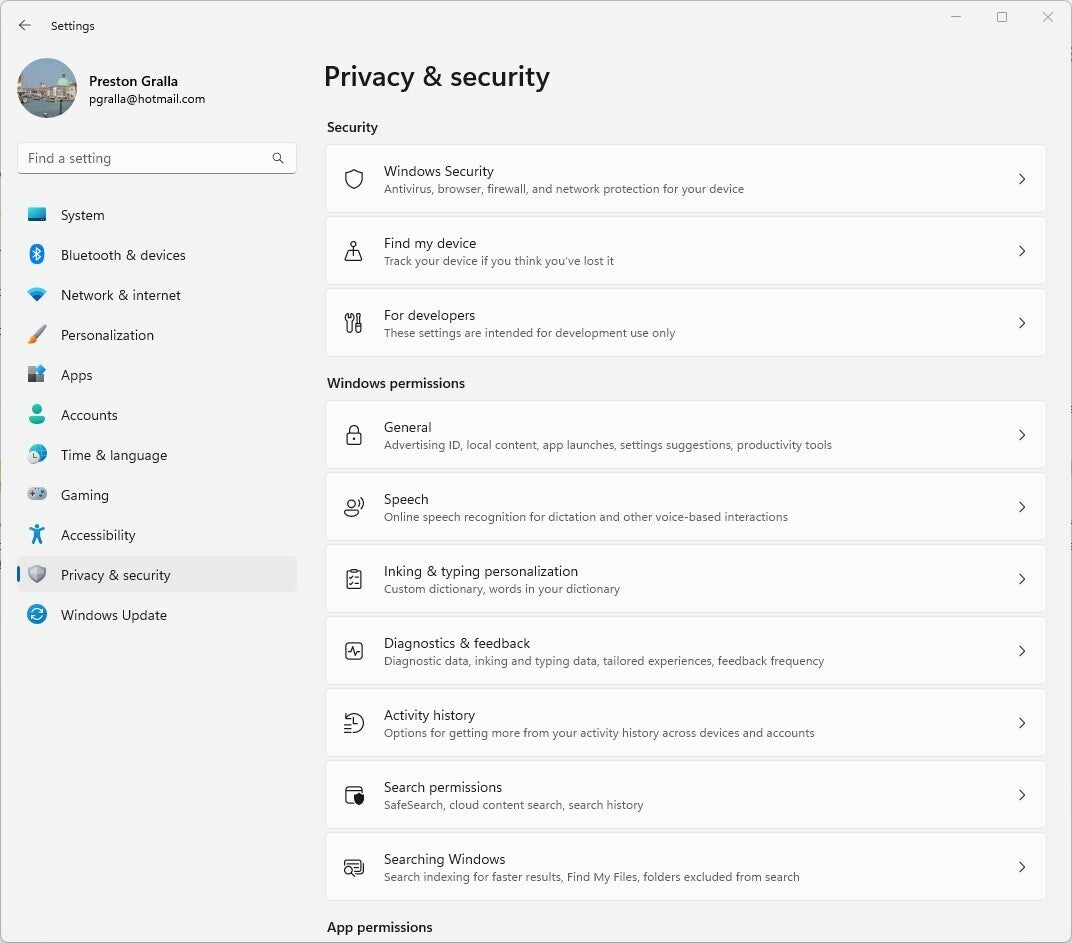
And there’s a lot more beyond the General pane. On the main “Privacy & security” screen you’ll see additional areas where you can get even more granular about privacy — for example, in the “Activity history” section. And here’s where you’ll get access to all app permissions, as outlined earlier in this article.
 IDG
The main “Privacy & security” page in the Settings app offers myriad options for tweaking your privacy settings. (Click image to enlarge it.)
Tips for the truly paranoid
If you want to take privacy even further, there are a few more things you can do.
Stop using OneDrive
If you don’t like the idea of syncing your data to Microsoft’s OneDrive cloud storage service, you can stop using it. (There’s no way to uninstall it.) Right-click the OneDrive icon on the notification tray at the bottom right of the Windows desktop and select Settings from the menu that pops open. In the OneDrive Settings window, go to the Account tab, then click the Unlink this PC link. Next, click the Settings tab and uncheck Start OneDrive automatically when I sign in to Windows.
 IDG
Uncheck the box next to Start OneDrive automatically when I sign into Windows. (Click image to enlarge it.)
Don’t sync Windows settings across devices
In addition, you can say no to syncing your Windows settings among different devices. When you sync your settings, the way you’ve customized and set up Windows 11 will be synced to Microsoft’s servers. If you want to turn it off, go to Settings > Accounts > Windows backup and turn the slider from On to Off next to Remember my preferences.
Turn off app diagnostics
Changing this setting isn’t a particularly big privacy-enhancer, but if you’re a real privacy fiend, every bit helps. It doesn’t affect desktop apps like Word or Excel, and instead targets built-in Windows apps and the apps you download from the Microsoft Store. Turning off app diagnostics stops any of those apps from getting details about other apps — things such as their internal names, package names, the user name of the person running the app, and techie details such as memory usage. Developers use this information all the time, but your garden-variety apps shouldn’t need any of it.
To turn it off, select Settings > Privacy & security > App diagnostics, and in the App diagnostic access section, move the slider from On to Off.
 IDG
Turn off app diagnostics to prevent built-in Windows apps and Microsoft Store apps from getting details about other apps. (Click image to enlarge it.)
Don’t share Windows updates
Finally, you can change the way Windows updates. In Settings > Windows Updates > Advanced options > Delivery optimization, move the slider from On to Off next to Allow downloads from other PCs. When turned on, this function lets your Windows 11 system share its update files with other Windows 11 computers on the internet and your own network through peer-to-peer distribution.
These steps can take you a long way towards making sure that Windows 11 doesn’t cross the line into gathering data you’d prefer remain private.
Copyright © 2023 IDG Communications, Inc.









Discussion about this post