









• Home
  • Insight
  • Blog
  • Business
  • Entertainment
  • Health
  • Politics
  • Shop
    • Gift Shop
    • Value Shop
    • Store
    • Bargain Shop
    • Discount
  • Sports
  • Tech
  • Travel
  • USA
  • Video
  • World
    • Asia
    • Africa
    • South America
    • North America
    • Europe
    • Oceania
Tuesday, November 17, 2026
No Result
View All Result
Subscribe Now
  • Home
  • Insight
  • Blog
  • Business
  • Entertainment
  • Health
  • Politics
  • Shop
    • Gift Shop
    • Value Shop
    • Store
    • Bargain Shop
    • Discount
  • Sports
  • Tech
  • Travel
  • USA
    Stranded in Conflict: Palestinians Navigate the Tenuous Balance of War and Peace Amid Ceasefire Efforts

    Stranded in Conflict: Palestinians Navigate the Tenuous Balance of War and Peace Amid Ceasefire Efforts

    Trump Administration Revokes Pay Increase for Head Start Educators

    Trump Administration Revokes Pay Increase for Head Start Educators

    Unexpected Triumph: Gay Candidates Achieve Unforeseen Victories in Challenging Races

    Unexpected Triumph: Gay Candidates Achieve Unforeseen Victories in Challenging Races

    Microsoft Outlook Experiences Prolonged Outage Affecting Users Nationwide

    Microsoft Outlook Experiences Prolonged Outage Affecting Users Nationwide

    Gunfire Erupts in D.C.: Authorities Search for Suspect Amid Rising Concerns Over Public Safety

    Gunfire Erupts in D.C.: Authorities Search for Suspect Amid Rising Concerns Over Public Safety

    LAUSD Takes Strong Action Against Hate Speech Following Racial Slur Incidents

    LAUSD Takes Strong Action Against Hate Speech Following Racial Slur Incidents

    Beloved Former Los Angeles Times Columnist Steve Harvey Passes Away at 80

    Beloved Former Los Angeles Times Columnist Steve Harvey Passes Away at 80

    Exploring Diversity: ‘Ten Lives’ Showcases the Varied Economic Journeys of Americans

    Exploring Diversity: ‘Ten Lives’ Showcases the Varied Economic Journeys of Americans

    Philadelphia Eagles Facing Turmoil as Coach Nick Sirianni Addresses Controversy Over Gesture to Fans

    Philadelphia Eagles Facing Turmoil as Coach Nick Sirianni Addresses Controversy Over Gesture to Fans

  • Video
  • World
    • Asia
    • Africa
    • South America
    • North America
    • Europe
    • Oceania
The Insight Post
  • Home
  • Insight
  • Blog
  • Business
  • Entertainment
  • Health
  • Politics
  • Shop
    • Gift Shop
    • Value Shop
    • Store
    • Bargain Shop
    • Discount
  • Sports
  • Tech
  • Travel
  • USA
    Stranded in Conflict: Palestinians Navigate the Tenuous Balance of War and Peace Amid Ceasefire Efforts

    Stranded in Conflict: Palestinians Navigate the Tenuous Balance of War and Peace Amid Ceasefire Efforts

    Trump Administration Revokes Pay Increase for Head Start Educators

    Trump Administration Revokes Pay Increase for Head Start Educators

    Unexpected Triumph: Gay Candidates Achieve Unforeseen Victories in Challenging Races

    Unexpected Triumph: Gay Candidates Achieve Unforeseen Victories in Challenging Races

    Microsoft Outlook Experiences Prolonged Outage Affecting Users Nationwide

    Microsoft Outlook Experiences Prolonged Outage Affecting Users Nationwide

    Gunfire Erupts in D.C.: Authorities Search for Suspect Amid Rising Concerns Over Public Safety

    Gunfire Erupts in D.C.: Authorities Search for Suspect Amid Rising Concerns Over Public Safety

    LAUSD Takes Strong Action Against Hate Speech Following Racial Slur Incidents

    LAUSD Takes Strong Action Against Hate Speech Following Racial Slur Incidents

    Beloved Former Los Angeles Times Columnist Steve Harvey Passes Away at 80

    Beloved Former Los Angeles Times Columnist Steve Harvey Passes Away at 80

    Exploring Diversity: ‘Ten Lives’ Showcases the Varied Economic Journeys of Americans

    Exploring Diversity: ‘Ten Lives’ Showcases the Varied Economic Journeys of Americans

    Philadelphia Eagles Facing Turmoil as Coach Nick Sirianni Addresses Controversy Over Gesture to Fans

    Philadelphia Eagles Facing Turmoil as Coach Nick Sirianni Addresses Controversy Over Gesture to Fans

  • Video
  • World
    • Asia
    • Africa
    • South America
    • North America
    • Europe
    • Oceania
No Result
View All Result
No Result
View All Result
Home Mobile

Android用継続的インテグレーション&デリバリー(CI/CD) | Codemagic Blog

by Theinsightpost
August 12, 2022
in Mobile
0 0
0
Android用継続的インテグレーション&デリバリー(CI/CD) | Codemagic Blog


これは、Codemagic CI/CDを使ってAndroidのネイティブアプリを構築するための入門ガイドです。2021年6月 に Souvik Biswas が執筆・更新いたしました。

本記事では、Codemagic CI/CDでAndroidネイティブプロジェクトを構築する ためのcodemagic.yamlファイルの設定方法をご紹介いたします。codemagic.yaml`ファイルが導入されて以来、ビルド構成をより整理し、単一のファイルだけですべてのワークフローを管理することがとても簡単になりました。このファイルはバージョンコントロールにコミットすることができ、Codemagic UIからビルド中に自動的に検出されます。

Codemagicには、AndroidやiOSのネイティブアプリをUIから直接ビルドする機能はありませんが、ネイティブアプリをビルドするためのcodemagic.yamlファイルを簡単に設定できます。本記事では、Codemagicで Androidネイティブ プロジェクトをビルドするために、codemagic.yamlファイルを設定する方法をご紹介いたします。

理解を深めるために本記事を読み進めることをお勧めいたしますが、すでにcodemagic.yamlファイルのご使用経験がある方は、Androiネイティブプロジェクト用の YAMLテンプレート をこちらから入手できます。

それでは、Codemagic CI/CDを使って、Androidネイティブアプリに向けてCI/CDをいかに簡単に設定できるのかを手順を追ってご説明いたします。

Androidの継続的インテグレーション:Codemagicを使って始めましょう

あなたのAndroidネイティブプロジェクトが、バージョンコントロールシステムを使ってコードホスティングプラットフォーム(GitHub、Bitbucket、GitLabなど)にアップロードされていることをご確認ください。

  1. Codemagicにログインします。 まだユーザーでない方は、サインアップしてください。

サインアップ

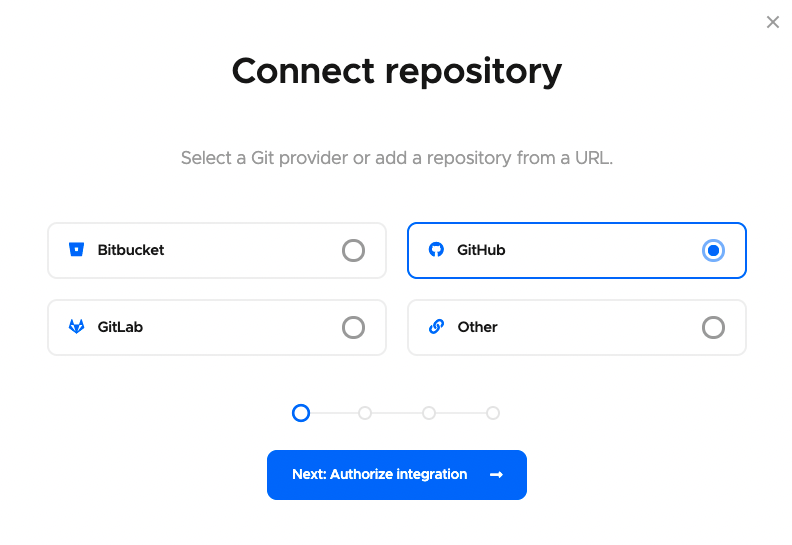
2.「アプリケーション」ページで、アプリケーションの追加をクリックします。

  1. 使用するGitプロバイダーを選択します(または、リポジトリのクローンURLを使って追加する場合は、その他(Other)を選択します)。

  2. 次に、統合を承認する をクリックして、Codemagicを承認します。選択したGitプロバイダーの承認がお済みの場合は、その代わりに次に、レポジトリを選択(Next: Select repository) を選択してください。

    GitHubをGitプロバイダーとして使用している場合は、リポジトリを選択する前に追加ステップが1つあり、GitHubアプリをインストール(Install GitHub App) をクリックして統合をセットアップします。GitHubアプリ統合の設定についての詳細は、こちらをご覧ください。

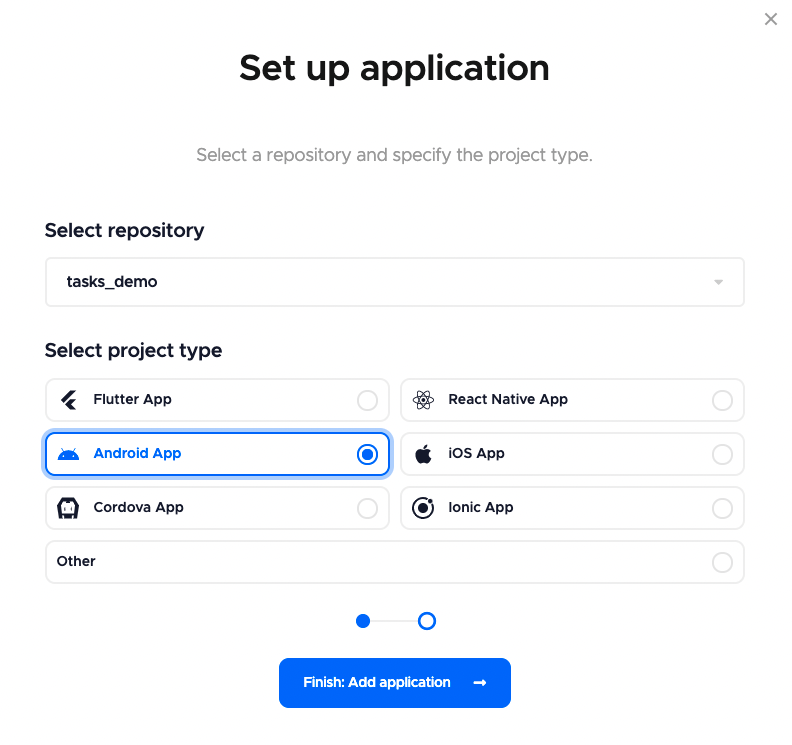
  3. ここで、リポジトリを選択(するか、その他を使用している場合はクローンURLを追加)し、プロジェクトタイプを選択して、終了して、アプリケーションを追加(Finish: Add application) をクリックします。

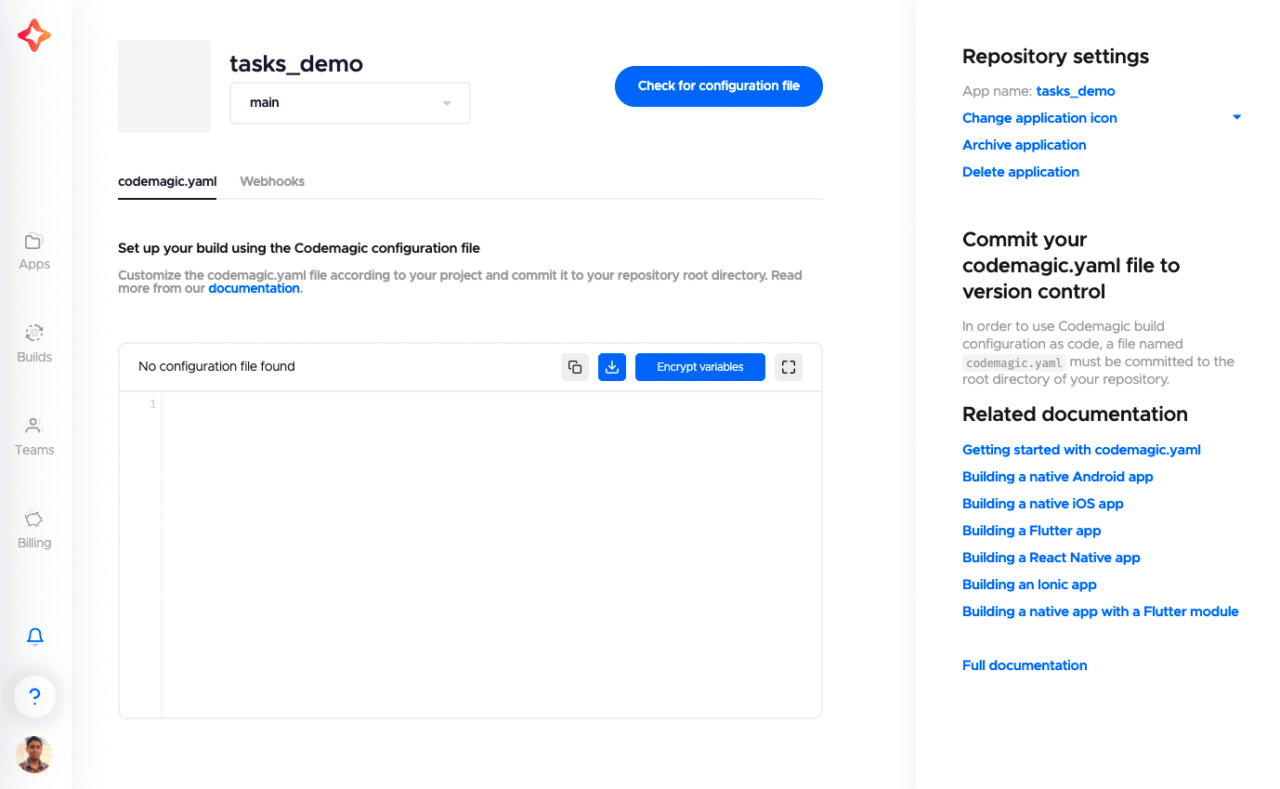
  4. プロジェクトの設定画面が表示されます。ここでは、構成ファイルが見つかりません(No configuration file found) という文が表示されますが、これは、まだプロジェクトに codemagic.yaml ファイルを追加していないためです。

    また、ドキュメントへのリンクもありますので、codemagic.yamlを使ってAndroidプロジェクトを始める際の参考にしてみてください。
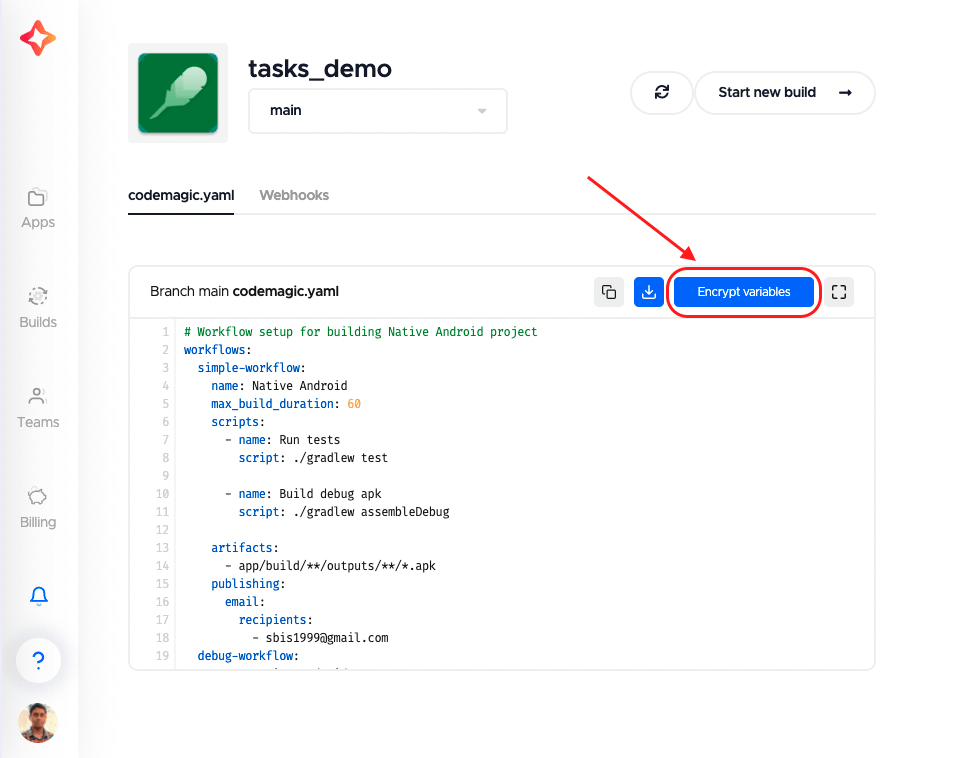
Androidのワークフロー例

Androidのワークフロー例であるcodemagic.yamlはこちらから入手できます。この例のYAMLファイルには多くの設定が含まれていますので、必要に応じて自由に変更してください。

シンプルなAndroidのワークフローの基本構造は次のようなものです:

workflows:
  simple-workflow:
    name: Native Android
    max_build_duration: 60
    scripts:
      - name: Run tests
        script: ./gradlew test
      - name: Build debug apk
        script: ./gradlew assembleDebug
    artifacts:
      - app/build/**/outputs/**/*.apk
    publishing:
      email:
        recipients:
          - sbis1999@gmail.com

上記の例では、simple-workflowが ワークフローID で、Native Androidが ワークフロー名 となります。この2つの名前は、プロジェクトに適したものに変更できます。

このシンプルなワークフローは、Androidアプリのデバッグビルドを生成するのに役立ちます。

YAMLに深く飛び込む

それでは、codemagic.yamlファイルを詳しく見て、このファイルが持つ本当の力を理解しましょう。

スクリプト

Androidプロジェクトで定義されたローカルのユニットテストを実行するには、YAMLファイルのscriptsセクションに以下を追加します:

Running instrumented unit tests:

./gradlew connectedAndroidTest

また、インストルメント化ユニットテスト(物理デバイスやエミュレータを使用して行う単体テスト)を実行するには、Androidエミュレータ を起動する必要があります。次のコマンドを追加します:

emulator -avd emulator > /dev/null 2>&1 &

このコマンドの最後に&をつけることで、エミュレータを バックグラウンド で動作させることができます。そうしない場合、emulatorコマンドがターミナルをブロックし、それ以降のコマンドが実行できなくなります。> /dev/null 2>&1を使用すると、このコマンドのすべての出力を無視することができます。

ヒント: エミュレータの起動には多少時間がかかるため、このコマンドはスクリプトの最初に追加したほうがよいでしょう。

デバッグモードでアプリをビルド:

成果物

生成された .apk ファイルは、成果物(artifacts)にそのパスを追加することで取得できます。通常、パスは次のようになっています:

artifacts:
  - app/build/**/outputs/**/*.apk

公開

ビルドのレポートと生成された成果物を メール で受け取るには、次のように指定します:

publishing:
  email:
    recipients:
      - name@example.com # enter your email id here

公開 についての詳細は、こちらのリンクをご参照ください。

Androidプロジェクトをリリースビルド用にセットアップする

まず、リリースビルドを生成するためにコード署名を設定しなければなりません。

キーストアの生成

まだキーストアを作成していない場合は、ターミナルから次のコマンドを使ってキーストアを生成できます。

keytool -genkey -v -keystore keystore_name.keystore -alias alias_name -keyalg RSA -keysize 2048 -validity 10000

このコマンドを、このキーストアファイルを保存するディレクトリで実行してください。これはアプリにとって非常に重要なファイルで、今後アプリのアップデートをGoogle Playストアに公開するのに必要となります。

プロジェクトの構成

以下の手順で、リリースビルドに向けてプロジェクトの準備をします:

  1. Android Studio でプロジェクトを開きます。

  2. プロジェクトビュー に切り替えます。

  3. プロジェクトのルートフォルダ内に、key.propertiesという新しいファイルを作成します。

  4. このファイルに以下を追加します:

    storePassword=<enter keystore password>
    keyPassword=<enter key alias password>
    keyAlias=<enter key alias name>
    storeFile=<enter .keystore file path>
    

    角括弧とその中身を適切な値に置き換えてください。

  5. 誤ってこのファイルをコミットしてしまわないように、ファイルを保存して .gitignore に追加します。

  6. 次に、Androidビュー に切り替えて、アプリレベルのbuild.gradleに移動します。

  7. このファイルに以下を追加します:

    def keystorePropertiesFile= rootProject.file("key.properties")
    def keystoreProperties = new Properties()
    keystoreProperties.load(new FileInputStream(keystorePropertiesFile))
    
    // Add above this line
    android {
    
  8. signingConfigs を追加します:

    signingConfigs {
        config {
            keyAlias keystoreProperties['keyAlias']
            keyPassword keystoreProperties['keyPassword']
            storeFile file(keystoreProperties['storeFile'])
            storePassword keystoreProperties['storePassword']
        }
    }
    
  9. buildTypesリリース内に、以下を追加します:

    buildTypes {
        release {
            //...
            signingConfig signingConfigs.config
        }
    }
    

コード署名用にYAMLを修正

ビルドに署名するには、keystore ファイルが必要です。これにアクセスするには、key.propertiesファイルも必要です。

key.propertiesファイルを.gitignoreに追加したので、Codemagicでのビルド中には利用できません。そのため、機密情報をすべて暗号化し、それを codemagic.yaml ファイルに追加して key.properties ファイルを生成し、今度はそれを使って .keystore ファイルのロックを解除できます。

以下の手順で、機密情報を暗号化します:

-Codemagicでご自分のプロジェクト 設定 に移動します。

-ロック アイコンをクリックします。
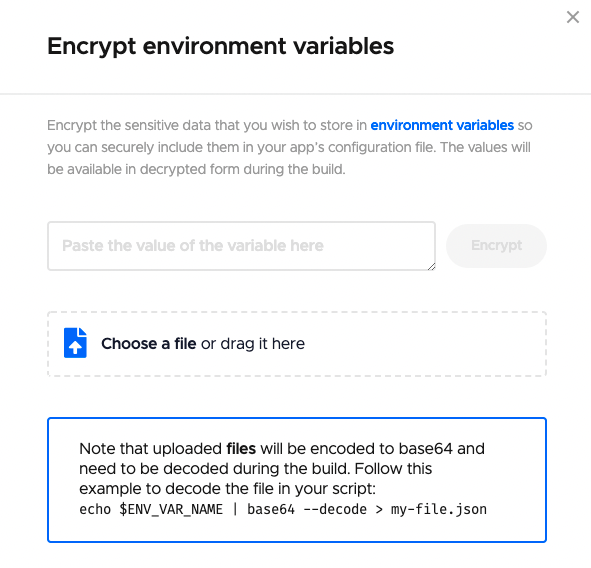
-ここにファイルを ドラッグ&ドロップ するか、値を入力 して、暗号化されたバージョンのファイルを生成できます。
ここで、リリースビルド用にrelease-workflowという新しいワークフローを作成し、以下を追加します:

release-workflow:
  name: Native Android
  max_build_duration: 60
  environment:
    vars:
      CM_KEYSTORE: # Add encrypted keystore file
      CM_KEYSTORE_PASSWORD: # Add encrypted keystore password
      CM_KEY_ALIAS_PASSWORD: # Add encrypted alias password
      CM_KEY_ALIAS_USERNAME: # Add alias name
  scripts: # Add the build configurations here
  artifacts:
    - app/build/**/outputs/**/*.apk
  publishing:
    email:
      recipients:
        - sbis1999@gmail.com

暗号化されたバージョンのファイルと変数を生成し、環境変数の適切なキーに追加します。

それでは、ビルドスクリプトを定義してみましょう。

まず、.keystoreファイルを復号し、key.propertiesファイルを生成します。

scripts:
  # ...
  - |
    # set up release keystore
    echo $CM_KEYSTORE | base64 --decode > /tmp/keystore.keystore
    cat >> "$CM_BUILD_DIR/key.properties" <<EOF
    storePassword=$CM_KEYSTORE_PASSWORD
    keyPassword=$CM_KEY_ALIAS_PASSWORD
    keyAlias=$CM_KEY_ALIAS_USERNAME
    storeFile=/tmp/keystore.keystore
    EOF    

その後、通常通りにテストを追加し、以下のコマンドでリリースビルドを生成できます:

./gradlew assembleRelease

これで、アプリのリリースビルドを生成するためのセットアップが正常に完了しました。

Google Playストアへのリリース

Codemagicがあなたのアプリを直接 Google Play Store に公開するのを許可する場合、Google Play APIを使用してアクセスを設定する必要があります。

注意: 最初のバージョンのアプリを手動でGoogle Playストアにアップロードする必要があります。Codemagicが生成した成果物から、app-release.apkファイルをダウンロードして、Playストアにアップロードできます。

サービスアカウントの作成

あなた個人のユーザー認証情報を提供せずに、Codemagicを使ってAPIにアクセスするには、サービスアカウントを設定する必要があります。

  1. Google Play Consoleにアクセスします。

  2. 「設定」>「開発者アカウント」>「APIアクセス」 を選択し、リンクするプロジェクトを選択 をクリックします。
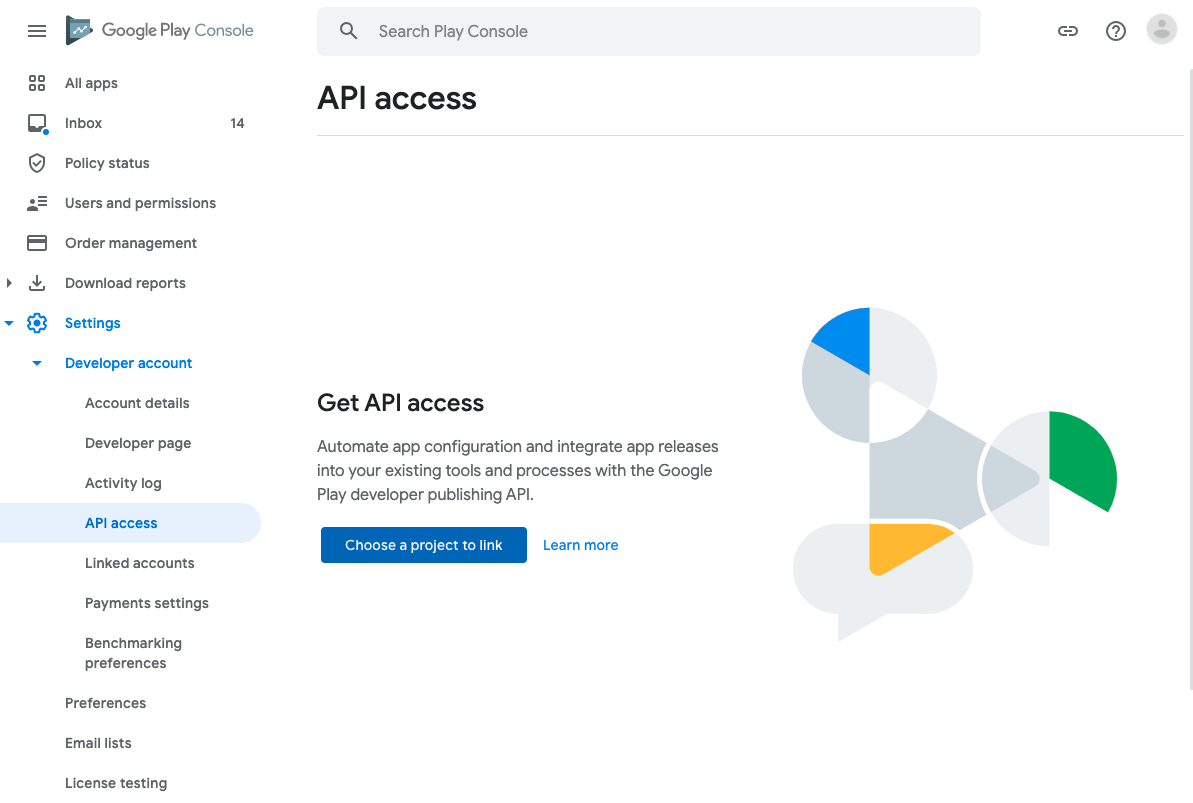
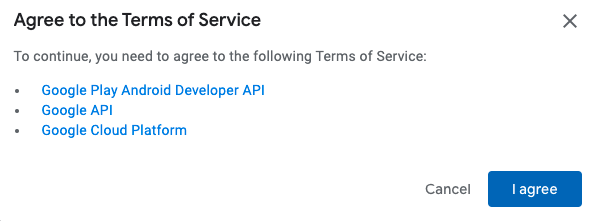
  1. ご利用規約のダイアログボックスで「同意します(I agree)」をクリックします。
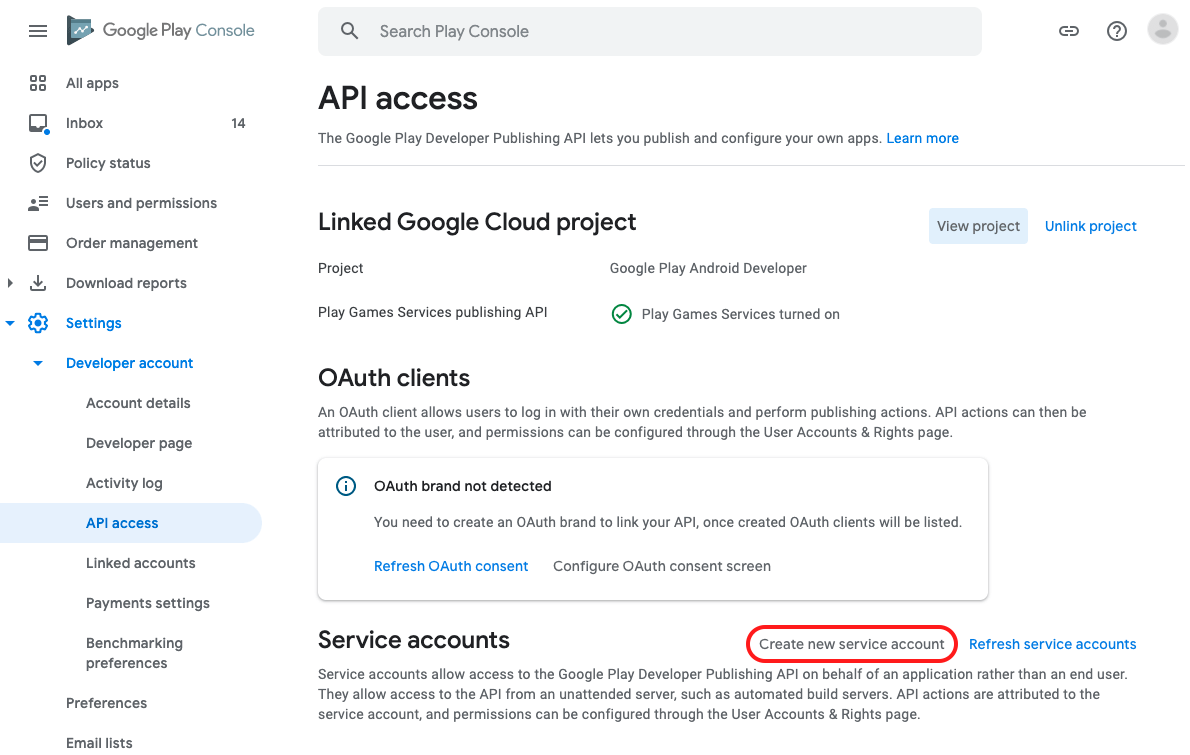
  1. APIアクセス ページで、サービスアカウントセクションの 新規サービスアカウントの作成(Create new service account) をクリックします。
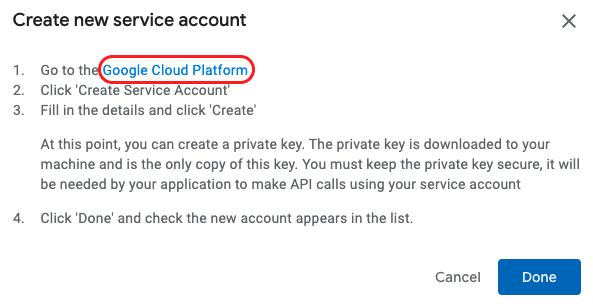
  1. ダイアログボックスが表示されます。最初のステップで提示された Googleクラウドプラットフォーム へのリンクをクリックします。
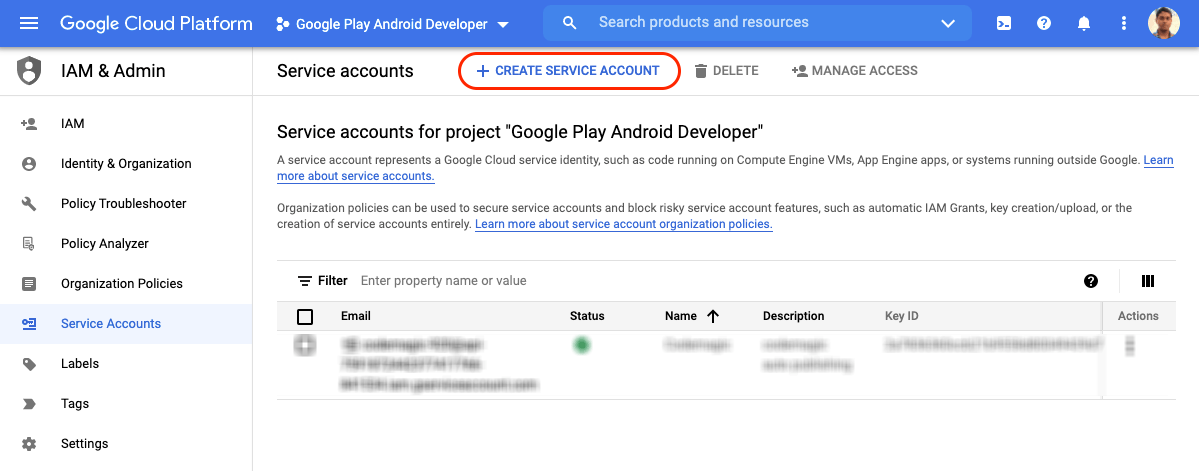
  1. これにより、サービスアカウントの Googleクラウドプラットフォーム につながります。画面上部のドロップダウンメニューで「Google Play Android Developer」が選択されていることをご確認ください。次に、サービスアカウントの作成(CREATE SERVICE ACCOUNT) をクリックします。
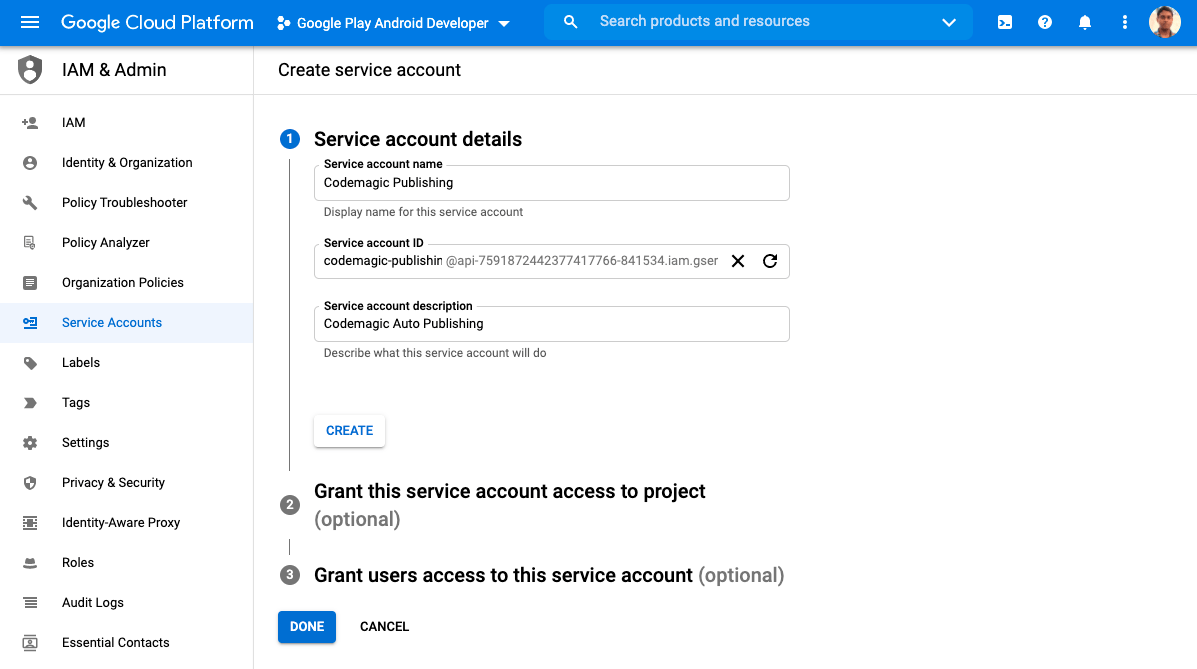
  1. ステップ1では、サービスアカウント名(Service account name) と 説明(description) を入力する必要があります。次に、作成(CREATE) をクリックします。
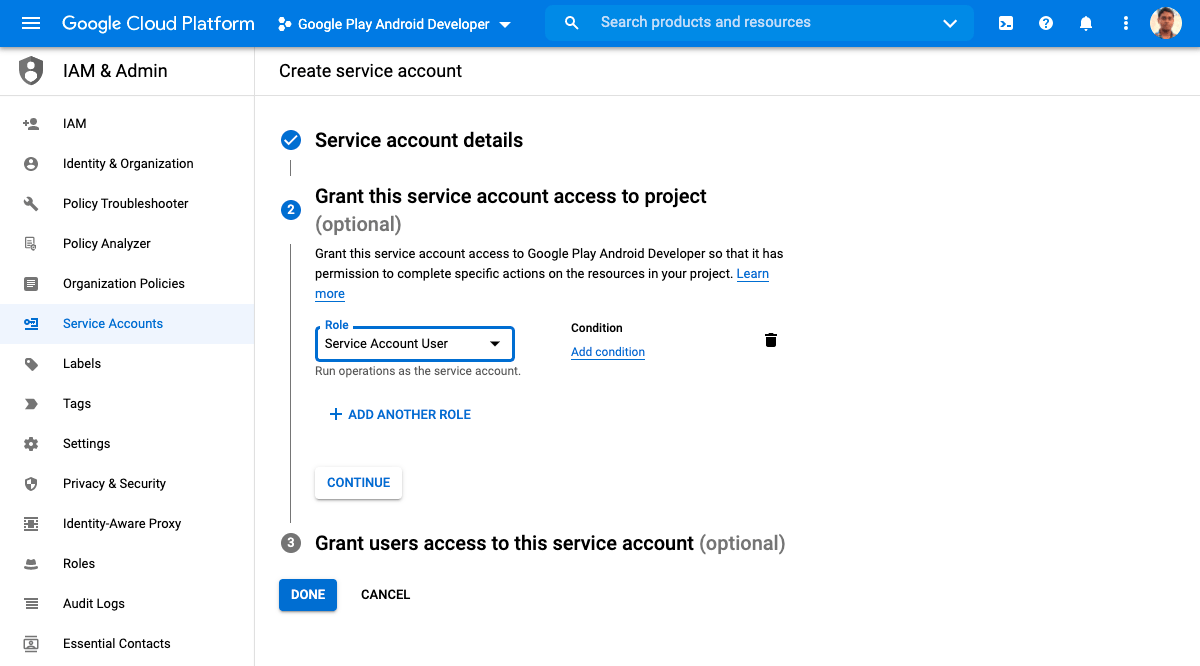
  1. ステップ2では、ドロップダウンメニューから役割(Role) を選択する必要があります。サービスアカウント > サービスアカウントユーザーを選択します。次に、 続ける(CONTINUE)をクリックします。
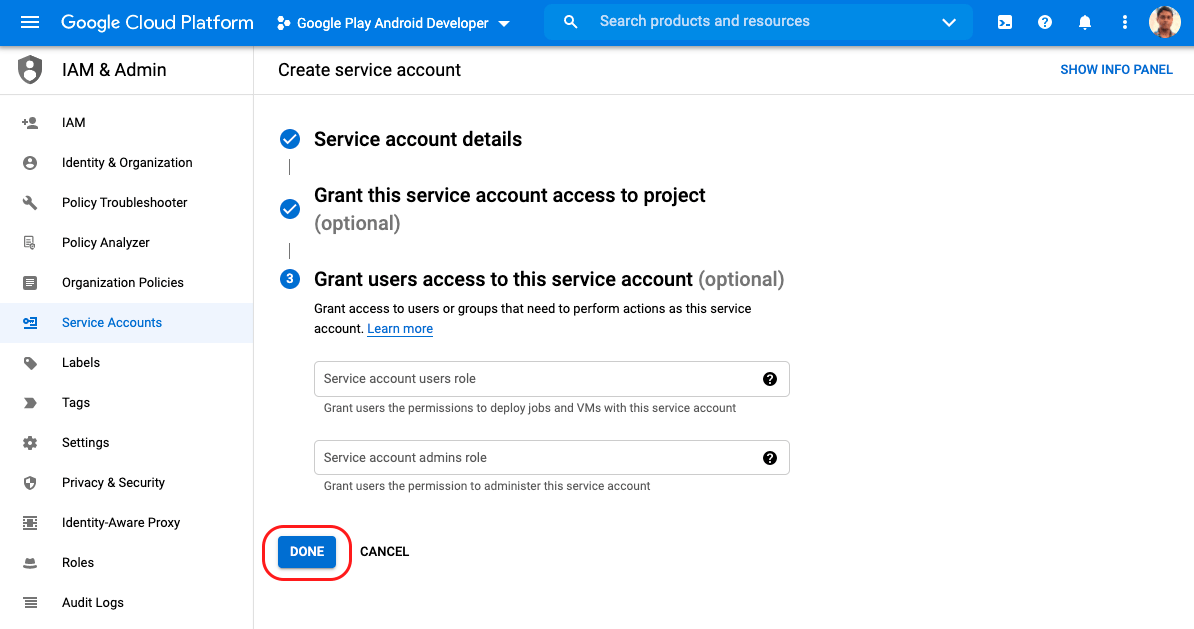
  1. ステップ3では何も入力する必要はありません。下部の 完了(DONE) をクリックするだけです。
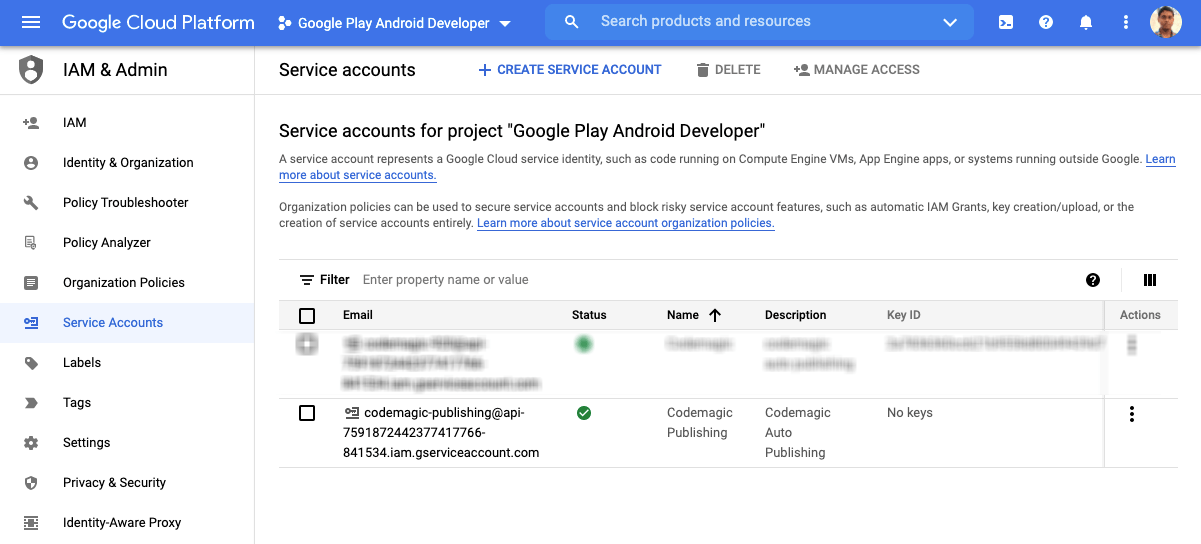
  1. Googleクラウドプラットフォーム内に新しいサービスアカウントが表示されますが、それに関連するキーはありません。
  1. 新しいキーを生成するには、アクション セクションで3つのドットをクリックし、キーの管理(Manage keys)」を選択します。

  2. キー(Keys) ページで、キーの追加 をクリックし、新規キーの作成(Create new key) を選択します。
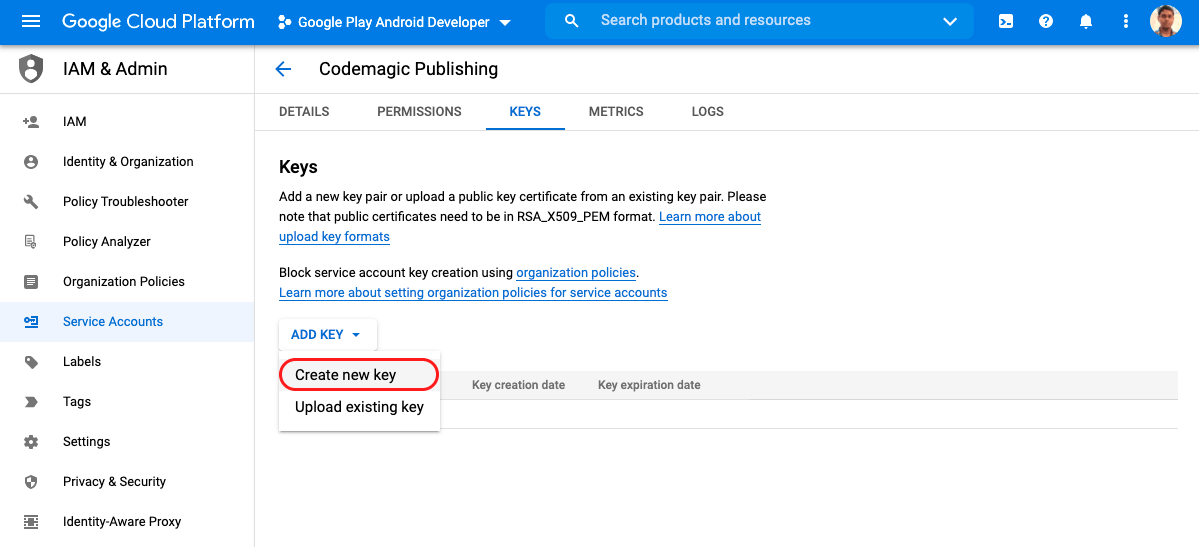
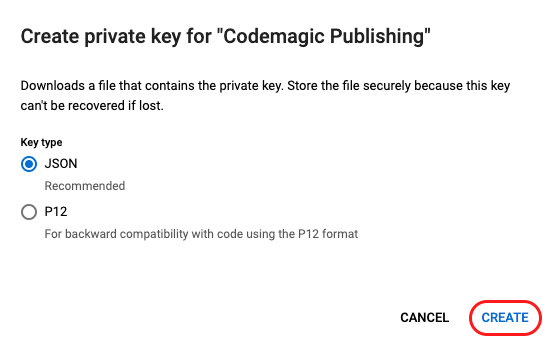
  1. キータイプ を JSON のままにします。作成(CREATE) をクリックします。

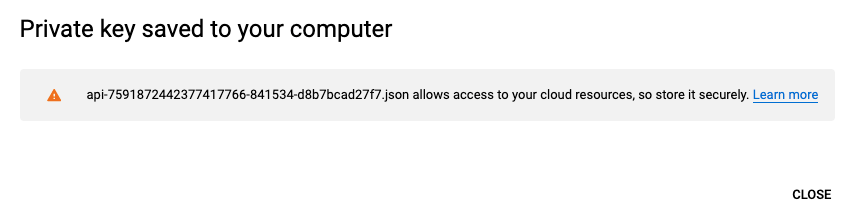
  1. これにより、このサービスアカウントの秘密鍵がダウンロードされます。安全な場所に保管しておいてください。また、このキーは Codemagic から自動公開を設定する際にも必要となります。
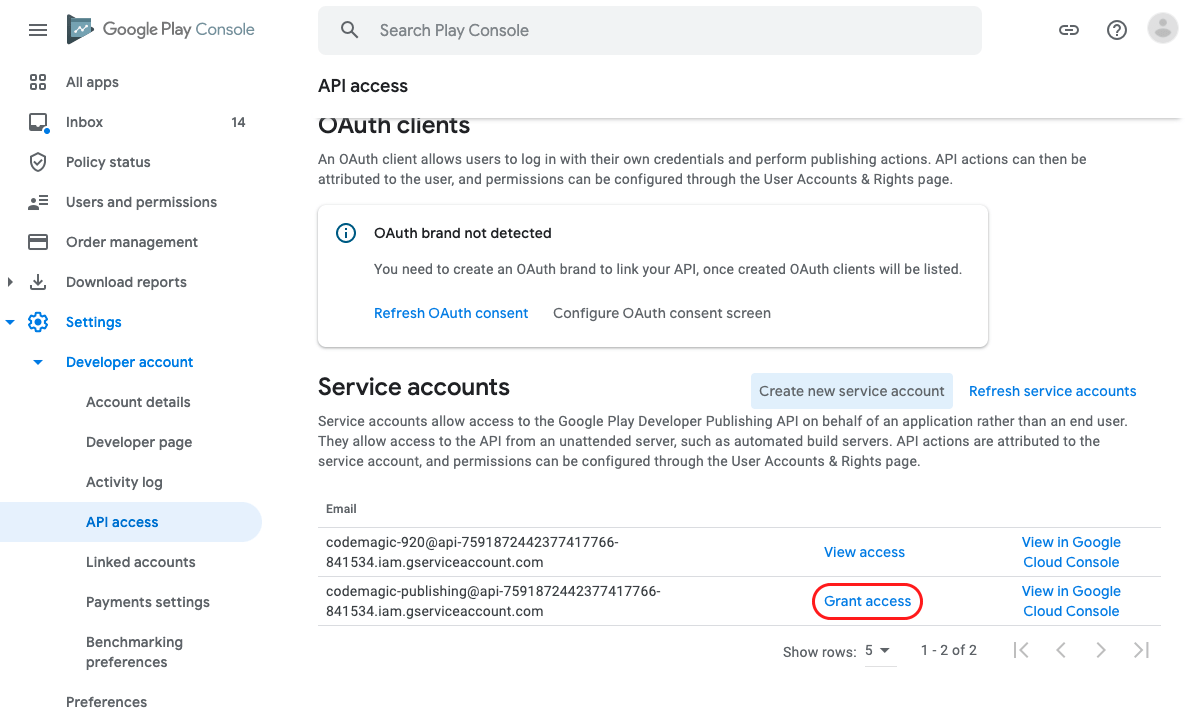
  1. サービスアカウントの Google Play Console に戻ります。作成した名前で新しいサービスアカウントが表示されているのがわかります。アクセス許可(Grant access) をクリックします。
  1. アプリのアクセス許可(App permissions) タブで、アクセスを許可したいアプリケーションを追加します。アプリのアクセス許可についてはデフォルトの設定のままで、適用(Apply) をクリックします。アカウントのアクセス許可(Account permissions) タブでは、デフォルトの選択のまま、ユーザーを招待する(Invite user) をクリックします。
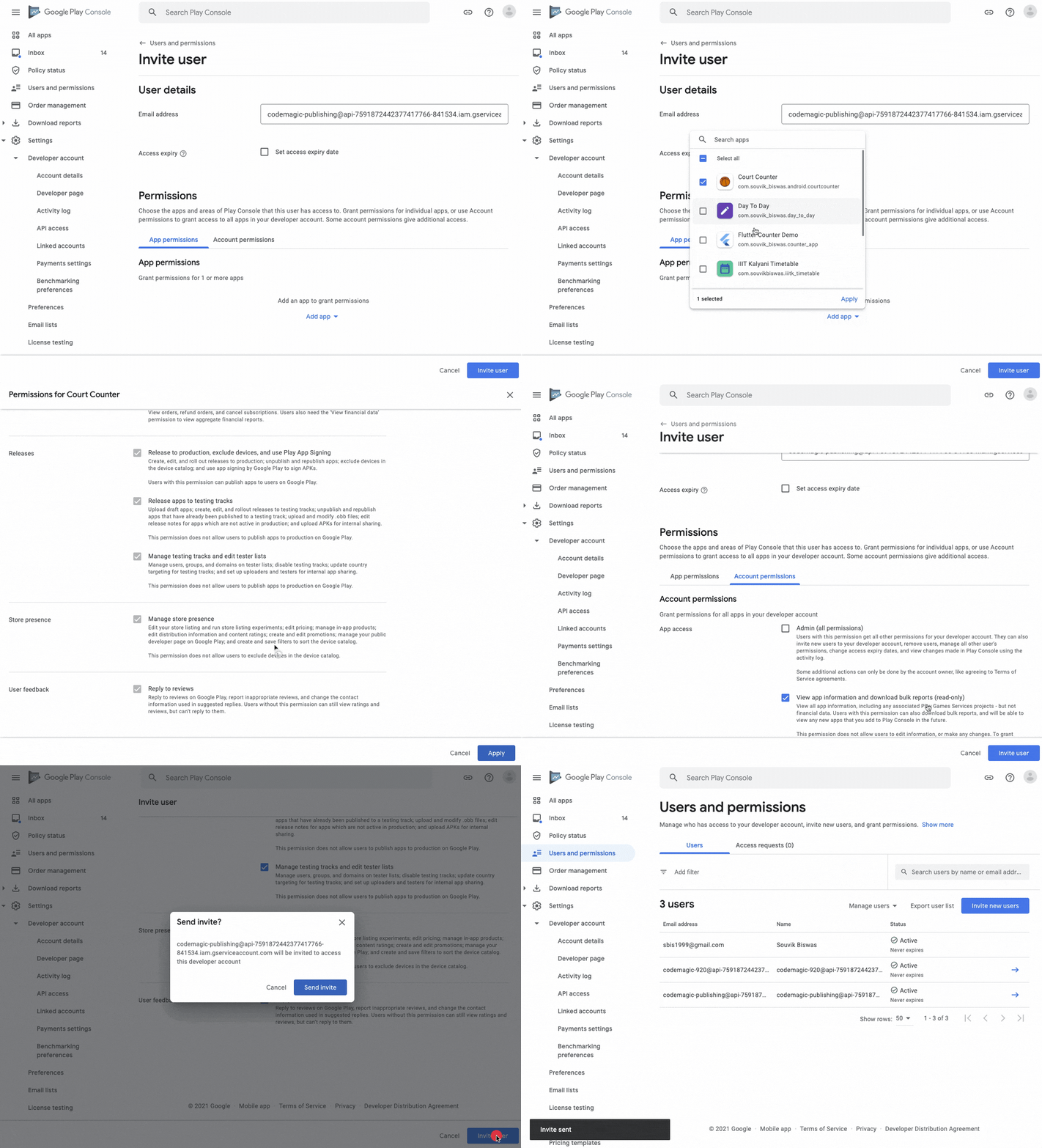
これでGoogle Play Consoleのサービスアカウントの設定は完了です。

Codemagicでの自動公開の設定

Codemagicを使ってアプリのGoogle Playへの公開を自動化するには、サービスアカウントを接続する必要があります。

  1. プロジェクトディレクトリ内の codemagic.yaml ファイルに移動します。

  2. YAMLファイルのpublishingセクション内で、以下を使ってGoogle Playのサポートを追加できます:

    publishing:
       email:
         recipients:
           - name@example.com
       # Add the following to the script:
       google_play:
         credentials: <Encrypted file>
         track: <Name of the track>
    
  3. 先にダウンロードしたJSONファイルを暗号化して、credentials変数にセットする必要があります。CodemagicのUIからプロジェクト設定(project settings) にアクセスして、ファイルを暗号化できます。次に、変数を暗号化(Encrypt variables) ボタンをクリックして、ファイルをドラッグ&ドロップするだけです。

    生成された暗号化済みの文字列をコピーして、credentials変数に設定します。

  4. track変数を、アプリを公開するGooglePlayの宛先トラックに設定します。
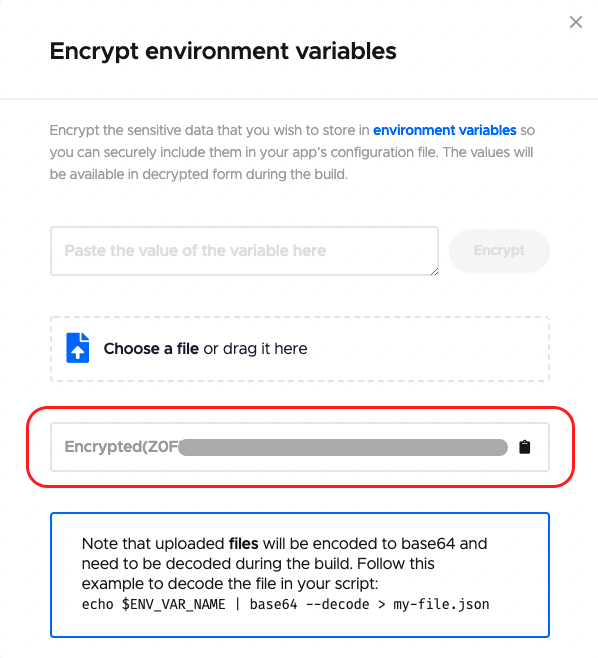
これで、Codemagicを使ってGoogle Playストアにアプリを公開する準備が整いました。ビルドの開始方法については、次のセクションにお進みください。

CodemagicでのAndroidプロジェクトの構築

Codemagicでビルドを開始する前に、codemagic.yamlファイルをバージョンコントロールシステムにコミットしていることを確認してください。

以下の手順でビルドを開始します:

  1. プロジェクト設定に進み、最初のビルドを開始する(Start your first build) をクリックします。

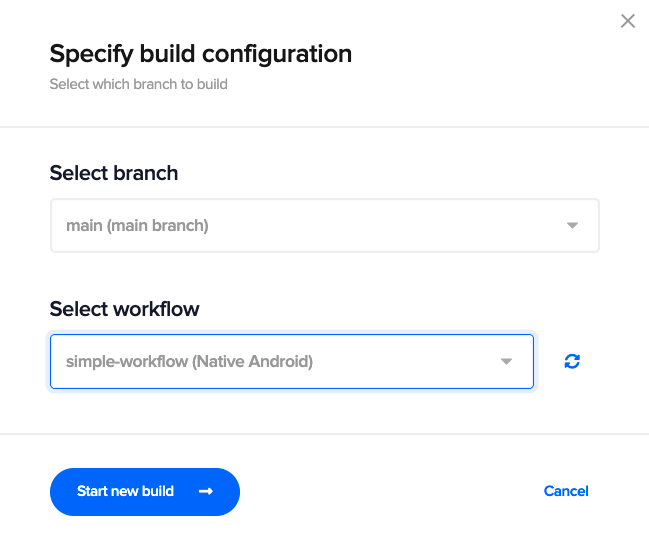
  2. ワークフローを選択し、新規ビルドを開始(Start new build) をクリックします。
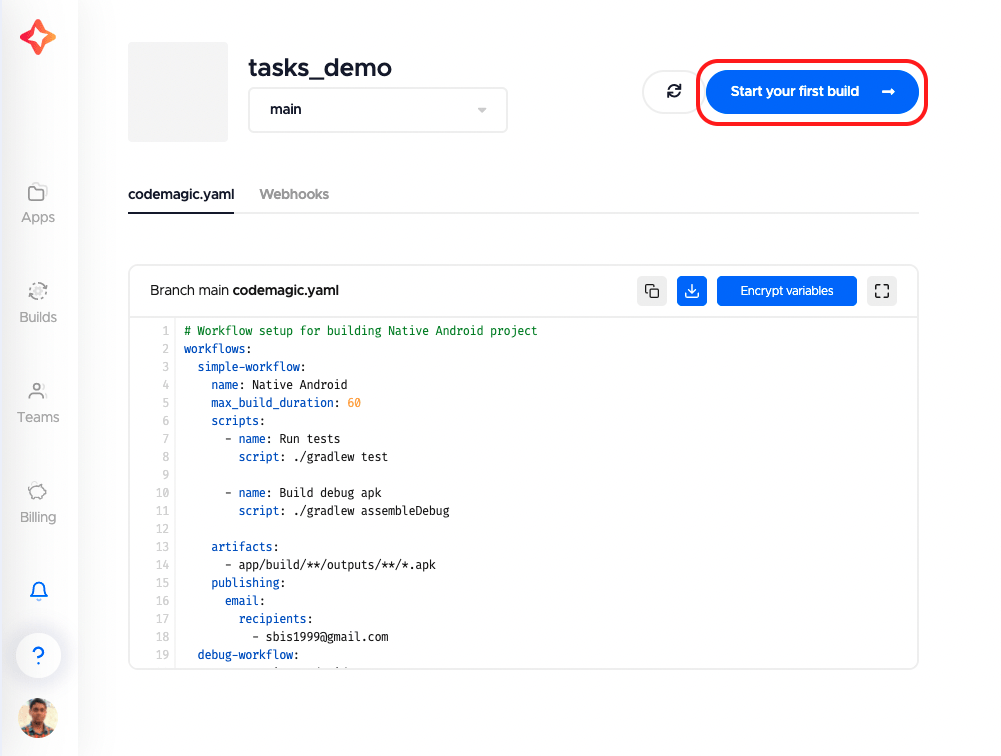
これにより、Androidネイティブプロジェクトの新規ビルドが開始されます。
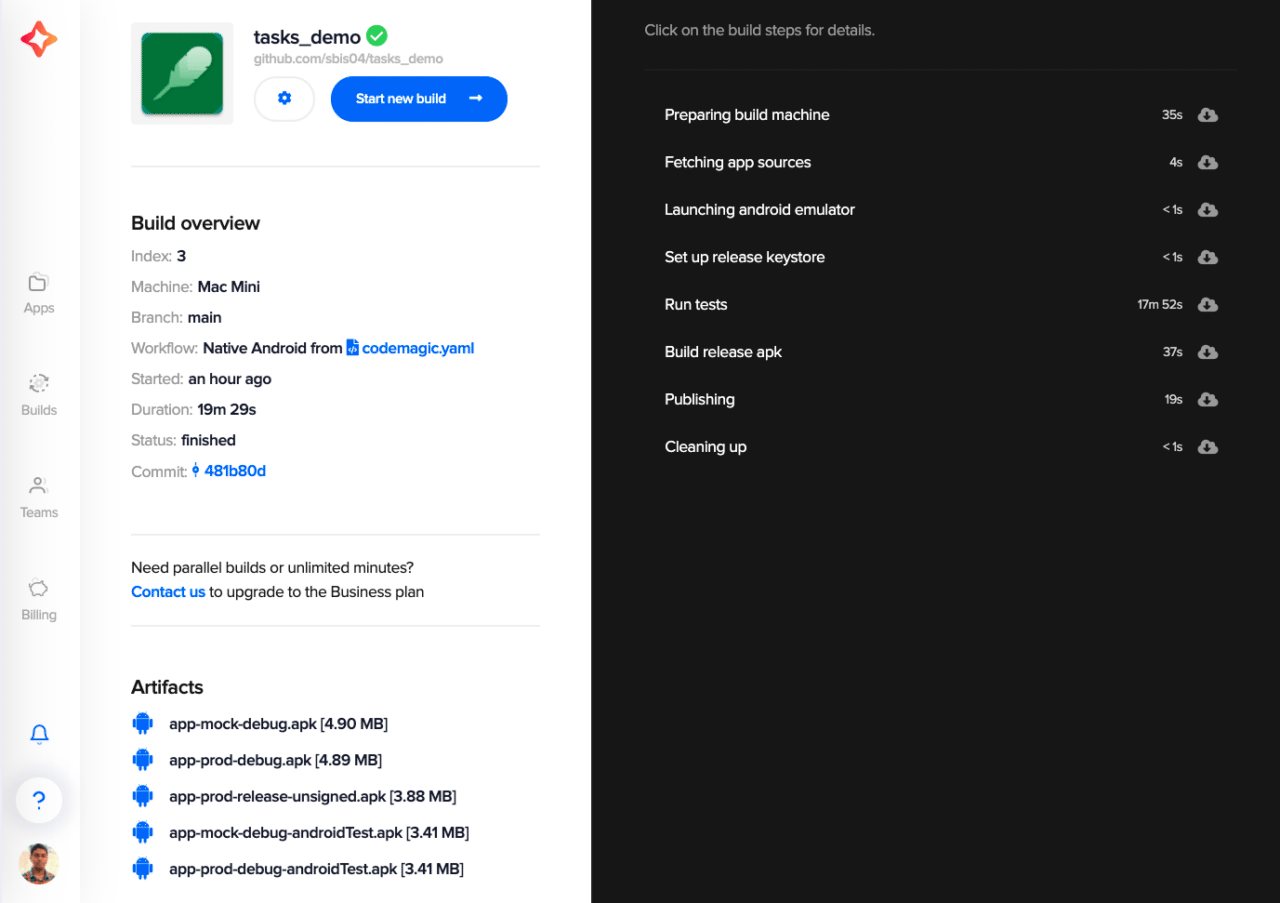
Android CI/CD build with Codemagic – Build Complete

おめでとうございます! Codemagic CI/CDでの最初のAndroidビルドが完了しました!?

結論

Codemagicは、Flutterアプリのみに特化した公式CI/CDソリューションとしてスタートしましたが、今ではすべてのモバイルプロジェクトを最速のCI/CDに迎え入れております。Codemagic CI/CDをお使いいただくと、Android、iOS、React Native、Flutterのアプリを簡単にビルド、テスト、公開できます。

このように、codemagic.yamlファイルを使ってCodemagicで Androidネイティブ アプリを構築するのはとても簡単です。また、YAMLを使うことで、ワークフローの管理がとても簡単になり、ビルド構成をより整理しやすくなるという利点も追加されます。さらにこれは、Codemagicでビルドを開始する際に、バージョンコントロールシステムから自動的に検出されます。

役に立つリンクと参考資料

-公式YAMLドキュメント

-Codemagic YAMLチートシート

-Androidコード署名 についての詳細はこちらをご覧ください。

-サンプルプロジェクトのGitHubリポは[こちら]((https://github.com/sbis04/tasks_demo)です。


Souvik Biswas は、情熱的なモバイルアプリ開発者です(AndroidとFlutter)。彼はこれまでの歩みの中で、数多くのモバイルアプリを手がけてまいりました。GitHubでのオープンソース貢献が大好きです。彼は現在、Indian Institute of Information Technology Kalyaniでコンピューターサイエンスとエンジニアリングの技術学士号の取得を目指しています。また、Medium – Flutter CommunityでFlutterの記事も執筆しております。




Source link

ShareTweetSend
Previous Post

Former minister Julius Sunkuli makes comeback to Parliament 20 years

Next Post

Uzbek bank to provide loans for obtaining of renewable energy sources

Related News

Unlocking Potential: Exploring the FDE Model in Enterprise AI Solutions
Mobile

Unlocking Potential: Exploring the FDE Model in Enterprise AI Solutions

November 14, 2026
Unlocking the Scoop: Upcoming Sale Dates, Price Highlights, and Previous Bargains
Mobile

Unlocking the Scoop: Upcoming Sale Dates, Price Highlights, and Previous Bargains

November 14, 2026
Unlocking Website Security: The Marketbyte Edge in Open Source Solutions
Mobile

Unlocking Website Security: The Marketbyte Edge in Open Source Solutions

November 13, 2026
Uncovering the Best Solutions for Your Mobile Risk Concerns
Mobile

Uncovering the Best Solutions for Your Mobile Risk Concerns

November 12, 2026
Next Post
Uzbek bank to provide loans for obtaining of renewable energy sources

Uzbek bank to provide loans for obtaining of renewable energy sources

Discussion about this post

Subscribe To Our Newsletters

    Customer Support


    1251 Wilcrest Drive
    Houston, Texas
    77042 USA
    Call-832.795.1420
    e-mail – news@theinsightpost.com

    Subscribe To Our Newsletters

      Categories

      • Africa
      • Africa-East
      • African Sports
      • American Sports
      • Arts
      • Asia
      • Australia
      • Business
      • Business Asia
      • Business- Africa
      • Canada
      • Defense
      • Education
      • Egypt
      • Energy
      • Entertainment
      • Europe
      • European Soccer
      • Finance
      • Germany
      • Ghana
      • Health
      • Insight
      • International
      • Investing
      • Japan
      • Latest Headlines
      • Life & Living
      • Markets
      • Mobile
      • Movies
      • New Zealand
      • Nigeria
      • Politics
      • Scholarships
      • Science
      • South Africa
      • South America
      • Sports
      • Tech
      • Travel
      • Travel-Africa
      • UK
      • USA
      • Weather
      • World
      No Result
      View All Result

      Recent News

      Gators Shock Wildcats 21-14 in Thrilling Upset Amid Rollercoaster Season

      Gators Shock Wildcats 21-14 in Thrilling Upset Amid Rollercoaster Season

      November 15, 2026
      Government Announces Historic  Billion Investment in Energy Infrastructure Development

      Government Announces Historic $2 Billion Investment in Energy Infrastructure Development

      November 15, 2026
      Notre Dame Postgame Insights: Dive into Superchats with Westwood One Sports

      Notre Dame Postgame Insights: Dive into Superchats with Westwood One Sports

      November 15, 2026
      Transform Your Laptop Setup with These 5 Affordable Accessories

      Transform Your Laptop Setup with These 5 Affordable Accessories

      November 15, 2026
      • Home
      • Advertise With Us
      • About Us
      • Corporate
      • Consumer Rewards
      • Forum
      • Privacy Policy
      • Social Trends

      Theinsightpost ©2026 | All Rights Reserved. Theinsightpost is an Elnegy LLC company, registered in Texas, USA

      Welcome Back!

      Login to your account below

      Forgotten Password?

      Retrieve your password

      Please enter your username or email address to reset your password.

      Log In

      Add New Playlist

      We are using cookies to give you the best experience on our website.

      You can find out more about which cookies we are using or switch them off in .

      No Result
      View All Result
      • Home
      • Insight
      • Blog
      • Business
      • Entertainment
      • Health
      • Politics
      • Shop
        • Gift Shop
        • Value Shop
        • Store
        • Bargain Shop
        • Discount
      • Sports
      • Tech
      • Travel
      • USA
      • Video
      • World
        • Asia
        • Africa
        • South America
        • North America
        • Europe
        • Oceania

      Theinsightpost ©2026 | All Rights Reserved. Theinsightpost is an Elnegy LLC company, registered in Texas, USA

      The Insight Post
      Powered by  GDPR Cookie Compliance
      Privacy Overview

      This website uses cookies so that we can provide you with the best user experience possible. Cookie information is stored in your browser and performs functions such as recognising you when you return to our website and helping our team to understand which sections of the website you find most interesting and useful.

      Strictly Necessary Cookies

      Strictly Necessary Cookie should be enabled at all times so that we can save your preferences for cookie settings.

      Cookie Policy

      More information about our Cookie Policy