










iOS継続的インテグレーション&デリバリー-本ガイドで、Codemagic CI/CDを使用してiOSアプリの構築を始めることができます。2021年6月に更新されました。
iOSネイティブ、Android、React NativeまたはFlutterのアプリケーションを構築しているかどうかに関わらず、Codemagic CI/CDがお役に立ちます。UIを使ってAndroidやiOSのネイティブアプリを直接ビルドすることはサポートしていませんが、ネイティブアプリをビルドするための Codemagic YAML ファイルを簡単に設定できます。アップデートされた最初のビルドフローにより、ネイティブアプリの構成とビルドがこれまで以上にスムーズに行えるようになりました。
本記事では、codemagic.yamlファイルを使って、Codemagic上でiOSネイティブアプリをビルド、テスト、配信する方法をご紹介いたします。
理解を深めるために記事を読み進めることをお勧めいたしますが、すでに
codemagic.yamlファイルのご使用経験がある方は、iOSネイティブプロジェクト用のYAMLテンプレートをこちらから入手できます。
本記事は Souvik Biswas が執筆いたしました。
はじめに
あなたのiOSネイティブプロジェクトが、バージョンコントロールシステムを使ってコードホスティングプラットフォーム(GitHub、Bitbucket、GitLabなど)にアップロードされていることをご確認ください。以下の手順で、codemagic.yamlファイルのテンプレートを取得します。
- Codemagicにログインします。 まだユーザーでない方は、サインアップしてください。
2.「アプリケーション」ページで、アプリケーションの追加 をクリックします。
-
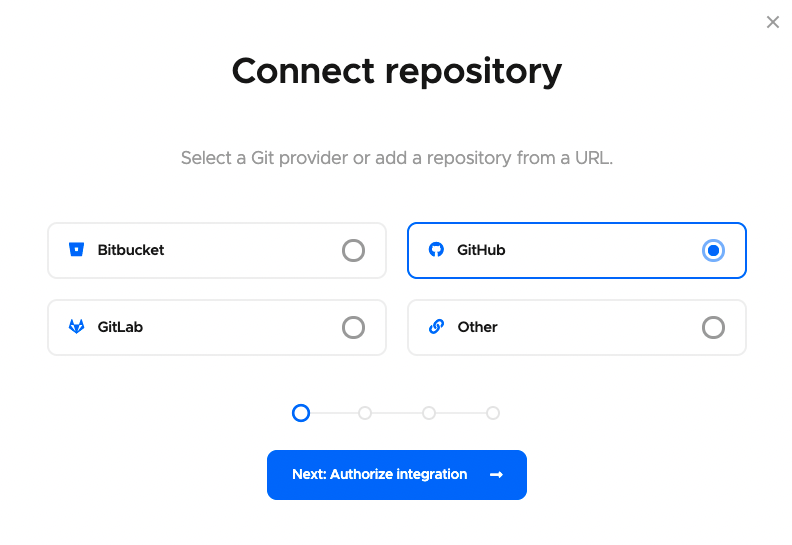
使用するGitプロバイダーを選択します(または、リポジトリのクローンURLを使って追加する場合は、その他(Other)を選択します)。

-
次に、統合を承認する をクリックして、Codemagicを承認します。選択したGitプロバイダーの承認が済んでいる場合は、その代わりに 次に、レポジトリを選択(Next: Select repository) を選択してください。
GitHubをGitプロバイダーとして使用している場合は、リポジトリを選択する前に追加ステップが1つあり、「GitHubアプリをインストール(Install GitHub App)」をクリックして統合を設定します。GitHubアプリ統合の設定についての詳細は、こちらをご覧ください。
-
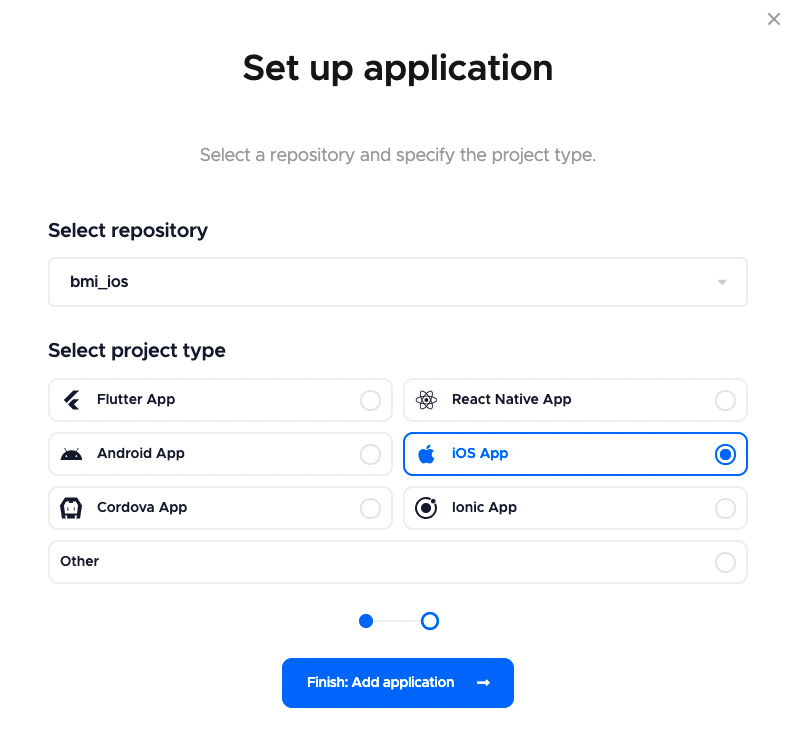
ここで、リポジトリを選択(するか、その他を使用している場合はクローンURLを追加)し、プロジェクトタイプを選択して、「終了して、アプリケーションを追加(Finish: Add application)」をクリックします。
-
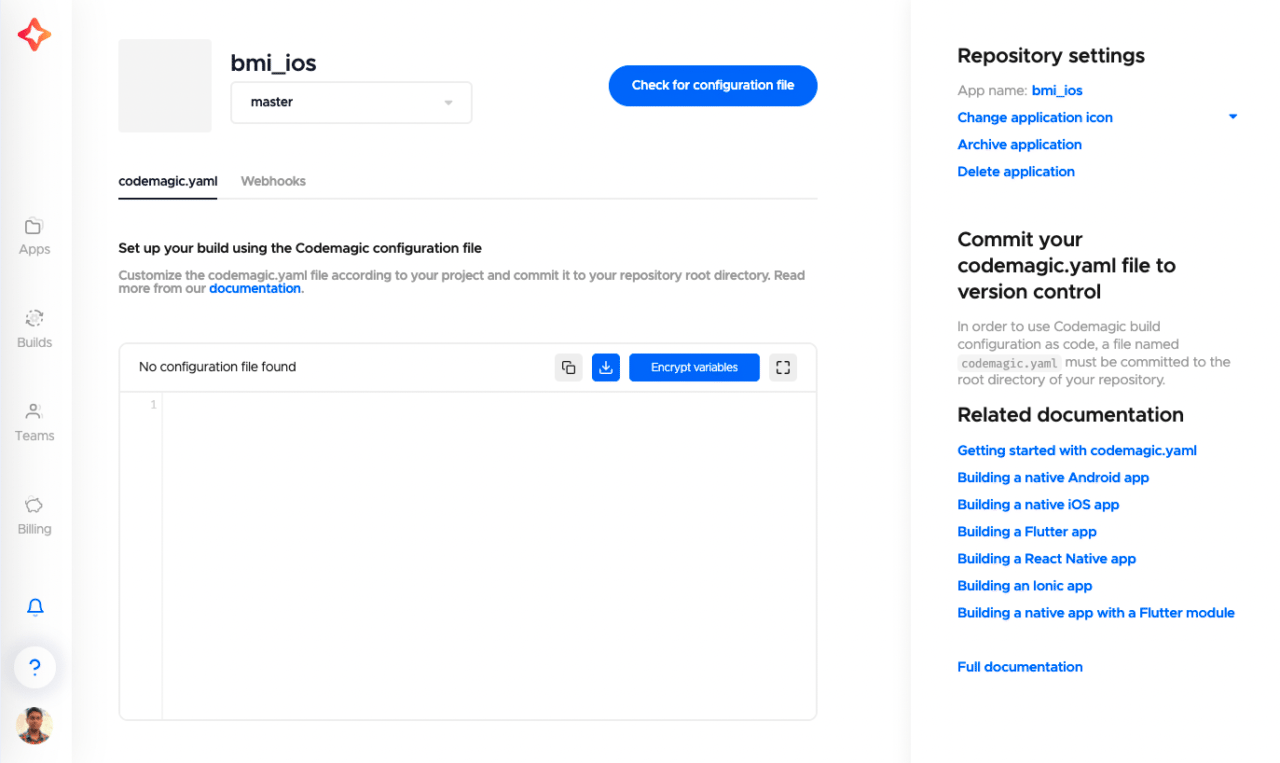
プロジェクトの設定画面が表示されます。ここでは、「構成ファイルが見つかりません(No configuration file found)」という文が表示されますが、これは、まだプロジェクトに
codemagic.yamlファイルを追加していないためです。
また、ドキュメントへのリンクもありますので、
codemagic.yamlを使ってiOSプロジェクトを始める際の参考にしてみてください。
iOSワークフローの例
以下は、iOSアプリのデバッグ(符号なしの.app)ビルドを生成するためのcodemagic.yamlファイルの簡単な例です。
workflows:
  ios-project-debug: # workflow ID
    name: iOS debug # workflow name
    environment:
      xcode: latest
      cocoapods: default
      vars:
          XCODE_PROJECT: "BMI Calculator.xcodeproj" # <-- Put the name of your project here.
          XCODE_SCHEME: "BMI Calculator" # <-- Put the name of your scheme here.
    scripts:
      - name: Run tests
        script: |
          xcodebuild
          -project "$XCODE_PROJECT"
          -scheme "$XCODE_SCHEME"
          -sdk iphonesimulator
          -destination 'platform=iOS Simulator,name=iPhone 12,OS=14.1'
          clean build test CODE_SIGN_IDENTITY="" CODE_SIGNING_REQUIRED=NO
      - name: Build debug app
        script: |
          xcodebuild build -project "$XCODE_PROJECT"
          -scheme "$XCODE_SCHEME"
          CODE_SIGN_IDENTITY="" CODE_SIGNING_REQUIRED=NO CODE_SIGNING_ALLOWED=NO
    artifacts:
      - $HOME/Library/Developer/Xcode/DerivedData/**/Build/**/*.app
    publishing:
      email:
        recipients:
          - sbis1999@gmail.com
上記の例では、ios-project-debugが ワークフローID で、iOS debugが ワークフロー名 となります。この2つの名前は、プロジェクトに適したものに変更できます。
YAMLに深く飛び込む
それでは、codemagic.yamlファイルを詳しく見てみましょう。
環境変数
YAMLファイルの環境変数セクションで、XcodeプロジェクトとXcodeスキーム の名前を定義する必要があります。上の例では、XCODE_PROJECTとXCODE_SCHEMEにそれぞれ定義しています。これらの環境変数は、ビルドコマンドを指定する際に必要となります。
スクリプト
iOSのUIテストを実行するには、codemagic.yamlファイルに以下のスクリプトを定義する必要があります:
xcodebuild
  -project "$XCODE_PROJECT"
  -scheme "$XCODE_SCHEME"
  -sdk iphonesimulator
  -destination 'platform=iOS Simulator,name=iPhone 12,OS=14.1'
  clean build test CODE_SIGN_IDENTITY="" CODE_SIGNING_REQUIRED=NO
-destination フラグは、テストを実行するシミュレーターデバイスを指定します。
また、Xcodeワークスペース名 を指定したい場合は、
-projectの代わりに-workspaceフラグを使用することもできます。
デバッグモードでアプリをビルドし、.appファイルを生成します。
xcodebuild build -project "$XCODE_PROJECT"
  -scheme "$XCODE_SCHEME"
  CODE_SIGN_IDENTITY="" CODE_SIGNING_REQUIRED=NO CODE_SIGNING_ALLOWED=NO
成果物
生成された .app ファイルは、成果物(artifacts)にそのパスを追加することで取得できます。通常、パスは次のようになっています:
artifacts:
  - $HOME/Library/Developer/Xcode/DerivedData/**/Build/**/*.app
公開
ビルドのレポートと生成された成果物を メール で受け取るには、次のように指定します:
publishing:
  email:
    recipients:
      - name@example.com # enter your email id here
公開についての詳細は、こちらのリンクをご参照ください。
iOSアプリのコード署名設定
.ipaファイルを生成するには、コード署名を設定する必要があります。iOSアプリのコード署名は、2つの方法で行うことができ、自動コード署名と手動コード署名 があります。まず、自動コード署名のプロセスを見てみましょう。
個人で使用するために
.ipaファイルを生成するだけなら、iOS開発用証明書 を使用できます。App Store Connect でアプリを公開するには、iOS配布用証明書が必要です。
自動コード署名
iOS自動コード署名用の前提条件は:
- Apple Developer Programメンバーシップ
- App Store Connect 管理者アクセス。
Codemagicがユーザー様の代わりに署名証明書とプロビジョニングプロファイルを管理し、自動コード署名を実行できるようにするには、App Store ConnectへのAPIアクセスを設定する必要があります。
App Store Connect APIキーの作成
- App Store Connectにログインし、「ユーザーとアクセス > キー(Users and Access > Keys)」に移動します。
2.「+」記号をクリックし、新しいAPIキーを生成します。
-
キーに名前を付けて、アクセスレベルを定義します。`開発者(Developer) “か “アプリ管理者(App Manager)“のいずれかを選択することをお勧めします。
Apple Developer Programの役割権限(ロールパーミッション)についての詳細はこちらをご覧ください。
-
生成(Generate) をクリックします。
-
新しいキーが生成された後、アクティブキーリストに追加されているのがわかります。APIキーをダウンロード(Download API Key) をクリックして、後で使用するための秘密鍵を保存します。
注意: キーのダウンロードは1回のみです。
また、生成されたキーの 発行者ID(Issuer ID)とキーID(Key ID) は、Codemagicとの統合の際に必要となりますのでメモしておいてください。
次に、リリースビルドの生成に自動コード署名を使用するために、codemagic.yamlファイルを変更する必要があります。
YAMLの変更
まず、暗号化された形式で環境変数をいくつか追加する必要があります。
environment:
  vars:
    XCODE_WORKSPACE: "swiftly.xcworkspace" # <-- Put the name of your workspace here
    XCODE_SCHEME: "swiftly" # <-- Put the name of your scheme here
    # Add the following
    BUNDLE_ID: "io.codemagic.swiftly" # <-- Put your bundle ID here
    APP_STORE_CONNECT_ISSUER_ID: Encrypted(...) # <-- Put your encrypted App Store Connect Issuer ID here
    APP_STORE_CONNECT_KEY_IDENTIFIER: Encrypted(...) # <-- Put your encrypted App Store Connect Key Identifier here
    APP_STORE_CONNECT_PRIVATE_KEY: Encrypted(...) # <-- Put your encrypted App Store Connect Private Key here
    CERTIFICATE_PRIVATE_KEY: Encrypted(...) # <-- Put your encrypted Certificate Private Key here
-
APP_STORE_CONNECT_KEY_IDENTIFIERは、キーのキーIDです。App Store Connect > ユーザーとアクセス > キーで取得できます。 -
APP_STORE_CONNECT_ISSUER_IDは、アクティブキーのテーブルの上に表示される発行者IDです。App Store Connect > ユーザーとアクセス > キーで取得できます。 -
APP_STORE_CONNECT_PRIVATE_KEYは、前にApp Store ConnectからダウンロードしたプライベートAPIキーです。 -
CERTIFICATE_PRIVATE_KEYは、ターミナルで次のように実行して生成できます:ssh-keygen -t rsa -b 2048 -m PEM -f ~/Desktop/codemagic_private_key -q -N ""
ここで、コード署名を行うには、scriptsセクションに新しいスクリプトを追加する必要があります。
-
Codemagic CLIの
keychainコマンドを使用して、コード署名に使用するキーチェーンを初期化します:- name: Set up keychain script: | keychain initialize -
App Store Connectから署名証明書を取得します:
- name: Fetch signing files script: | app-store-connect fetch-signing-files $BUNDLE_ID --type IOS_APP_STORE --create -
新しい署名証明書をキーチェーンに追加します:
- name: Use system default keychain script: | keychain add-certificates -
署名証明書をXcodeプロジェクトで使用します
- name: Set up code signing settings on Xcode project script: | xcode-project use-profiles -
以下を使用してビルド番号を自動的にインクリメントさせます:
- name: Increment build number script: | #!/bin/sh set -e set -x cd $CM_BUILD_DIR agvtool new-version -all $(($BUILD_NUMBER + 1)) -
.ipaファイルを生成します:- name: Build ipa for distribution script: | xcode-project build-ipa --workspace "$XCODE_WORKSPACE" --scheme "$XCODE_SCHEME"
成果物を取得するためのパスを変更します:
artifacts:
  - build/ios/ipa/*.ipa
  - $HOME/Library/Developer/Xcode/DerivedData/**/Build/**/*.dSYM
iOSの自動コード署名のサンプル
codemagic.yamlファイル全体をこちらで見ることができます。
手動コード署名
手動コード署名を行うには、2つのファイルが必要です:
-証明書
-プロビジョニングプロファイル
個人で使用するために.ipaファイルを生成するだけなら、iOS開発用証明書 を使用できます。
App Store Connect でアプリを公開するには、iOS配布用証明書 が必要です。詳しくはこちらの記事を追ってみてください。
証明書とプロビジョニングプロファイルの生成
以下の手順で、iOS開発用証明書とプロビジョニングプロファイルを生成します:
-
Xcodeを開きます。
-
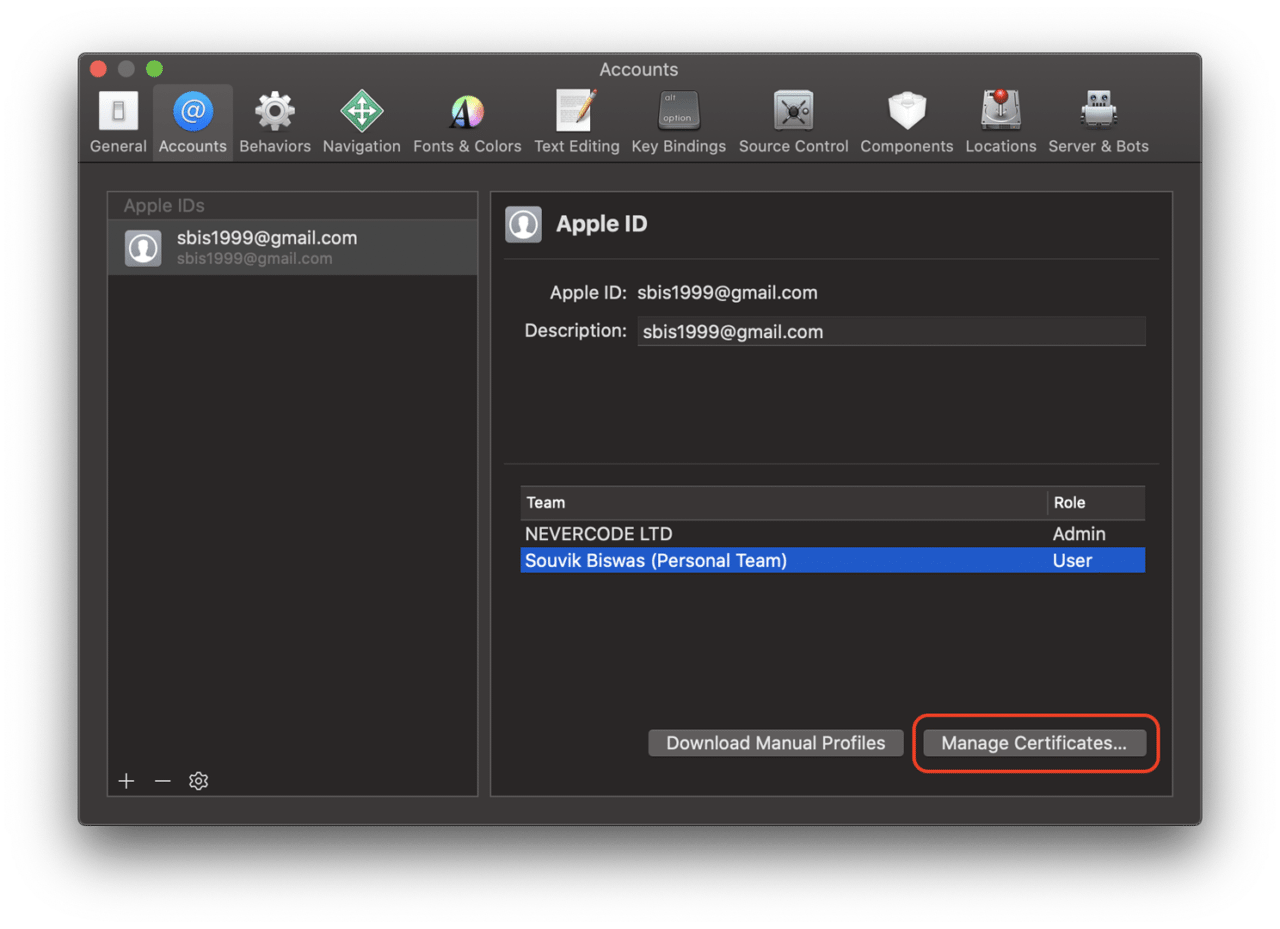
ナビゲーションバーから「Xcode > 環境設定(Preferences)」を選択します。
-
ウィンドウのトップメニューから「アカウント(Accounts)」を選択します。
-
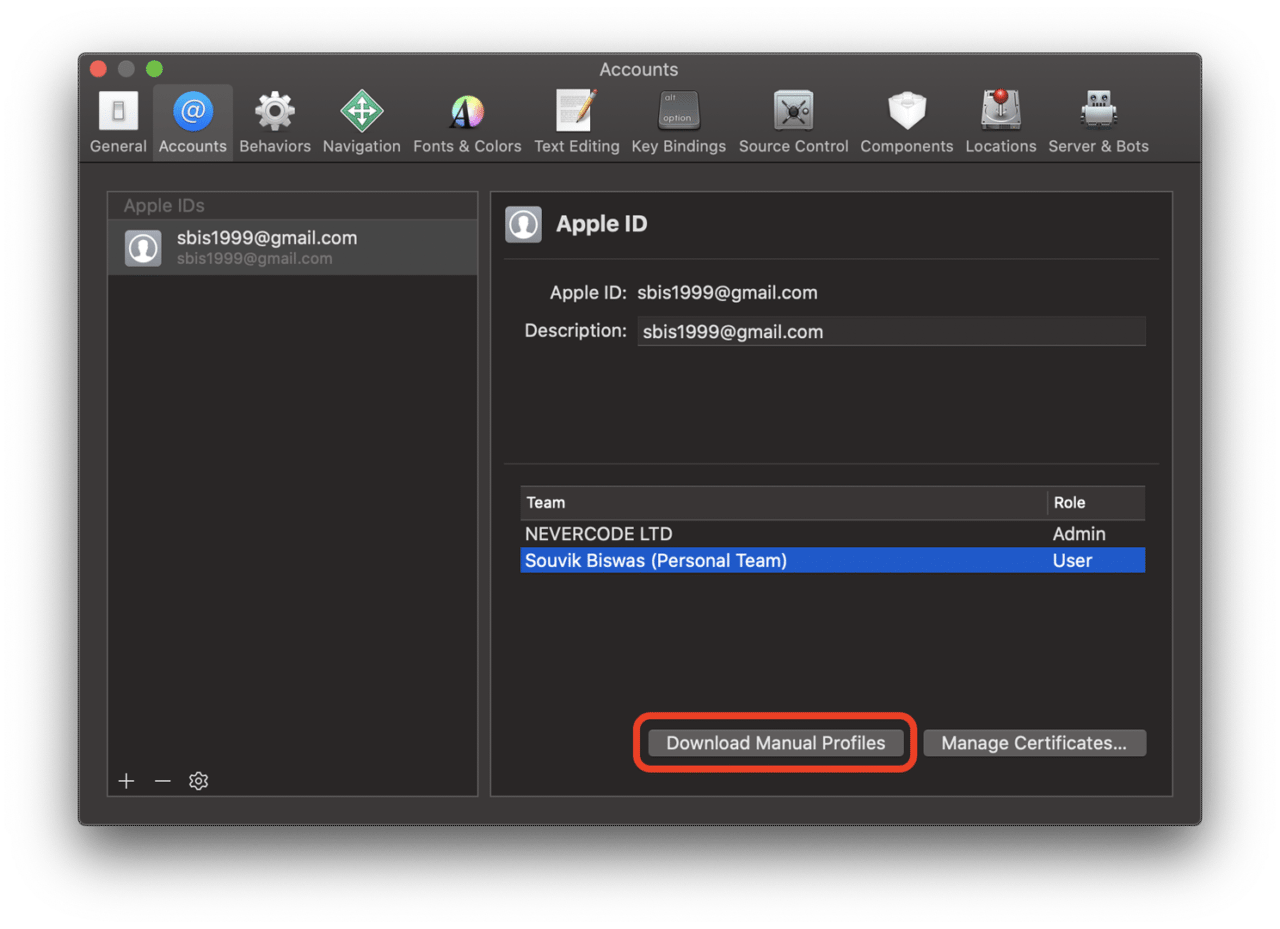
Apple ID の下で、証明書をご必要とするチームを選択します。
-
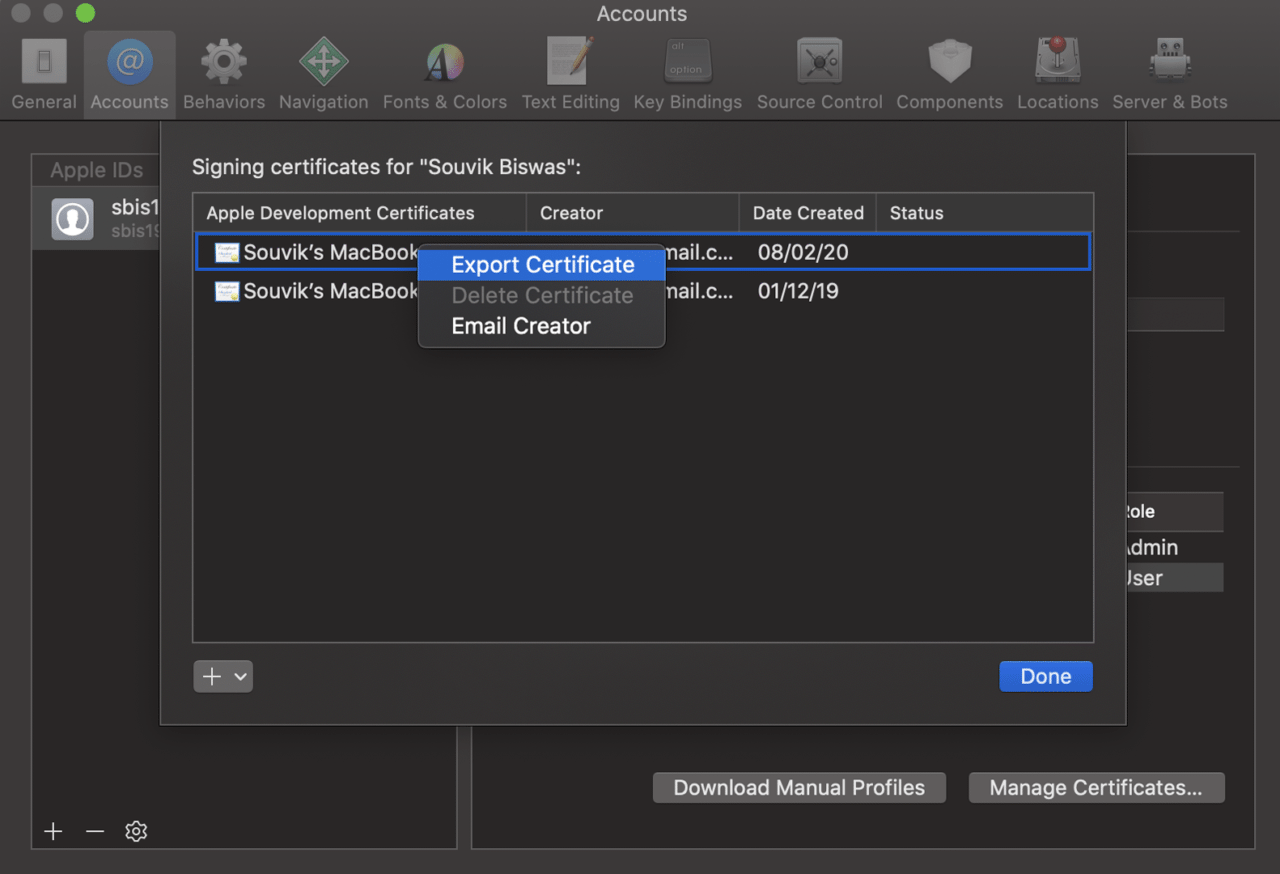
証明書の管理(Manage Certificates) をクリックします。
-
開発用証明書(Development Certificate) を右クリックし、証明書をエクスポート(Export Certificate) を選択します。
-
証明書名(certificate name)、パスワード 、証明書を格納する パス を入力します。
-
プロビジョニングプロファイル を生成するには、マニュアルプロファイルをダウンロード(Download Manual Profiles) をクリックします。
これにより、プロファイルがディレクトリ
~/Library/MobileDevice/Provisioning Profiles/に保存されます。
YAMLの変更
codemagic.yamlファイルの環境変数(environment variables) セクションに、証明書(certificate)とプロビジョニングプロファイル(provisioning profile) を暗号化された形式で、キーと値のペアとして追加する必要があります。
environment:
  vars:
    XCODE_WORKSPACE: "swiftly.xcworkspace" # <-- Put the name of your workspace here.
    XCODE_SCHEME: "swiftly" # <-- Put the name of your scheme here.
    # Add the following
    CM_CERTIFICATE: Encrypted(...) # <-- Put your encrypted distribution certificate here.
    CM_CERTIFICATE_PASSWORD: Encrypted(...) # <-- Put your encrypted distribution certificate password here.
    CM_PROVISIONING_PROFILE: Encrypted(...) # <-- Put your encrypted provisioning profile here.
scriptsセクションを以下のように更新します:
-
Codemagic CLIの
keychainコマンドを使用して、コード署名に使用するキーチェーンを初期化します:- name: Set up keychain script: | keychain initialize -
プロビジョニングプロファイルを設定します:
- name: set up provisioning profiles script: | PROFILES_HOME="$HOME/Library/MobileDevice/Provisioning Profiles" mkdir -p "$PROFILES_HOME" PROFILE_PATH="$(mktemp "$PROFILES_HOME"/$(uuidgen).mobileprovision)" echo ${CM_PROVISIONING_PROFILE} | base64 --decode > $PROFILE_PATH echo "Saved provisioning profile $PROFILE_PATH" -
証明書をキーチェーンに追加します:
- name: Add signing certificate to keychain script: | echo $CM_CERTIFICATE | base64 --decode > /tmp/certificate.p12 keychain add-certificates --certificate /tmp/certificate.p12 --certificate-password $CM_CERTIFICATE_PASSWORD -
以下を使用してビルド番号を自動的にインクリメントさせます:
- name: Increment build number script: | # increment build number #!/bin/sh set -e set -x cd $CM_BUILD_DIR agvtool new-version -all $(($BUILD_NUMBER +1)) -
署名証明書をXcodeプロジェクトで使用します:
- name: Set up code signing settings on Xcode project script: | xcode-project use-profiles -
.ipaファイルを生成します:- name: Build .ipa script: | xcode-project build-ipa --workspace "$XCODE_WORKSPACE" --scheme "$XCODE_SCHEME"
iOSの手動コード署名のサンプル
codemagic.yamlファイル全体をこちらで見ることができます。
Codemagicでは、iOSアプリをApp Store Connectに自動的に公開できます。自動公開を可能にするためには、もう一つ必要なものがあります。それは、アプリ固有のパスワード です。
アプリ固有のパスワードを生成
アプリ固有のパスワードは、以下の手順で生成できます:
-
Apple IDアカウントページにサインインします。
-
セキュリティセクションまで下にスクロールし、「アプリ固有のパスワード(App-Specific Passwords)」の下のパスワードの生成(Generate Password) をクリックします。
-
アプリに名前を付けると、パスワードが生成されます。
-
それをコピーして、
codemagic.yamlファイルに貼り付けます。
Codemagicでの自動公開の設定
Codemagicを使って App Store Connect へのアプリの公開を自動化するには、以下の手順に従います:
-
プロジェクトディレクトリ内の
codemagic.yamlファイルに移動します。 -
YAMLファイルの
publishingセクション内で、以下を使ってApp Store Connectのサポートを追加できます:publishing: app_store_connect: apple_id: appleId@example.com # <-- Put your Apple ID here password: Encrypted(...) # <-- Put your encrypted app-specific password hereアプリ固有のパスワードを暗号化してから、ここで定義します。
これで、iOSネイティブ アプリを構築してデプロイするためのワークフロー設定が完了しました。
Codemagicでビルド
Codemagicでビルドを開始する前に、codemagic.yamlファイルをバージョンコントロールシステムにコミットしていることを確認してください。
以下の手順でビルドを開始します:
-
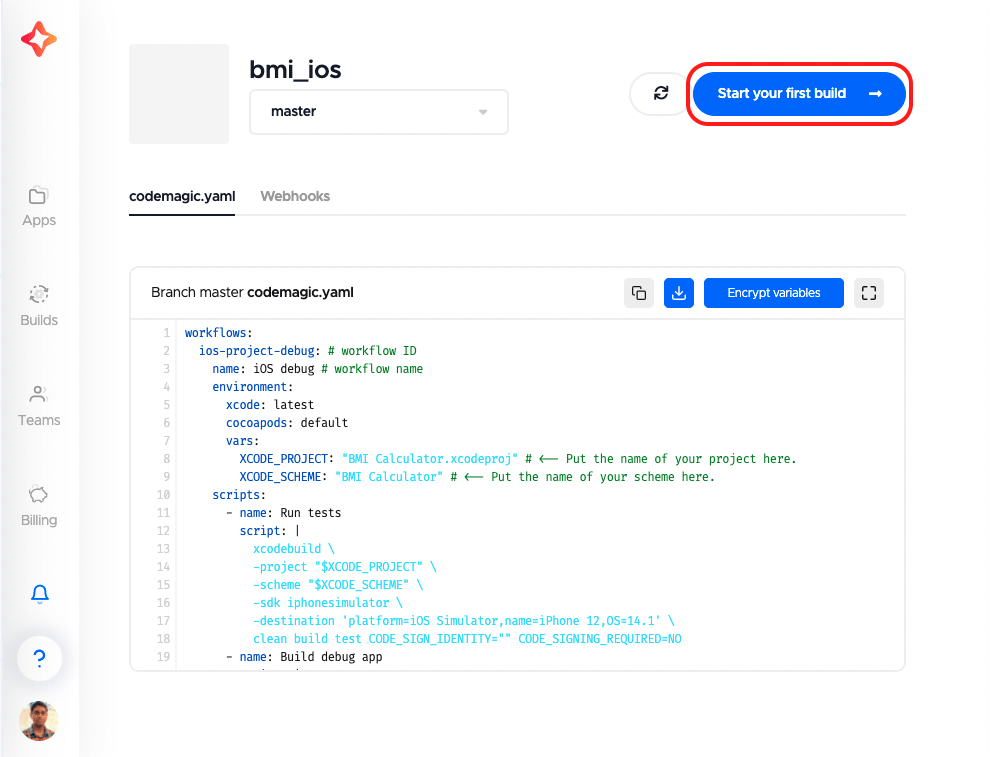
プロジェクト設定に進み、最初のビルドを開始する(Start your first build) をクリックします。
-
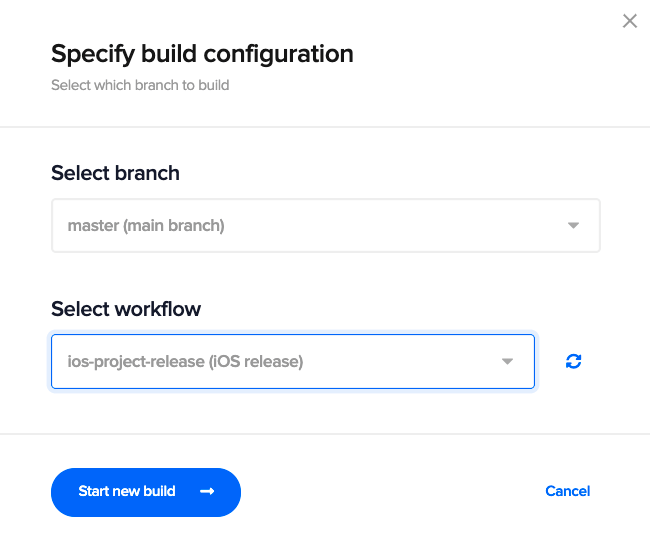
ワークフローを選択し、新規ビルドを開始(Start new build) をクリックします。
これにより、iOSネイティブプロジェクトの新規ビルドが開始されます。
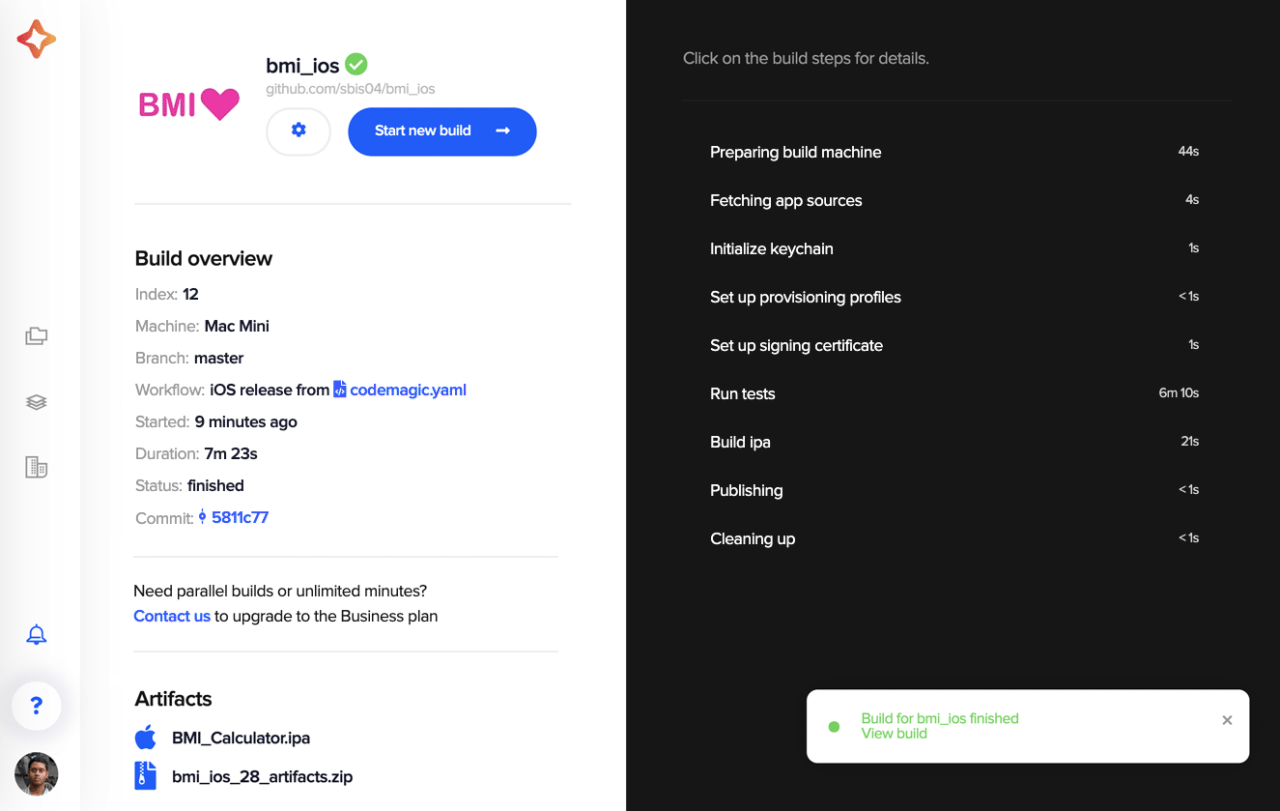
おめでとうございます! Codemagic CI/CDでの最初のiOSビルドが完了しました!?
結論
codemagic.yamlファイルを使用することで、ワークフローの管理がとても簡単になり、ビルド構成をより整理することができるという利点があります。また、Codemagicでビルドを開始する際に、バージョンコントロールシステムから自動的に検出されます。
役に立つリンクと参考資料
-Codemagic YAMLチートシート
-iOSコード署名 についての詳細はこちらをご覧ください。
-サンプルプロジェクトのGitHubリポはこちらです。
Souvik Biswas は、情熱的なモバイルアプリ開発者です(AndroidとFlutter)。彼はこれまでの歩みの中で、数多くのモバイルアプリを手がけてまいりました。GitHubでのオープンソース貢献が大好きです。彼は現在、Indian Institute of Information Technology Kalyaniでコンピューターサイエンスとエンジニアリングの技術学士号の取得を目指しています。また、Medium – Flutter CommunityでFlutterの記事も執筆しております。










Discussion about this post