








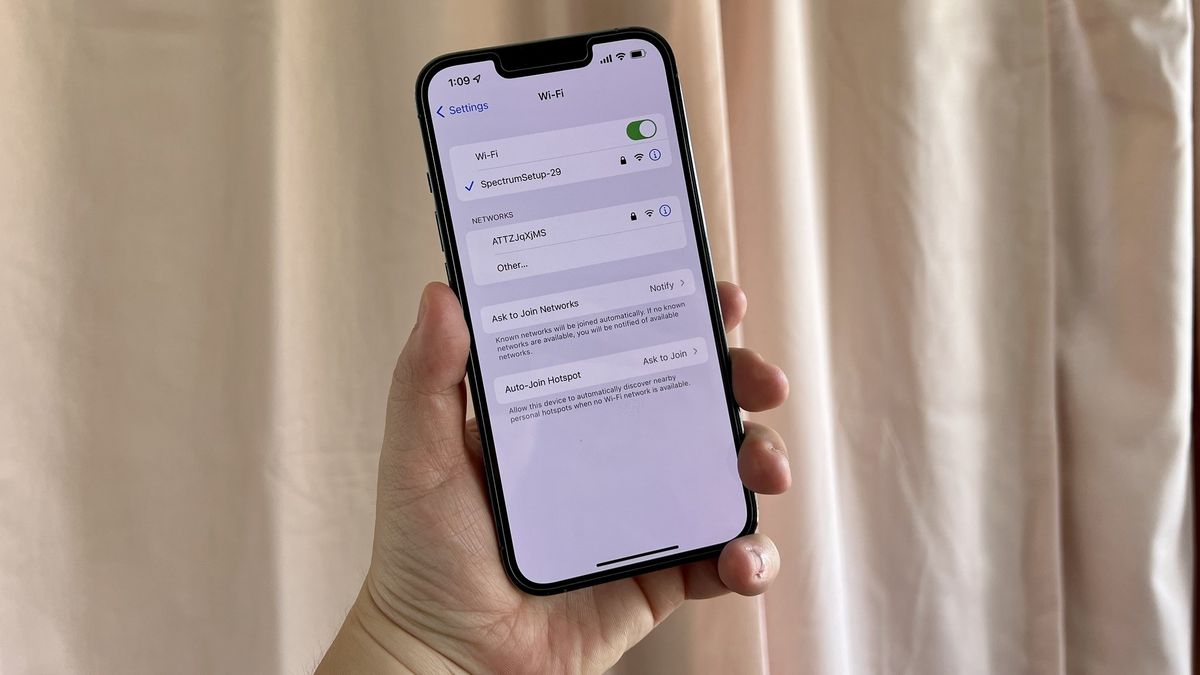
Do you want a very easy way to find your Wi-Fi password quickly on your iPhone? I think all of us have been in an situation where the Wi-Fi password is just that little bit out of reach.
Whether you’ve bought a new product and need to put the network password in for the first time or if you’ve got guests round and they want to connect to your Wi-Fi, these iOS 16 features make daily life that little bit easier.
Since iOS 11, your iPhone has had a super-easy way to share your Wi-Fi password with others who ask for it. In fact, all you need is to make sure that the person asking for the password is already a contact in your address book and has Bluetooth enabled. When they go to enter their Wi-Fi password you’ll be prompted to share. It’s magic.
iOS 16 now gives us several more robust options that we’ve wanted for quite some time such as seeing your Wi-Fi network passwords and deleting old networks from your history.
How to find a Wi-Fi password on iPhone
How to find a Wi-Fi password on iPhone
(Image: © iMore)
- Launch Settings on your iPhone or iPad with iOS 16
- Tap Wi-Fi
- Tap the “i” on your current Wi-Fi network
- Tap the Password field
- Your device will authenticate via Touch ID or Face ID
- Your password will now be revealed
- Tap Copy on the popup menu and paste it easily where you need it
This new way of seeing W-Fi passwords on iOS 16 is quite possibly the best feature of Apple’s latest iPhone software.
How to delete old Wi-Fi networks on iPhone
Another new addition to iOS 16 is the ability to view your connected network history and delete networks you no longer require.

- Launch Settings on your iPhone or iPad with iOS 16.
- Tap Wi-Fi
- Tap Edit in the upper right corner
- Your device will authenticate via Touch ID or Face ID
- You will now see a list of all of the networks that you’ve connected to in the past
- Tap the red minus (-) button on the network you want to delete
- Tap Delete to confirm
To be a master, a Wi-Fi master
By adding these simple changes to iOS 16, Apple has made your iPhone even simpler so that there’s never a situation where you can’t get connected to the internet. Wow your friends next time they ask for a Wi-Fi password and you seamlessly reveal the answer.









Discussion about this post