








• Home
  • Insight
  • Blog
  • Business
  • Entertainment
  • Health
  • Politics
  • Shop
    • Gift Shop
    • Value Shop
    • Store
    • Bargain Shop
    • Discount
  • Sports
  • Tech
  • Travel
  • USA
  • Video
  • World
    • Asia
    • Africa
    • South America
    • North America
    • Europe
    • Oceania
Thursday, November 19, 2026
No Result
View All Result
Subscribe Now
  • Home
  • Insight
  • Blog
  • Business
  • Entertainment
  • Health
  • Politics
  • Shop
    • Gift Shop
    • Value Shop
    • Store
    • Bargain Shop
    • Discount
  • Sports
  • Tech
  • Travel
  • USA
    Trump’s Deal Turns Sour as Voters Withdraw Support

    Trump’s Deal Turns Sour as Voters Withdraw Support

    FAA Administrator Takes Responsibility as Mullin Faces Tough Questions Over Nationwide Ground Stop

    FAA Administrator Takes Responsibility as Mullin Faces Tough Questions Over Nationwide Ground Stop

    Mary Peltola Emerges Victorious in Alaska Senate Race, Making History for Democrats

    Mary Peltola Emerges Victorious in Alaska Senate Race, Making History for Democrats

    Stranded in Conflict: Palestinians Navigate the Tenuous Balance of War and Peace Amid Ceasefire Efforts

    Stranded in Conflict: Palestinians Navigate the Tenuous Balance of War and Peace Amid Ceasefire Efforts

    Trump Administration Revokes Pay Increase for Head Start Educators

    Trump Administration Revokes Pay Increase for Head Start Educators

    Unexpected Triumph: Gay Candidates Achieve Unforeseen Victories in Challenging Races

    Unexpected Triumph: Gay Candidates Achieve Unforeseen Victories in Challenging Races

    Microsoft Outlook Experiences Prolonged Outage Affecting Users Nationwide

    Microsoft Outlook Experiences Prolonged Outage Affecting Users Nationwide

    Gunfire Erupts in D.C.: Authorities Search for Suspect Amid Rising Concerns Over Public Safety

    Gunfire Erupts in D.C.: Authorities Search for Suspect Amid Rising Concerns Over Public Safety

    LAUSD Takes Strong Action Against Hate Speech Following Racial Slur Incidents

    LAUSD Takes Strong Action Against Hate Speech Following Racial Slur Incidents

  • Video
  • World
    • Asia
    • Africa
    • South America
    • North America
    • Europe
    • Oceania
The Insight Post
  • Home
  • Insight
  • Blog
  • Business
  • Entertainment
  • Health
  • Politics
  • Shop
    • Gift Shop
    • Value Shop
    • Store
    • Bargain Shop
    • Discount
  • Sports
  • Tech
  • Travel
  • USA
    Trump’s Deal Turns Sour as Voters Withdraw Support

    Trump’s Deal Turns Sour as Voters Withdraw Support

    FAA Administrator Takes Responsibility as Mullin Faces Tough Questions Over Nationwide Ground Stop

    FAA Administrator Takes Responsibility as Mullin Faces Tough Questions Over Nationwide Ground Stop

    Mary Peltola Emerges Victorious in Alaska Senate Race, Making History for Democrats

    Mary Peltola Emerges Victorious in Alaska Senate Race, Making History for Democrats

    Stranded in Conflict: Palestinians Navigate the Tenuous Balance of War and Peace Amid Ceasefire Efforts

    Stranded in Conflict: Palestinians Navigate the Tenuous Balance of War and Peace Amid Ceasefire Efforts

    Trump Administration Revokes Pay Increase for Head Start Educators

    Trump Administration Revokes Pay Increase for Head Start Educators

    Unexpected Triumph: Gay Candidates Achieve Unforeseen Victories in Challenging Races

    Unexpected Triumph: Gay Candidates Achieve Unforeseen Victories in Challenging Races

    Microsoft Outlook Experiences Prolonged Outage Affecting Users Nationwide

    Microsoft Outlook Experiences Prolonged Outage Affecting Users Nationwide

    Gunfire Erupts in D.C.: Authorities Search for Suspect Amid Rising Concerns Over Public Safety

    Gunfire Erupts in D.C.: Authorities Search for Suspect Amid Rising Concerns Over Public Safety

    LAUSD Takes Strong Action Against Hate Speech Following Racial Slur Incidents

    LAUSD Takes Strong Action Against Hate Speech Following Racial Slur Incidents

  • Video
  • World
    • Asia
    • Africa
    • South America
    • North America
    • Europe
    • Oceania
No Result
View All Result
No Result
View All Result
Home Mobile

How to improve Apple Watch Ultra and Apple Watch Series 8 battery life

by Theinsightpost
January 11, 2023
in Mobile
0 0
0
How to improve Apple Watch Ultra and Apple Watch Series 8 battery life


That beautifully crafted Apple Watch Ultra on your wrist doesn’t do much when the battery is exhausted. Although the Apple Watch Ultra offers the most battery life between charges of any Apple Watch to date, there are still steps you can take to extend that time. The same steps can be followed on other Apple Watches, including the Apple Watch Series 8 and Apple Watch SE 2, although neither holds as much power as the Apple Watch Ultra, as you can see below. 

Here are various ways to improve Apple Watch battery life, regardless of its version. 

The battery life you should be receiving

The Apple Watch Ultra provides up to 36 hours of battery life between charges. Apple notes this number came through preproduction testing that included performing 180-time checks, 180 notifications, 90 minutes of app use, and a 60-minute workout with music playback from Apple Watch via Bluetooth over 36 hours. Furthermore, it assumes eight of those hours included LTE use, while the other 28 hours occurred when the wearable device was connected to iPhone via Bluetooth. 

The Apple Watch Series 8 and Apple Watch SE 2 promise up to 18 hours of battery life between charges. In these cases, similar tests were completed. In this case, preproduction testing included 90-time checks, 90 notifications, 45 minutes of app use, and a 60-minute workout with music playback from Apple Watch via Bluetooth over 18 hours. GPS models were connected to iPhones through Bluetooth for the entire 18-hour test. GPS + Cellular model testing included four hours over an LTE connection and 14 hours connected to iPhones via Bluetooth. 

Apple Watch models each feature a built-in rechargeable lithium-ion battery.

Ways to improve battery life

You can take numerous steps to improve your Apple Watch’s battery life. We’ve separated these steps into lifestyle tweaks, setting changes, and maintenance. These tips are from easiest to the most complex to perform, although none are all that difficult. 

Lifestyle tweaks

An Apple Watch in a bedroom (Image credit: IKEA / Apple)

There are two minor lifestyle changes you can make improve and maximize the battery life of your Apple Watch. Don’t worry, neither option has anything to do with exercising more or moving outside your comfort zone. 

Change charging time

One of the most useful Apple Watch features is the ability of the wearable device to track sleep patterns. Unfortunately, many Apple Watch owners choose not to use this feature as they have decided to charge their wearable devices at night.

Unfortunately, when doing so, you’re giving up one of the best tools Apple Watch provides. In addition, if you’re an Apple Watch Ultra and Apple Watch Series 8 user, you’re also giving up watchOS’ temperature sensing tool for insights into women’s health.

There are two simple lifestyle changes I’d recommend to maximize the battery life of your Apple Watch. First, charge your Watch each time you take a bath or shower. Additionally, I recommend charging the wearable device daily after you close your Apple Watch rings.

Current-generation Apple Watches include fast charging. Because of this, even a few minutes on the charger will add precious minutes and eliminate the need to charge the wearable device at night, allowing you to use all its tools, including sleep tracking.

End your workout

One of the most useful Apple Watch features added in recent years is workout detection. When activated, the feature recognizes when workouts are started, even if you forget. The wearable device also knows when you’ve completed a workout. In both instances, you receive a notification on your Watch asking you whether to track the start and end of the workout. 

When you’re doing a workout, the Apple Watch uses more battery power since it measures your heart rate continuously rather than every few minutes. To maximize battery life, you can manually end your workout rather than wait for watchOS to prompt you. To do so: 

  1. Swipe right on your Apple Watch face. 
  2. Tap the End button. 

To end workout on Apple Watch, swipe right on your Apple Watch face, then tap the End button.

(Image credit: iMore )

Setting changes

Apple Watch Series 6 and Watch SE

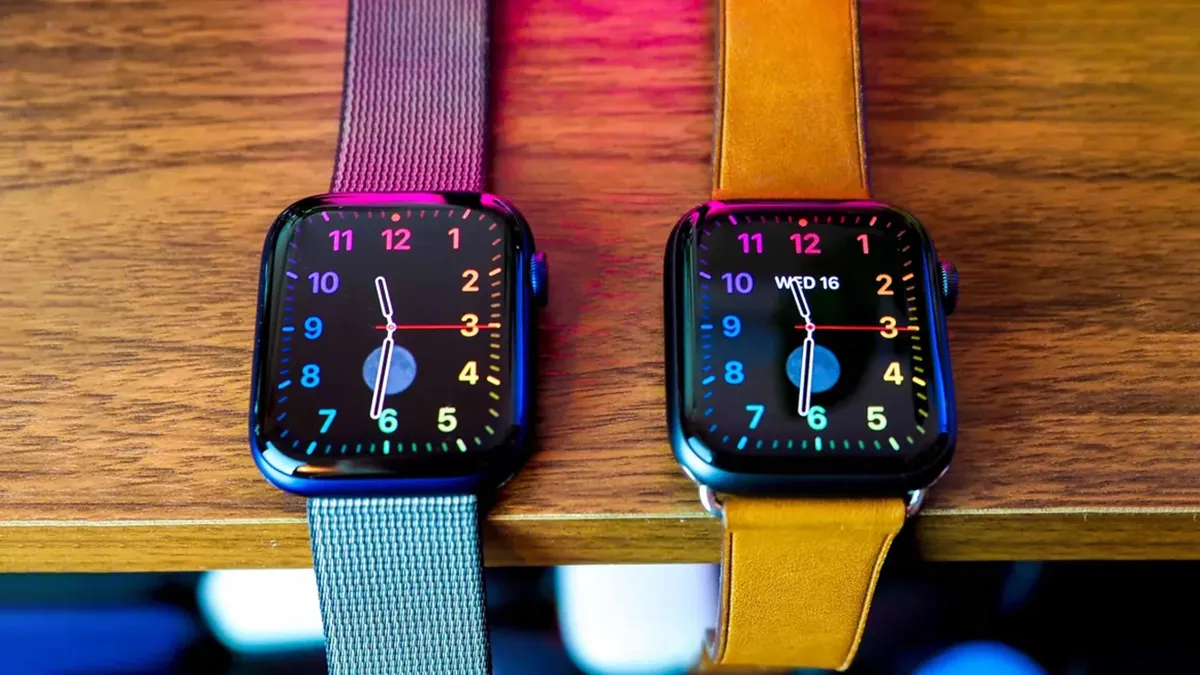
Two Apple Watches side by side (Image credit: Daniel Bader / iMore)

With each new watchOS release, Apple probably adds a feature or two you do not plan on using. However, these features are often turned on by default and may negatively affect battery life. Here are a few features you can turn on, turn off, or otherwise tweak to maximize your Apple Watch’s battery life. Each of these settings is handled through the Apple Watch app on your iPhone. 

Change Wake Screen time

An active Apple Watch face uses more power than when the display is off. By default, your Apple Watch wakes every time you raise your wrist. You can turn this feature off to save a little bit of juice. When you do, the only way to activate the Apple Watch face is by tapping on it for a set amount of time. 

To turn Wake on Wrist Raise off/on:

  1. Tap the Apple Watch app on your iPhone Home screen. 
  2. Select Display & Brightness. 
  3. Toggle on/off Wake on Wrist Raise. 

To turn Wake on Wrist Raise off/on:: Tap the Apple Watch app on your iPhone Home screen. Select Display & Brightness. Toggle on/off Wake on Wrist Raise.

(Image credit: iMore)

By default, you can also activate the Apple Watch face by turning its crown up. This setting can also be turned on/off. 

To adjust Apple Watch Crown up activation:

  • Tap the Apple Watch app on your iPhone Home screen.
  • Select Display & Brightness.
  • Toggle on/off Wake on Crown Up.

To adjust Crown Up: Tap the Apple Watch app on your iPhone Home screen. Select Display & Brightness. Toggle on/off Wake on Crown Up.

(Image credit: iMore)

To change the wake duration: 

  1. Tap the Apple Watch app on your iPhone Home screen.
  2. Select Display & Brightness.
  3. Tap Wake Duration.
  4. Check Wake on Crown Up or Wake for 70 Seconds. The larger number uses more battery. 

To change Wake duration: Tap the Apple Watch app on your iPhone Home screen. Select Display & Brightness. Tap Wake Duration. Check Wake on Crown Up or Wake for 70 Seconds. The larger number uses more battery.

(Image credit: iMore`)

Turn off Hey Siri

Apple’s Siri voice assistant is a terrific option to have on your Apple Watch. Unfortunately, it does consume battery life after repeated use. Turning Siri off on your Apple Watch isn’t going to give you much benefit. However, if you’re really hurting for battery life, it might be a path to consider. There are three Siri settings for Apple Watch and each is turned on my default. 

To adjust Siri settings: 

  • Tap the Apple Watch app on your iPhone Home screen.
  • Choose Siri. 
  • Toggle on/off Listen for “Hey Siri.”
  • Toggle on/off Raise to Speak.
  • Toggle on/off Press Digital Crown. 

To adjust Siri settings for Apple Watch: Tap the Apple Watch app on your iPhone Home screen. Choose Siri. Toggle on/off Listen for

(Image credit: iMore)

You’ll need to turn all three of these options off to deactivate Siri on your Apple Watch. 

Adjust Background App Refresh

With the backup app refresh tool, apps you aren’t using will still check for updates and make adjustments behind the scenes. For example, as your local weather changes, the official Weather app stays updated, so when it becomes active again current data is shown. This is a terrific tool. Unfortunately, it takes up resources and battery power. 

By default, every app installed on your Apple Watch uses backup app refresh. You can remove apps from the list to save battery life, but doing the following: 

  1. Tap the Apple Watch app on your iPhone Home screen.
  2. Choose General. 
  3. Scroll down, select Background App Refresh
  4. Untoggle the apps you no longer want to use the feature or untoggle Background App Refresh to turn off the feature completely. 

To toggle off background app refresh for Apple Watch: Tap the Apple Watch app on your iPhone Home screen. Choose General. Scroll down, select Background App Refresh Untoggle the apps you no longer want to use the feature or untoggle Background App Refresh to turn off the feature completely.

(Image credit: iMore)

Turn off push notifications

Notifications are a great way to receive up-to-date information whether it be news or weather updates or an important tweak. Unfortunately, the more notifications you receive, the greater the affect they have on your device’s power supply. You can make adjustments, however, on an app-by-app basis. 

To turn notifications on/off for apps on your Apple Watch: 

  • Tap the Apple Watch app on your iPhone Home screen.
  • Choose Notifications.
  • Scroll down to the section, Mirror iPhone Alerts From, then toggle off apps you wish to turn off push notifications. 

To stop using push notifications on Apple Watch: Tap the Apple Watch app on your iPhone Home screen. Choose Notifications. Scroll down to the section, Mirror iPhone Alerts From, then toggle off apps you wish to turn off push notifications.

(Image credit: iMore)

Turn on Reduce Motion

One other way to maximize your Apple Watch’s battery life is to reduce motion, The motion feature, on by default, controls animations and graphical effects that can cause battery drain. One again, you can turn this off using the Apple Watch app on your iPhone.

To get started:

  1. Tap the Apple Watch app on your iPhone Home screen.
  2. Choose Accessibility. 
  3. Tap Reduce Motion. 
  4. Toggle on Reduce Motion. 

To activate reduce motion: Tap the Apple Watch app on your iPhone Home screen. Choose Accessibility. Tap Reduce Motion. Toggle on Reduce Motion.

(Image credit: iMore)

Use Low Power Mode

With Low Power Mode on your Apple Watch,  certain functions stop running. These include: Always On display, heart rate notifications for irregular rhythm, high heart rate, and low heart rate, background heart rate measurements, background blood oxygen measurements, and start workout reminder.

To activate Low Power Mode:

  1. On the Watch itself, swipe up to open Control Center.
  2. Tap the battery percentage. 
  3. Toggle on Low Power Mode.
  4. Scroll down, and tap Turn On. 

To activate low power mode: On the Watch itself, swipe up to open Control Center. Tap the battery percentage. Toggle on Low Power Mode. Scroll down, tap Turn On.

(Image credit: Future)

Maintenance steps

Apple Watch Ultra in a running workout

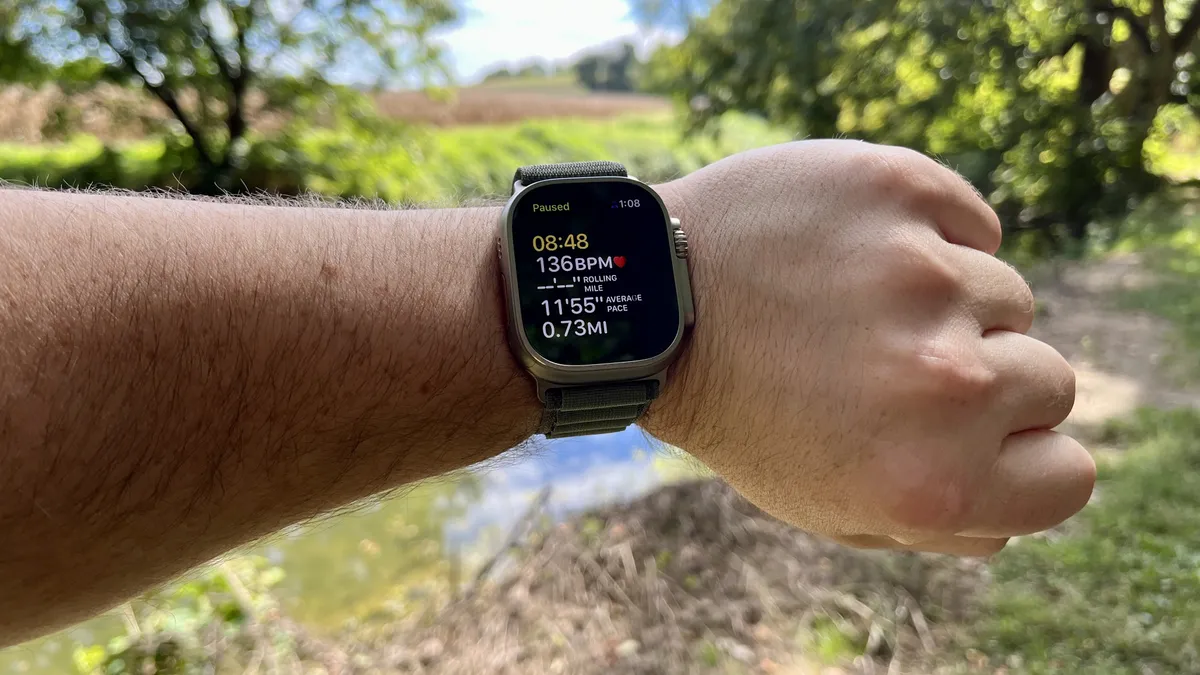
Apple Watch Ultra performing a running workout routine (Image credit: Joe Wituschek)

You can also take different maintenance steps to improve the battery life of your Apple Watch. You should follow the first of these four tips regularly to maintain the wearable device properly, regardless of your concerns over battery life. The final two tips are best filed under “last resort” and might not be necessary unless you feel there’s a problem with the Watch’s battery functionality. 

Delete apps you don’t use

As a good rule of thumb, you should remove apps that aren’t being used from your Apple devices, including your Apple Watch. Depending on your situation, there are two main ways to remove unnecessary apps. 

If the app is installed on your iPhone and Apple Watch, and you wish to remove it from both devices, follow our separate directions on removing apps from your iPhone or iPad. 

If the app is installed on your iPhone and Apple Watch and you wish to remove it only from your Apple Watch, follow these instructions: 

  1. Click on the Apple Watch Crown to bring up the App Store on your Apple Watch.
  2. Hard press the Apple Watch display to bring up the View menu. 
  3. Tap Edit Apps. 
  4. Click on the “X” for each app you wish to delete, then choose Delete App. 

Update your Apple Watch

Battery life can also be influenced by the watchOS version installed on your Apple Watch. Perhaps you have an older version that needs replaced. Always be sure to have the latest version of watchOS installed. 

Re-pair your Apple Watch and iPhone

If you’re convinced the Apple Watch battery isn’t working correctly, consider re-pairing Apple Watch with your iPhone. This won’t necessarily improve the situation, but it could help with troubleshooting/ 

Contact Apple

Finally, when in doubt, contact Apple Support. Whether you’re new to Apple or even a veteran Mac and iOS user, it’s a fact of technology: problems happen. 

If you have a functioning iPhone or iPad, you can get on-demand help from that device with Apple’s Support (opens in new tab) app. Once downloaded, log in with your Apple ID, and you’ll be presented with a support portal for every device currently registered to your Apple ID, along with a few all-purpose featured articles.

Hopefully, the tips above can improve Apple Watch battery life in your home. Although these tips primarily focus on the Apple Watch Ultra, Apple Watch Series 8, and Apple Watch SE 2, they’ll also work on other models. 



Source link

ShareTweetSend
Previous Post

Jeff Beck dies aged 78

Next Post

Belgian aid worker sentenced to 40 years in prison and 74 lashes

Related News

WhatsApp Set to Ditch iCloud and Google Drive Support – But Users Should Brace for Changes
Mobile

WhatsApp Set to Ditch iCloud and Google Drive Support – But Users Should Brace for Changes

November 19, 2026
Understanding the Recent Apple Outage: Causes and Implications for Users
Mobile

Understanding the Recent Apple Outage: Causes and Implications for Users

November 18, 2026
Unlocking Potential: Exploring the FDE Model in Enterprise AI Solutions
Mobile

Unlocking Potential: Exploring the FDE Model in Enterprise AI Solutions

November 14, 2026
Unlocking the Scoop: Upcoming Sale Dates, Price Highlights, and Previous Bargains
Mobile

Unlocking the Scoop: Upcoming Sale Dates, Price Highlights, and Previous Bargains

November 14, 2026
Next Post
Belgian aid worker sentenced to 40 years in prison and 74 lashes

Belgian aid worker sentenced to 40 years in prison and 74 lashes

Discussion about this post

Subscribe To Our Newsletters

    Customer Support


    1251 Wilcrest Drive
    Houston, Texas
    77042 USA
    Call-832.795.1420
    e-mail – news@theinsightpost.com

    Subscribe To Our Newsletters

      Categories

      • Africa
      • Africa-East
      • African Sports
      • American Sports
      • Arts
      • Asia
      • Australia
      • Business
      • Business Asia
      • Business- Africa
      • Canada
      • Defense
      • Education
      • Egypt
      • Energy
      • Entertainment
      • Europe
      • European Soccer
      • Finance
      • Germany
      • Ghana
      • Health
      • Insight
      • International
      • Investing
      • Japan
      • Latest Headlines
      • Life & Living
      • Markets
      • Mobile
      • Movies
      • New Zealand
      • Nigeria
      • Politics
      • Scholarships
      • Science
      • South Africa
      • South America
      • Sports
      • Tech
      • Travel
      • Travel-Africa
      • UK
      • USA
      • Weather
      • World
      No Result
      View All Result

      Recent News

      Australia Claims Victory Over Argentina with 2-0 Win at Under-17 FIFA World Cup

      Australia Claims Victory Over Argentina with 2-0 Win at Under-17 FIFA World Cup

      November 19, 2026
      Putin Promises Consequences Following Ukraine’s Assault on Kerch Strait Bridge

      Putin Promises Consequences Following Ukraine’s Assault on Kerch Strait Bridge

      November 19, 2026
      Brian Blessed Shares Amusing Encounter with Female Gorillas at Zoo

      Brian Blessed Shares Amusing Encounter with Female Gorillas at Zoo

      November 19, 2026
      Unveiling the Real Narrative: ‘The Altruists’ and Their Connection to the FTX Controversy

      Unveiling the Real Narrative: ‘The Altruists’ and Their Connection to the FTX Controversy

      November 19, 2026
      • Home
      • Advertise With Us
      • About Us
      • Corporate
      • Consumer Rewards
      • Forum
      • Privacy Policy
      • Social Trends

      Theinsightpost ©2026 | All Rights Reserved. Theinsightpost is an Elnegy LLC company, registered in Texas, USA

      Welcome Back!

      Login to your account below

      Forgotten Password?

      Retrieve your password

      Please enter your username or email address to reset your password.

      Log In

      Add New Playlist

      We are using cookies to give you the best experience on our website.

      You can find out more about which cookies we are using or switch them off in .

      No Result
      View All Result
      • Home
      • Insight
      • Blog
      • Business
      • Entertainment
      • Health
      • Politics
      • Shop
        • Gift Shop
        • Value Shop
        • Store
        • Bargain Shop
        • Discount
      • Sports
      • Tech
      • Travel
      • USA
      • Video
      • World
        • Asia
        • Africa
        • South America
        • North America
        • Europe
        • Oceania

      Theinsightpost ©2026 | All Rights Reserved. Theinsightpost is an Elnegy LLC company, registered in Texas, USA

      The Insight Post
      Powered by  GDPR Cookie Compliance
      Privacy Overview

      This website uses cookies so that we can provide you with the best user experience possible. Cookie information is stored in your browser and performs functions such as recognising you when you return to our website and helping our team to understand which sections of the website you find most interesting and useful.

      Strictly Necessary Cookies

      Strictly Necessary Cookie should be enabled at all times so that we can save your preferences for cookie settings.

      Cookie Policy

      More information about our Cookie Policy