








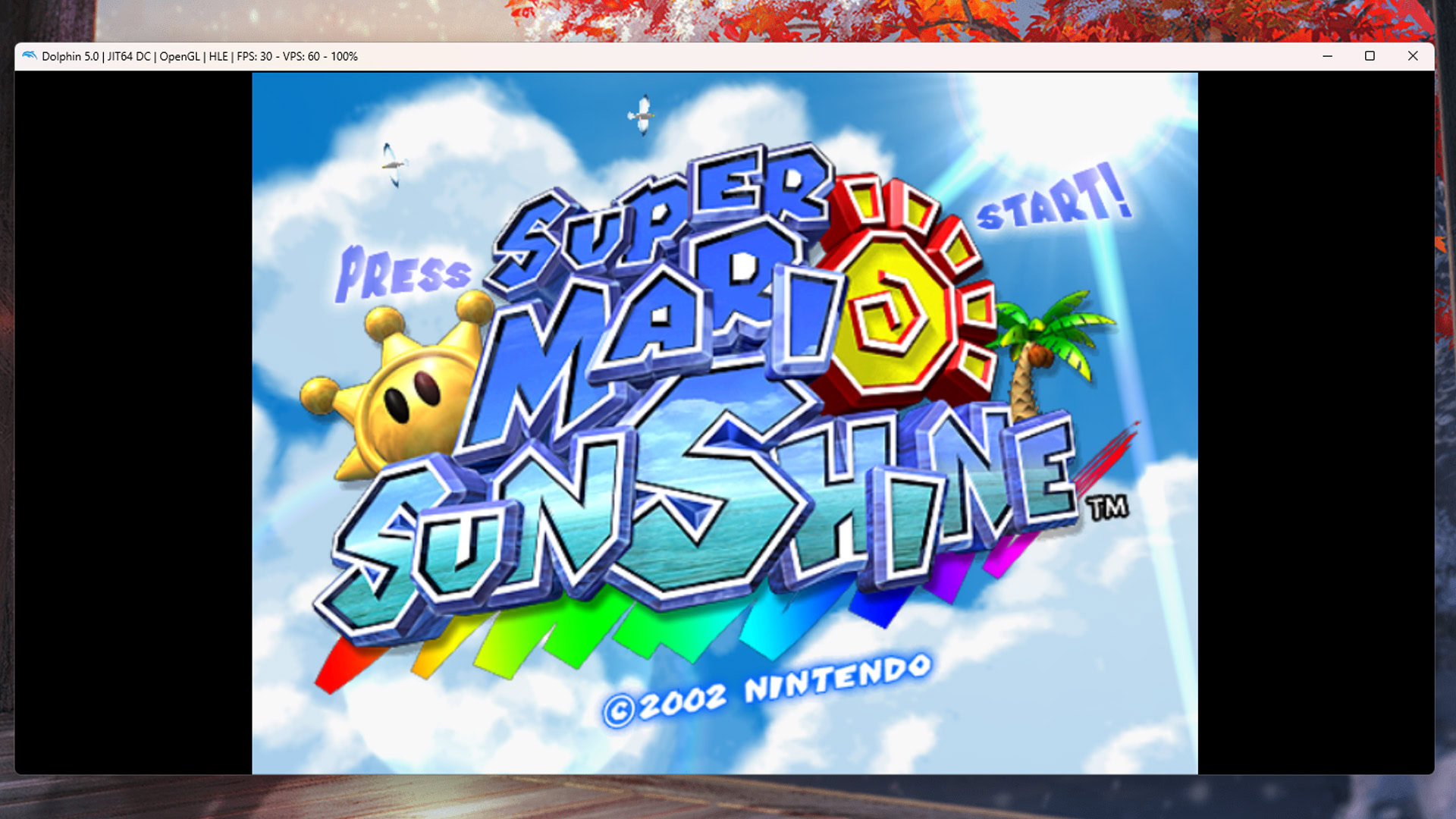
Dolphin Emulator is a GameCube and Nintendo Wii emulator that is available for PC, Mac, and Android. It’s the most popular emulator for those consoles, and it’s one of the best for sure. You’re here because you want to learn how to install and set up the emulator on either your Windows PC, Mac, or your Android phone. We’ll show you how to install and set up Dolphin Emulator.
Read more: The best Android emulators for PC and Mac
Download and install Dolphin Emulator on Windows
There are actually two methods to install Dolphin Emulator on a Windows PC. The first is the traditional method, where you install it as a program on your computer and open it like any app. The other method has the app contained in a folder that you place where you want and access as you choose. We’ll do both here.
Download the beta version (recommended)
Joe Hindy / Android Authority
The beta version gets updated more consistently than the stable version. Thus, we actually recommend this one since it is in active development. This tutorial is for Windows 11, and it’s slightly different from previous operating systems.
- You’ll need to download and install 7-Zip. We recommend the 64-bit Windows x64 version at the top of the download list. Dolphin Emulator’s betas come in 7z archive files, which 7-Zip handles.
- Head to Dolphin Emulator’s download page.
- Find and select the most recent beta version. It is 5.0-18498 as of this writing.
- Hit the Windows x64 button to download.
- Once done, go to your Downloads folder and find your download.
- Right-click the download and tap Show More Options.
- Select 7-Zip from the context menu, and then select Extract Here.
- Once done, you’ll have a folder with a bunch of Dolphin Emulator files.
- It’s a portable application, so there is no installation. You just double-click Dophin, and the emulator opens.
- Pro tip — Since it is a portable app, you can move the folder wherever you want for easier access. I usually stash it on the desktop, but you can even pop it onto a flash drive if you wanted to.
Download and install Dolphin Emulator on Mac

Joe Hindy / Android Authority
This is very similar to the beta version of Windows, where it’s a portable application, and you basically just need to open it. Again, we recommend the beta version instead of the stable version since it is in active development. Here are the steps.
- Head to Dolphin’s official website.
- Download the most recent beta version. Select the macOS (ARM/Intel Universal) button.
- Once downloaded, navigate to your downloads folder and find the Dolphin Emulator DMG.
- Double-click on the DMG to open it. Double-click on Dolphin to open the app.
- Note — It may throw a warning about it being an app downloaded from the Internet. Just hit Open to continue.
Set up a game directory (both PC and Mac)

Joe Hindy / Android Authority
Regardless of which method you use, you’ll want to create a folder where you can stash your game ROMs. This is a super easy process but a very necessary one. Otherwise, your Downloads folder is going to get crowded after a while.
- Go to where you want to create your ROM folder. I chose the desktop, but many folks use their Documents folder.
- Right-click on an empty space, select New, and then select Folder.
- Rename your folder whatever you want. I call mine Dolphin ROMs.
- Open Dolphin Emulator and double-click where the window tells you to.
- Navigate to your Dolphin ROMs folder and select it.
- Dolphin will automatically add any GameCube or Nintendo Wii ROMs it detects once you add them in there.
- Pro-tip — I recommend doing this process regardless of if you’re on PC or Mac. The screenshot above was taken on Windows 11, but I also repeated this method when testing on my Macbook Air.
Once you’re done, you just need to add some ROMs. After that, you’re ready to set up your emulator and start playing.
How to play a game in Dolphin Emulator

Joe Hindy / Android Authority
You’ll need a ROM before you can start, and unfortunately, we can’t tell you where to get those for legal reasons. However, once you obtain a ROM, put it in your ROM folder, and load up the emulator, things get pretty easy.
- Place your ROM in your ROM folder and open Dolphin Emulator.
- The emulator should automatically detect the new game.
- Tap on the game, and then tap on the Play button on the top toolbar.
- The game should open and play.
Of course, there are some base configurations that work fine out of the box, but you may want to configure it further before playing. We’ll show you how to do that next.
Set up and use Dolphin Emulator on Windows and Mac
Luckily, Dolphin Emulator comes pretty well set up out of the box. It should play most games at good frame rates, with only minor adjustments needed depending on your computer. For example, both the GameCube and Nintendo Wii controls come pre-mapped to your keyboard. You just have to learn which buttons do what. There is minimal setup needed to pop in and play, but we’ll still go over some common items for customization purposes.
While there may be some small changes between platforms, setup on Windows and macOS is very nearly identical, and the same instructions should work 99% of the time between them.
Configure a controller

Joe Hindy / Android Authority
Configuring your controls not only allows you to remap your keyboard to be more comfortable but also helps you learn what each button does. We very heavily recommend a wired GameCube controller along with a USB GameCube adapter. The three joystick configuration for the GameCube controller doesn’t translate well to mouse and keyboard. In any case, here’s how to configure everything.
- Open Dolphin Emulator.
- Tap the Controller icon along the top toolbar.
- There are two main sections here. The top section is for GameCube controllers, and the middle section is for the Nintendo Wii controller.
- Select Configure for the controller you wish to customize.
- On the next screen is every button a GameCube or Nintendo Wii controller is capable of pressing, along with all three joysticks. Remap the buttons and joysticks to your heart’s content.
- Optionally — If you want multiple controller profiles, locate the Profile box on the right side of the window, type in a profile name, and hit Save. You can save and load multiple profiles this way.
- Once done, hit OK when you’re finished.
- Note — The emulator will automatically switch between controllers depending on which game you’re playing.
The controller configuration screen definitely looks intimidating at first. We recommend taking your time and looking through everything. Don’t be afraid to tinker and mess around. You can always hit the Default button to restore everything to its original settings.
Configure graphics settings on Dolphin Emulator

Joe Hindy / Android Authority
Graphics settings are set pretty well out of the box, and my PC and Mac had no problems running Super Mario Sunshine at max frames. However, your system may need some adjustments to get the best possible performance, so we’ll show you how to do that.
Standard graphics settings
- Open Dolphin Emulator.
- Select the Graphics option along the top toolbar.
- A window will open with four tabs, General, Enhancements, Hacks, and Advanced. Each tab has several graphics settings you can change.
- We usually list each change and what they do. However, Dolphin Emulator has an excellent feature where it’ll tell you what each option does if you mouse over it.
- Adjust the settings as necessary and hit Close when you’re done.
- Pro-tip — One of the changes we recommend is increasing the Internal Resolution under the Enhancements tab if your computer can handle it. The higher resolution not only looks better but gives you a larger screen to play with.
For the most part, it seems Dolphin is configured for efficiency out of the gate. A lot of graphical settings, like anti-aliasing, anisotropic filtering, etc., are at their lowest possible settings or turned off entirely. There doesn’t seem to be much to do if your FPS is too low, but there’s plenty to do if your machine can handle a higher workload.
Other configuration settings

Joe Hindy / Android Authority
Dolphin Emulator has some additional configuration settings you can access by tapping Options at the top of the window and then Configure. This houses some general configuration controls. You shouldn’t need to mess with this all that much, but it may help with troubleshooting if your emulator is bugging out on you. Below, we’ll talk about each tab in the Configure menu.
- General — These general configurations enable things like dual core, idle skipping, and usage statistics reporting. You shouldn’t ever need to touch anything in here, but you can if you want to.
- Interface — This gives you a few minor customizations to the emulator UI. For example, you can tick a box here that asks you to confirm you’re exiting the app before it lets you exit, preventing the loss of any saved data.
- Audio — As the name implies, this part of the menu deals with audio settings. You only need to change these options if the audio in your game is messing up.
- GameCube and Wii — Both of these tabs have console-specific options, like aspect ratio, memory cards, and other such things.
- Paths — This lets you add, remove, or change paths to your ROM folder. You can also define paths to Default ISO, DVD Root, Apploader, and Wii NAND Root if you want to.
- Advanced — The only option here is the ability to “overclock” your emulator. This increases framerates but also puts a much higher strain on your CPU. You can tinker with it if you want, but if your computer is already running games at the max framerate, we wouldn’t bother.
That’s about it for configuration. As we said earlier, the emulator comes set up pretty well out of the box, so aside from controller configurations and maybe increasing the graphics settings, there isn’t much to do to play.
Download and install Dolphin Emulator on Android

Joe Hindy / Android Authority
Installing Dolphin Emulator on your Android device is exceptionally easy.
It really is that easy. We recommend using the Google Play version since it gets regular updates anyway. We don’t think there is much on the official website that isn’t in the Play Store version.
Create a ROM directory for Dolphin Emulator

Joe Hindy / Android Authority
Much like the PC version, we recommend you create a folder on your phone to stash your ROMs. It makes it easier for the emulator to find new games, and it also makes it vastly easier to back up if you ever need to switch your phone. For this tutorial, we use Solid Explorer (Google Play), but you can use any good file browser app.
- Open your file browser app and navigate to your internal storage.
- Use your file browser to create a new folder. Rename it to whatever you want. I just named mine DolphinEmulatorROMs.
- From here, go to your Downloads folder and move any games you have to your new ROM folder.
- Note — Dolphin Emulator can’t read ZIP files, so you’ll need to extract any games you download before they’re visible in the emulator.
- Pro-tip — When you go to upgrade your phone someday, either use an app like Autosync (Google Play) or just Google Drive to back up the folder. You can download the folder on your new phone, and it’ll be there when you need it.
This part isn’t 100% necessary, but it is highly recommended. Otherwise, your emulator is reading game ROMs out of your Downloads folder, where you can accidentally delete it if you’re not paying attention. It’s always good to get permanent files out of the Downloads folder.
Set up Dolphin Emulator on Android
Dolphin Emulator on Android is a lot like its PC and Mac variant. It’s mostly set up to go out of the box, and all you really need to do is minor tweaks to get it set up for you. Let’s go down through some common configurations to get you all set up and ready to go.
Configure your Dolphin Emulator controls

Joe Hindy / Android Authority
You have two options here. You can use on-screen controls or a hardware controller. We’ll show you how to configure both. For this tutorial, we used a Moga XP5-X Plus Bluetooth controller.
Customize on-screen controls
- Open Dolphin Emulator and then open whichever game you want.
- Once the game is open, open the Dolphin Emulator menu by sliding in from the side of the screen and hitting your back button.
- From here, select Overlay Controls.
- Move your controls — Click Edit Layout, and then move the buttons around until they’re where you want. Click Done when you’re done.
- Resize controls and change opacity — Tap Adjust Controls , where you’ll find size and opacity sliders.
- To hide your on-screen controls — Tap Toggle Controls and then tap the Toggle All button at the bottom of the window. This is useful for hiding the controls when using a controller.
- Tip — You do have to do this manually for every game, and you’ll need to manually toggle the controls back on if you don’t have your controller with you on any given day.
You can find additional keyboard controls by hitting the Cogwheel on the Dolphin Emulator home screen and selecting either GameCube Input or Wii Input. However, that’s more for hardware controller stuff than on-screen controls.
Configure hardware controllers in Dolphin Emulator

Joe Hindy / Android Authority
- Turn your controller on and connect it to your phone.
- Open Dolphin Emulator and click the Cogwheel icon at the top.
- Go to GameCube Input.
- Select GameCube Controller 1 and then tap Emulated.
- You’ll see a list of all of the GameCube inputs. Tap each button to map it to your controller. Unfortunately, this has to be done manually.
- Once done, hit back.
- Select Wii Input and repeat the previous steps, but for the Wii controller.
- Once done, exit the menu, open your game, and enjoy.
- Pro-tip — To hide your on-screen controls, open any game and open the menu. To go Overlay Controls, then Toggle Controls, and tap the Toggle All button to hide all of the buttons.
There are also additional options for setting up a GameCube adapter or Dolphin Bar. They are pretty straightforward but do require hardware purchases first.
Configure graphics for Dolphin Emulator on Android

Joe Hindy / Android Authority
You shouldn’t need to configure Dolphin Emulator on your Android phone. The default settings work on the vast majority of modern Android devices. However, if you do, here’s where you can find them.
- Open Dolphin Emulator and hit the Cogwheel.
- Tap Graphics Settings.
- You’ll find several options here. If you’re having performance issues, the only one you can really change is Shader Compilation Mode, which causes the game to stutter, but does increase overall frame rates. The developers only recommend using it on very low end hardware.
- Enhancements — Includes a variety of processing enhancements to ensure smoother gameplay and better graphics. In particular, Internal Resolution is a nice one to increase if your phone can handle it.
- Hacks — Includes options to increase performance or graphical quality. Read through each option and check or uncheck the option if needed.
- Statistics — Lets you show things like FPS, VPS, and speed so you can see if your changes are actually doing anything. None of these options affect performance.
- Advanced — Lets you enable things like texture packs, mods, and other random things. Some of these options affect performance as well.
There are a lot of really cool things in there, and each setting has an explanation of what it does. Thus, poke around in there if you want to have some fun, or if you need to turn the settings up or down to match your tastes or hardware.
Other configuration settings

Joe Hindy / Android Authority
There are a few other spots of note in the settings that you may want to know about. You can reach this part of the menu by opening Dolphin, tapping the Cogwheel, and then selecting the Config option.
- General — Some general settings that you shouldn’t have to mess with. This is where you can enable save states if you have to, but the developer doesn’t recommend it.
- Interface — Some UI settings that let you tweak when and how you receive information. This is where you can access the app theme if you want to.
- Audio — There is where the audio settings are and we don’t recommend messing with them at all unless your audio stutters. In that case, enable the Audio Stretching setting.
- Paths — This is where you can define where you want all of your files to go or come from. This is also very helpful for knowing which folders to back up if you ever switch devices.
- GameCube — Some GameCube-specific settings like memory card settings.
- Wii — Some Nintendo Wii-specific things like inserting a virtual SD card, region, and other things you shouldn’t have to adjust often.
- Advanced — Allows you to tick some settings that may be required for some games, like MMU. You can also overclock the emulator in here, but we don’t recommend that for battery life and thermal reasons.
- Log — Lets you determine which logs are written and where they are written.
- Debug — Some debugging settings that no average user should ever need to touch or mess with.
- User Data — Lets you import or export user data to prevent loss when deleting them app or when switching phones. We highly recommend using this to backup your data periodically in case your phone dies for some reason.
There are some other configurations, but like most of the emulator, they aren’t things you should need to touch unless something very odd is happening. We also recommend checking out the official subreddit if you run into issues.
Up next: The best emulators for Android to play old favorites
FAQ
No. Emulator and ROM use are 100% legal. However, they exist in a moral gray area since you are, in essence, pirating old video games. There’s still a lot of legal debate about this topic, but you won’t go to jail for using an emulator.




Discussion about this post