

This blog post is written by Hrishikesh Pathak
In this era of collaborative development in the cloud, local development makes it easy to iterate and build new features quickly. You can also make different versions of your projects very quickly to test new features in the local machine without affecting the production build.
What is Firebase Local Emulator Suite?
Firebase is a very popular Backend-as-a-Service (BaaS) platform offered by Google that caters to all your backend-related needs. It provides auth services, NoSQL databases, file storage, and much more.
If you use Firebase in your projects, you should have a constant connection to Firebase servers during development. You have to create different Firebase projects if you need multiple versions of your back end for testing purposes. These are some of the pain points of using Firebase for development in general.
Firebase Local Emulator Suite is an emulated version of Firebase that can be installed on your local device. When you want to test a Firebase feature, you can spin up a new emulator instantly on your machine and start interacting with it. Local Emulator Suite is great for fast iteration and prototyping of your Flutter app.
What you will learn in this tutorial
- Installing and starting the Firebase emulator for your Flutter project
- Connecting your Flutter app with Firebase Local Emulator Suite
- Adding Firebase Firestore to our default Flutter counter app
- Integration testing with Flutter and the Firebase emulator
- Configuring the Firebase emulator in Codemagic CI/CD
How to install the Firebase CLI on your machine
We need to install the Firebase CLI before installing the Firebase emulator. The easiest way to install the Firebase emulator is using npm (node package manager). If you have Node.js and npm installed on your device, you can install the Firebase CLI using this command.
npm install -g firebase-tools
If you don’t have Node.js installed, you can install Node.js from its official website. If you don’t want to install Node.js on your device, you can take a look at some alternative installation methods.
Sometimes, you can get an EACCES error while installing npm packages. Check out the npm documentation to resolve this issue.
You can check which Firebase version you have installed by running this command.
If you get a version number in return, then you have successfully installed the Firebase CLI. Keep in mind that you need version 8.14 or higher to install the Firebase emulator.
Now, inside your current Flutter project, initialize a new Firebase project.
Follow the terminal prompts and select the Firebase services you need for your project. After running the above command, you may be asked to authenticate yourself using your Firebase account. This authentication process helps create new Firebase projects based on your input. You can find the automatically created Firebase projects in your project dashboard.

Install and start the Firebase emulator on your machine
To install the Firebase emulator for your project, run this command at the root of your project.
Follow the on-screen prompts and select the emulator services you need for your project. You can customize your emulator settings later by editing the firebase.json file.
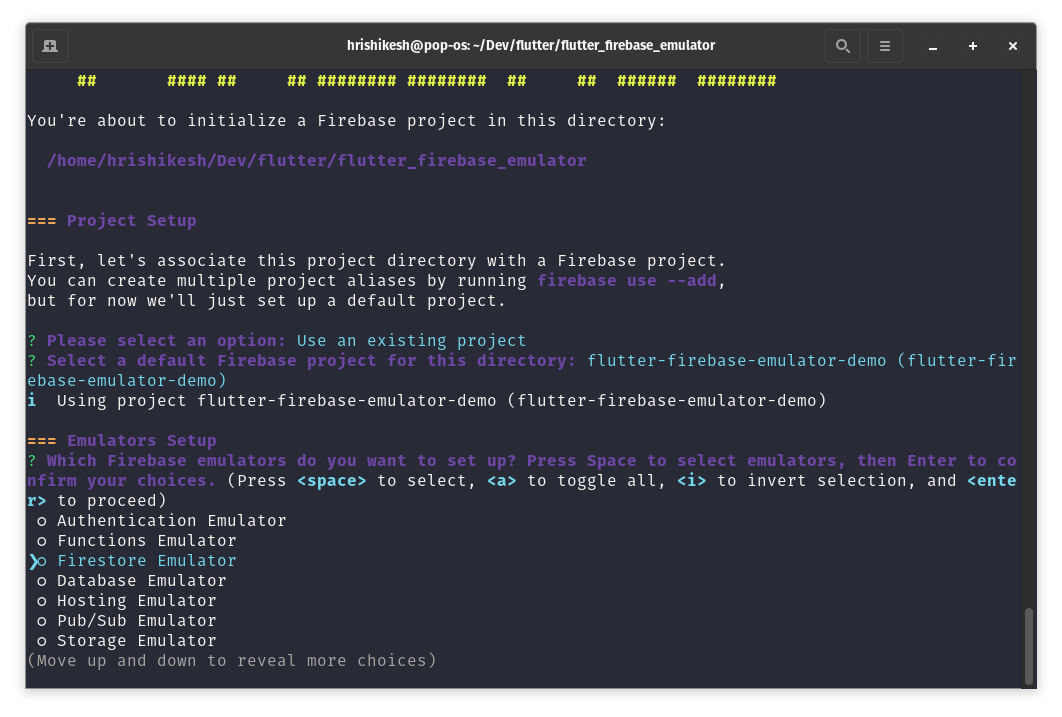
For this tutorial, we will only be using the Firebase Firestore emulator. So, select the Firestore option to follow along.
If you are creating a Firebase emulator for the first time on your machine, the Firebase CLI will download the binary file of the Firebase emulator and configure it for you. The downloaded binary is cached in your system, and subsequent emulators are created using the cached binary files.
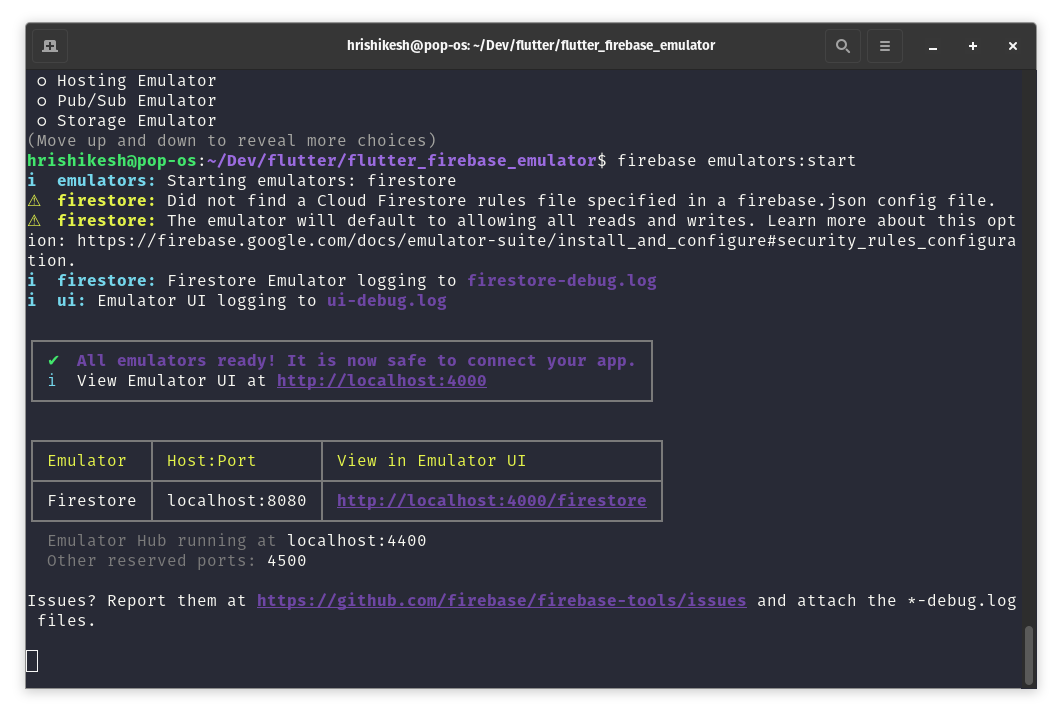
To start the Firebase emulator, run the following command.
This command starts your Firebase emulator in the default ports. Firestore runs in port 8080 of your localhost, and you can access the emulator UI at localhost:4000.
Connect our Flutter app with the Firebase emulator
In this tutorial, we will modify the default Flutter counter app to demonstrate how the Firebase emulator works with Flutter. This will help you understand how to configure your project to use the Firebase emulator.
Initial setup
Go to your project root and install flutterfire_cli in your project. flutterfire_cli automatically generates all the Firebase-related config files for your project.
dart pub global activate flutterfire_cli
After installing flutterfire_cli, generate the Firebase configuration file for your Flutter application using flutterfire_cli. The following command creates a firebase_options.dart file inside your lib/ directory.
flutterfire configure
Now, add the firebase_core and cloud_firestore dependencies to your project.
flutter pub add firebase_core cloud_firestore
Connect the Flutter counter app with the Firebase emulator
Initialize firebase_core inside your main function.
import 'package:flutter/material.dart';
import "package:firebase_core/firebase_core.dart";
import 'firebase_options.dart';

void main() async {
  WidgetsFlutterBinding.ensureInitialized();
  await Firebase.initializeApp(
    options: DefaultFirebaseOptions.currentPlatform,
  );
  runApp(const MyApp());
}
Inside the MyHomePage stateful widget, define the Firestore variable. If you are using an Android emulator, use 10.0.2.2 instead of localhost to connect with the Firebase emulator. For web builds, you can use localhost without any modifications.
import 'package:cloud_firestore/cloud_firestore.dart';
import 'dart:io' show Platform;

// inside MyHomePage widget
late FirebaseFirestore firestore;
String host = Platform.isAndroid ? "10.0.2.2" : "localhost";
int count = 0;
Now, let’s connect to the local Firebase emulator inside the initState method of the widget.
  @override
  void initState() {
    firestore = FirebaseFirestore.instance;
    firestore.settings =
        const Settings(persistenceEnabled: false, sslEnabled: false);
    firestore.useFirestoreEmulator(host, 8080);
    super.initState();
  }
Firestore-powered counter app
To use Firestore features, inside the build method of the MyHomePage widget, add a stream builder to listen to new Firestore events and change our counter accordingly.
 StreamBuilder<DocumentSnapshot<Map<String, dynamic>>>(
              stream: firestore.collection("counter").doc("count").snapshots(),
              builder: (context, snapshot) {
                if (snapshot.hasError) {
                  return Text(
                    count.toString(),
                    style: Theme.of(context).textTheme.headline4,
                    semanticsLabel: "count",
                  );
                }
                return Text(
                  snapshot.data?.data()?["count"].toString() ?? "0",
                  style: Theme.of(context).textTheme.headline4,
                );
              },
            ),
Now, when someone changes the count document inside the counter collection, a new event is emitted and the change will be reflected on the screen.
Every time someone presses the floating action button, the count document is changed with a new count value.
 floatingActionButton: FloatingActionButton(
        onPressed: () async {
          count++;
          await firestore
              .collection("counter")
              .doc("count")
              .set({"count": count});
        },
        tooltip: "fab",
        child: const Icon(Icons.add),
      ),
Now, run this app using the flutter run command, and try out our new Firestore-powered counter app.
Integration testing with the Firebase emulator
Integration testing is done to see how an app’s individual components work together as a whole. It makes it easy to analyze the performance of the app.
In this tutorial, we will write a very simple integration test and see how to use the Firebase emulator for integration testing for Flutter apps.
Before starting, add these two development dependencies in the pubspec.yaml file.
dev_dependencies:
  integration_test:
    sdk: flutter
  flutter_test:
    sdk: flutter
Now, create a new directory integration_test inside your root directory. Put your integration test files inside this directory. Let’s create a file app_test.dart inside the integration_test directory to write our first integration test.
If you are a beginner and don’t know much about integration testing in Flutter, make sure to follow this Flutter cookbook on integration testing before proceeding. The flow of our test looks like this.
- Start the Firebase emulator
- Test if the counter starts with 0
- Find the floating action button and click it to increase the count
- Test if the counter is now at 1
This is a very simple integration test to demonstrate if the Firebase emulator is working. The code inside the app_test.dart file looks like this.
import 'package:flutter_test/flutter_test.dart';
import 'package:integration_test/integration_test.dart';
import 'package:flutter_firebase_emulator/main.dart' as app;

void main() {
  final IntegrationTestWidgetsFlutterBinding binding =
      IntegrationTestWidgetsFlutterBinding.ensureInitialized();

  testWidgets("Tapping on floating action button and verify counter",
      (tester) async {
    app.main();
    await tester.pumpAndSettle();

    expect(find.text('0'), findsOneWidget);

    final Finder fab = find.byTooltip("fab");

    await tester.tap(fab);

    await tester.pumpAndSettle();

    expect(find.text("1"), findsOneWidget);
  });
}
Before starting the test, make sure to start the Firebase emulator by running the firebase emulator:start command.
You should also have an emulator running for integration testing. To get a list of your available emulators, run the flutter emulators command.
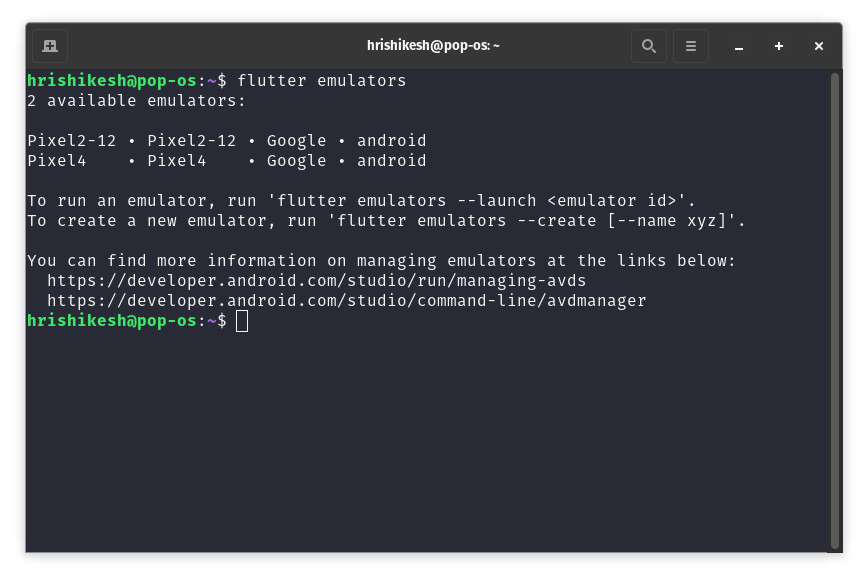
Select one of these emulators and start it using its emulator ID.
flutter emulators --launch <emulator ID>
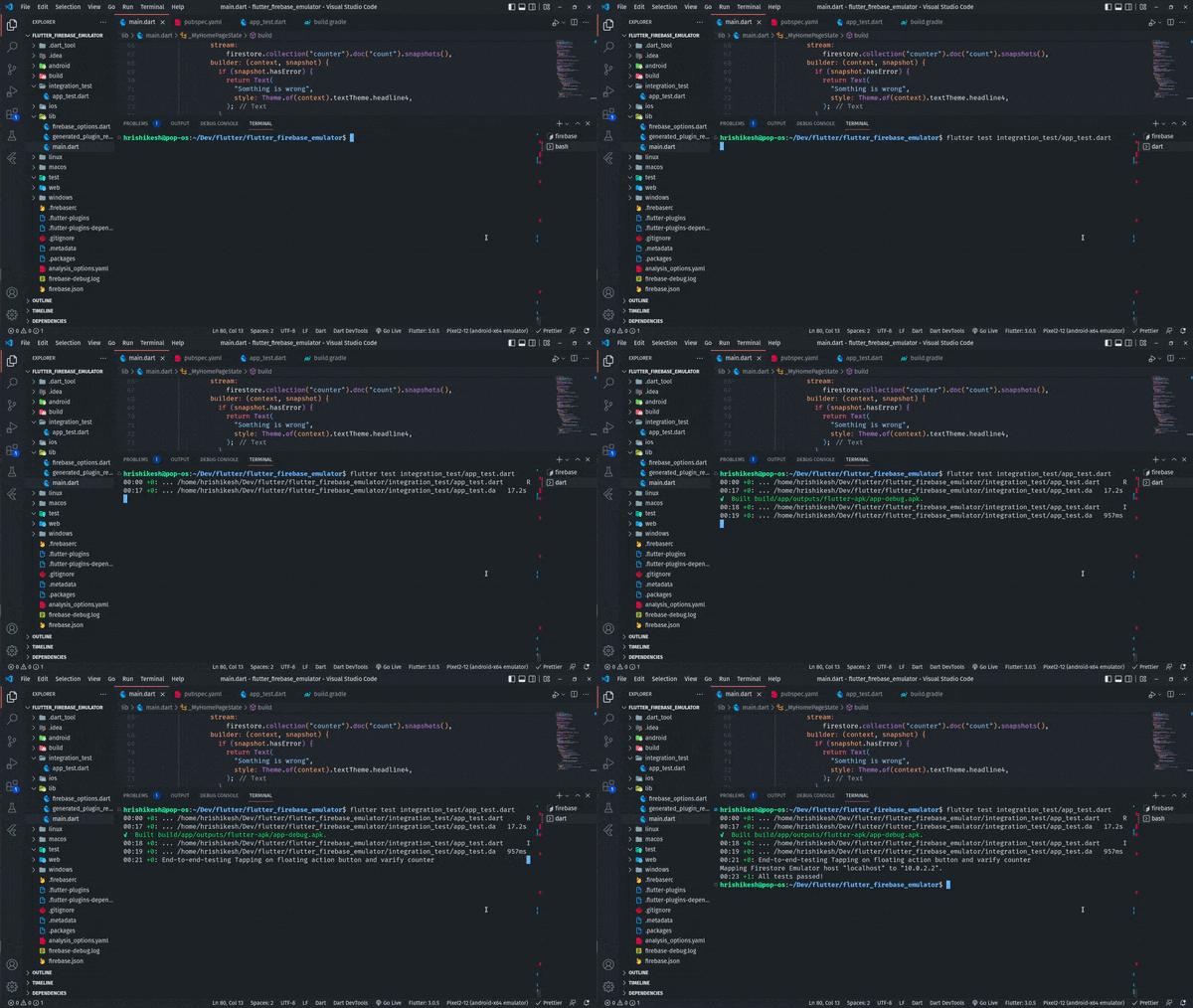
Now, you need to run the integration test command. This command launches your application in an emulator and carries out all the tests you have defined in the test file.
flutter test integration_test/app_test.dart
If everything goes well, you should see the line “All tests passed!” printed on your terminal. Congratulations! ?
Run the Firebase emulator with Codemagic CI/CD
Before starting this section, create a new GitHub repository and upload the project to connect with the Codemagic CI/CD pipeline. On your Codemagic dashboard, add a new Flutter application using the aforementioned GitHub repository.
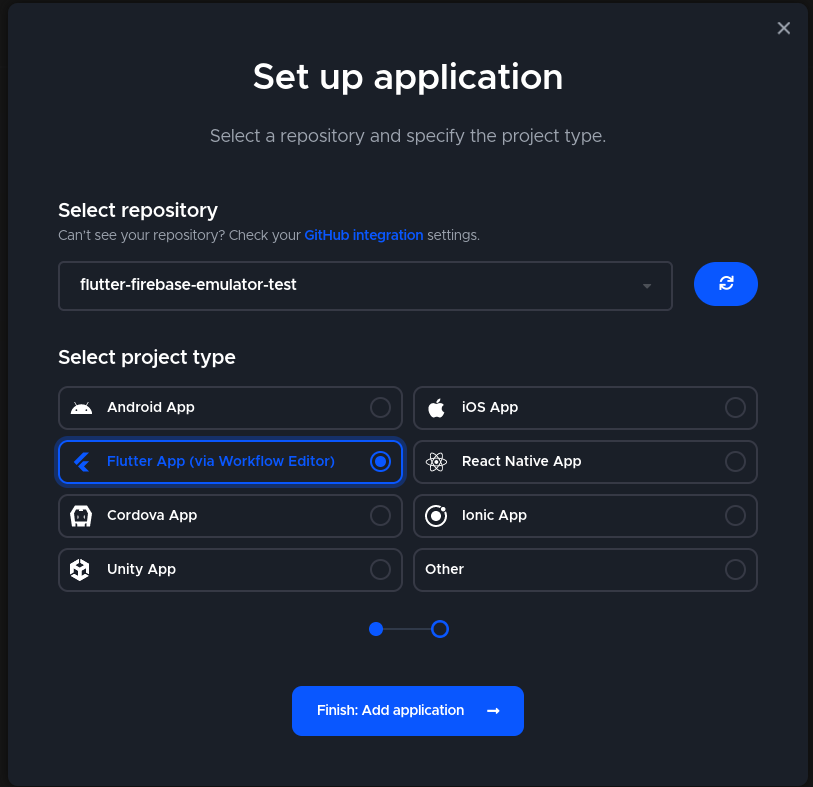
In this tutorial, I am using Codemagic’s visual editor for Flutter. In your terminal, run the firebase login:ci command to get an authentication token that you can use inside your CI/CD pipeline.
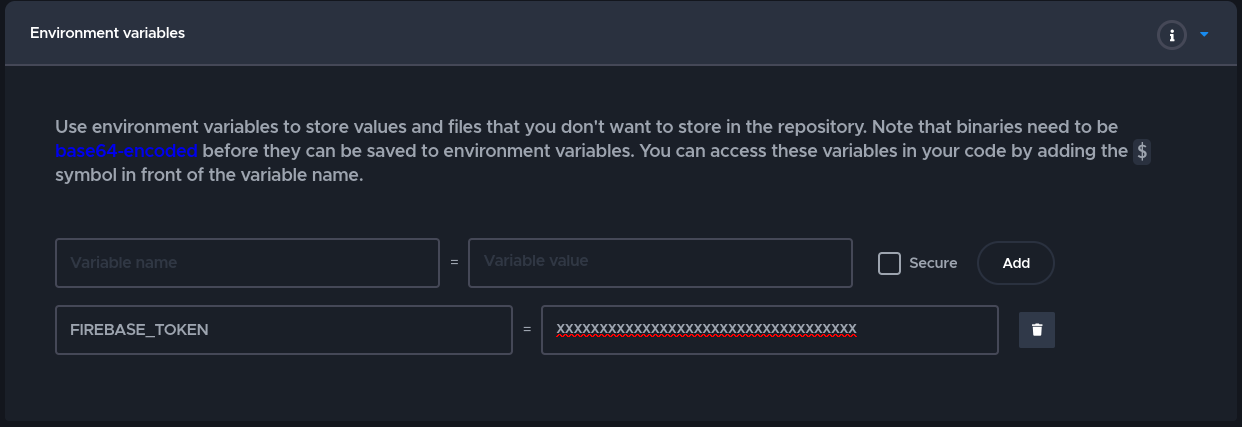
Inside the environment variable section of the Codemagic editor, add the Firebase token we get from the login:ci command.
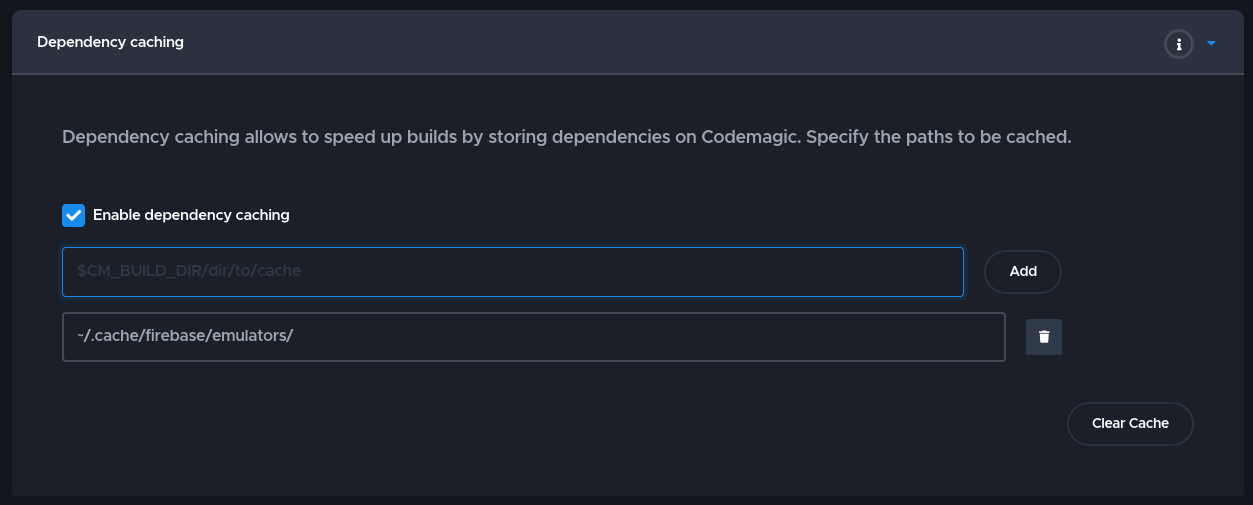
In the Dependency caching tab, click on Enable dependency caching and enter ~/.cache/firebase/emulators as the path. The Firebase CLI stores the downloaded emulators in this location. Setting up the cache helps to reduce the build time.
Now, click on the gear icon above the tests tab. In the post-clone script, we’ll write a bash script to install the Firebase CLI and start the Firebase emulator to do our testing.
#!/bin/bash

# installing the Firebase CLI
curl -sL https://firebase.tools | bash

# start the emulator
firebase emulators:start &
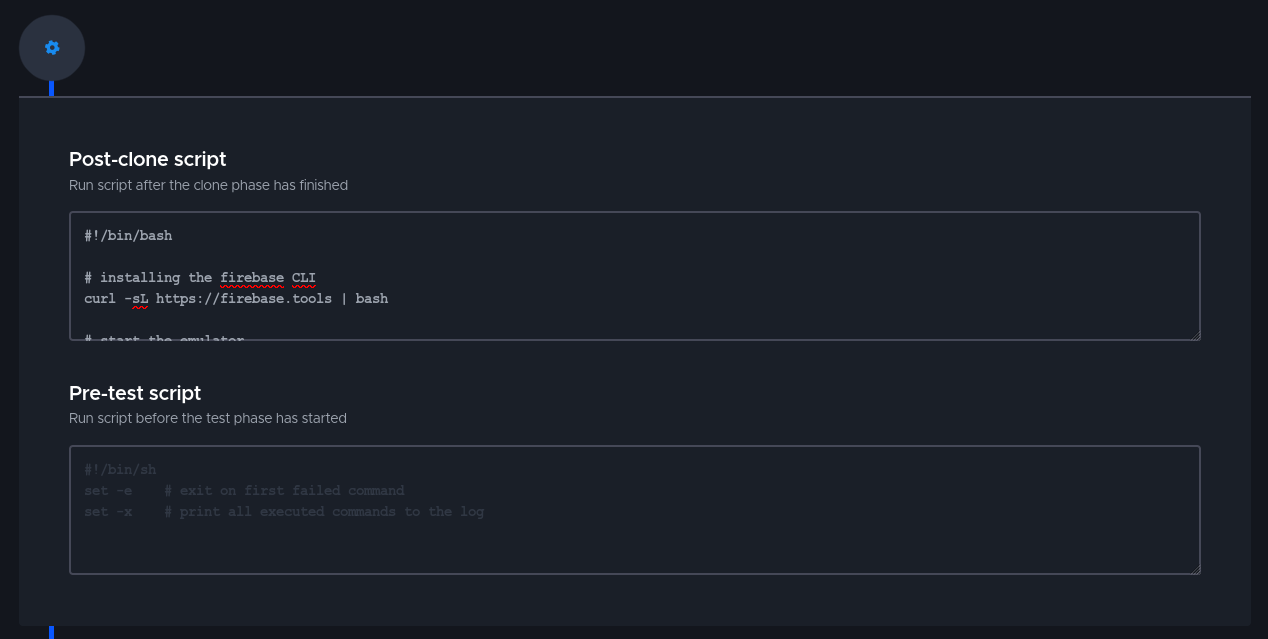
Do you notice the & symbol after the firebase emulator:start command? This symbol runs the Firebase emulator in the background and frees up the terminal to run the next processes. Otherwise, our build would be stuck at this position.
Now you can run your integration tests in Codemagic CI/CD using Firebase emulators. You can also connect to Firebase Test Lab to test your Flutter application on a real device. To learn more, read our in-depth article on Flutter integration testing with Firebase Test Lab and Codemagic CI/CD.
Conclusion
If you like this tutorial on using the Firebase emulator with Flutter, please share it with your peers. If you have any questions, feel free to ask me. My name is Hrishikesh Pathak, and my Twitter handle is @hrishikshpathak. Have a great day.


Discussion about this post