









• Home
  • Insight
  • Blog
  • Business
  • Entertainment
  • Health
  • Politics
  • Shop
    • Gift Shop
    • Value Shop
    • Store
    • Bargain Shop
    • Discount
  • Sports
  • Tech
  • Travel
  • USA
  • Video
  • World
    • Asia
    • Africa
    • South America
    • North America
    • Europe
    • Oceania
Tuesday, November 17, 2026
No Result
View All Result
Subscribe Now
  • Home
  • Insight
  • Blog
  • Business
  • Entertainment
  • Health
  • Politics
  • Shop
    • Gift Shop
    • Value Shop
    • Store
    • Bargain Shop
    • Discount
  • Sports
  • Tech
  • Travel
  • USA
    Stranded in Conflict: Palestinians Navigate the Tenuous Balance of War and Peace Amid Ceasefire Efforts

    Stranded in Conflict: Palestinians Navigate the Tenuous Balance of War and Peace Amid Ceasefire Efforts

    Trump Administration Revokes Pay Increase for Head Start Educators

    Trump Administration Revokes Pay Increase for Head Start Educators

    Unexpected Triumph: Gay Candidates Achieve Unforeseen Victories in Challenging Races

    Unexpected Triumph: Gay Candidates Achieve Unforeseen Victories in Challenging Races

    Microsoft Outlook Experiences Prolonged Outage Affecting Users Nationwide

    Microsoft Outlook Experiences Prolonged Outage Affecting Users Nationwide

    Gunfire Erupts in D.C.: Authorities Search for Suspect Amid Rising Concerns Over Public Safety

    Gunfire Erupts in D.C.: Authorities Search for Suspect Amid Rising Concerns Over Public Safety

    LAUSD Takes Strong Action Against Hate Speech Following Racial Slur Incidents

    LAUSD Takes Strong Action Against Hate Speech Following Racial Slur Incidents

    Beloved Former Los Angeles Times Columnist Steve Harvey Passes Away at 80

    Beloved Former Los Angeles Times Columnist Steve Harvey Passes Away at 80

    Exploring Diversity: ‘Ten Lives’ Showcases the Varied Economic Journeys of Americans

    Exploring Diversity: ‘Ten Lives’ Showcases the Varied Economic Journeys of Americans

    Philadelphia Eagles Facing Turmoil as Coach Nick Sirianni Addresses Controversy Over Gesture to Fans

    Philadelphia Eagles Facing Turmoil as Coach Nick Sirianni Addresses Controversy Over Gesture to Fans

  • Video
  • World
    • Asia
    • Africa
    • South America
    • North America
    • Europe
    • Oceania
The Insight Post
  • Home
  • Insight
  • Blog
  • Business
  • Entertainment
  • Health
  • Politics
  • Shop
    • Gift Shop
    • Value Shop
    • Store
    • Bargain Shop
    • Discount
  • Sports
  • Tech
  • Travel
  • USA
    Stranded in Conflict: Palestinians Navigate the Tenuous Balance of War and Peace Amid Ceasefire Efforts

    Stranded in Conflict: Palestinians Navigate the Tenuous Balance of War and Peace Amid Ceasefire Efforts

    Trump Administration Revokes Pay Increase for Head Start Educators

    Trump Administration Revokes Pay Increase for Head Start Educators

    Unexpected Triumph: Gay Candidates Achieve Unforeseen Victories in Challenging Races

    Unexpected Triumph: Gay Candidates Achieve Unforeseen Victories in Challenging Races

    Microsoft Outlook Experiences Prolonged Outage Affecting Users Nationwide

    Microsoft Outlook Experiences Prolonged Outage Affecting Users Nationwide

    Gunfire Erupts in D.C.: Authorities Search for Suspect Amid Rising Concerns Over Public Safety

    Gunfire Erupts in D.C.: Authorities Search for Suspect Amid Rising Concerns Over Public Safety

    LAUSD Takes Strong Action Against Hate Speech Following Racial Slur Incidents

    LAUSD Takes Strong Action Against Hate Speech Following Racial Slur Incidents

    Beloved Former Los Angeles Times Columnist Steve Harvey Passes Away at 80

    Beloved Former Los Angeles Times Columnist Steve Harvey Passes Away at 80

    Exploring Diversity: ‘Ten Lives’ Showcases the Varied Economic Journeys of Americans

    Exploring Diversity: ‘Ten Lives’ Showcases the Varied Economic Journeys of Americans

    Philadelphia Eagles Facing Turmoil as Coach Nick Sirianni Addresses Controversy Over Gesture to Fans

    Philadelphia Eagles Facing Turmoil as Coach Nick Sirianni Addresses Controversy Over Gesture to Fans

  • Video
  • World
    • Asia
    • Africa
    • South America
    • North America
    • Europe
    • Oceania
No Result
View All Result
No Result
View All Result
Home Mobile

How to use remote access to Codemagic virtual MacOS build machine

by Theinsightpost
August 13, 2022
in Mobile
0 0
0
How to use remote access to Codemagic virtual MacOS build machine


This article is updated in July 2021

Now, you can establish a temporary remote access/connection to the virtual MacOS build machine on which your Codemagic builds run during each session.

In case you are not a Codemagic user yet, you can sign up here:

Sign up

There are two ways to connect to the remote machine:

Remote access to the virtual MacOS machine opens up a whole new possibility for people who don’t have access to a MacOS system.

Click to tweet

This article is written by Souvik Biswas

Pre-installed software

The remote MacOS machine has multiple versions of Xcode, iOS Simulator(s), and other important software required for testing and debugging your Flutter projects beforehand.

You can run your Flutter apps on iOS Simulator to test their performance and also make configuration changes to your Flutter projects in Xcode without owning a Mac yourself.

The full list of pre-installed software is available here.

Getting access to the virtual build machine

To get access to the virtualbuild machine using either SSH or VNC Viewer, follow the steps below.

NOTE: Establishing an SSH or VNC connection to the virtual machine is possible only for manually triggered builds.

  1. Open your project on Codemagic.

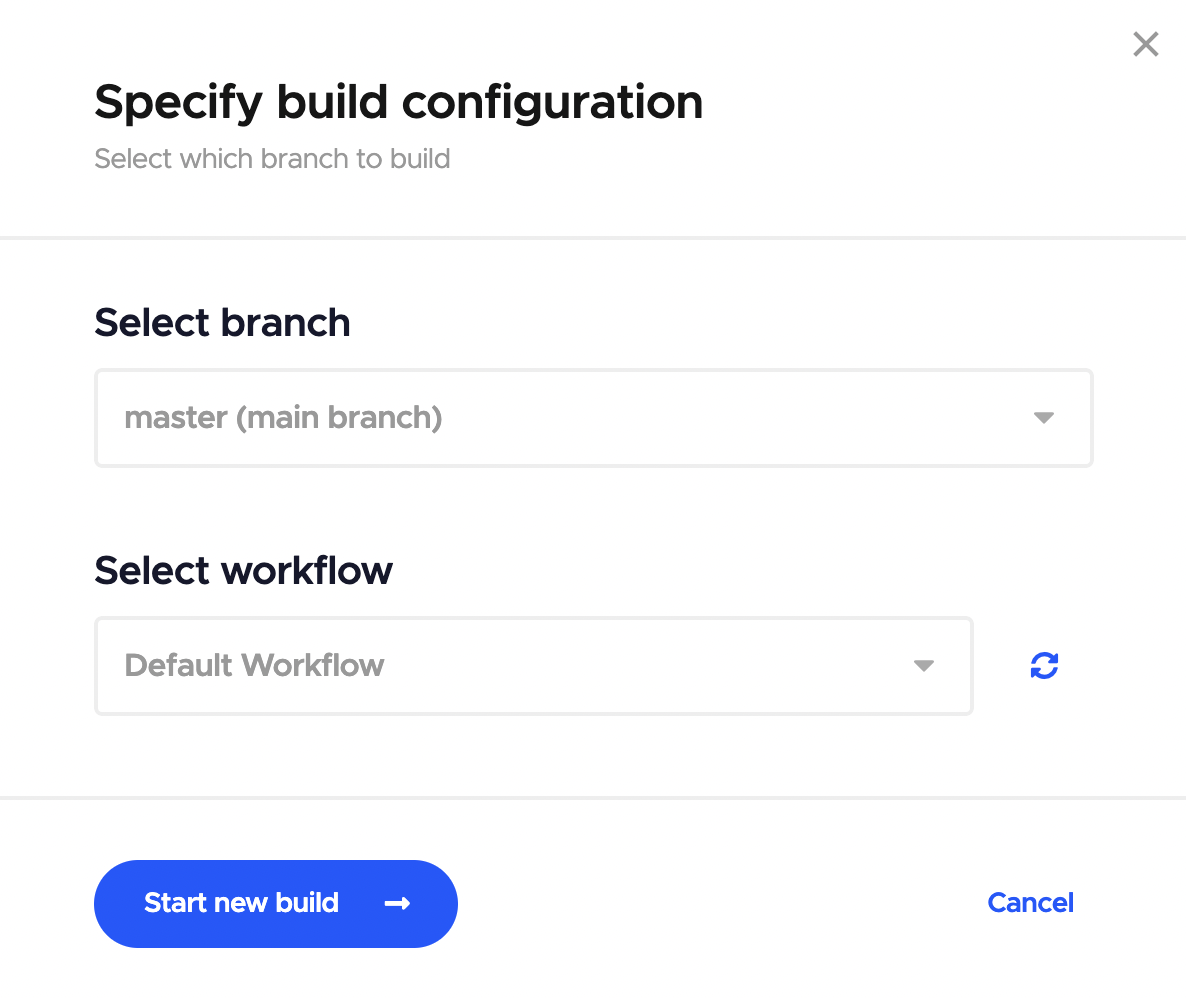
  2. Click on Start new build

  3. In the Specify build configuration dialog box, select your correct branch and workflow, and again click on Start new build to start the build process.

  4. As the build starts, expand the “Explore build machine via SSH or VNC client” tab, wait for some time and you will see some instructions for establishing an SSH or VNC connection.
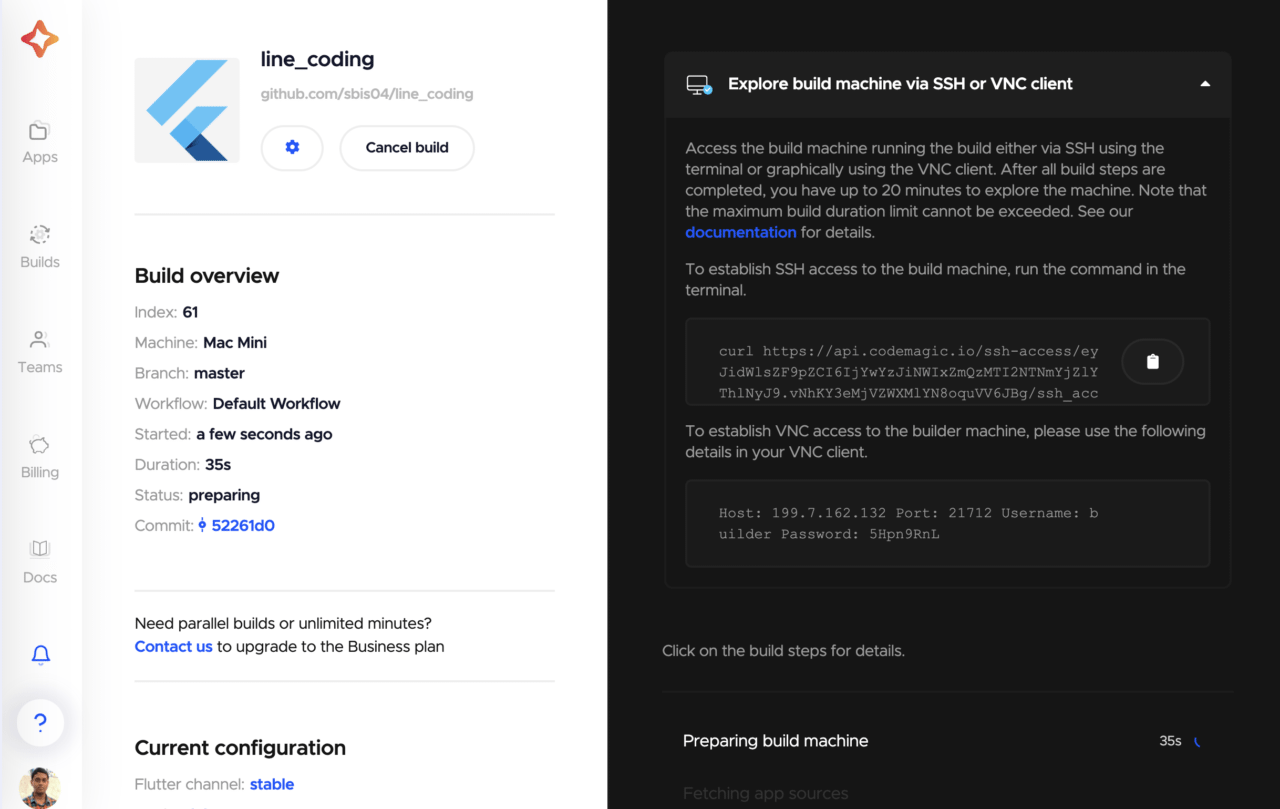
Access using SSH

The SSH connection will allow you to access the build machine only through the terminal and run commands on it.

The scripts for establishing an SSH connection work natively on Linux and MacOS. But if you want to run on Windows, you will need additional software.

To establish an SSH connection, you just have to run a curl command from the terminal (on Linux and MacOS).

Copy and paste the curl command in the terminal. Press Enter to connect to the remote MacOS system.
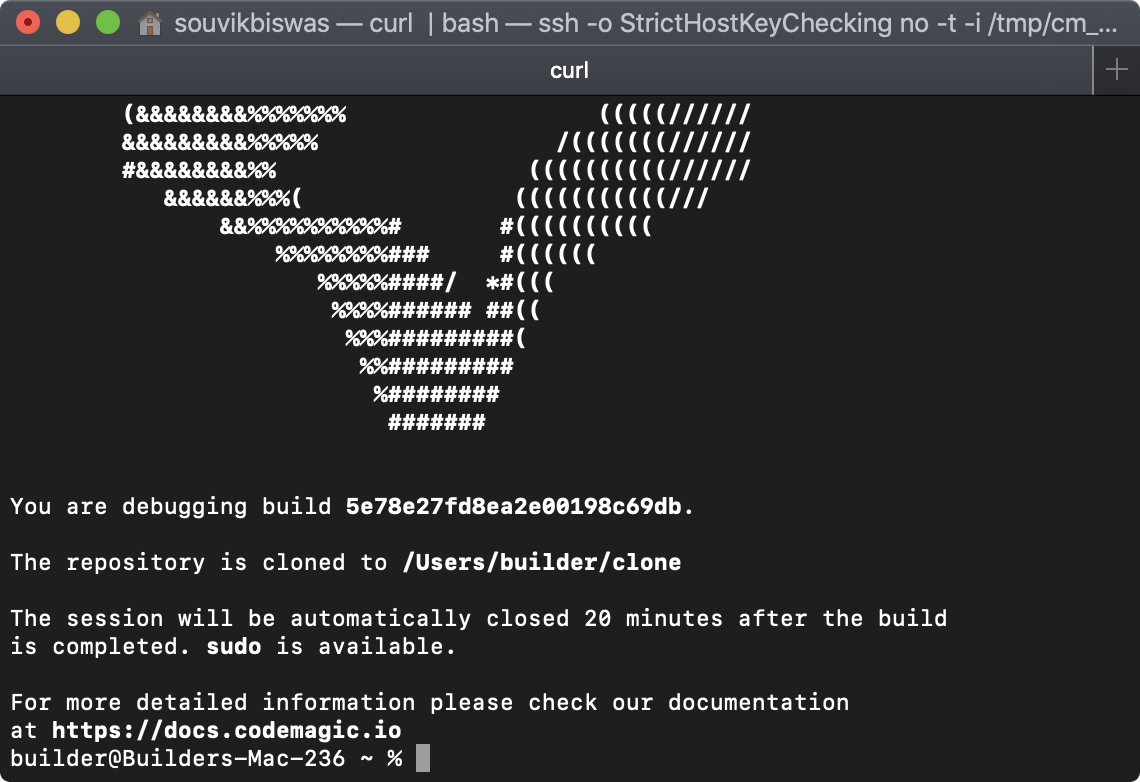
Now you have access to the VM.

Your cloned project will be available in the path /Users/builder/clone. Navigate to the path just by running this command:
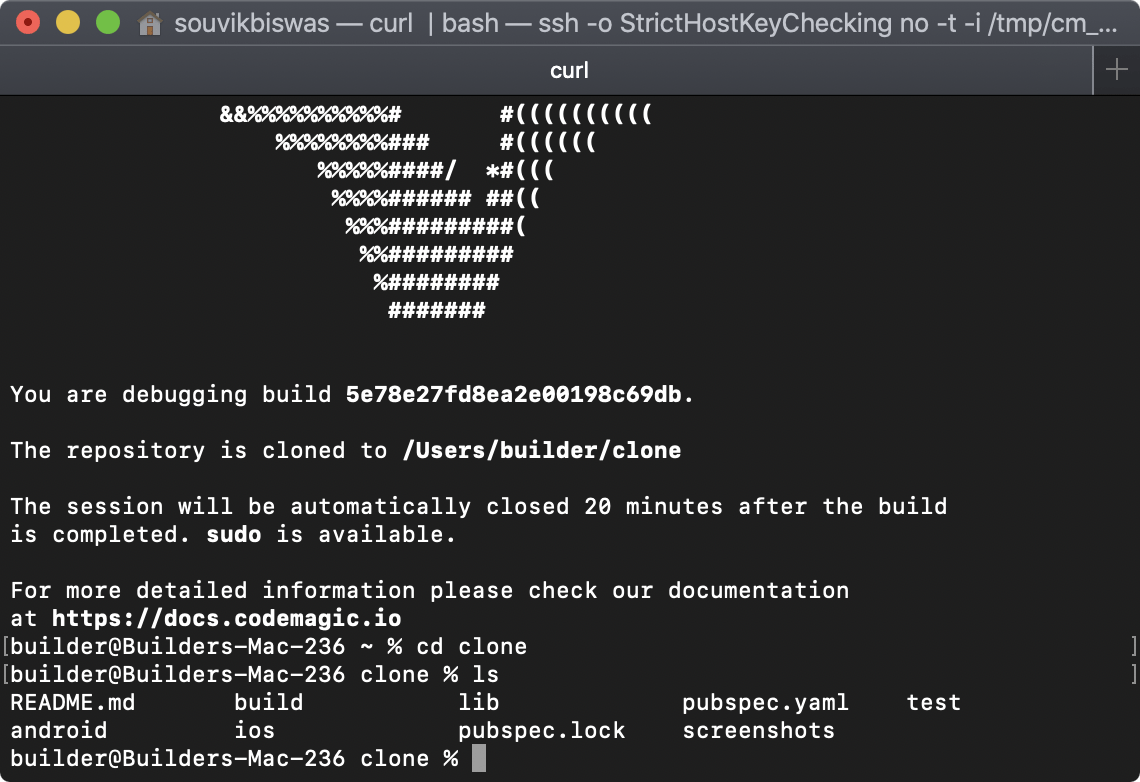
The SSH session will remain active for a maximum of 20 minutes after all the build steps are complete or until the maximum build duration limit is reached, whichever comes first.

SSH access is a great option for debugging your builds. You can see the processes running during the CI job, reproduce all commands run during the build or debug your custom scripts. You will have full control over the VM with sudo access.

TIPS: You can rerun the bash commands from the codemagic.yaml script directly on the builder machine with SSH access and see if it produces a correct output.

All the environment variables are accessible to you. You can view them by running the command printenv on the builder.

Access using VNC Viewer

The VNC Viewer will allow you to access the remote build machine using a graphical interface. This allows you to run your Flutter app on the Simulator and understand its performance even without owning a MacOS machine yourself.

  1. Download VNC Viewer.

  2. Install and run VNC Viewer.

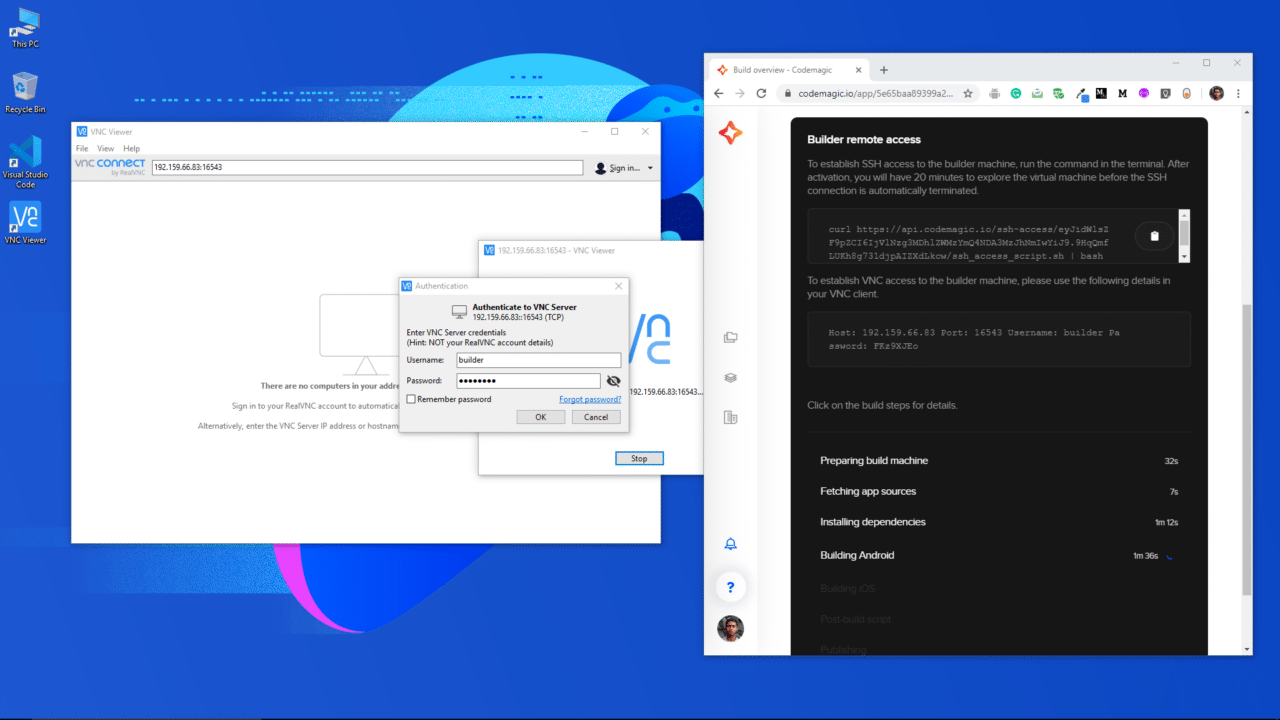
  3. Now, copy and paste the Host ID and Port number into the VNC Server Address field in this format: <Host ID>:<Port number> (for example: 192.159.66.83:16543), then press Enter.

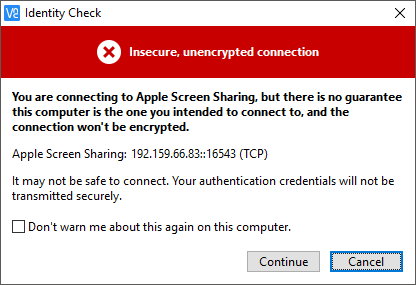
  4. You will get a warning message; just click on Continue.

  5. Enter the Username and Password as generated in the Codemagic UI, then click on OK.
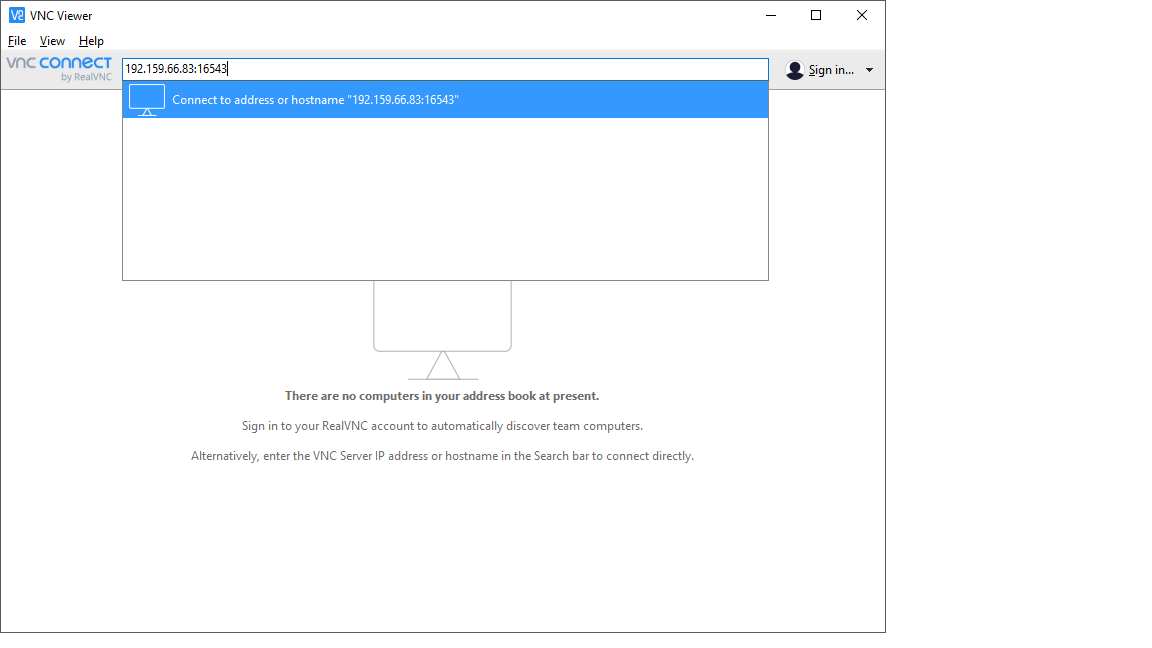
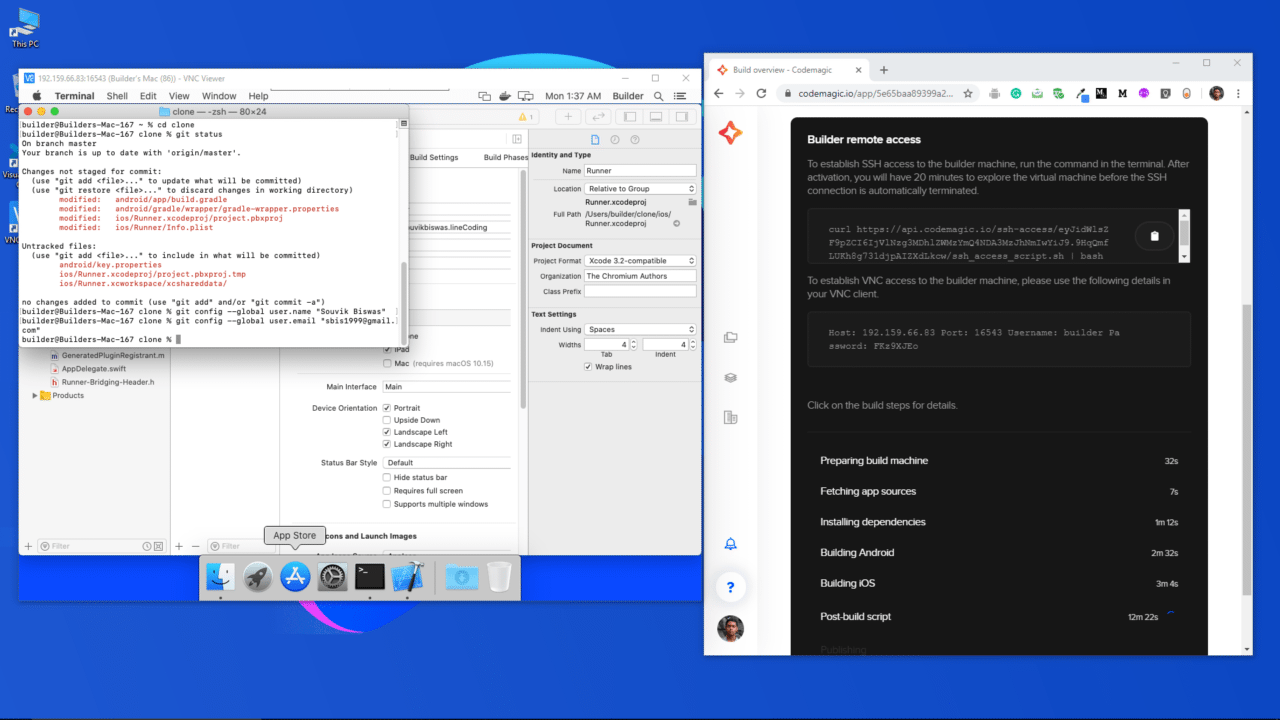
You are now connected to the remote MacOS build machine and you will see the desktop of the system once the connection is established.

The VNC session will remain active for a maximum of 20 minutes after all the build steps are complete or until the maximum build duration limit is reached, whichever comes first.

How to access different applications

If you are not familiar with the MacOS environment, you might find it difficult to access different applications in the remote Mac. Don’t worry – you can launch various applications using the Terminal.

You can get access to the Terminal by clicking on it’s icon present in the Dock.
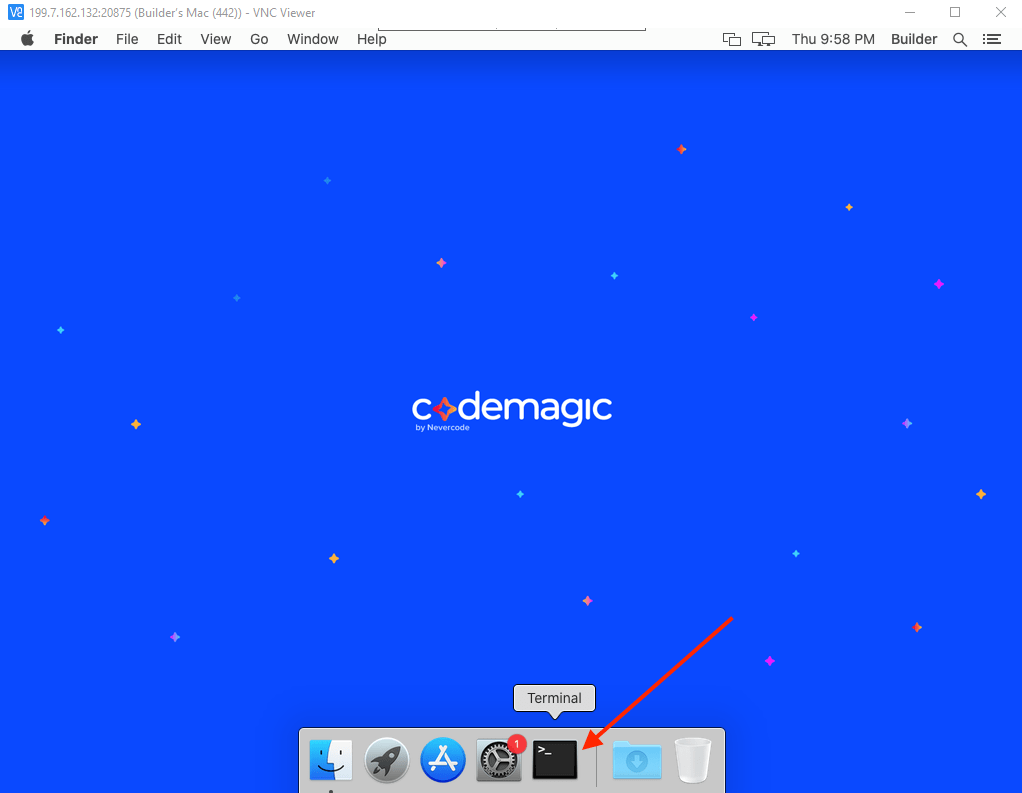
With Terminal, you can easily launch Safari, Xcode, Simulator and various other applications on the Mac.

Running on Simulator

If you are not a MacOS user, then the first thing you will probably want to do is to run your Flutter app on iOS Simulator. Let’s look into how you can run your app on Simulator.

First of all, start an iOS Simulator on the virtual MacOS system.

The build machines are equipped with different versions of Simulator; you should first test the app on the target iOS version for which you are building.

You can see all the Simulator versions installed on the build machine by using the following command:

You can run the default Simulator version by using the command:

Or you can launch any of the Simulator present on the system by specifying the UDID of the device, using the command:

open -a Simulator --args -CurrentDeviceUDID <device UDID>
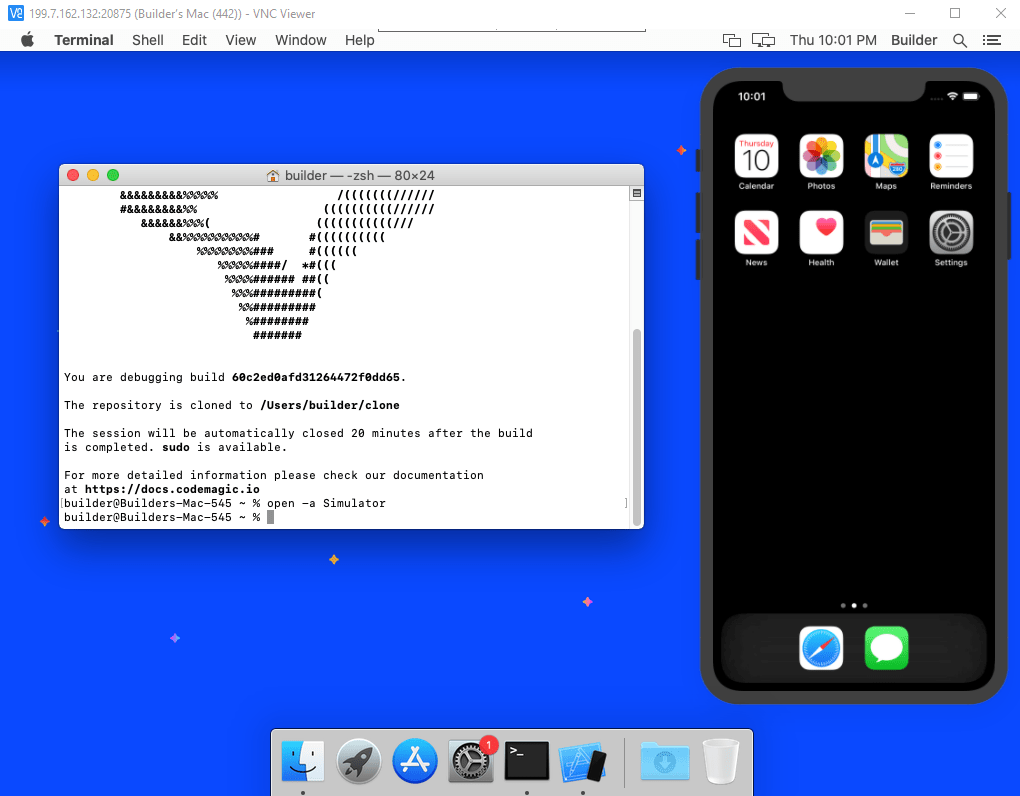
To run the app on the Simulator, you have to go to the cloned Flutter app directory. The clone of your project will be available in the path /Users/builder/clone on the VM.

You can navigate to that easily by using the command:

Then you can run the app using the command:
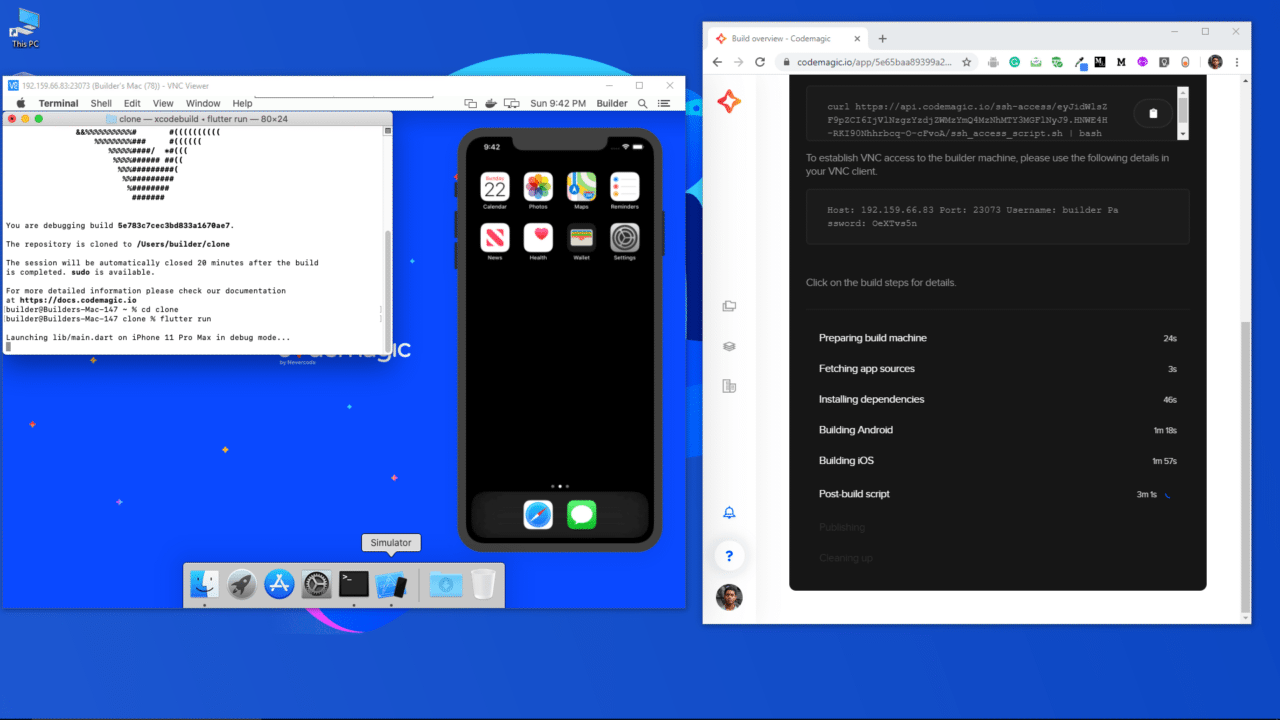
Wait for the project to load up on the Simulator.
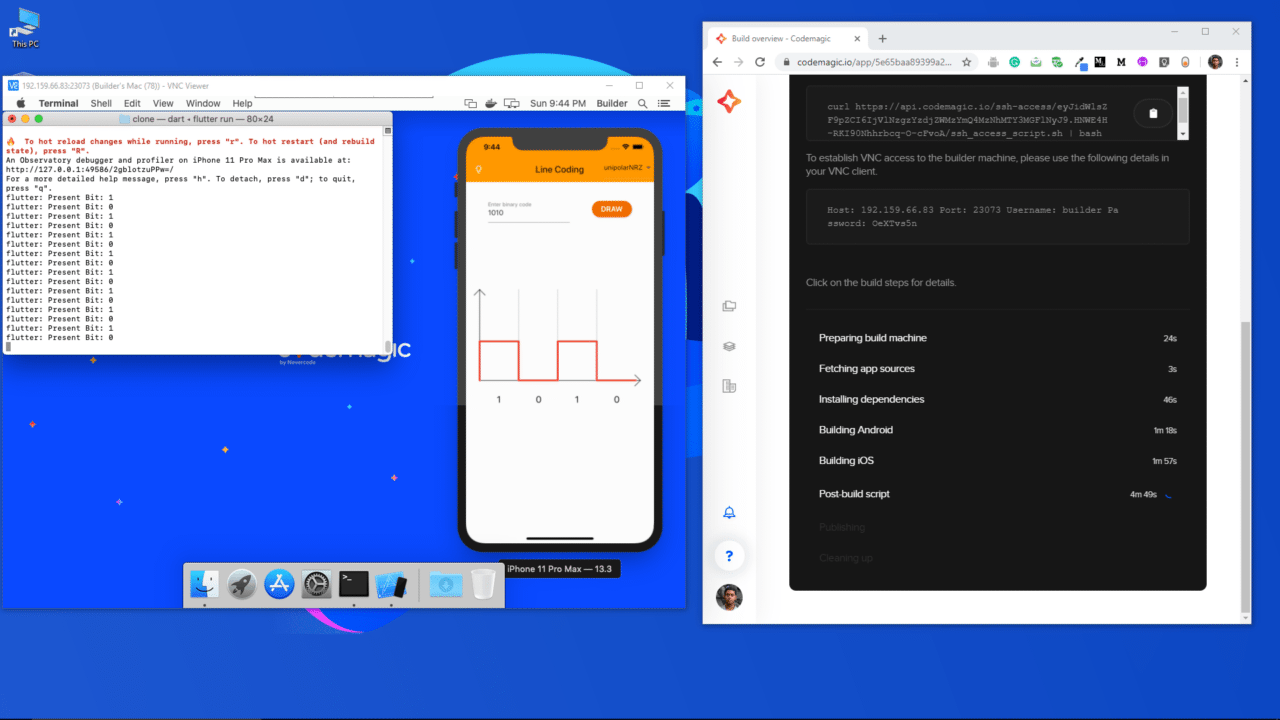
Line Coding app

Making iOS configuration changes

To make any configuration changes to the iOS part of your Flutter project, you have to use Xcode on the VM.

You can launch the default version of the Xcode using the command:
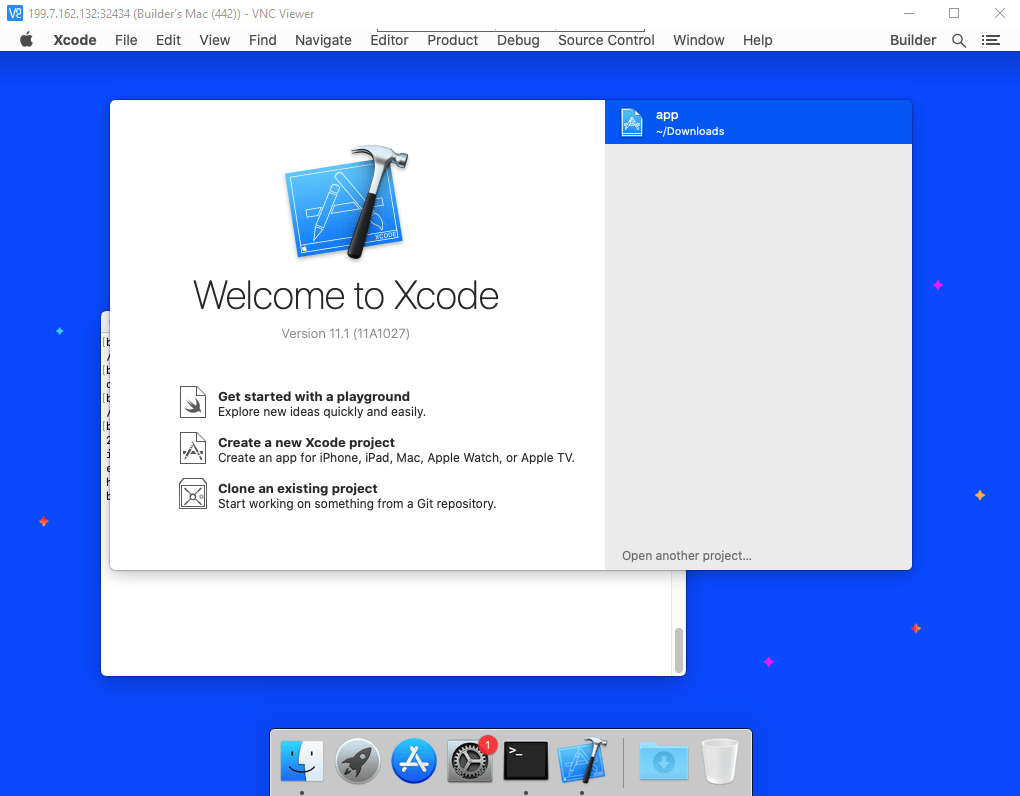
To see which version of the Xcode is currently selected, you can use the command:
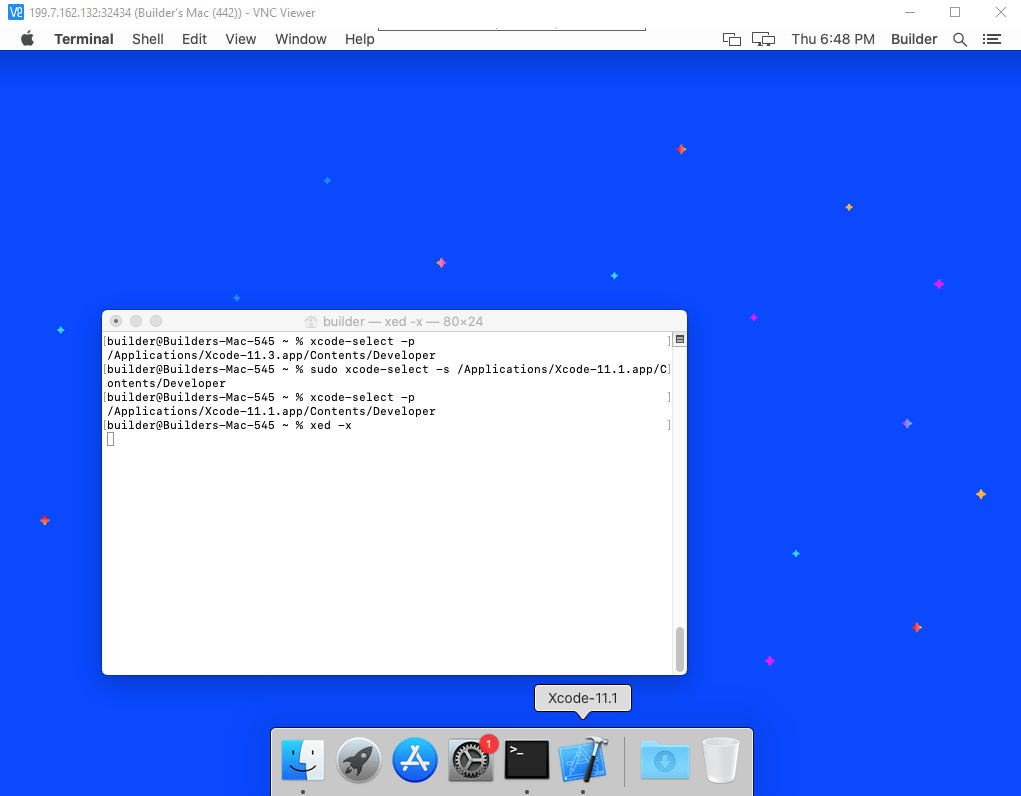
To change the Xcode version you can use:

sudo xcode-select -s /Applications/Xcode-<version>.app/Contents/Developer

Replace the <version> with any of the version available on the system. You can see the versions present on the system by going to the Applications folder from the Finder of the build machine.
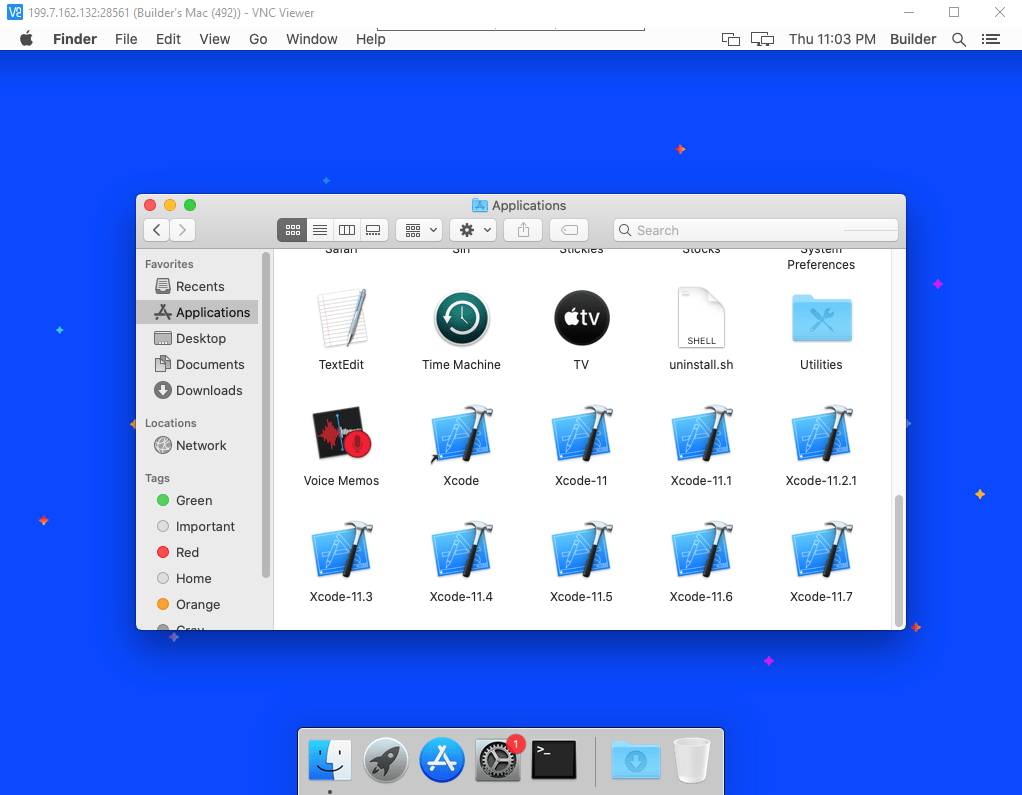
After opening Xcode, click on Open another project.
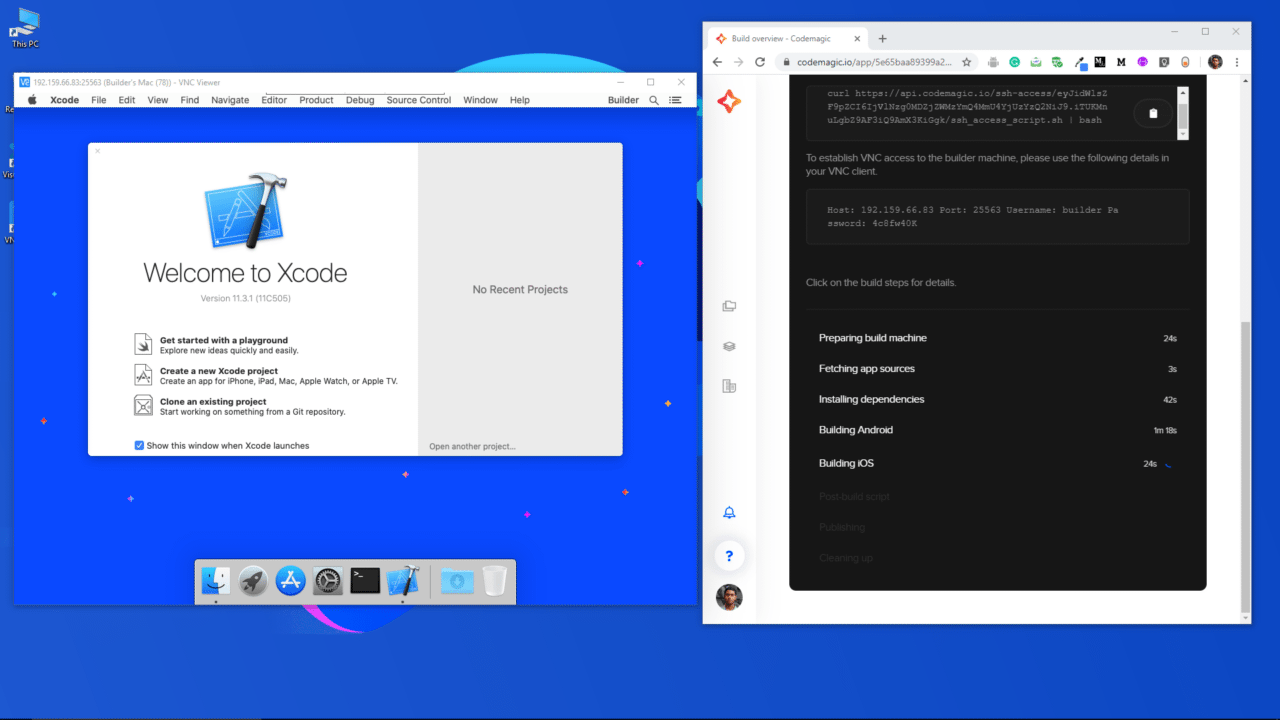
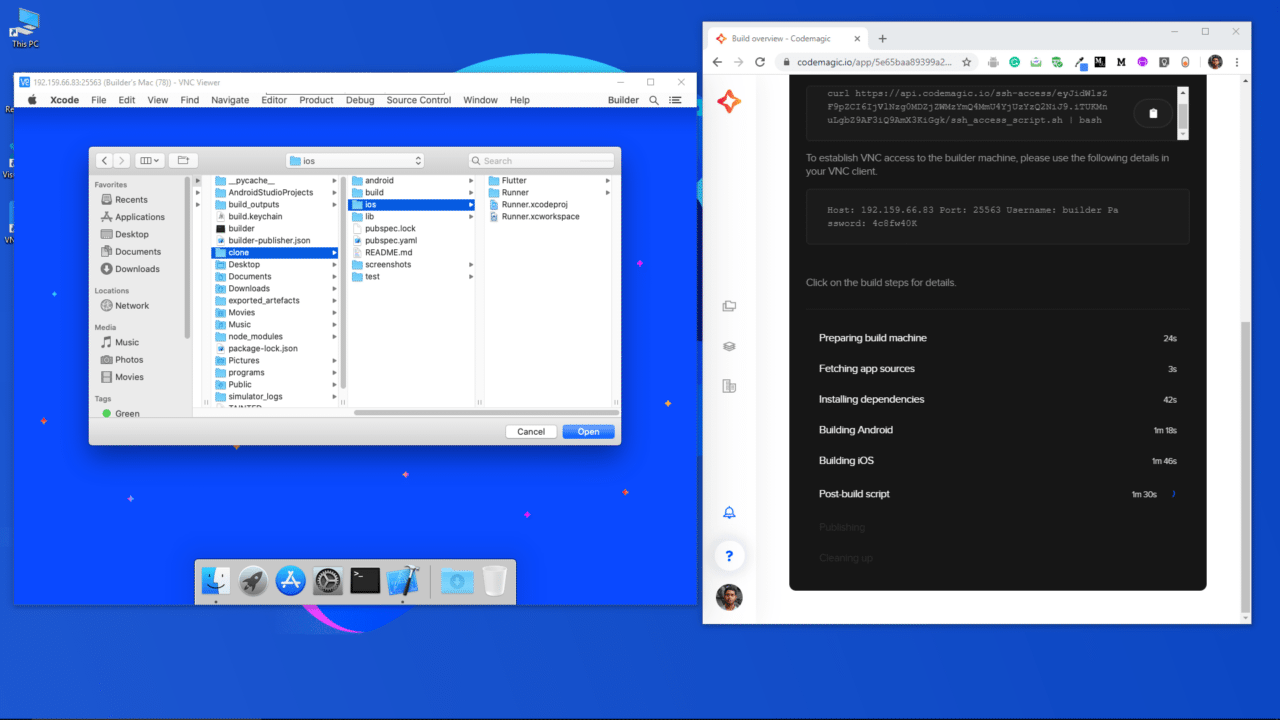
Now, you have to navigate to the ios folder of your Flutter project and open it on Xcode. From the top dropdown, select builder.
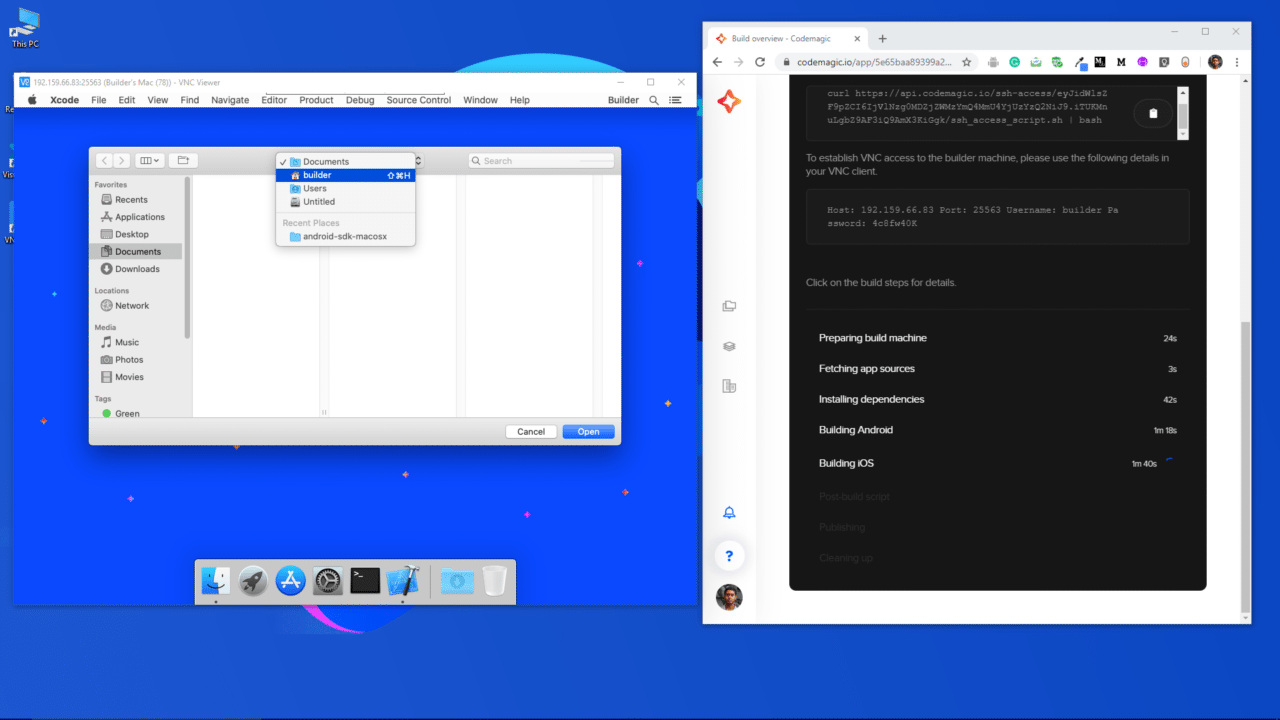
Then go to clone -> ios and click on Open.
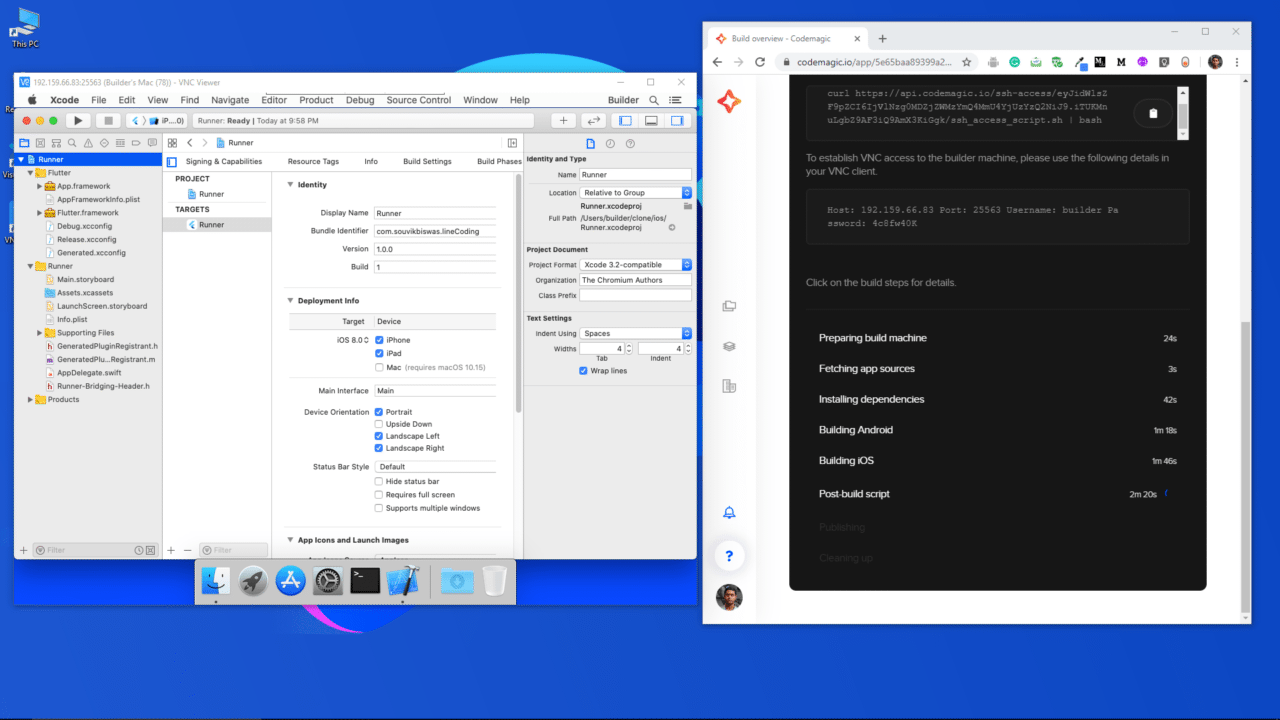
The project will now open up in Xcode. You can go to the Runner from the left sidebar if you want to make any changes to your iOS app version or Bundle ID.
You can also generate a Provisioning profile and Developer signing certificate for your project from Xcode.

A guide for generating code signing files (such as provisioning profile and certificate) is available here.

It is also very easy to save any configuration changes that you make on this VM. The repository is cloned from your GitHub/GitLab/Bitbucket account, so you can directly commit the changes using git and push them to your account.

For demonstration, I have just updated the version of the iOS app inside Xcode.
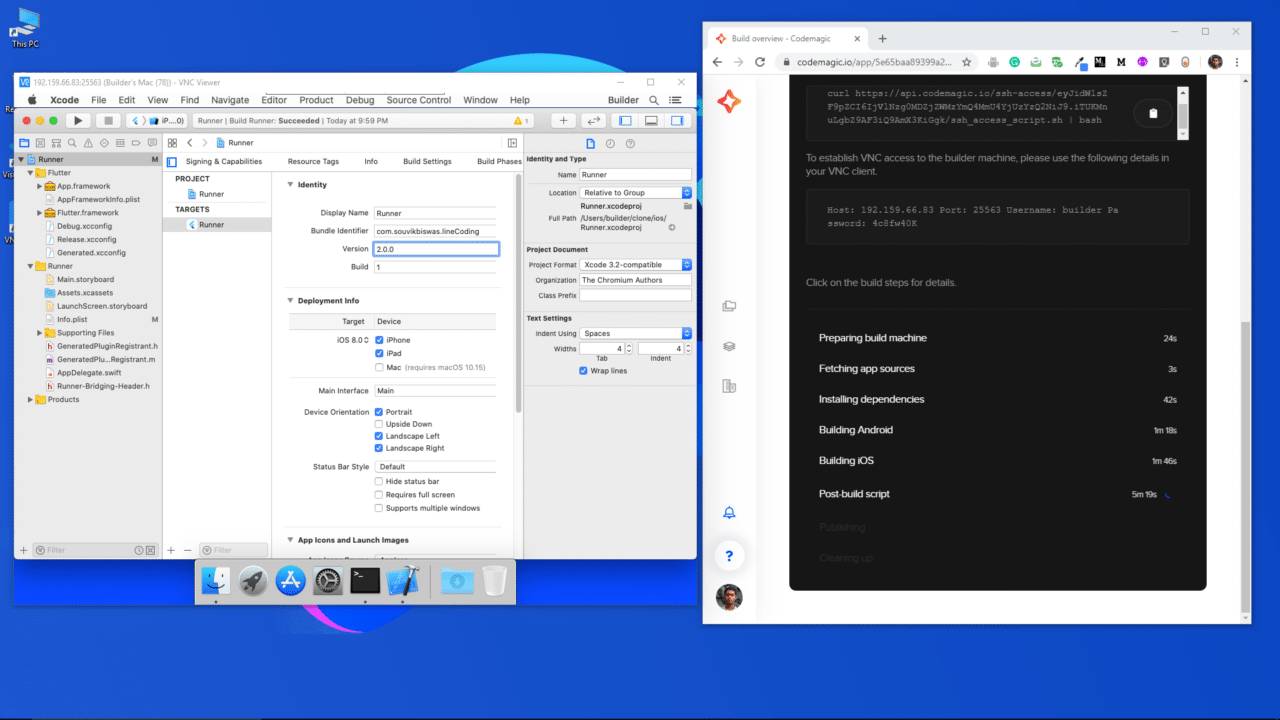
Now, open up the Terminal and navigate to the project directory.

Then, run the following command to see the changed files:
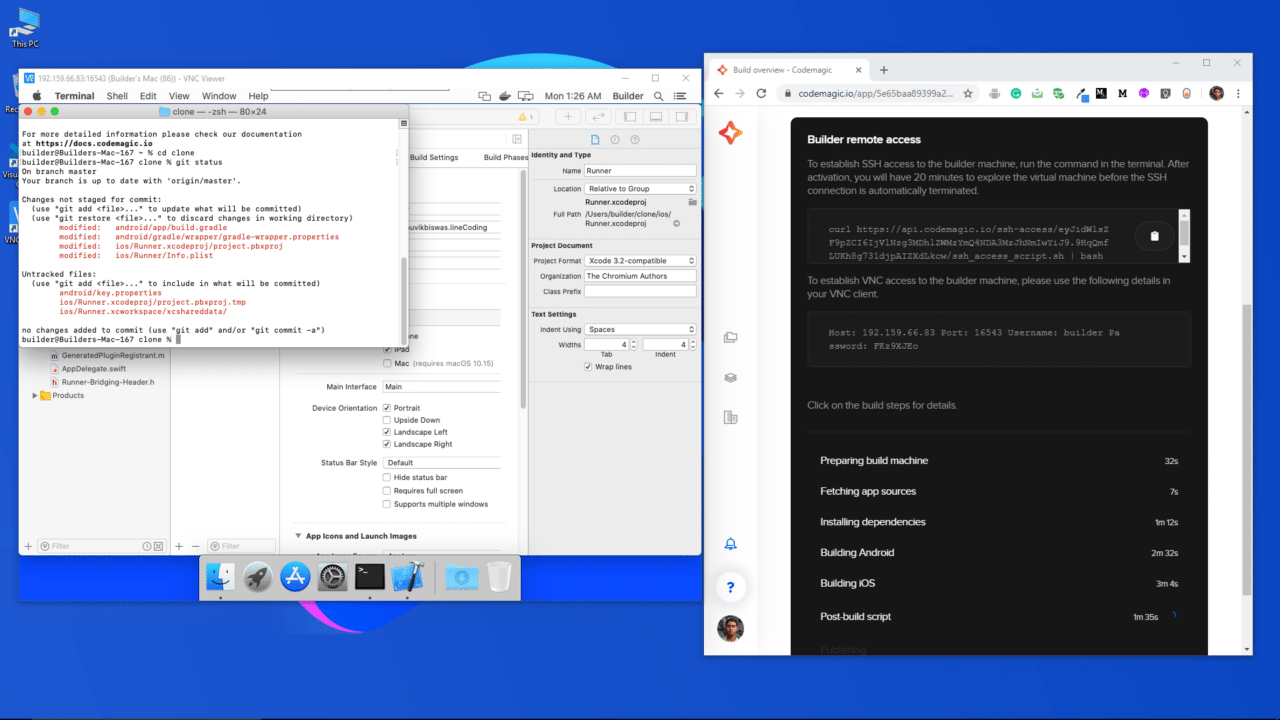
Before committing the files to Git, run the following two commands to define the correct author of the changes:

git config --global user.name "<your_name>"
git config --global user.email "<your_email>"

Replace <your_name> with your name and <your_email> with your email address.

Commit the changed files using the commands:

git add .
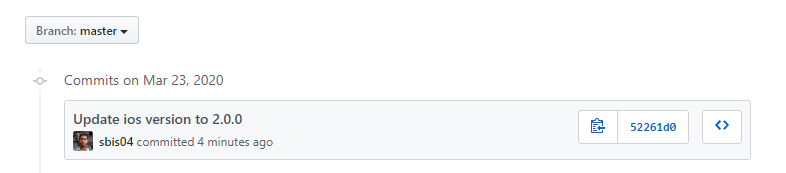
git commit -m "Update ios version to 2.0.0"

If you only want to commit the ios directory (instead of git add .), run:
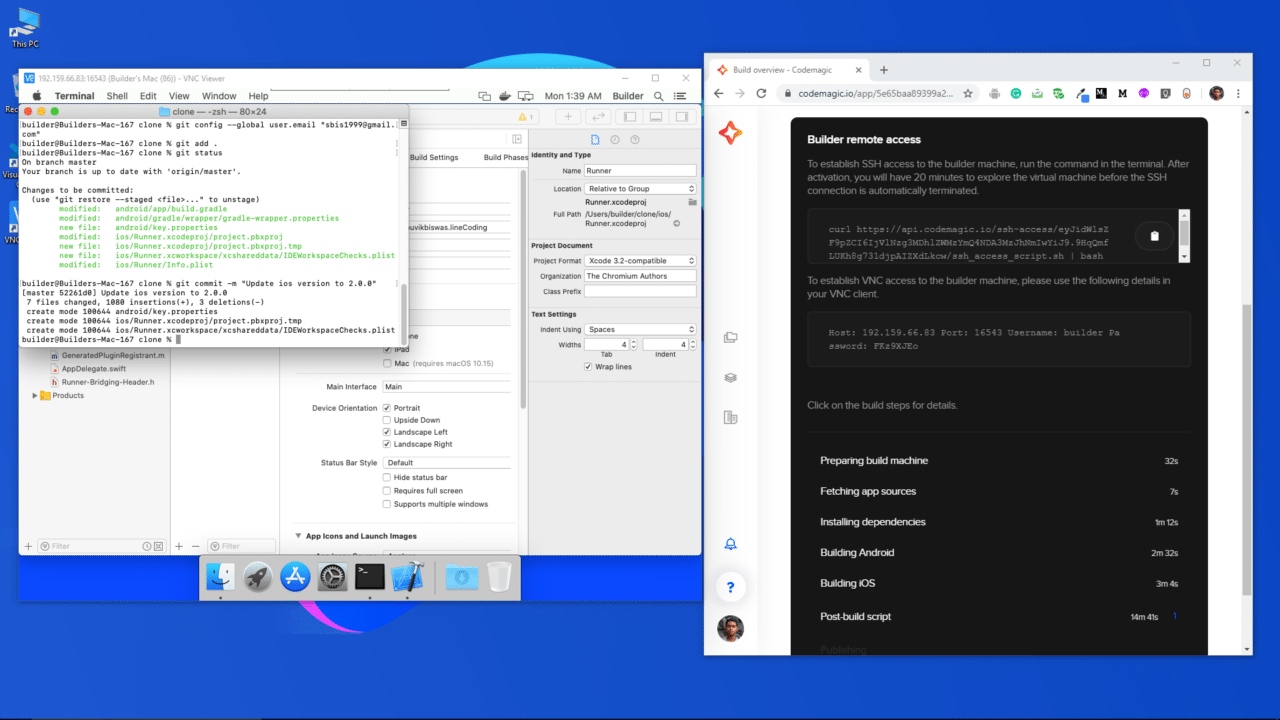
You can check whether the changes are done under the correct author by running the command:
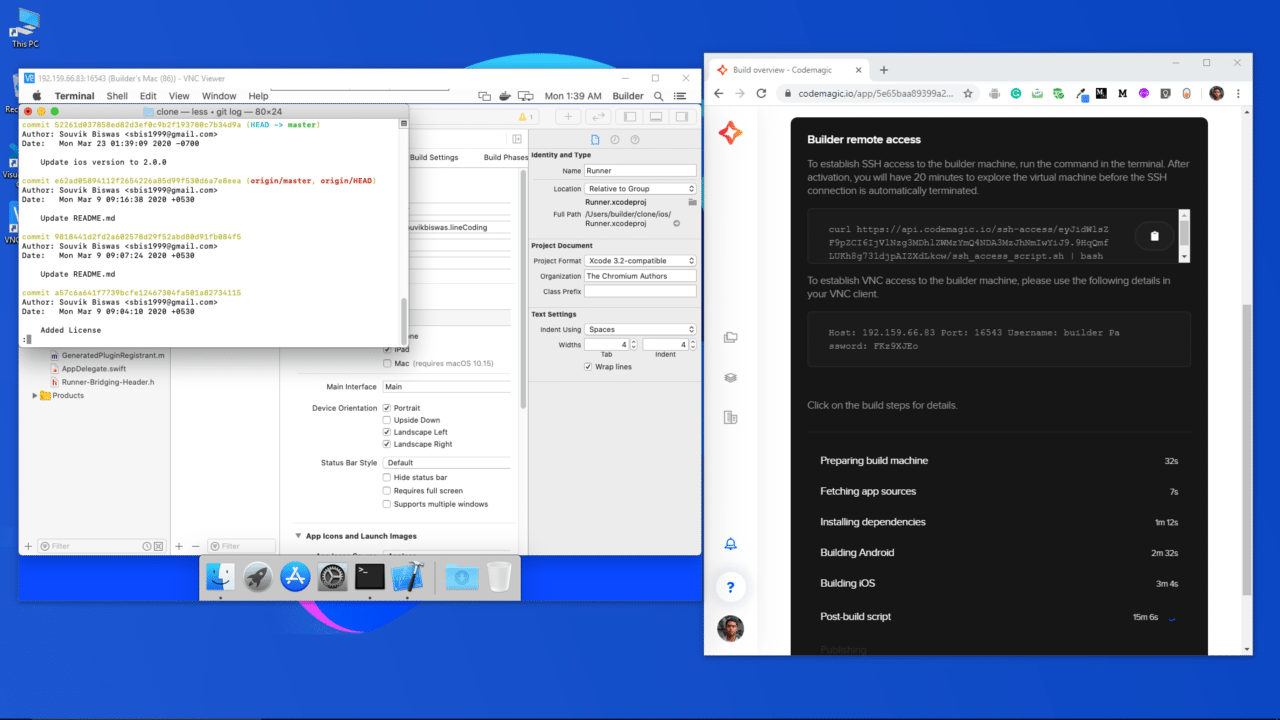
Check whether any remote is available for the project.
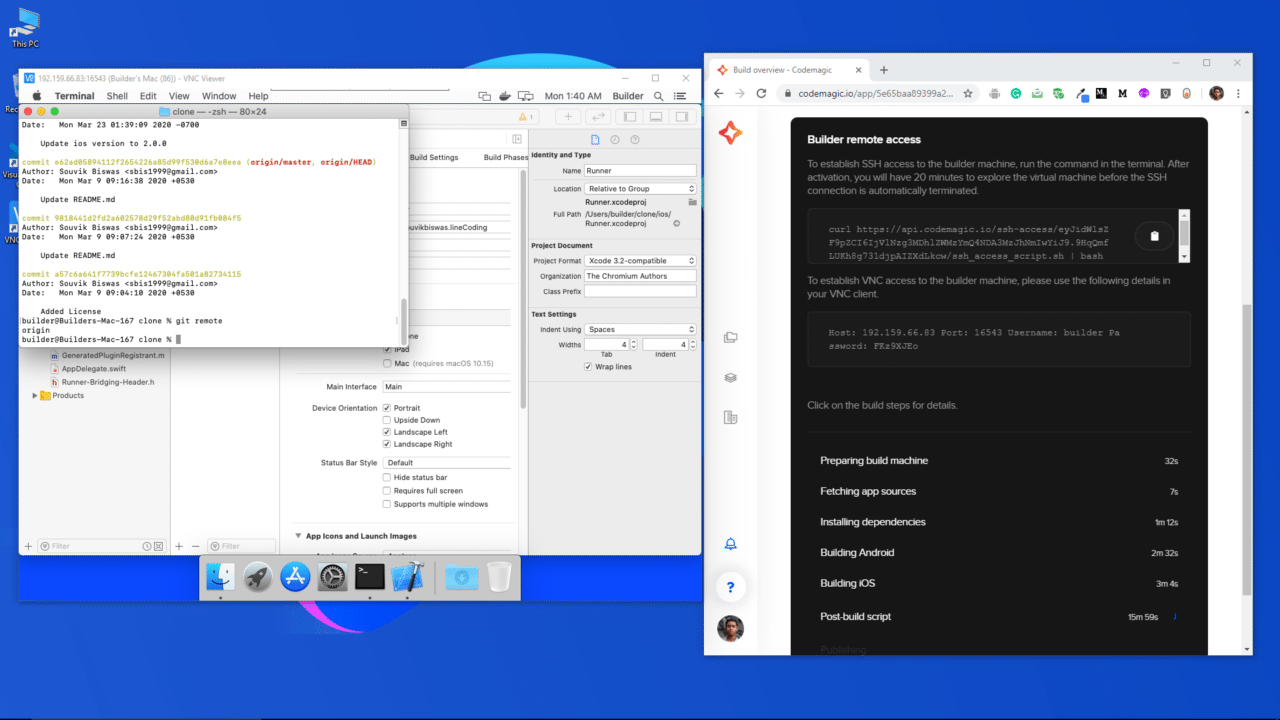
Push the changes using the command:
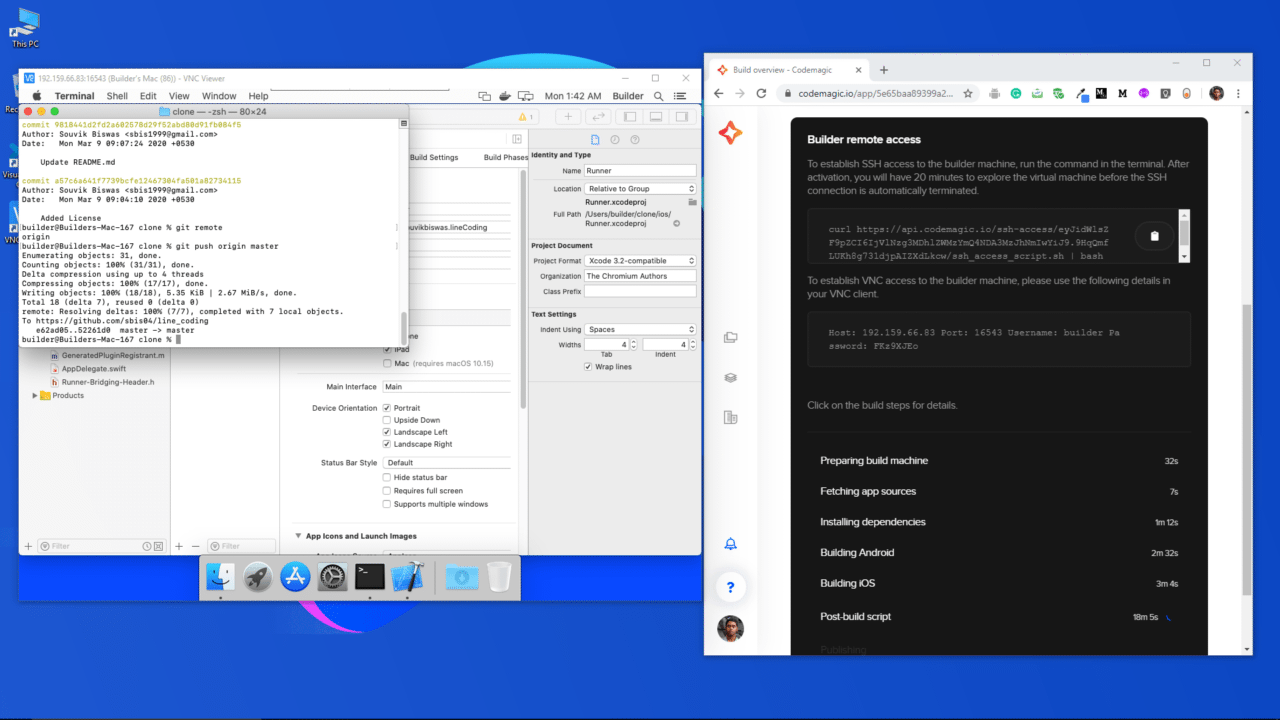
You can check the project on your GitHub account to verify whether the changes are done.
Conclusion

Remote access to the virtual MacOS machine opens up a whole new possibility for people who don’t have access to a MacOS system. Now they can even run and test their Flutter apps on the Simulator and make any configuration changes to their project using Xcode (pre-installed on the VM). Code signing also becomes much easier with direct access to the VM.

The Official Docs for Remote access are available here.


Souvik Biswas is a passionate Mobile App Developer (Android and Flutter). He has worked on a number of mobile apps throughout his journey. Loves open source contribution on GitHub. He is currently pursuing a B.Tech degree in Computer Science and Engineering from Indian Institute of Information Technology Kalyani. He also writes Flutter articles on Medium – Flutter Community.



Source link

ShareTweetSend
Previous Post

Nobody should have conceded in Central Kenya » Capital News

Next Post

Donors pledge €1.5bn to Ukraine’s war effort

Related News

Unlocking Potential: Exploring the FDE Model in Enterprise AI Solutions
Mobile

Unlocking Potential: Exploring the FDE Model in Enterprise AI Solutions

November 14, 2026
Unlocking the Scoop: Upcoming Sale Dates, Price Highlights, and Previous Bargains
Mobile

Unlocking the Scoop: Upcoming Sale Dates, Price Highlights, and Previous Bargains

November 14, 2026
Unlocking Website Security: The Marketbyte Edge in Open Source Solutions
Mobile

Unlocking Website Security: The Marketbyte Edge in Open Source Solutions

November 13, 2026
Uncovering the Best Solutions for Your Mobile Risk Concerns
Mobile

Uncovering the Best Solutions for Your Mobile Risk Concerns

November 12, 2026
Next Post
Donors pledge €1.5bn to Ukraine’s war effort

Donors pledge €1.5bn to Ukraine's war effort

Discussion about this post

Subscribe To Our Newsletters

    Customer Support


    1251 Wilcrest Drive
    Houston, Texas
    77042 USA
    Call-832.795.1420
    e-mail – news@theinsightpost.com

    Subscribe To Our Newsletters

      Categories

      • Africa
      • Africa-East
      • African Sports
      • American Sports
      • Arts
      • Asia
      • Australia
      • Business
      • Business Asia
      • Business- Africa
      • Canada
      • Defense
      • Education
      • Egypt
      • Energy
      • Entertainment
      • Europe
      • European Soccer
      • Finance
      • Germany
      • Ghana
      • Health
      • Insight
      • International
      • Investing
      • Japan
      • Latest Headlines
      • Life & Living
      • Markets
      • Mobile
      • Movies
      • New Zealand
      • Nigeria
      • Politics
      • Scholarships
      • Science
      • South Africa
      • South America
      • Sports
      • Tech
      • Travel
      • Travel-Africa
      • UK
      • USA
      • Weather
      • World
      No Result
      View All Result

      Recent News

      Gators Shock Wildcats 21-14 in Thrilling Upset Amid Rollercoaster Season

      Gators Shock Wildcats 21-14 in Thrilling Upset Amid Rollercoaster Season

      November 15, 2026
      Government Announces Historic  Billion Investment in Energy Infrastructure Development

      Government Announces Historic $2 Billion Investment in Energy Infrastructure Development

      November 15, 2026
      Notre Dame Postgame Insights: Dive into Superchats with Westwood One Sports

      Notre Dame Postgame Insights: Dive into Superchats with Westwood One Sports

      November 15, 2026
      Transform Your Laptop Setup with These 5 Affordable Accessories

      Transform Your Laptop Setup with These 5 Affordable Accessories

      November 15, 2026
      • Home
      • Advertise With Us
      • About Us
      • Corporate
      • Consumer Rewards
      • Forum
      • Privacy Policy
      • Social Trends

      Theinsightpost ©2026 | All Rights Reserved. Theinsightpost is an Elnegy LLC company, registered in Texas, USA

      Welcome Back!

      Login to your account below

      Forgotten Password?

      Retrieve your password

      Please enter your username or email address to reset your password.

      Log In

      Add New Playlist

      We are using cookies to give you the best experience on our website.

      You can find out more about which cookies we are using or switch them off in .

      No Result
      View All Result
      • Home
      • Insight
      • Blog
      • Business
      • Entertainment
      • Health
      • Politics
      • Shop
        • Gift Shop
        • Value Shop
        • Store
        • Bargain Shop
        • Discount
      • Sports
      • Tech
      • Travel
      • USA
      • Video
      • World
        • Asia
        • Africa
        • South America
        • North America
        • Europe
        • Oceania

      Theinsightpost ©2026 | All Rights Reserved. Theinsightpost is an Elnegy LLC company, registered in Texas, USA

      The Insight Post
      Powered by  GDPR Cookie Compliance
      Privacy Overview

      This website uses cookies so that we can provide you with the best user experience possible. Cookie information is stored in your browser and performs functions such as recognising you when you return to our website and helping our team to understand which sections of the website you find most interesting and useful.

      Strictly Necessary Cookies

      Strictly Necessary Cookie should be enabled at all times so that we can save your preferences for cookie settings.

      Cookie Policy

      More information about our Cookie Policy