









• Home
  • Insight
  • Blog
  • Business
  • Entertainment
  • Health
  • Politics
  • Shop
    • Gift Shop
    • Value Shop
    • Store
    • Bargain Shop
    • Discount
  • Sports
  • Tech
  • Travel
  • USA
  • Video
  • World
    • Asia
    • Africa
    • South America
    • North America
    • Europe
    • Oceania
Wednesday, November 18, 2026
No Result
View All Result
Subscribe Now
  • Home
  • Insight
  • Blog
  • Business
  • Entertainment
  • Health
  • Politics
  • Shop
    • Gift Shop
    • Value Shop
    • Store
    • Bargain Shop
    • Discount
  • Sports
  • Tech
  • Travel
  • USA
    FAA Administrator Takes Responsibility as Mullin Faces Tough Questions Over Nationwide Ground Stop

    FAA Administrator Takes Responsibility as Mullin Faces Tough Questions Over Nationwide Ground Stop

    Mary Peltola Emerges Victorious in Alaska Senate Race, Making History for Democrats

    Mary Peltola Emerges Victorious in Alaska Senate Race, Making History for Democrats

    Stranded in Conflict: Palestinians Navigate the Tenuous Balance of War and Peace Amid Ceasefire Efforts

    Stranded in Conflict: Palestinians Navigate the Tenuous Balance of War and Peace Amid Ceasefire Efforts

    Trump Administration Revokes Pay Increase for Head Start Educators

    Trump Administration Revokes Pay Increase for Head Start Educators

    Unexpected Triumph: Gay Candidates Achieve Unforeseen Victories in Challenging Races

    Unexpected Triumph: Gay Candidates Achieve Unforeseen Victories in Challenging Races

    Microsoft Outlook Experiences Prolonged Outage Affecting Users Nationwide

    Microsoft Outlook Experiences Prolonged Outage Affecting Users Nationwide

    Gunfire Erupts in D.C.: Authorities Search for Suspect Amid Rising Concerns Over Public Safety

    Gunfire Erupts in D.C.: Authorities Search for Suspect Amid Rising Concerns Over Public Safety

    LAUSD Takes Strong Action Against Hate Speech Following Racial Slur Incidents

    LAUSD Takes Strong Action Against Hate Speech Following Racial Slur Incidents

    Beloved Former Los Angeles Times Columnist Steve Harvey Passes Away at 80

    Beloved Former Los Angeles Times Columnist Steve Harvey Passes Away at 80

  • Video
  • World
    • Asia
    • Africa
    • South America
    • North America
    • Europe
    • Oceania
The Insight Post
  • Home
  • Insight
  • Blog
  • Business
  • Entertainment
  • Health
  • Politics
  • Shop
    • Gift Shop
    • Value Shop
    • Store
    • Bargain Shop
    • Discount
  • Sports
  • Tech
  • Travel
  • USA
    FAA Administrator Takes Responsibility as Mullin Faces Tough Questions Over Nationwide Ground Stop

    FAA Administrator Takes Responsibility as Mullin Faces Tough Questions Over Nationwide Ground Stop

    Mary Peltola Emerges Victorious in Alaska Senate Race, Making History for Democrats

    Mary Peltola Emerges Victorious in Alaska Senate Race, Making History for Democrats

    Stranded in Conflict: Palestinians Navigate the Tenuous Balance of War and Peace Amid Ceasefire Efforts

    Stranded in Conflict: Palestinians Navigate the Tenuous Balance of War and Peace Amid Ceasefire Efforts

    Trump Administration Revokes Pay Increase for Head Start Educators

    Trump Administration Revokes Pay Increase for Head Start Educators

    Unexpected Triumph: Gay Candidates Achieve Unforeseen Victories in Challenging Races

    Unexpected Triumph: Gay Candidates Achieve Unforeseen Victories in Challenging Races

    Microsoft Outlook Experiences Prolonged Outage Affecting Users Nationwide

    Microsoft Outlook Experiences Prolonged Outage Affecting Users Nationwide

    Gunfire Erupts in D.C.: Authorities Search for Suspect Amid Rising Concerns Over Public Safety

    Gunfire Erupts in D.C.: Authorities Search for Suspect Amid Rising Concerns Over Public Safety

    LAUSD Takes Strong Action Against Hate Speech Following Racial Slur Incidents

    LAUSD Takes Strong Action Against Hate Speech Following Racial Slur Incidents

    Beloved Former Los Angeles Times Columnist Steve Harvey Passes Away at 80

    Beloved Former Los Angeles Times Columnist Steve Harvey Passes Away at 80

  • Video
  • World
    • Asia
    • Africa
    • South America
    • North America
    • Europe
    • Oceania
No Result
View All Result
No Result
View All Result
Home Mobile

Publish your Flutter app to Google Play Store with Codemagic CI/CD

by Theinsightpost
January 19, 2025
in Mobile
0 0
0
Publish your Flutter app to Google Play Store with Codemagic CI/CD

This article is written by Masaki Sato.

In this article, I will introduce the steps to release a Flutter app to the Google Play Store using the Codemagic CI/CD tool.

If you have been uploading your app to Google Play manually and want to simplify that process, I hope you find this article helpful ?

What you will achieve with this article

By following the steps in this article, you will be able to automate the upload of your Flutter app to Google Play.

In other words, during your daily development, you will be able to release to the store with the following flow:

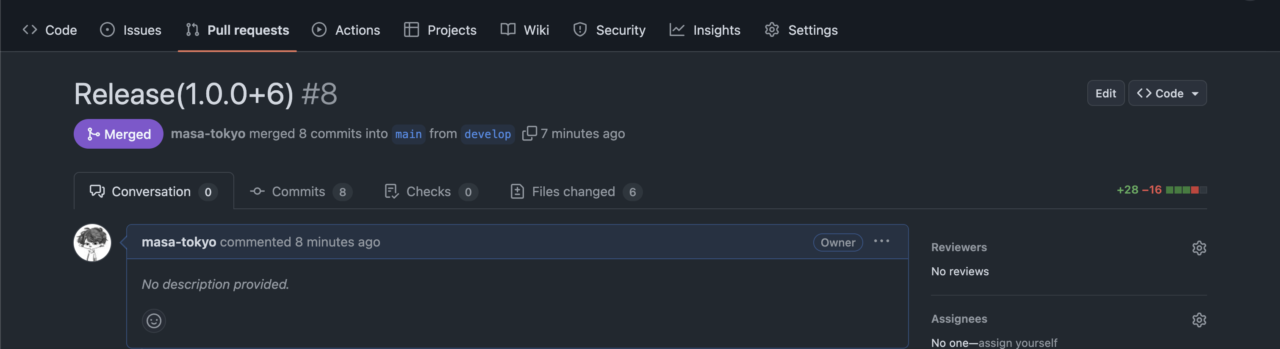
  1. Merge the trigger PR on GitHub (in the example below, from develop to main branch).

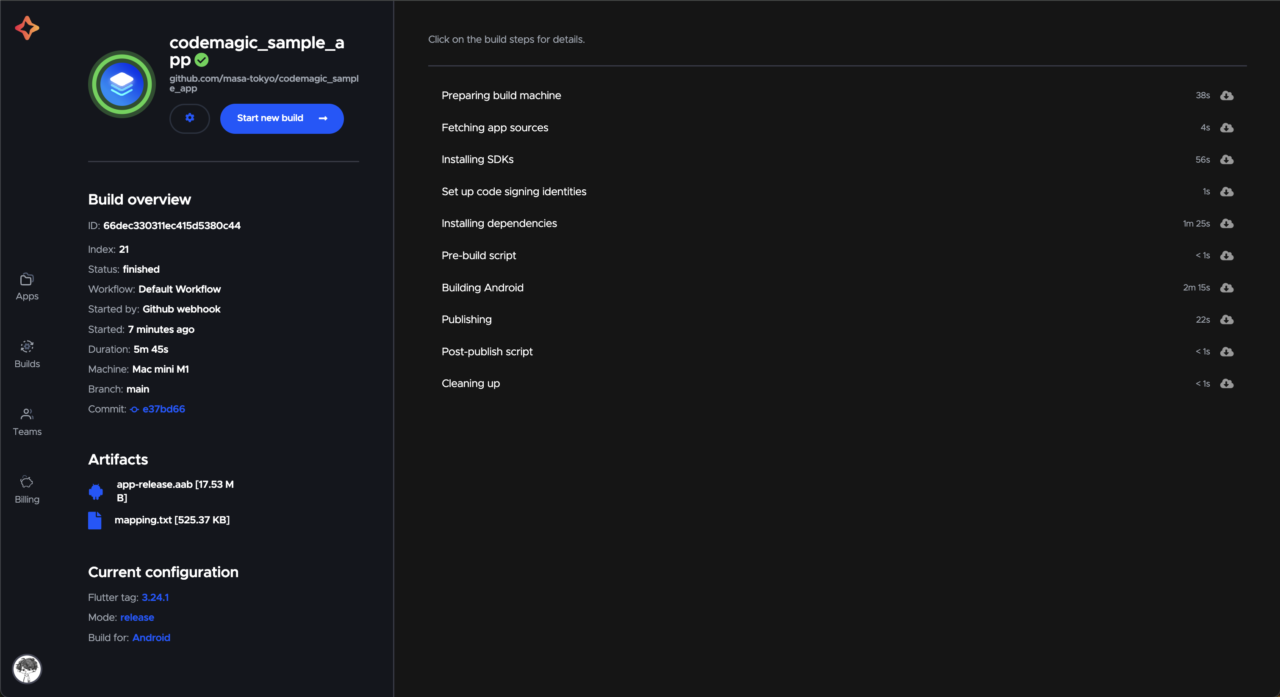
  2. After a few minutes, the app build will be completed on Codemagic.

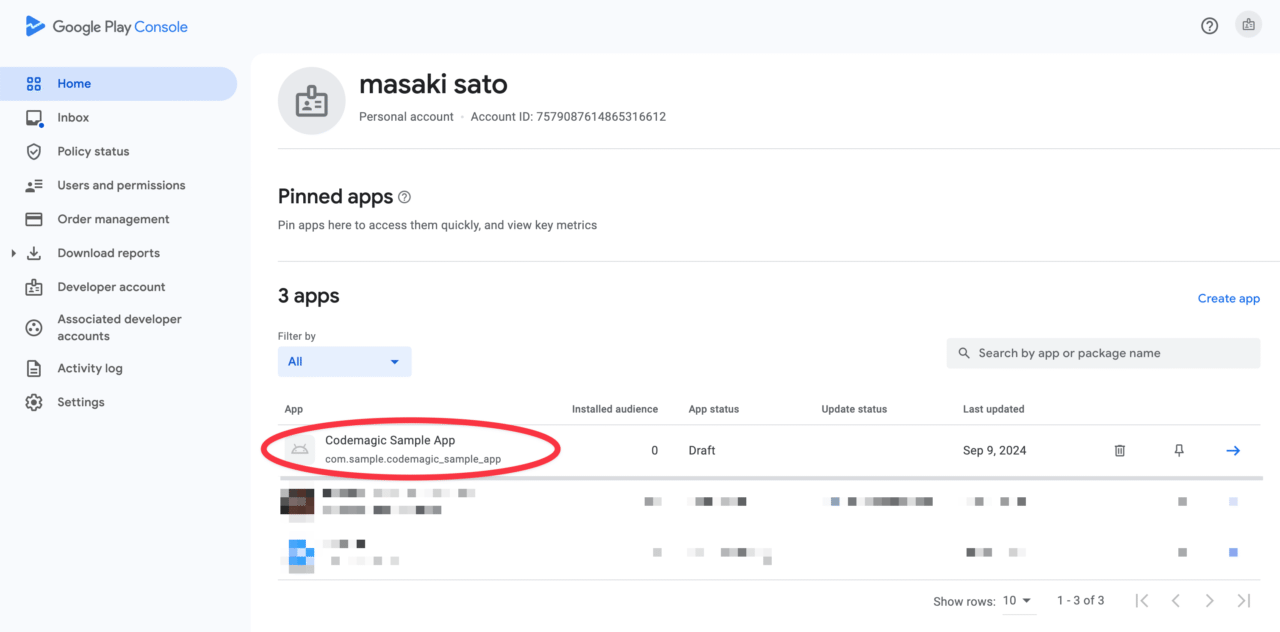
  3. The app will be uploaded to the Google Play Console, and you will be able to submit it for release.
Requirements

To follow the steps in this article, you will need the following:

Registering a Google Play Developer Account

Releasing on the Google Play Store requires a paid account registration.

Registering the App on Google Play Console

The app must already be created on the Google Play Console.
Preparation

First, let’s perform the necessary preparations to create the Codemagic workflow.

Confirming the Keystore

Open the Flutter project you are using in your IDE.

Check the /android/key.properties file, which contains the jks file and the storePassword, keyPassword, and keyAlias for uploading to Google Play.

Example:

storePassword=XXXXXXXX
keyPassword=XXXXXXXX
keyAlias=upload
storeFile=upload-keystore.jks

If the jks file has not been created yet, create it with the following command:

keytool -genkey -v -keystore ~/upload-keystore.jks -keyalg RSA \
        -keysize 2048 -validity 10000 -alias upload

For details, please refer to the official documentation.

Keep the created file and the passwords used during the creation process handy.

Confirming build.gradle

Open the app-level build.gradle file.

Make sure it is set up to reference key.properties as follows:

// ...

def keystoreProperties = new Properties()
def keystorePropertiesFile = rootProject.file('key.properties')
if (keystorePropertiesFile.exists()) {
    keystoreProperties.load(new FileInputStream(keystorePropertiesFile))
}

android {
    // ...

    signingConfigs {
        release {
            keyAlias = keystoreProperties['keyAlias']
            keyPassword = keystoreProperties['keyPassword']
            storeFile = keystoreProperties['storeFile'] ? file(keystoreProperties['storeFile']) : null
            storePassword = keystoreProperties['storePassword']
        }
    }
    buildTypes {
        release {
            signingConfig = signingConfigs.release
        }
    }
// ...
}
  • For the entire file, please refer to the sample repository.

  • The key.properties file itself will be automatically generated by Codemagic during execution, so it does not need to be committed to the repository (do not include it in version control as it contains sensitive information).

Setting up Google Play API Access

Set up the necessary API access to publish the app to Google Play via Codemagic.

  1. Open the project for the target app in the Google Cloud Console (create a new project from here if necessary).

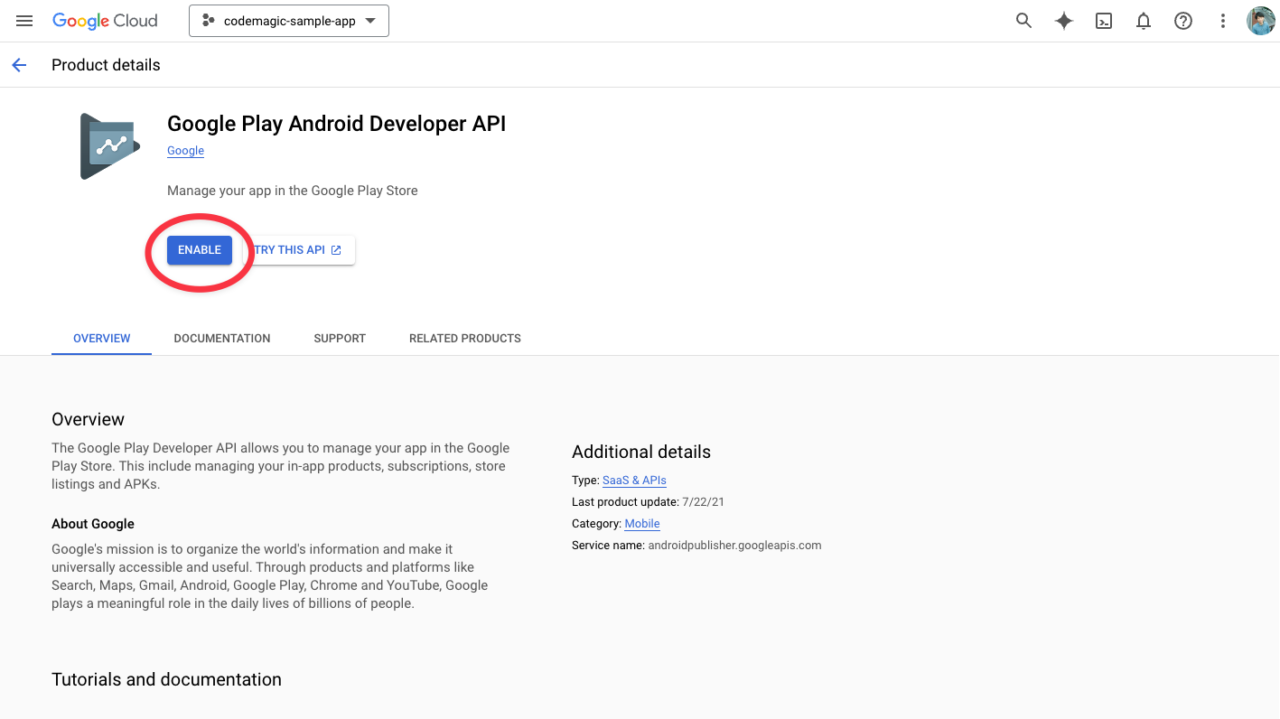
  2. Enable the Google Play Android Developer API.

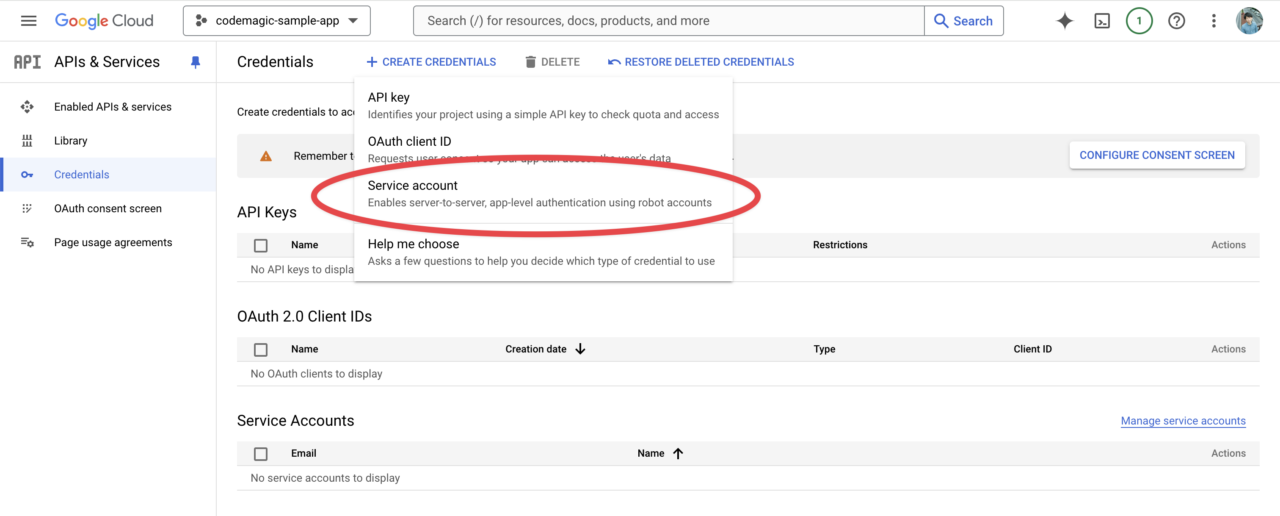
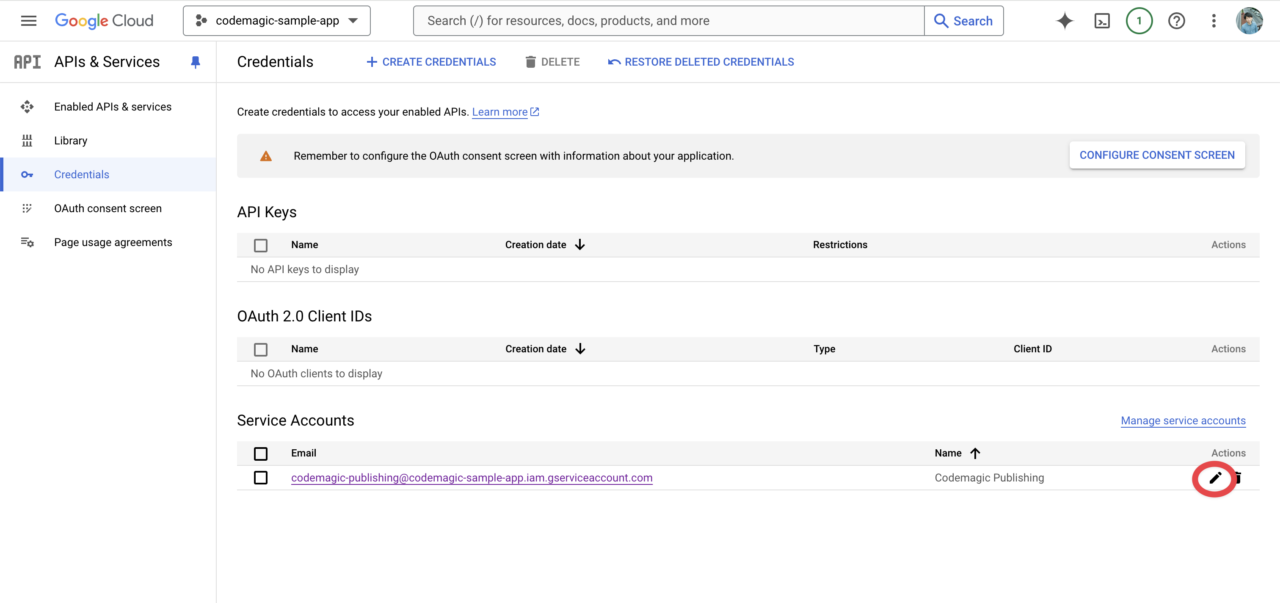
  3. From the Credentials menu page, create a new service account by clicking “CREATE CREDENTIALS”.

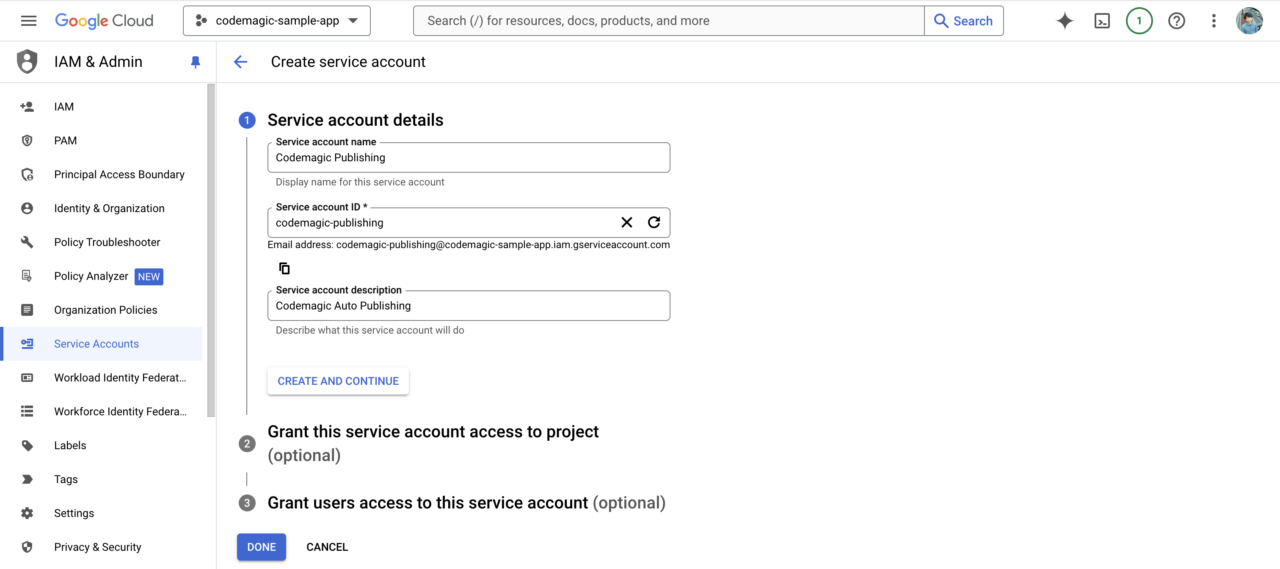
  4. In the first step, enter the account name and description.

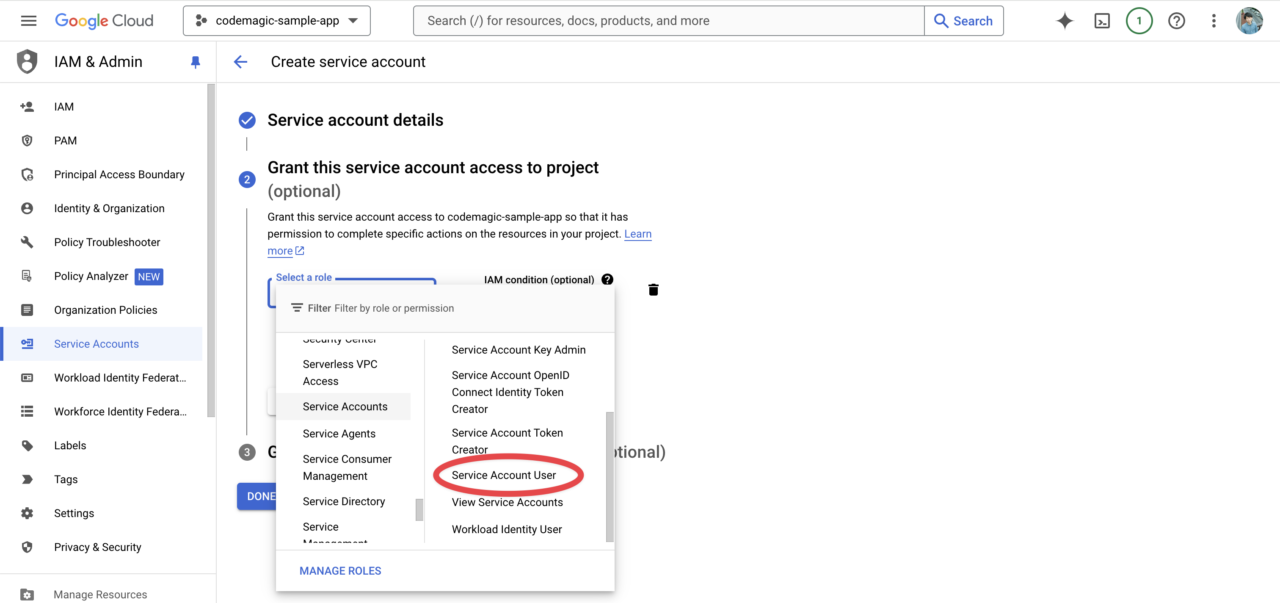
  5. In the second step, select the role Service Accounts > Service Account User.

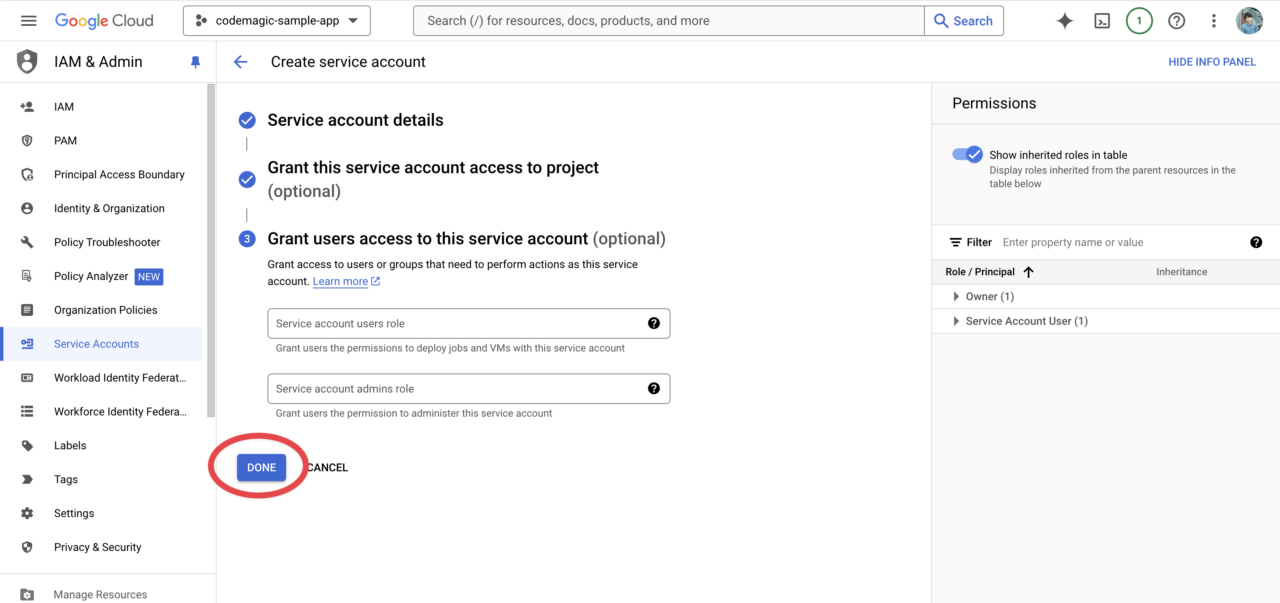
  6. The third step is unnecessary, so click Done to complete.

  7. Open the edit screen from the Actions column of the created service account.

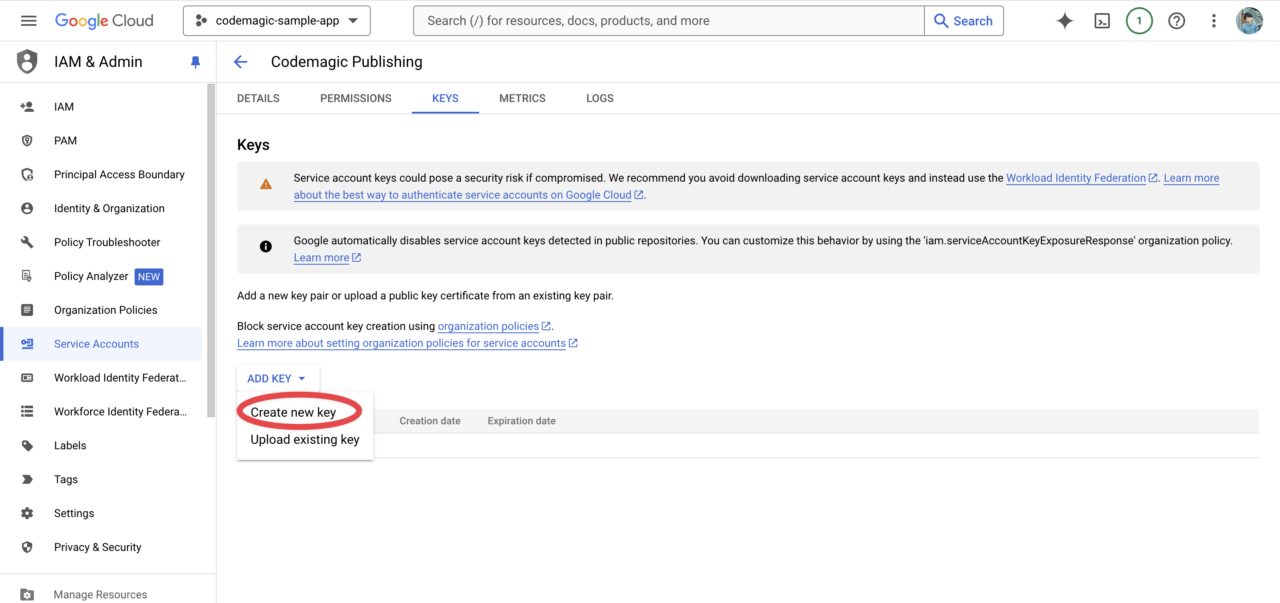
  8. From the Keys tab, click Create new key.

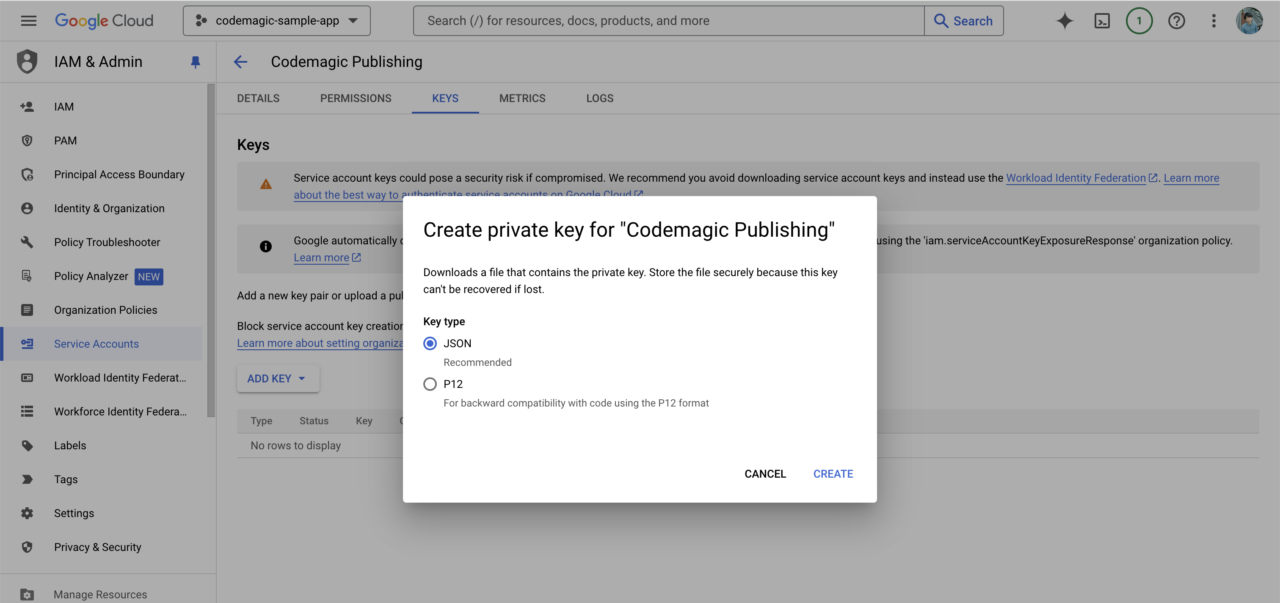
  9. Select JSON for the key type and create a new key.

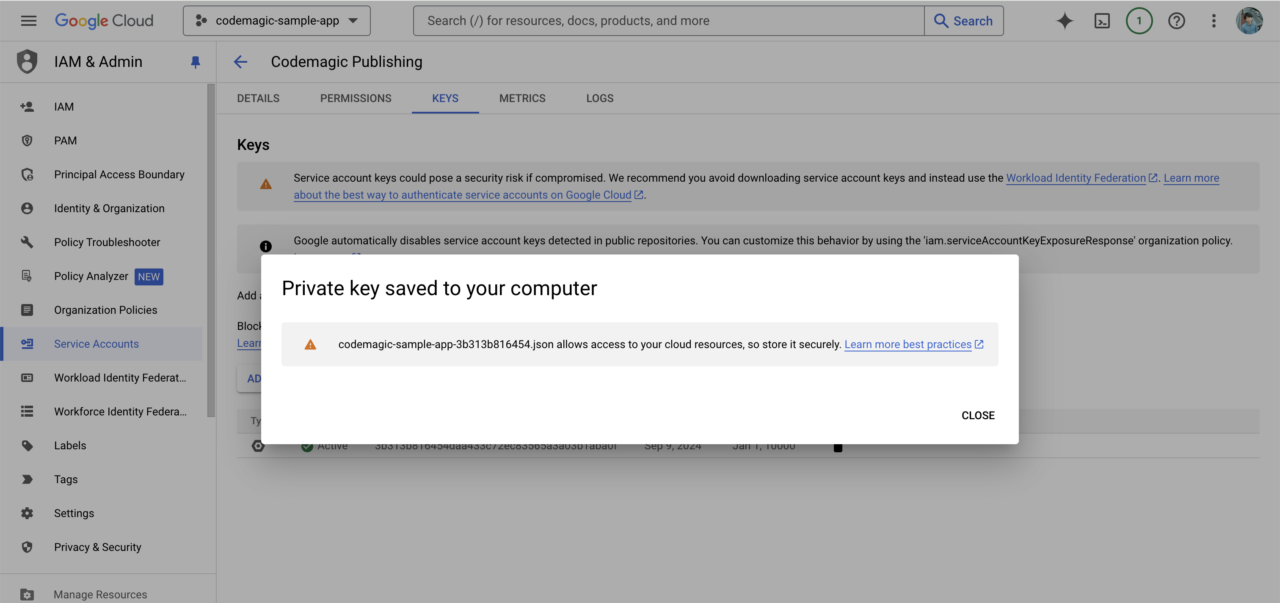
  10. A private key for this service account will be downloaded. Keep it in a safe place as it will be needed for Codemagic settings later.

  11. Once this is done, go to the Google Play Console.

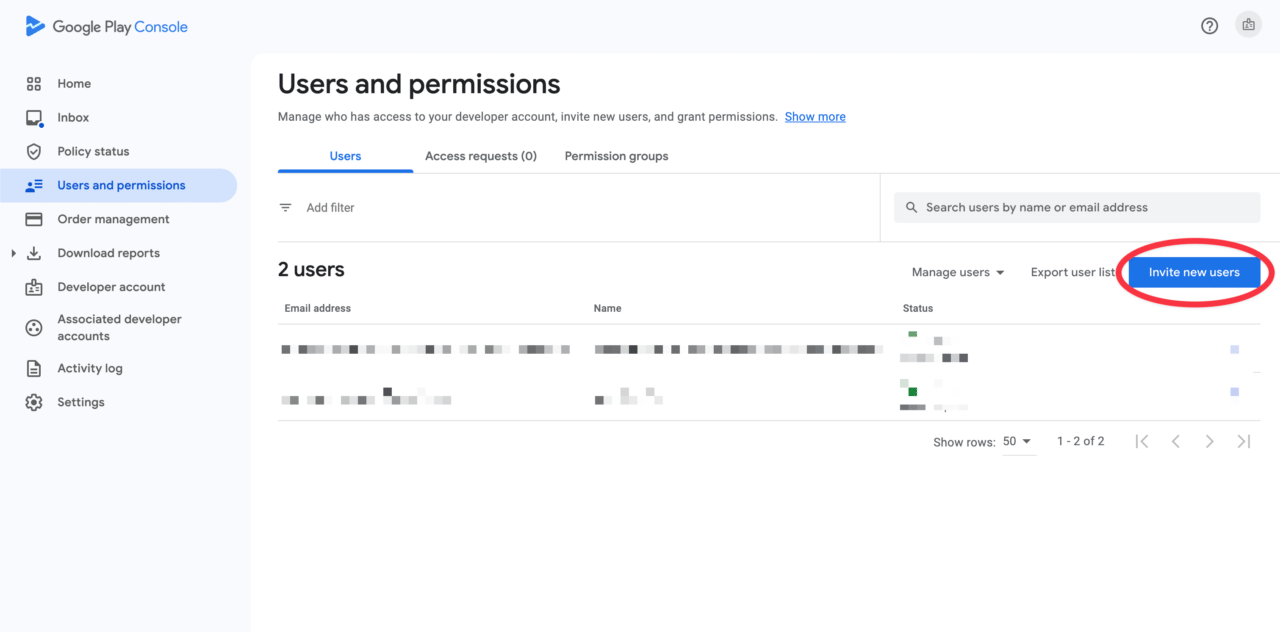
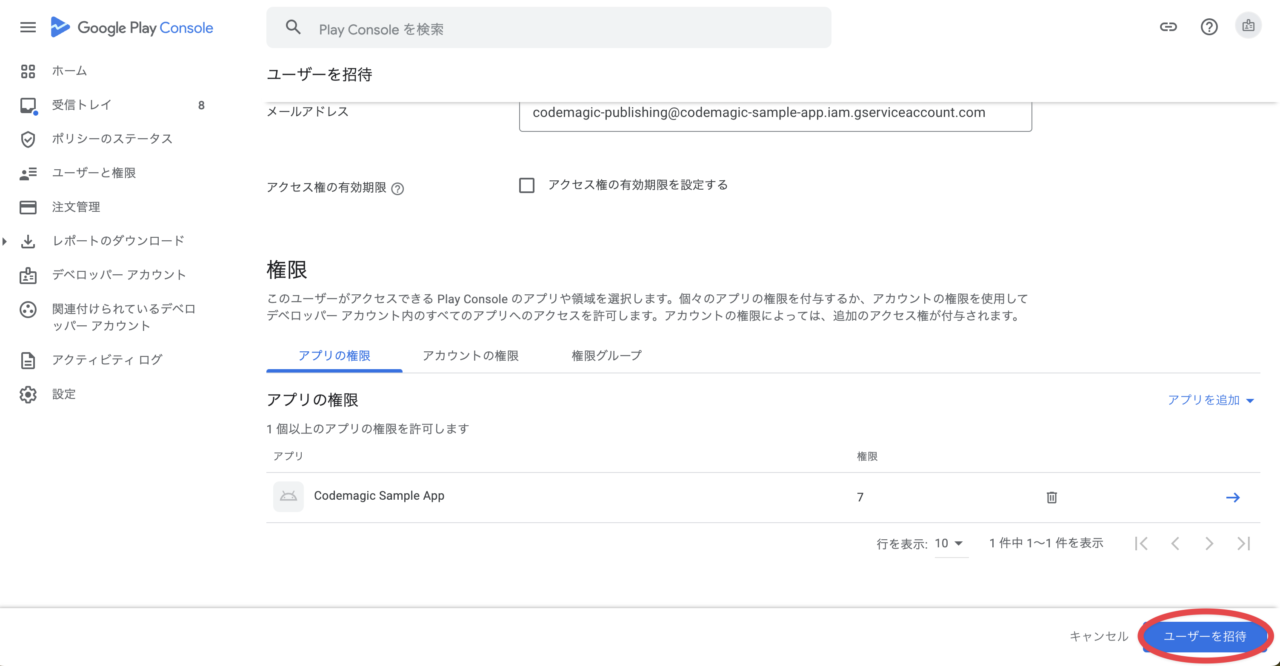
  12. Click Invite new user on the Users and permissions page.

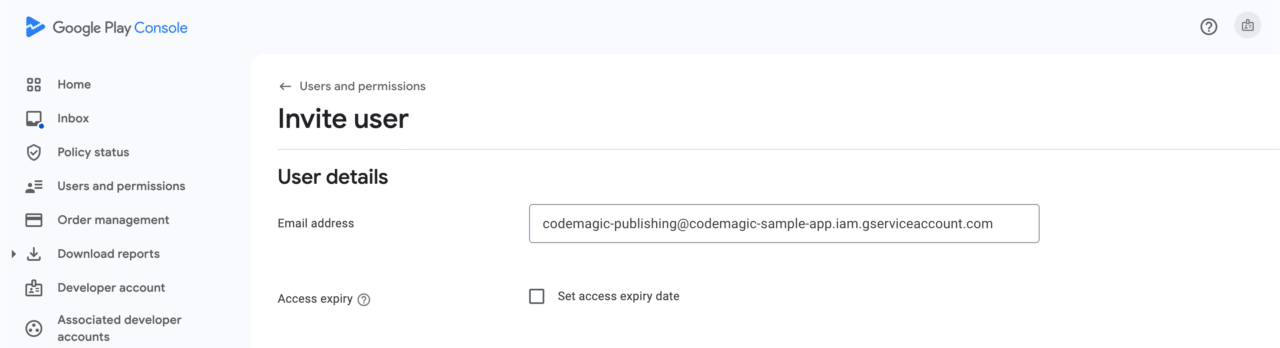
  13. Enter the email address of the service account created earlier.

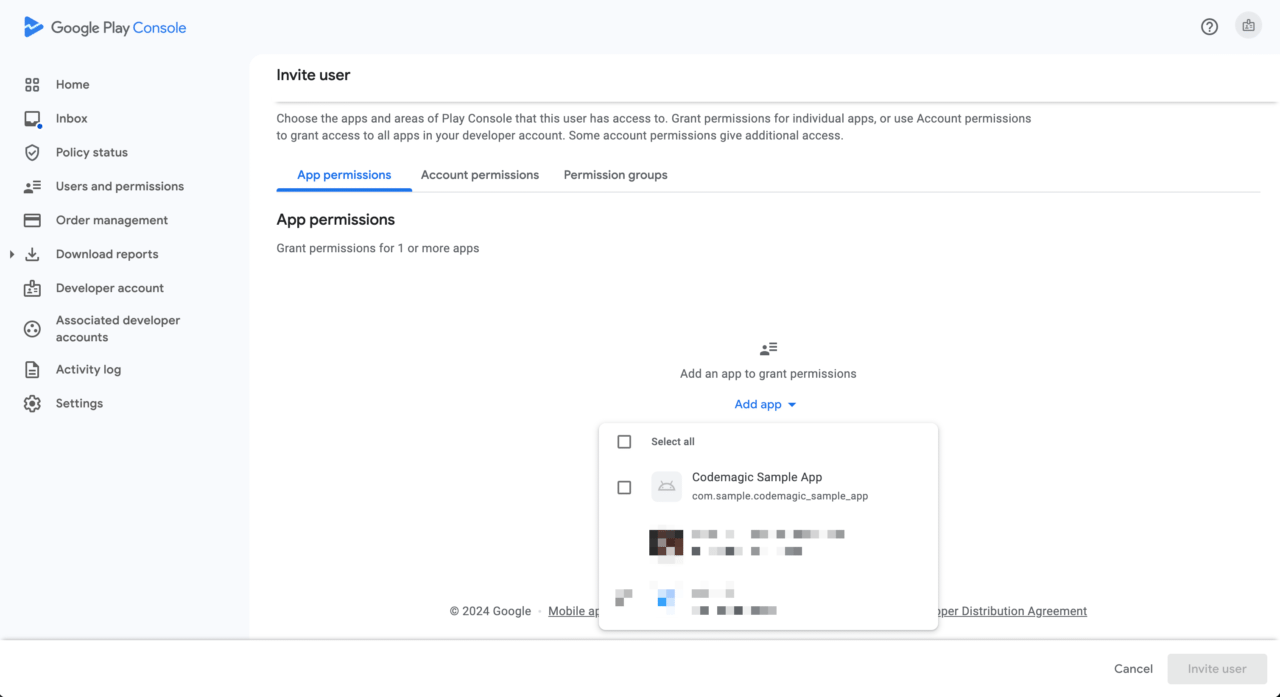
  14. Select the relevant app from Add app.

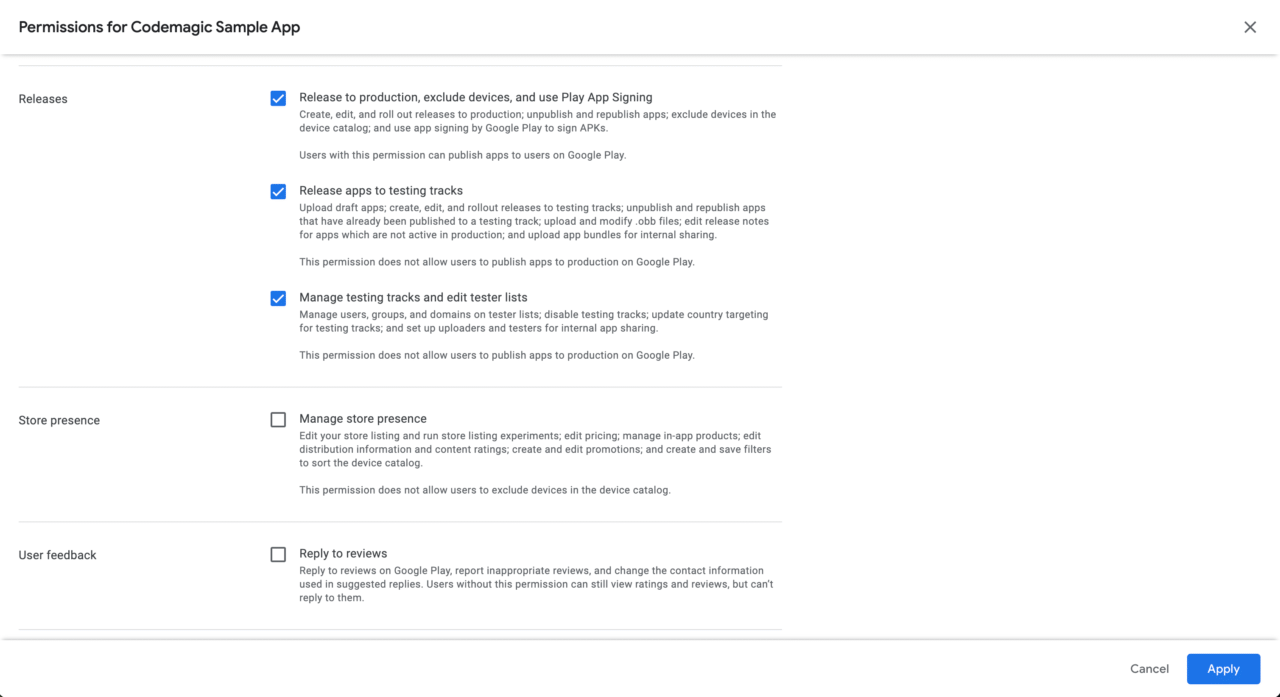
  15. Grant release section permissions and click Apply.

  16. Invite the service account by clicking Invite user.
What is Codemagic

Before we get into the steps using Codemagic, let me briefly introduce Codemagic.

Codemagic is a CI/CD tool specialized for Flutter development that automates testing, building, and deployment. It can be used for various projects such as iOS, Android, and React Native, but for Flutter projects, you can use a GUI tool called Workflow Editor. This allows intuitive development without the need to create a dedicated configuration file in the .yaml format.

You can start using it for free for personal use, with a sufficient free tier (500 minutes per month). For more details on pricing, please see here.

Initial Setup

Let’s actually start using Codemagic!

If you are already using Codemagic, skip unnecessary steps as needed.

Creating an Account

Create a new account from the link below.

Sign Up

Adding an App

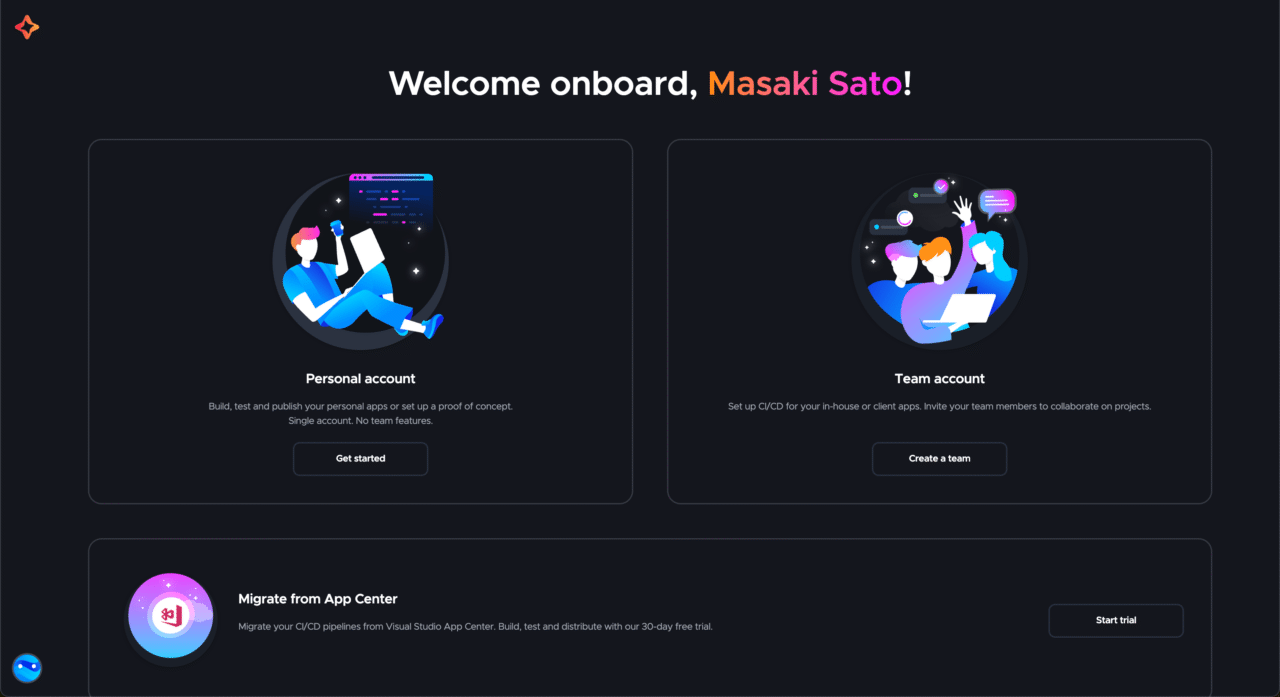
After signing up, choose an account type. You can start with Personal account without credit card information. For more details on Team account, see here.
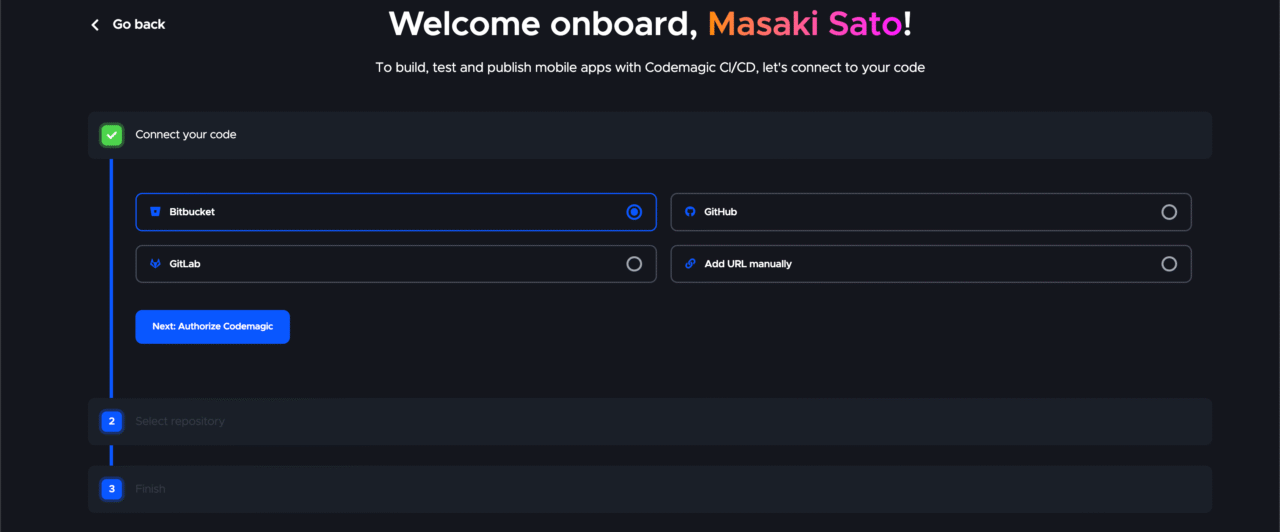
Select the Git Provider you want to connect. In this article, we will use GitHub as an example.
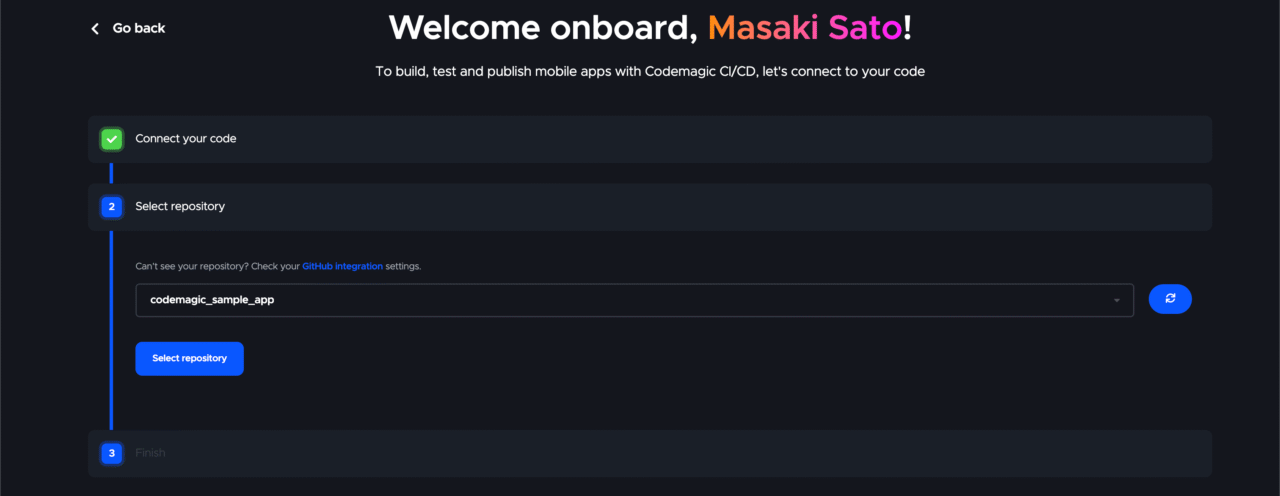
Link the GitHub repository of the app you want to add.
Once the app is created, the following Workflow Editor will open.
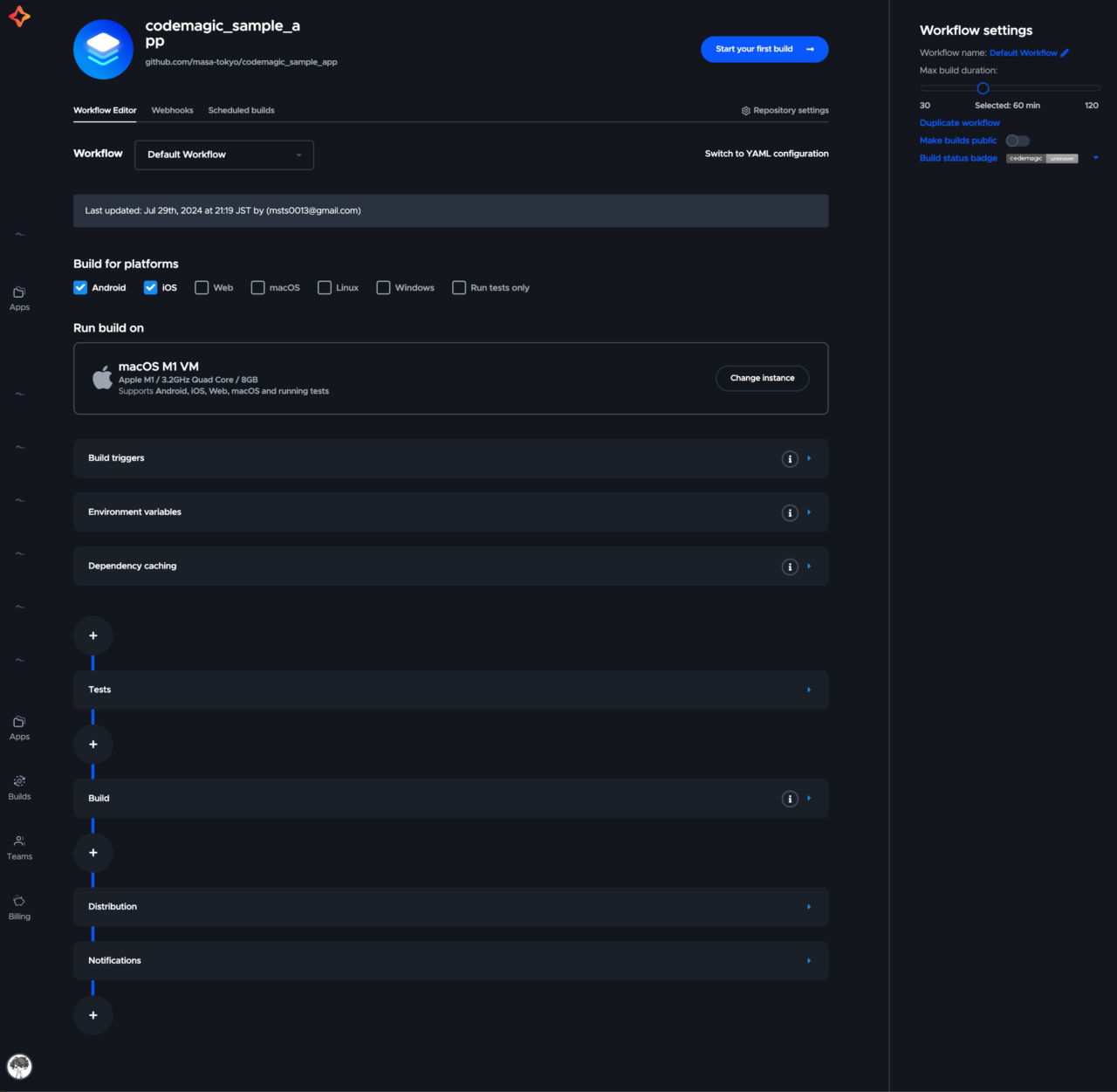
Let’s get familiar with Codemagic step by step from here!

  • Step 1: Run your first build
  • Step 2: Build a Flutter app
  • Step 3: Upload to the store
  • Step 4: Automate triggers

If you have been using Codemagic before, skip steps as needed.

Step 1: Run your first build

First, let’s successfully run your first build.

We will run a simple build that prints “My first green build!”.

  1. Check “Run tests only” for the Build for platforms.

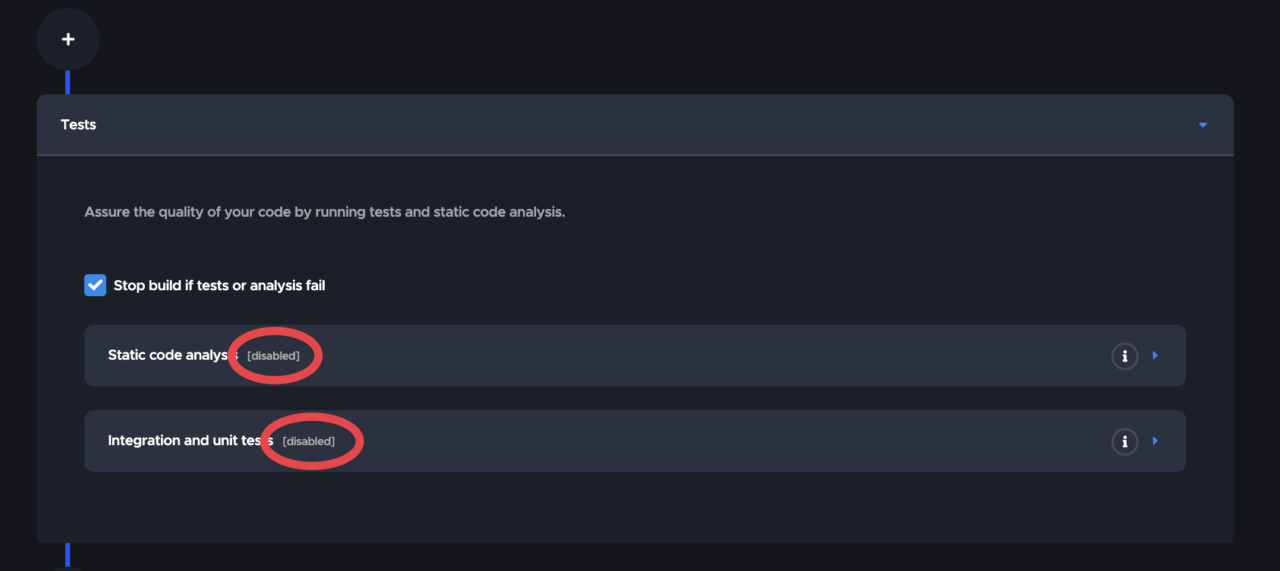
  2. Make sure the tests in the Tests section are disabled.

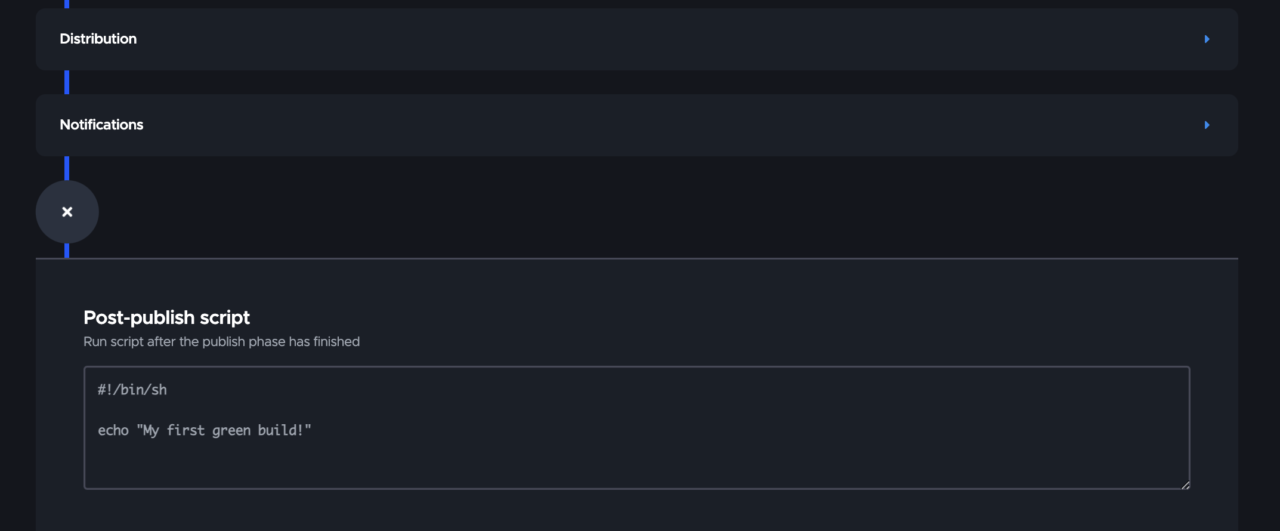
  3. Click the + button after the Notifications section and enter as follows.

  4. Save the changes from the top right of the screen.

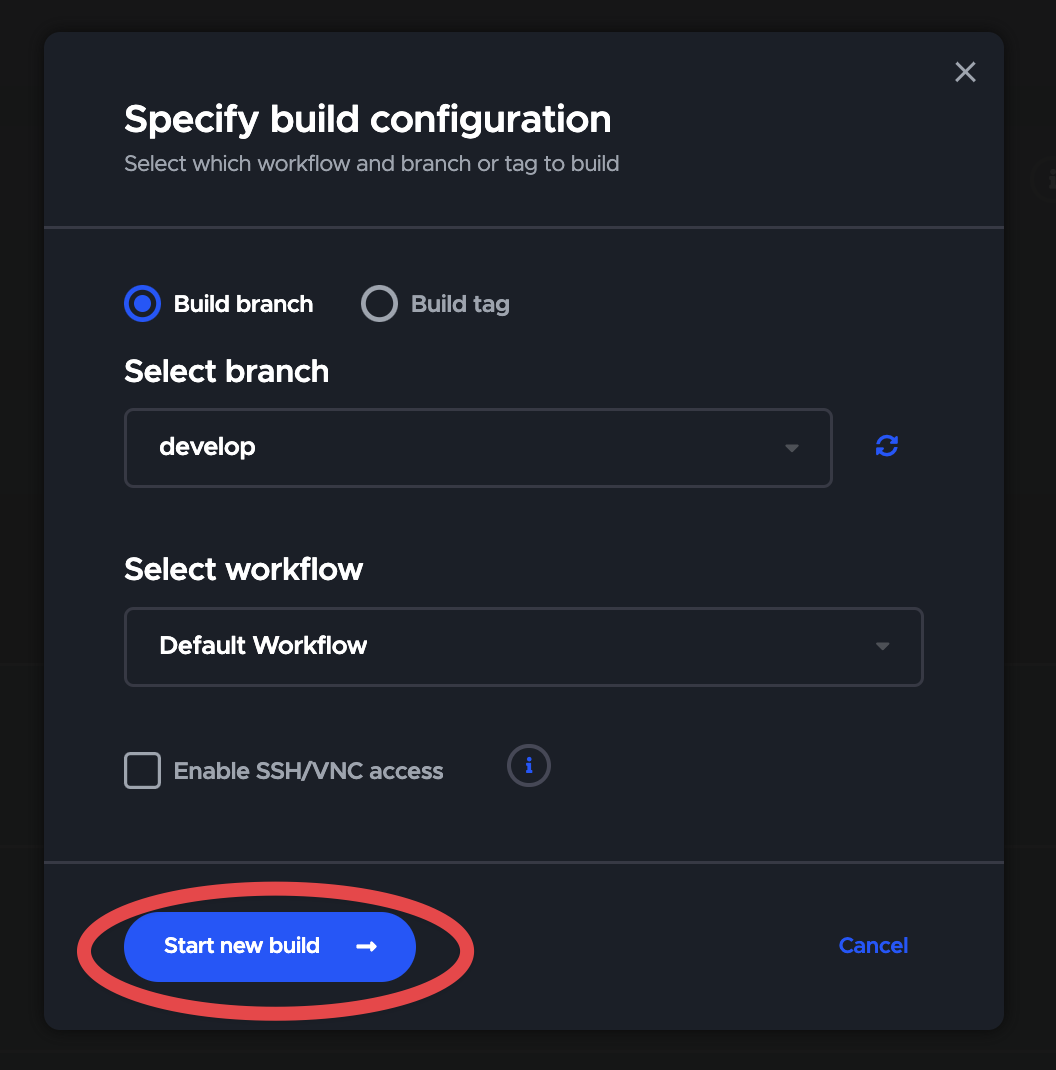
  5. Start the build.

Congratulations ?

You have successfully run your first build!
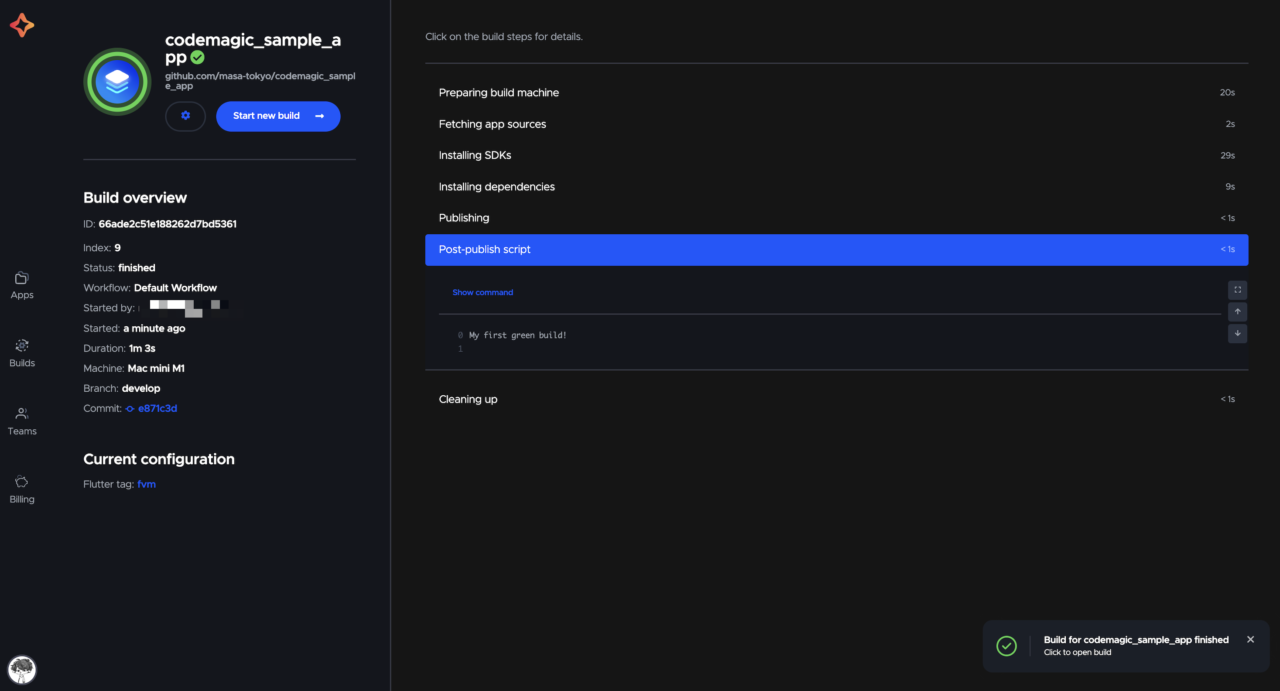
You can see that “My first green build!” is printed in the Post-publish script section.

Step 2: Build a Flutter app

Next, let’s build a Flutter app in the Android environment.

  1. Select Android for the Build for platforms.

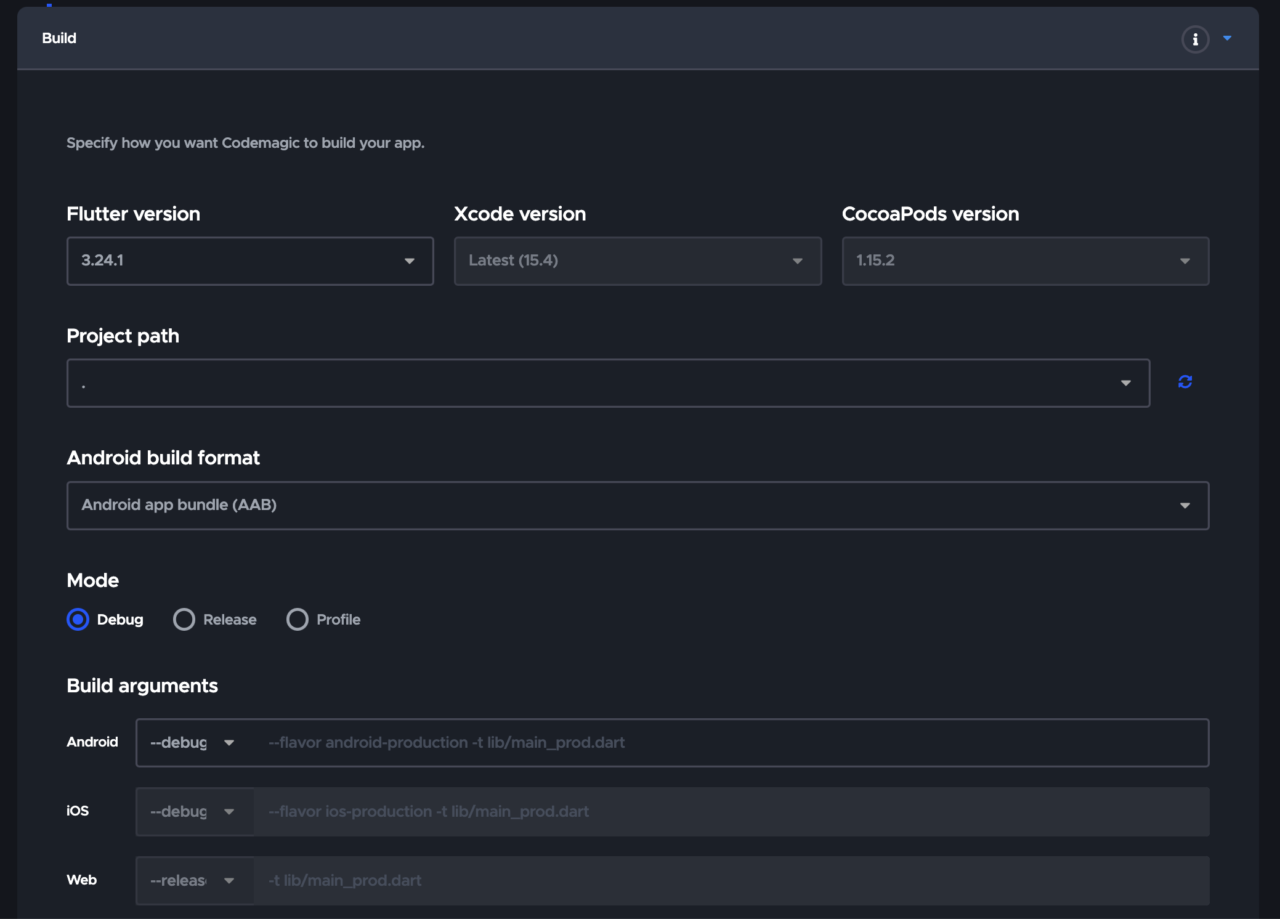
  2. Set the environment for the build in the Build section.

    Specify the usual execution environment for your app.

  3. Save the changes and run the build.

The build is successful ?
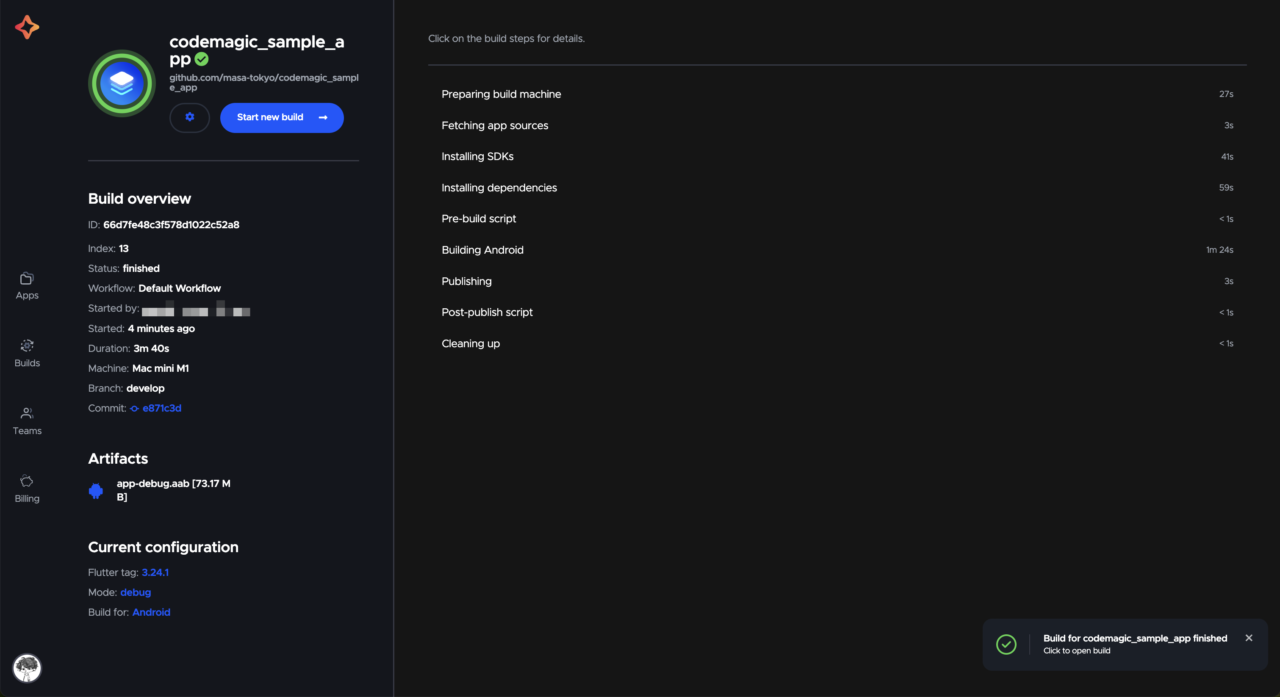
Step 3: Upload to the store

Finally, let’s upload the built app to Google Play. This step might be a bit challenging, but let’s do our best ?

Build

Since this is a release build, select the Release mode.

Android code signing

In the Distribution section, perform Android code signing necessary for distribution.

Enter the jks file, Keystore password, Key alias, and Key password confirmed during preparation.
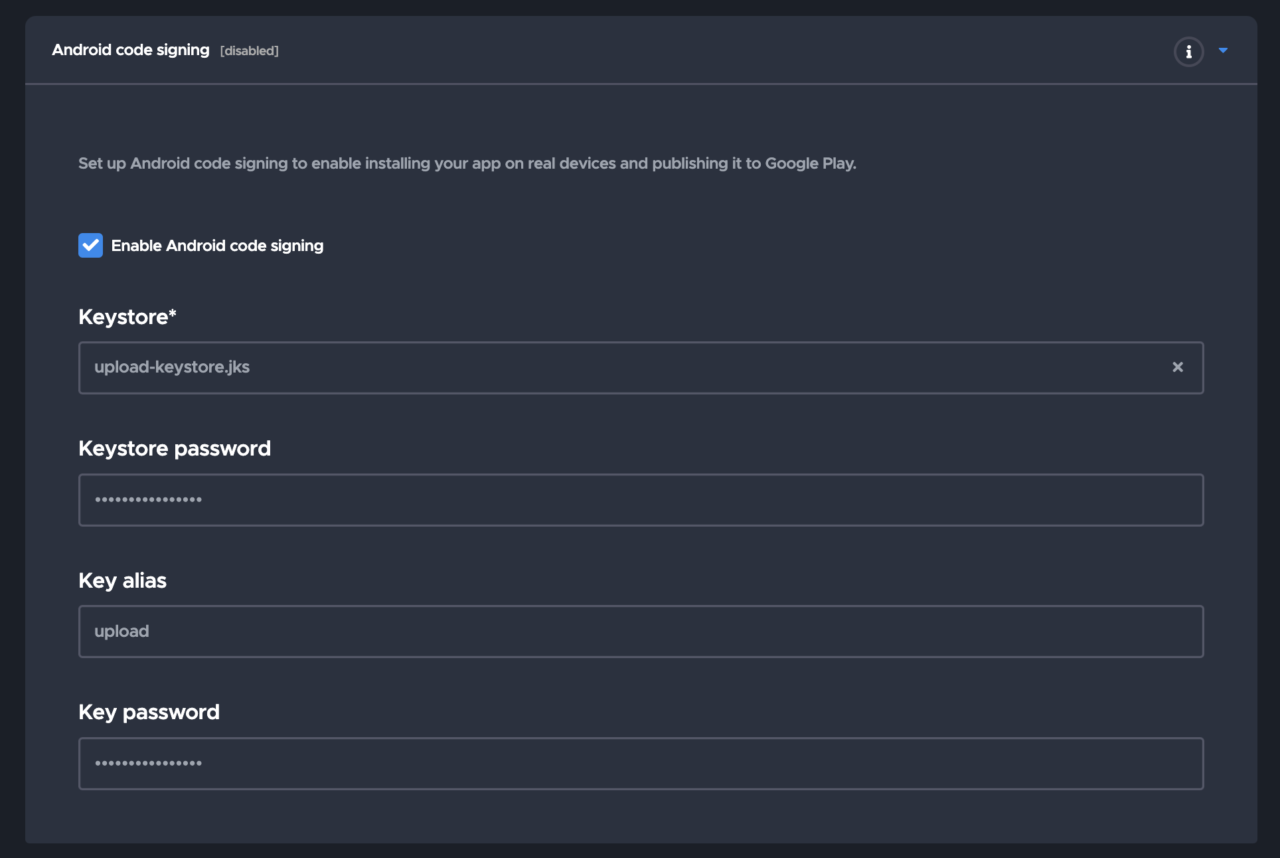
Google Play

Check “Enable Google Play publishing”.

Upload the JSON file stored in step 10 of the preparation “Setting up Google Play API Access”.

To smoothly proceed to the release application, select the “Production” track and check “Submit release as draft”.
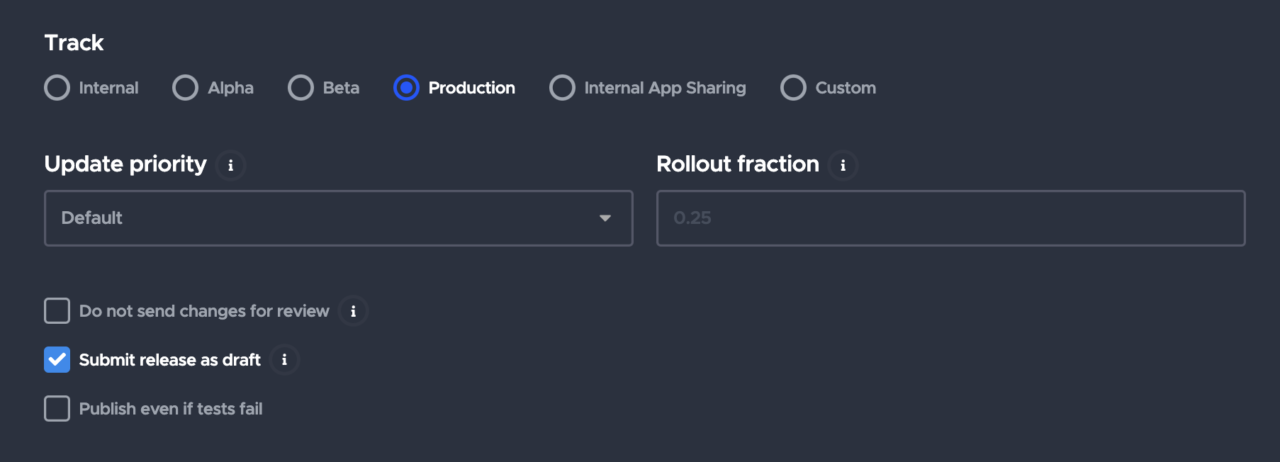
Once this is done, save the changes and run the build. Make sure the appropriate branch is selected and start the build.
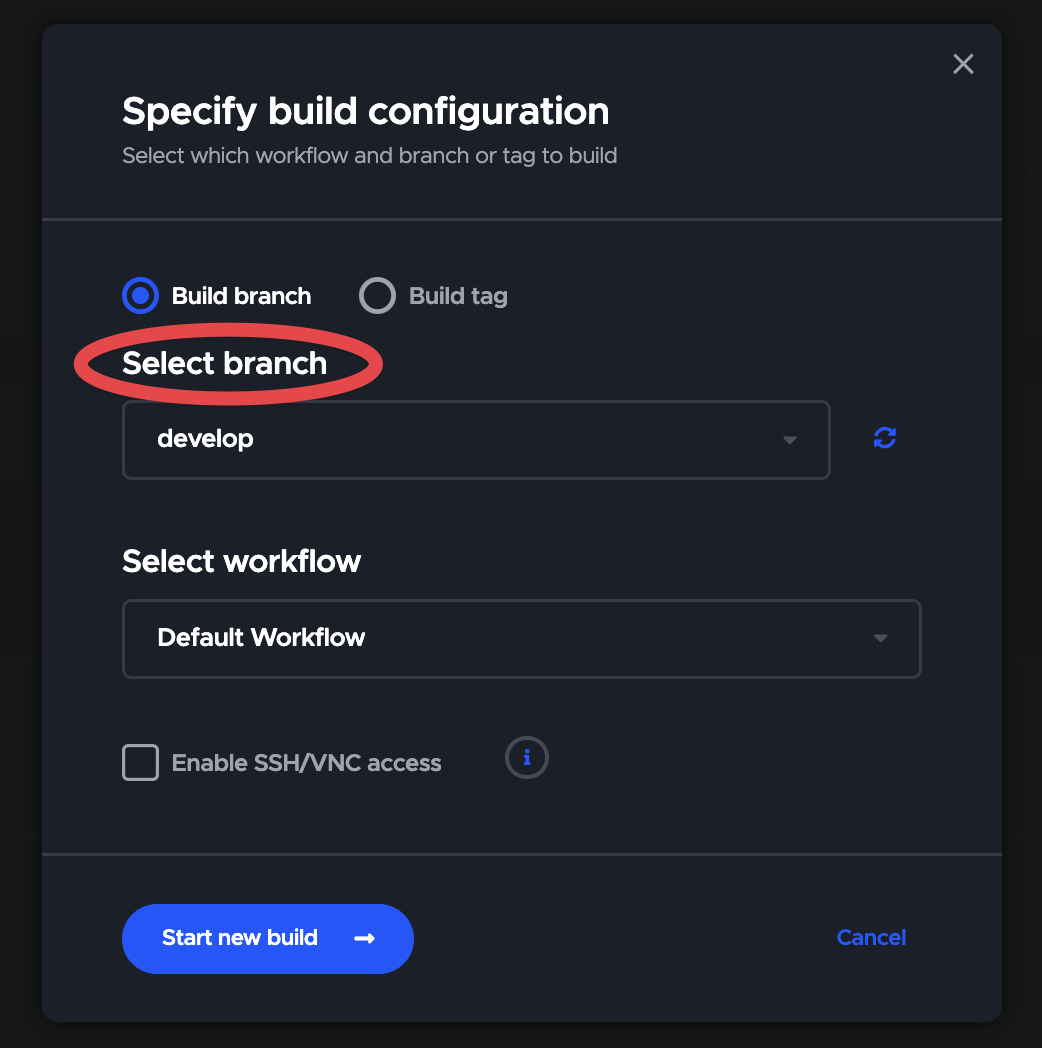
If the app has never been added to the Google Play Console before, the first version must be done manually.

If an error occurs, check the error log details. For common errors, see this document. Also, feel free to use the GitHub Discussion and Discord community.

When the build is successful, it will be uploaded to the Google Play Console and you can proceed to the release application ?

It may take some time for the upload to be reflected.

Step 4: Automate triggers

As the final step, let’s automate the build.

With the steps up to Step 3, you can already upload to Google Play, but by doing this step, you can build with just operations on GitHub, making it even more useful.

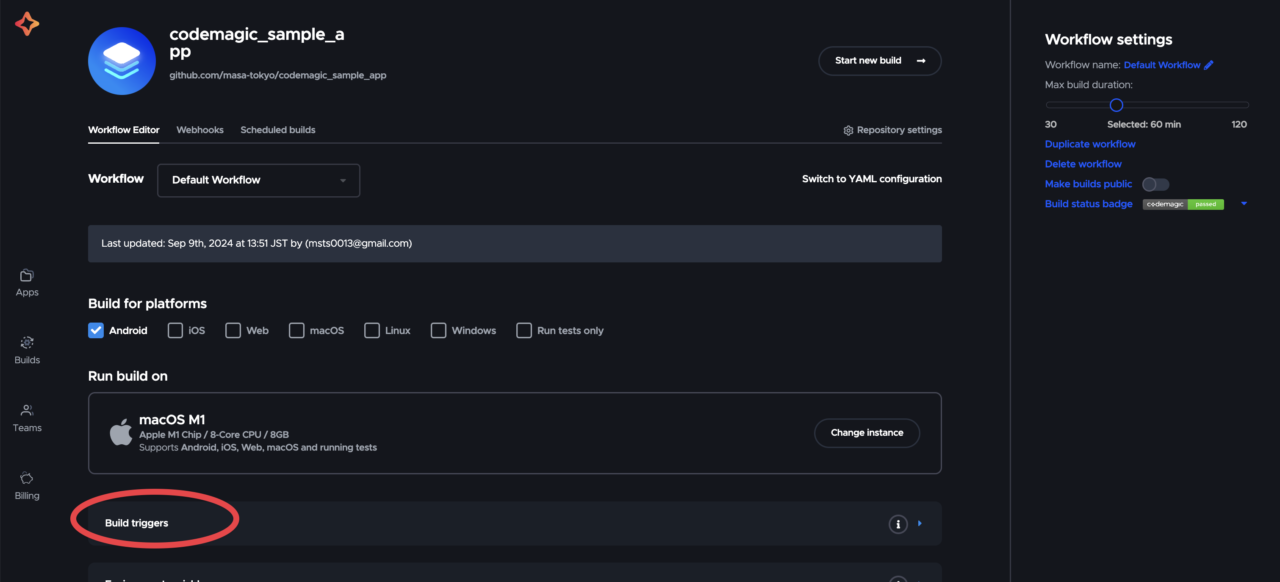
  1. Open the Build triggers in the Workflow Editor.

  2. Select Trigger on push as the trigger type.

  3. Enter the target branch and add it from Add pattern.

    In the example below, it is set to trigger when a push is made to the main branch.

  4. Actually create & merge a PR on GitHub and check the operation.

    Make sure the build number is updated from the version uploaded in Step 3.
Conclusion

Great job ?

In addition to the automatic upload to Google Play this time, setting up the same process for App Store Connect will make your development flow even smoother. Please check out this article ? https://blog.codemagic.io/publishing-flutter-apps-to-appstore/

Let’s continue to enjoy developing comfortably with Codemagic!

If you have any questions or problems, please talk to the support community ?

If you’ve already enabled billing, you can also get support from the in-app chat widget in the bottom right corner of the page.


ShareTweetSend
Previous Post

The Hidden Costs Behind Pakistan’s Energy Overcapacity – The Diplomat

Next Post

The Untapped Potential for Economic Growth in the Caribbean

Related News

Understanding the Recent Apple Outage: Causes and Implications for Users
Mobile

Understanding the Recent Apple Outage: Causes and Implications for Users

November 18, 2026
Unlocking Potential: Exploring the FDE Model in Enterprise AI Solutions
Mobile

Unlocking Potential: Exploring the FDE Model in Enterprise AI Solutions

November 14, 2026
Unlocking the Scoop: Upcoming Sale Dates, Price Highlights, and Previous Bargains
Mobile

Unlocking the Scoop: Upcoming Sale Dates, Price Highlights, and Previous Bargains

November 14, 2026
Unlocking Website Security: The Marketbyte Edge in Open Source Solutions
Mobile

Unlocking Website Security: The Marketbyte Edge in Open Source Solutions

November 13, 2026
Next Post
The Untapped Potential for Economic Growth in the Caribbean

The Untapped Potential for Economic Growth in the Caribbean

Discussion about this post

Subscribe To Our Newsletters

    Customer Support


    1251 Wilcrest Drive
    Houston, Texas
    77042 USA
    Call-832.795.1420
    e-mail – news@theinsightpost.com

    Subscribe To Our Newsletters

      Categories

      • Africa
      • Africa-East
      • African Sports
      • American Sports
      • Arts
      • Asia
      • Australia
      • Business
      • Business Asia
      • Business- Africa
      • Canada
      • Defense
      • Education
      • Egypt
      • Energy
      • Entertainment
      • Europe
      • European Soccer
      • Finance
      • Germany
      • Ghana
      • Health
      • Insight
      • International
      • Investing
      • Japan
      • Latest Headlines
      • Life & Living
      • Markets
      • Mobile
      • Movies
      • New Zealand
      • Nigeria
      • Politics
      • Scholarships
      • Science
      • South Africa
      • South America
      • Sports
      • Tech
      • Travel
      • Travel-Africa
      • UK
      • USA
      • Weather
      • World
      No Result
      View All Result

      Recent News

      Expert Challenges Obama-Era Housing First Initiative Following LAHSA Budget Reductions

      Expert Challenges Obama-Era Housing First Initiative Following LAHSA Budget Reductions

      November 18, 2026
      Alphabet’s Valuation Estimated at 1 Through Discounted Cash Flow Analysis

      Alphabet’s Valuation Estimated at $291 Through Discounted Cash Flow Analysis

      November 18, 2026
      Crimea Bridge Targeted in Renewed Assault, Reports Russian Governor

      Crimea Bridge Targeted in Renewed Assault, Reports Russian Governor

      November 18, 2026
      FAA Administrator Takes Responsibility as Mullin Faces Tough Questions Over Nationwide Ground Stop

      FAA Administrator Takes Responsibility as Mullin Faces Tough Questions Over Nationwide Ground Stop

      November 18, 2026
      • Home
      • Advertise With Us
      • About Us
      • Corporate
      • Consumer Rewards
      • Forum
      • Privacy Policy
      • Social Trends

      Theinsightpost ©2026 | All Rights Reserved. Theinsightpost is an Elnegy LLC company, registered in Texas, USA

      Welcome Back!

      Login to your account below

      Forgotten Password?

      Retrieve your password

      Please enter your username or email address to reset your password.

      Log In

      Add New Playlist

      We are using cookies to give you the best experience on our website.

      You can find out more about which cookies we are using or switch them off in .

      No Result
      View All Result
      • Home
      • Insight
      • Blog
      • Business
      • Entertainment
      • Health
      • Politics
      • Shop
        • Gift Shop
        • Value Shop
        • Store
        • Bargain Shop
        • Discount
      • Sports
      • Tech
      • Travel
      • USA
      • Video
      • World
        • Asia
        • Africa
        • South America
        • North America
        • Europe
        • Oceania

      Theinsightpost ©2026 | All Rights Reserved. Theinsightpost is an Elnegy LLC company, registered in Texas, USA

      The Insight Post
      Powered by  GDPR Cookie Compliance
      Privacy Overview

      This website uses cookies so that we can provide you with the best user experience possible. Cookie information is stored in your browser and performs functions such as recognising you when you return to our website and helping our team to understand which sections of the website you find most interesting and useful.

      Strictly Necessary Cookies

      Strictly Necessary Cookie should be enabled at all times so that we can save your preferences for cookie settings.

      Cookie Policy

      More information about our Cookie Policy